
1. Introduction
This manual provides comprehensive instructions for the Symcode USB 1D Barcode Scanner. This handheld wired CCD laser barcode reader is designed for efficient and accurate scanning of 1D barcodes from both paper and digital screens. It is suitable for various applications including warehouses, libraries, supermarkets, and point-of-sale (POS) systems.
Please read this manual thoroughly before operating the device to ensure proper usage and optimal performance.
2. Product Overview and Features
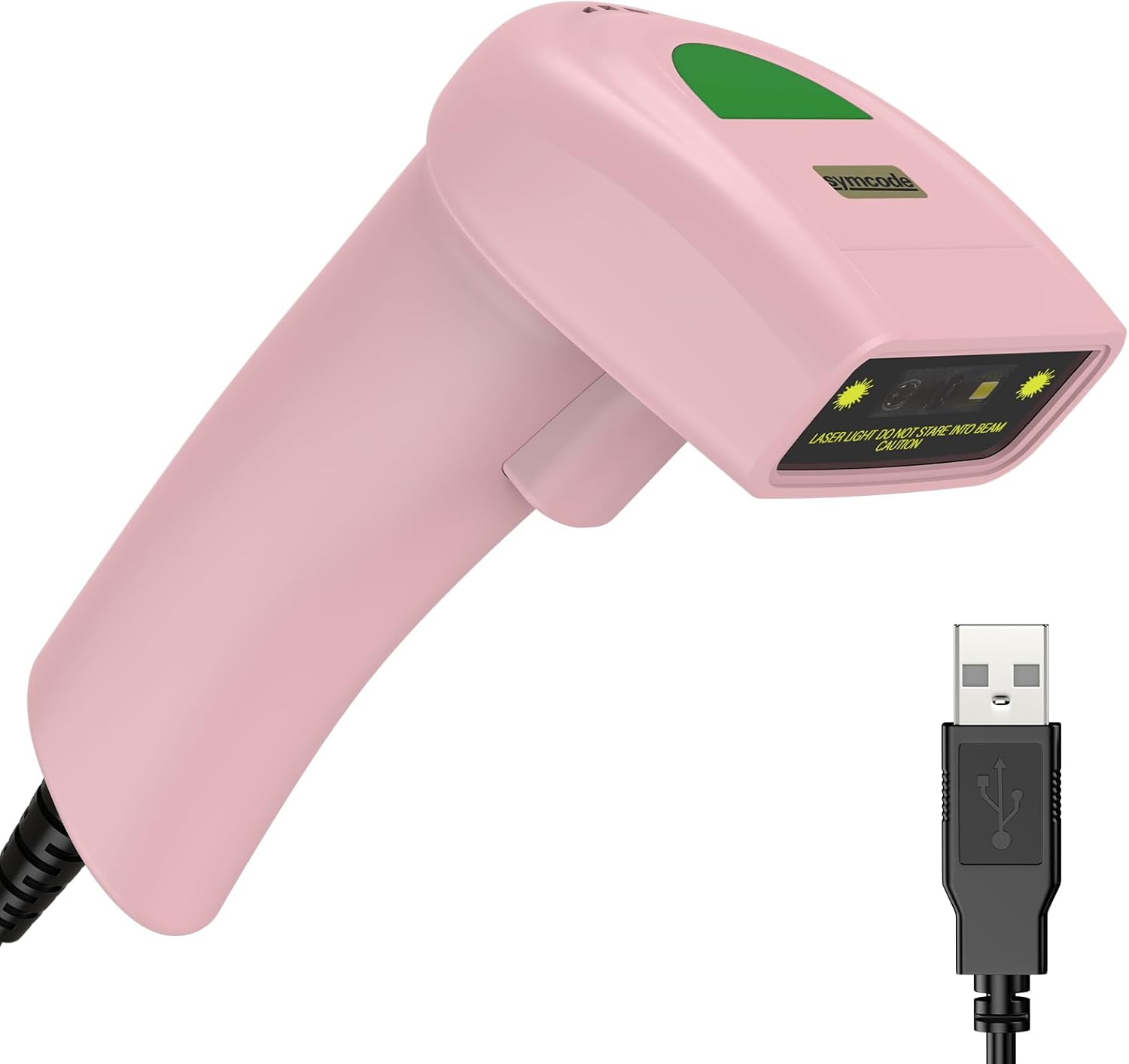
Figure 2.1: Symcode USB 1D Barcode Scanner (Pink model) with its integrated USB cable.
The Symcode 1D Barcode Scanner incorporates advanced CCD image scanning technology, offering reliable performance for various scanning needs.
Key Features:
- 1D CCD Image Scanning Technology: Equipped with an advanced CCD sensor for quick capture of 1D codes from both paper and digital screens. Capable of reading deformed, smudged, damaged, fuzzy, or reflective barcodes.
- Multiple Scanning Modes: Supports Key Trigger mode, Auto-induction mode, and Continuous mode for flexible operation.
- Durable Design: Constructed with high-quality ABS material, designed to withstand repeated drops from up to 2 meters onto concrete, ensuring long service life.
- Supported 1D Barcodes: Compatible with a wide range of 1D barcode types including UPC/EAN, UCC/EAN 128, Code 39, Code 93, Code 128, Codabar, Interleaved 2 of 5, MSI, Code 11, and more.
- Customizable Options: Offers 180 configurable options for adding prefixes, suffixes, and termination strings to scanned data.
- Compact and Lightweight: Designed for comfortable handheld use.
3. Setup
The Symcode USB 1D Barcode Scanner is designed for plug-and-play operation, requiring no driver installation for most operating systems.

Figure 3.1: The scanner connects via USB for immediate plug-and-play functionality. The cable serves both for power and data transmission.
- Connect the Scanner: Insert the USB cable of the scanner into an available USB port on your computer (Laptop or Desktop).
- System Recognition: Your operating system (Windows, macOS, Linux) will typically recognize the device automatically and install any necessary generic drivers. This process usually takes a few seconds.
- Ready for Use: Once recognized, the scanner is ready to be used with any application that accepts keyboard input, such as Notepad, Word, Excel, or POS software.
Note: The USB cable functions as both a power supply and a data transmission cable.
4. Operating Instructions
4.1 Scanning Barcodes

Figure 4.1: The scanner is capable of reading 1D barcodes from both printed labels and digital screens.
To scan a barcode, point the scanner's laser beam at the barcode you wish to read. Ensure the entire barcode is covered by the laser line.
- Key Trigger Mode: Press and hold the trigger button to activate the laser. Release the button after a successful scan.
- Auto-induction Mode: The scanner automatically activates the laser when a barcode is detected within its scanning range.
- Continuous Mode: The laser remains continuously active, allowing for rapid, successive scans without pressing the trigger.
Note: For optimal performance, ensure sufficient lighting and a clear view of the barcode.
4.2 Supported Barcode Types

Figure 4.2: The scanner's 1D Super Decoding Ability allows it to easily capture common 1D barcodes on labels, even if they are damaged or irregular.
The scanner supports a wide range of 1D barcode symbologies, including but not limited to:
- EAN-8/13
- UPC-A/E (e.g., UPC A: 0123456789012)
- Code 39/93/128 (e.g., CODE 128: 1234567890)
- EAN-128
- Codabar
- Industrial 2 of 5 (e.g., Industrial 2 of 5: 987612)
- Interleave 2 of 5
- Matrix 2 of 5
- MSI
- Chinese 2 of 5
- And variations like Frauded Barcode (e.g., 1234567890135), Profiled Barcode (e.g., 4603146002134), Folded Barcode, and Color Barcode.
4.3 Customizing Output (Prefix/Suffix)

Figure 4.3: The scanner supports customization of scanned data by adding prefixes or suffixes, or inserting characters in the middle.
The scanner allows for configuration of prefixes and suffixes to be added to the scanned barcode data. This feature is useful for integrating scanned data into specific software systems or for data formatting.
For detailed instructions on how to configure these options, please refer to the programming barcodes provided in the supplementary user guide (often a separate sheet of barcodes for configuration).
- Add Prefix: E.g., "RL" + "123456789" becomes "RL123456789"
- Add Suffix: E.g., "123456789" + "RL" becomes "123456789RL"
- Insert in Middle: E.g., "12345" + "RL" + "6789" becomes "12345RL6789"
4.4 Sound Settings

Figure 4.4: The scanner's sound can be toggled on or off according to user preference.
The scanner provides audible feedback for successful scans. You can turn this sound on or off as needed.
To change the sound setting, scan the appropriate configuration barcode provided in the supplementary user guide. Typically, there are specific barcodes for "Turn on the Sound" and "Turn off the Sound".
5. Maintenance
Proper maintenance ensures the longevity and optimal performance of your barcode scanner.
- Cleaning: Use a soft, dry cloth to clean the scanner's exterior. For the scanning window, use a lens cleaning cloth or a soft cloth lightly dampened with a non-abrasive cleaner. Avoid harsh chemicals or abrasive materials.
- Storage: Store the scanner in a cool, dry place away from direct sunlight and extreme temperatures.
- Cable Care: Avoid bending or twisting the USB cable excessively, as this can damage the internal wires.
- Drop Protection: While designed to be durable, avoid unnecessary drops or impacts to prevent potential damage.
6. Troubleshooting
| Problem | Possible Cause | Solution |
|---|---|---|
| Scanner does not power on. | USB cable not properly connected or faulty USB port. | Ensure the USB cable is securely plugged into both the scanner and the computer. Try a different USB port. |
| Scanner does not read barcodes. | Incorrect scanning angle, barcode damaged/unreadable, or scanner in an incorrect mode. | Ensure the laser covers the entire barcode. Try scanning a known good barcode. Check the scanning mode (Key Trigger, Auto-induction, Continuous). Ensure the barcode type is supported. |
| Scanned data is incorrect or incomplete. | Barcode partially scanned, or incorrect prefix/suffix settings. | Rescan the barcode, ensuring full coverage. Review prefix/suffix settings using the configuration barcodes. |
| No sound feedback after scanning. | Sound feature is turned off. | Scan the "Turn on the Sound" configuration barcode from the supplementary guide. |
| Scanner is slow or unresponsive. | System resource issues or temporary glitch. | Disconnect and reconnect the scanner. Restart the computer if necessary. |
7. Specifications

Figure 7.1: The compact dimensions and lightweight design of the scanner make it comfortable for extended use.
| Attribute | Detail |
|---|---|
| Dimensions | 165mm (H) x 63mm (W) x 87mm (D) / 6.5in (H) x 2.48in (W) x 3.43in (D) |
| Weight | 156g (5.5 oz) (excluding cable) |
| Light Source | 650nm~670nm visible laser |
| Scan Speed | 100 scans/sec |
| Read Precision | 0.1mm (4mil) |
| Print Contrast | 30% minimum |
| Depth of Field | 0~600mm (0.33mm, PCS 90%) |
| Scan Scope | 10mm~250mm |
| Reading Distance | 2.5~600mm (100% UPC/EAN) |
| Decode Capability | EAN-8/13, UPC-A/E, Code 39/93/128, EAN-128, Codabar, Industrial 2 of 5, Interleave 2 of 5, Matrix 2 of 5, MSI, etc. |
| Bit Error Rate | 1/5 million |
| Current | 85mA (working), 36mA (storage) |
| Interface | USB |
| Operating Temperature | 0℃~45℃ (32℉~113℉) |
| Storage Temperature | -20℃~60℃ (-4℉~140℉) |
| Humidity | 5%~95% non-condensing |
| Material | ABS+PC |
| Compatible Devices | Laptop, Desktop |
| Power Source | Corded Electric (via USB) |

Figure 7.2: The light and ergonomic design of the Symcode scanner enhances practicality and user comfort compared to bulkier alternatives.
8. Warranty and Support
For warranty information and technical support, please refer to the documentation included with your product packaging or visit the official Symcode website. You may also contact Symcode customer service directly for assistance with product setup, operation, or troubleshooting.
The package typically includes: 1*CCD barcode scanner, 1*User manual (this document refers to the digital version), and 1*USB Cable.


