
TMEZON MZ-M730*2+MZ-E20
TMEZON 2-Wire Wi-Fi Video Intercom System User Manual
Model: MZ-M730*2+MZ-E20
Brand: TMEZON
1. Introduction
This manual provides detailed instructions for the installation, operation, and maintenance of your TMEZON 2-Wire Wi-Fi Video Intercom System. This system is designed to enhance your home security and convenience, allowing you to see, speak with, and remotely unlock doors for visitors.

Figure 1.1: Complete TMEZON 2-Wire Wi-Fi Video Intercom System, including the indoor monitor, outdoor doorbell, and RFID cards.

Figure 1.2: Overview of the TMEZON 2-Wire Video Intercom System in operation, highlighting its smart features.
2. Package Contents
Please verify that all items listed below are included in your package. If any items are missing or damaged, contact customer support.
- Indoor Monitor (7-inch Touch Screen)
- Outdoor Doorbell Unit (1080P Camera)
- Power Adapters
- Mounting Brackets and Screws
- Wiring Cables
- ID Cards (8 pieces)
- User Manual

Figure 2.1: All components included in the TMEZON 2-Wire Wi-Fi Video Intercom System package.
3. Product Overview
Familiarize yourself with the main components of your video intercom system.
3.1 Indoor Monitor
The 7-inch touchscreen monitor serves as the central control unit for your intercom system. It allows you to view live video, communicate with visitors, and manage system settings.
3.2 Outdoor Doorbell Unit
The outdoor doorbell unit features a 1080P camera with a 145° wide-angle view, infrared night vision, and a call button. It is designed for outdoor use with IP65 weather resistance.

Figure 3.1: Physical dimensions of the indoor monitor and outdoor doorbell unit.
4. Installation
Follow these steps carefully for proper installation. Professional installation is recommended if you are unfamiliar with electrical wiring.
4.1 Wiring Diagram
Refer to the provided wiring diagram in the separate installation guide for connecting the indoor monitor to the outdoor doorbell unit and power supply. Ensure all connections are secure and correct before powering on the system.
4.2 Indoor Monitor Installation
- Choose a suitable location indoors, typically near your main entrance, at eye level.
- Mount the bracket securely to the wall using the provided screws.
- Connect the necessary wires (power, doorbell connection) to the monitor.
- Attach the monitor to the mounted bracket.
4.3 Outdoor Doorbell Installation
- Select a location near your main door, ensuring a clear view of visitors and protection from direct impact.
- Mount the outdoor unit's bracket to the wall.
- Connect the 2-wire cable from the indoor monitor to the outdoor unit.
- Secure the outdoor doorbell unit to its bracket.
5. Operation
This section details how to use the various features of your TMEZON video intercom system.
5.1 Initial Setup and Wi-Fi Connection
- Power on the indoor monitor.
- Follow the on-screen prompts to configure basic settings.
- Navigate to the Wi-Fi settings and connect to your 2.4G Wi-Fi network. This enables app control and remote features.

Figure 5.1: The indoor monitor showing active Wi-Fi connection, indicating readiness for smart features.
5.2 Using the Touchscreen Monitor
The 7-inch touchscreen allows intuitive control. Tap icons to access functions like live view, settings, playback, and unlocking.
5.3 App Control (TuyaSmart)
Download the free "TuyaSmart" app from your smartphone's app store. Once connected to Wi-Fi, you can remotely view, communicate, and unlock the door from anywhere.

Figure 5.2: The TuyaSmart app interface on a smartphone, demonstrating live view and remote unlock capabilities.

Figure 5.3: Detailed view of the TMEZON app on a smartphone, highlighting the remote unlock function.
5.4 Unlocking Methods
The system supports three methods for unlocking your door:
- Indoor Monitor: Tap the unlock icon on the monitor's screen.
- Mobile App: Use the unlock function within the TuyaSmart app.
- ID Cards: Swipe a registered ID card over the outdoor doorbell unit's sensor.

Figure 5.4: Visual representation of the three available unlocking methods: ID card, touchscreen, and mobile app.

Figure 5.5: The outdoor doorbell unit demonstrating the use of an ID card for unlocking.
5.5 Two-Way Audio Communication
When a visitor presses the doorbell, you can engage in two-way audio communication through the indoor monitor or the mobile app. This allows you to speak with visitors before deciding to open the door.

Figure 5.6: A user communicating with a visitor via the indoor monitor, illustrating the two-way audio feature.

Figure 5.7: The indoor monitor displaying options for two-way audio and one-key unlock.
5.6 Video Recording and Playback
The system automatically records video or captures images when the doorbell is pressed or motion is detected. These recordings can be reviewed on the indoor monitor or through the mobile app. The system supports up to 256GB TF card for storage.

Figure 5.8: The system's capability for video recording and playback, with support for TF card storage.

Figure 5.9: Detailed view of the indoor monitor's micro SD card slot and the video playback screen.
5.7 Smart Motion Detection
The outdoor doorbell unit features smart motion detection. When motion is detected in front of your door, the camera will record and send a notification to your phone, enhancing security.

Figure 5.10: The smart motion detection feature in action, showing a notification sent to a smartphone when movement is detected.

Figure 5.11: The outdoor doorbell unit's motion detection capability, capturing a person's movement.
5.8 Night Vision
The 1080P doorbell camera is equipped with infrared night vision, providing clear visibility of your doorstep even in low-light conditions or complete darkness.

Figure 5.12: The 1080P camera's ability to capture clear and sharp details.
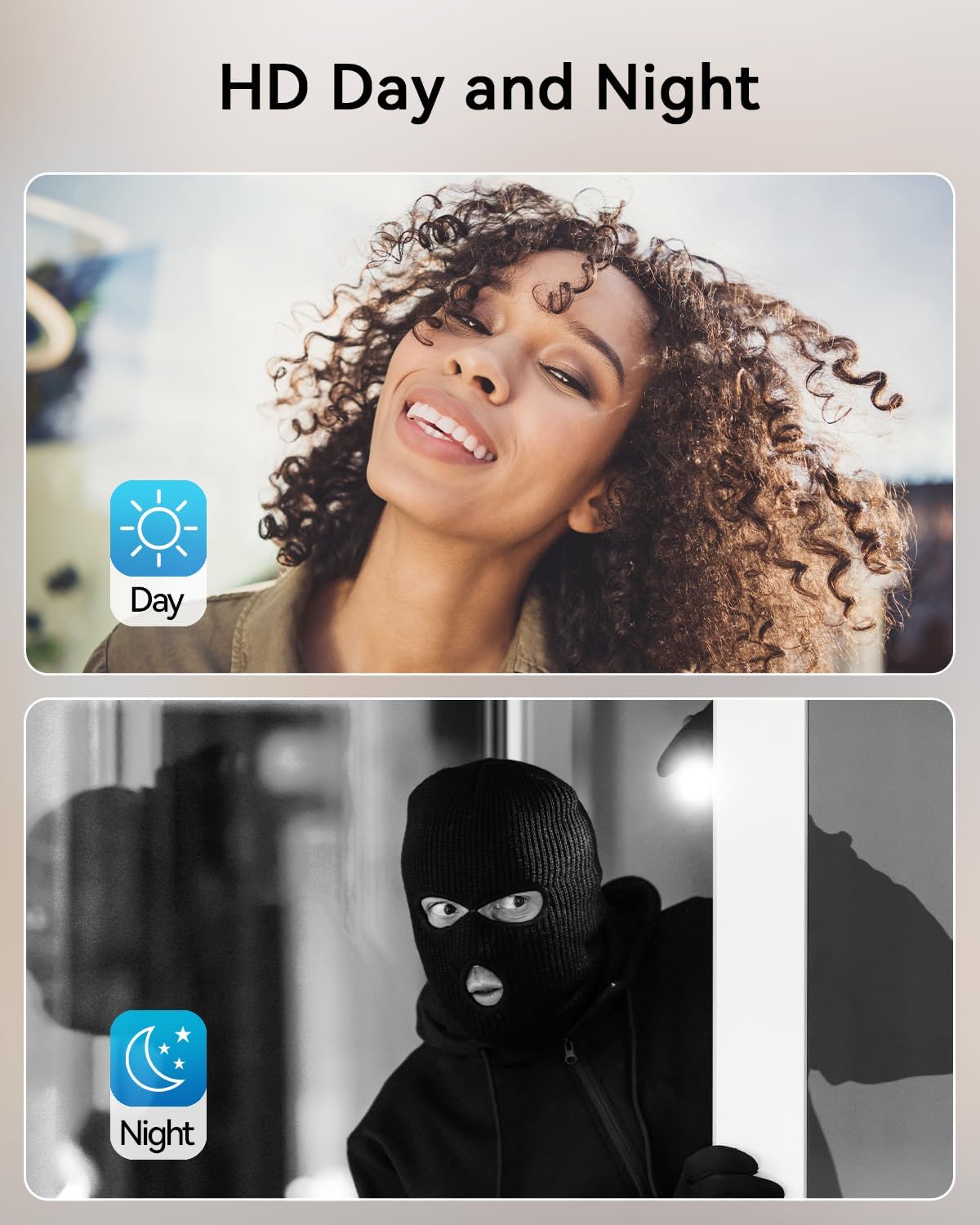
Figure 5.13: A comparison demonstrating the clear visibility provided by the doorbell camera during both day and night.

Figure 5.14: The outdoor doorbell unit's night vision capability, showing a clear image in a dark outdoor setting.
6. Maintenance
Regular maintenance ensures the longevity and optimal performance of your intercom system.
6.1 Cleaning
- Wipe the indoor monitor screen with a soft, dry, lint-free cloth. Avoid abrasive cleaners.
- Clean the outdoor doorbell unit's camera lens and surface with a damp cloth. Do not use harsh chemicals.
6.2 Weather Resistance
The outdoor doorbell unit is IP65 weatherproof, meaning it is protected against dust and low-pressure water jets. While designed for outdoor use, avoid submerging it in water or exposing it to extreme weather conditions beyond its rating.

Figure 6.1: The outdoor doorbell unit demonstrating its IP65 weatherproof design in rainy conditions.

Figure 6.2: The outdoor doorbell unit's IP65 weatherproof rating, ensuring durability against rain and dust.
7. Troubleshooting
If you encounter issues with your system, refer to the table below for common problems and solutions.
| Problem | Possible Cause | Solution |
|---|---|---|
| No image on indoor monitor | Power issue, loose wiring, faulty unit. | Check power connection. Verify all wires are securely connected. Contact support if issue persists. |
| Cannot connect to Wi-Fi | Incorrect password, 5G Wi-Fi, weak signal. | Ensure correct 2.4G Wi-Fi password. Move monitor closer to router. Restart router. |
| No audio during communication | Microphone/speaker muted, wiring issue. | Check volume settings on monitor/app. Inspect wiring for damage. |
| Door unlock not working | Incorrect wiring to lock, lock malfunction, ID card not registered. | Verify lock wiring. Test lock independently. Ensure ID cards are properly registered. |
8. Specifications
| Feature | Detail |
|---|---|
| Model Number | MZ-M730*2+MZ-E20 |
| Indoor Monitor Screen | 7-inch IP Touch Screen |
| Outdoor Doorbell Camera | 1080P, 145° Wide Angle, Infrared Night Vision |
| Connectivity | 2-Wire System, 2.4G Wi-Fi |
| App Compatibility | TuyaSmart |
| Unlock Methods | Indoor Monitor, App, ID Cards |
| Storage | Supports up to 256GB TF Card (for video recording/images) |
| Weather Resistance | IP65 (Outdoor Doorbell Unit) |
| Dimensions (Package) | 28 x 19.8 x 13.2 cm |
| Weight (Package) | 2.19 kilograms |
9. Warranty and Support
For warranty information and technical support, please refer to the warranty card included in your package or visit the official TMEZON website. Keep your purchase receipt as proof of purchase for warranty claims.
Ask a question about this manual
Ask about setup, troubleshooting, compatibility, parts, safety, or missing instructions. Manuals+ will review the question and use this page’s manual context to help answer it.