
TECKNET TK-MS009
TECKNET Wireless Rechargeable Silent Mouse User Manual
Model: TK-MS009
1. Introduction
Thank you for choosing the TECKNET Wireless Rechargeable Silent Mouse. This manual provides detailed instructions on how to set up, operate, and maintain your new mouse, ensuring optimal performance and longevity. Designed for comfort and efficiency, this mouse features silent clicks, adjustable DPI, and a long-lasting rechargeable battery, making it ideal for various computing tasks.
2. Package Contents
Please check the package contents carefully. If any items are missing or damaged, please contact TECKNET customer support.
- 1 x TECKNET Wireless Rechargeable Silent Mouse
- 1 x USB Receiver (stored in the mouse battery compartment)
- 1 x USB-C Charging Cable
- 1 x User Manual (this document)
3. Product Overview
Familiarize yourself with the components of your TECKNET Wireless Mouse.

Figure 3.1: Front view of the TECKNET Wireless Rechargeable Silent Mouse and its included USB-C charging cable.

Figure 3.2: Illustration highlighting the ergonomic design of the mouse, which fits the natural curvature of the human palm for comfortable use.
Mouse Components:
- Left Click Button
- Right Click Button
- Scroll Wheel
- DPI Adjustment Button
- Forward Button (Side)
- Backward Button (Side)
- USB-C Charging Port (Front)
- Power ON/OFF Switch (Bottom)
- USB Receiver Storage Slot (Bottom)
4. Setup
Follow these steps to set up your TECKNET Wireless Mouse.
- Retrieve the USB Receiver: Locate the USB receiver stored in the battery compartment on the bottom of the mouse. Gently pull it out.
- Connect the USB Receiver: Plug the USB receiver into an available USB port on your computer (PC, laptop, Chromebook, Mac).
- Power On the Mouse: Flip the ON/OFF switch located on the bottom of the mouse to the "ON" position.
- Automatic Connection: The mouse will automatically connect to your computer. No additional drivers are required for most operating systems (Windows 11/10/8.1/8/7/Vista/XP, Linux). For Mac OS, side buttons may not be available.
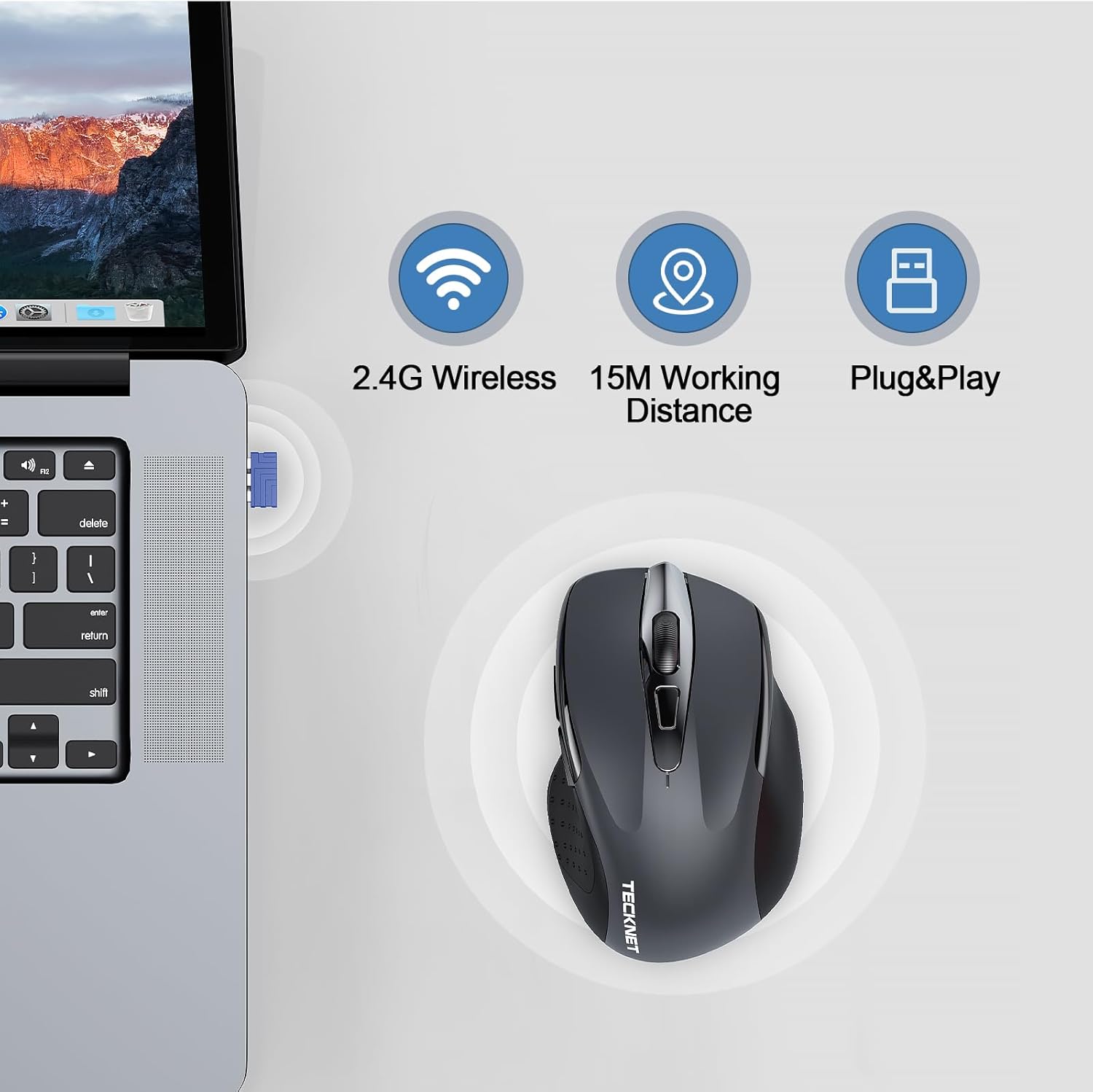
Figure 4.1: The USB receiver being inserted into a laptop's USB port, demonstrating the 2.4G wireless connection and plug-and-play functionality.
Your mouse is now ready for use. The effective working distance is up to 15 meters (49 feet).
5. Operating Instructions
5.1 DPI Adjustment
The mouse features 6 adjustable DPI levels to suit various tasks, from precise design work to fast-paced gaming. Press the DPI button (located behind the scroll wheel) to cycle through the sensitivity settings.
- Available DPI settings: 800 / 1200 / 1600 / 2400 / 3200 / 4800 DPI.
- A higher DPI setting results in faster cursor movement.

Figure 5.1: Visual representation of the mouse's 6 adjustable DPI levels, indicating high precision and adaptability for different user needs.
5.2 Silent Click Feature
The TECKNET mouse is designed with silent click technology, reducing click noise by up to 90%. This feature provides a quiet working environment, ideal for offices, libraries, or late-night use without disturbing others.

Figure 5.2: A user demonstrating the silent click feature of the mouse, highlighting its benefit in maintaining a quiet and focused environment.
5.3 Power Saving Mode
To conserve battery life, the mouse features an intelligent power-saving mode:
- Automatic Sleep: The mouse will automatically enter sleep mode after a period of inactivity.
- Wake-up: To reactivate the mouse, simply click any button.
- Manual Power Off: For extended periods of non-use, switch the power button on the bottom of the mouse to "OFF".
6. Charging the Mouse
The TECKNET mouse is equipped with a built-in 700mAh rechargeable battery, offering extended usage on a single charge.
- Connect the Cable: Insert the USB-C end of the charging cable into the charging port on the front of the mouse.
- Connect to Power: Plug the USB-A end of the charging cable into a USB power source (e.g., computer USB port, USB wall adapter).
- Charging Indicator: An indicator light on the mouse will show the charging status.
- Charging Time: A full charge takes approximately 2 hours.
- Usage During Charging: You can continue to use the mouse even while it is charging.
- Battery Life: A full charge can provide 1 to 2 months of use, depending on usage patterns.

Figure 6.1: The TECKNET mouse connected to a power source via its USB-C charging cable, illustrating its long-lasting 700mAh battery life.
7. Maintenance
To ensure the longevity and optimal performance of your mouse, follow these maintenance guidelines:
- Cleaning: Use a soft, dry cloth to wipe the surface of the mouse. For stubborn dirt, slightly dampen the cloth with water or a mild cleaning solution. Avoid harsh chemicals or abrasive materials.
- Storage: When not in use for extended periods, store the mouse in a cool, dry place. It is recommended to turn off the mouse to conserve battery.
- Avoid Extreme Conditions: Do not expose the mouse to extreme temperatures, direct sunlight, or high humidity.
- Handle with Care: Avoid dropping the mouse or subjecting it to strong impacts.
8. Troubleshooting
If you encounter issues with your TECKNET Wireless Mouse, please refer to the following common problems and solutions:
| Problem | Possible Cause | Solution |
|---|---|---|
| Mouse not responding | Low battery; Mouse is off; USB receiver not connected; Driver issue. | Charge the mouse; Turn on the mouse; Re-plug the USB receiver; Try a different USB port; Restart your computer. |
| Cursor movement is erratic or jumpy | Dirty optical sensor; Unsuitable surface; Interference. | Clean the optical sensor with a soft cloth; Use the mouse on a smooth, non-reflective surface or a mouse pad; Move closer to the receiver; Remove other 2.4GHz devices. |
| Mouse disconnects frequently | Low battery; Too far from receiver; Interference. | Charge the mouse; Ensure mouse is within 15m of receiver; Minimize interference from other wireless devices. |
| Side buttons not working (Mac OS) | Operating system limitation. | This is a known compatibility limitation with Mac OS. The main click and scroll functions will work normally. |
If the problem persists after trying these solutions, please contact TECKNET customer support for further assistance.
9. Specifications
| Feature | Detail |
|---|---|
| Brand | TECKNET |
| Model Name | TK-MS009 |
| Connectivity Technology | 2.4G Wireless (USB Receiver) |
| Movement Detection Technology | Optical |
| DPI Levels | 800 / 1200 / 1600 / 2400 / 3200 / 4800 DPI (Adjustable) |
| Number of Buttons | 6 (Left, Right, Scroll Wheel, DPI, Forward, Backward) |
| Hand Orientation | Right |
| Battery Type | Built-in 700mAh Rechargeable Battery (1 C-cell equivalent) |
| Charging Port | USB-C |
| Effective Working Distance | Up to 15 meters (49 feet) |
| Special Features | Portable, Silent Click, Ergonomic Design, Wireless, Rechargeable |
| Hardware Platform Compatibility | PC, Laptop, Chromebook |
| OS Compatibility | Windows 11/10/8.1/8/7/Vista/XP, Linux, Mac OS (side buttons not available) |
10. Warranty and Support
TECKNET provides a comprehensive warranty for this product.
- Warranty Period: TECKNET offers up to 3 years of warranty service for registered users.
- Customer Support: If you encounter any problems during the use of your TECKNET mouse, please contact our professional customer service team as soon as possible. We are committed to assisting you in resolving any issues.
- Contact Information: Please refer to the contact details provided on the TECKNET official website or the product packaging for the most up-to-date support information.
Related documentsTK-MS009


Ask a question about this manual
Ask about setup, troubleshooting, compatibility, parts, safety, or missing instructions. Manuals+ will review the question and use this page’s manual context to help answer it.