1. Introduction
Thank you for choosing the TONOR TM310 USB Conference Microphone. This manual provides essential information for setting up, operating, and maintaining your new microphone to ensure optimal performance for all your communication and recording needs. Designed for clarity and ease of use, the TM310 is an ideal solution for video calls, online meetings, content creation, and gaming.
2. Product Overview
The TONOR TM310 microphone is engineered to deliver superior audio quality and user convenience. Key features include:
- Natural Audio Clarity: Features a supercardioid directional pickup design, optimizing front sound capture and greatly reducing noise from the back and sides. Powered by a high-quality dynamic core for clear sound.
- Unique Clip-on Structure: Securely attaches above your computer or monitor, ensuring stability and minimizing desk space. Soft material on the clip protects your screen and desk from scratches.
- Wide Compatibility: Includes Type C to Type C USB cable and a Type C to USB A adapter, making it compatible with Windows (7, 8, 10, and 11), macOS, and PS4/5. It is a plug-and-play device requiring no drivers. Not recommended for use with smartphones.
- Adjustable Angle: An adjustable rotational joint allows for 360-degree horizontal rotation and -25° to 10° vertical adjustment, ensuring optimal performance and sound capture.
- Mute & Reduce Noise Button: A single button with an LED indicator combines mute and noise reduction functions. A red light indicates mute, a blue light indicates unmuted, and a green light indicates active noise reduction (long press).

Figure 2.1: The TONOR TM310 microphone, showcasing its compact design and clip-on stand, ideal for laptop and desktop use.

Figure 2.2: Supercardioid pickup pattern diagram, highlighting the microphone's ability to focus on sound directly in front of it while minimizing background noise.
3. What's in the Box
Your TONOR TM310 package includes the following components:
- 1 × Microphone
- 1 × Bendable mic stand (integrated clip-on structure)
- 1 × Type C to USB A adapter
- 1 × Type C-Type C cable
- 1 × Manual

Figure 3.1: All components included in the TONOR TM310 package.
4. Setup
Setting up your TONOR TM310 microphone is quick and easy, thanks to its plug-and-play design.
4.1 Attaching the Microphone
- Open the integrated clip-on stand.
- Securely attach the microphone to the top edge of your laptop screen or desktop monitor. Ensure the microphone is facing you. The soft material on the clip will protect your device.
- Connect the provided Type C to Type C USB cable to the microphone's Type C port.
- If your computer has a USB-A port, attach the Type C to USB A adapter to the other end of the cable, then plug it into your computer's USB-A port. If your computer has a Type C port, plug the cable directly into it.
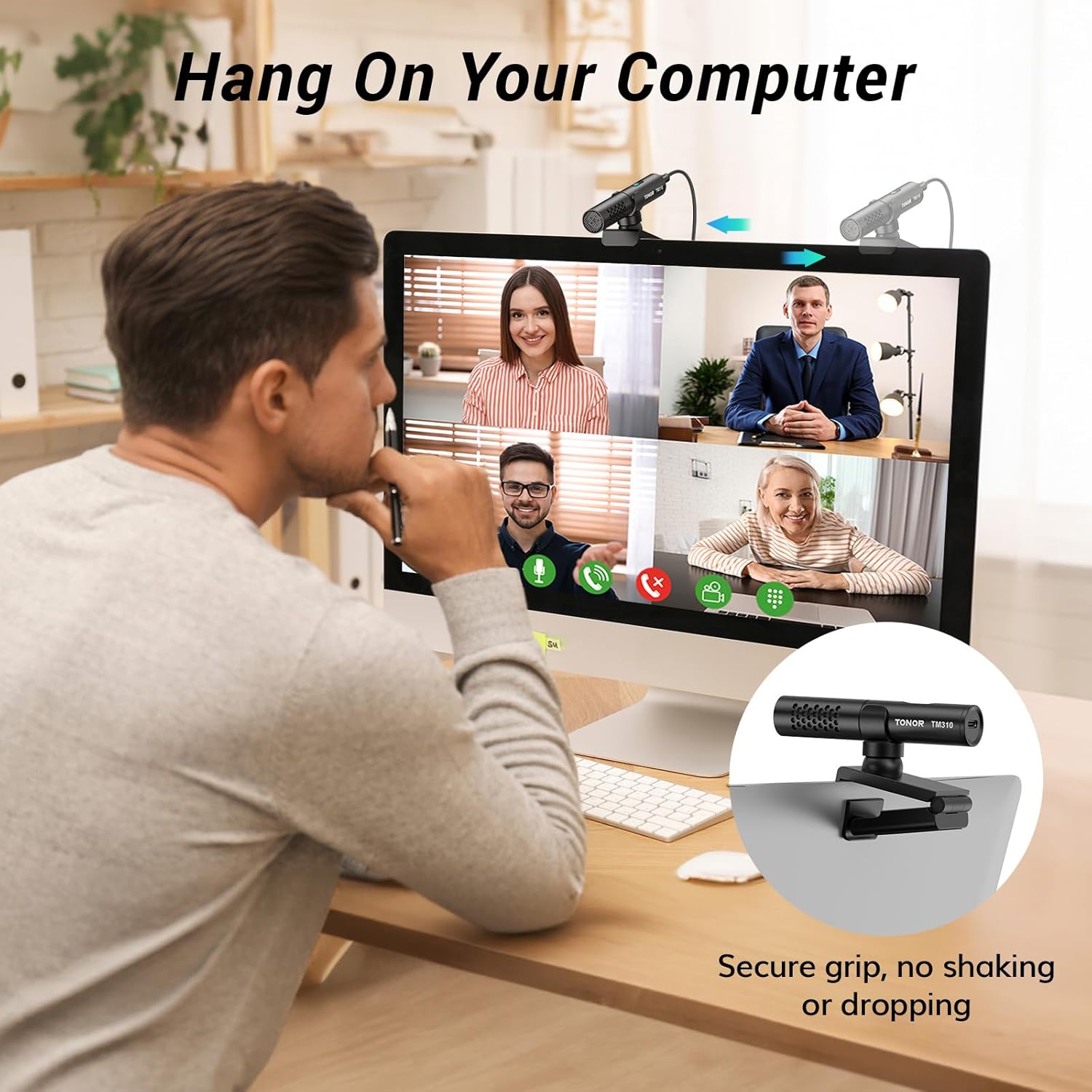
Figure 4.1: Microphone securely clipped onto a laptop for a video conference.

Figure 4.2: Detail of the anti-slip surface on the microphone's clip for secure attachment.
4.2 Adjusting the Angle
The microphone features an adjustable rotational joint for optimal positioning:
- Horizontal Rotation: The microphone can rotate 360 degrees horizontally on its stand.
- Vertical Adjustment: Adjust the microphone vertically from -25° to 10° to fine-tune the pickup angle.
- Clamp Angle: The clip-on stand itself can adjust from 0-180 degrees to accommodate various screen thicknesses.
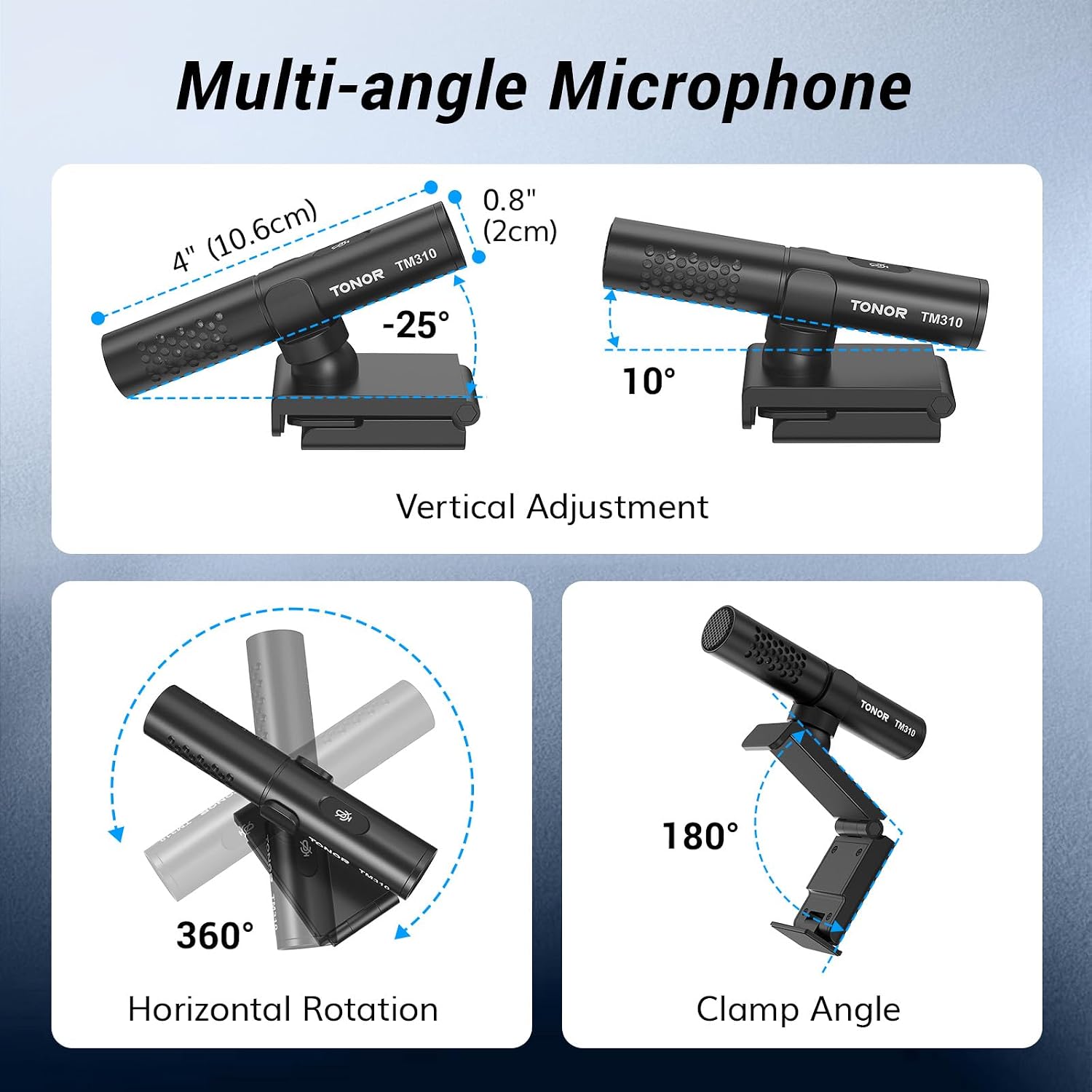
Figure 4.3: Various adjustable angles of the microphone for optimal positioning.
4.3 Compatibility
The TM310 is compatible with:
- Windows (7, 8, 10, and 11)
- macOS
- PS4/5
Note: Not recommended for use with smartphones.
4.4 Setup Video
Video 4.1: Official TONOR USB Microphone for PC setup and feature overview. This video demonstrates the plug-and-play functionality, attachment to devices, and key features like mute and noise reduction.
5. Operating Instructions
The TONOR TM310 is designed for intuitive operation, especially for its core functions.
5.1 Mute and Noise Reduction Function
The single button on the microphone serves multiple purposes, indicated by its LED light:
- Blue Light: Microphone is connected and unmuted.
- Red Light: Microphone is muted. Tap the button to toggle mute/unmute.
- Green Light: Noise reduction feature is active. Long-press the button to activate or deactivate noise reduction.

Figure 5.1: LED indicators for microphone status (connected, muted, noise canceling).
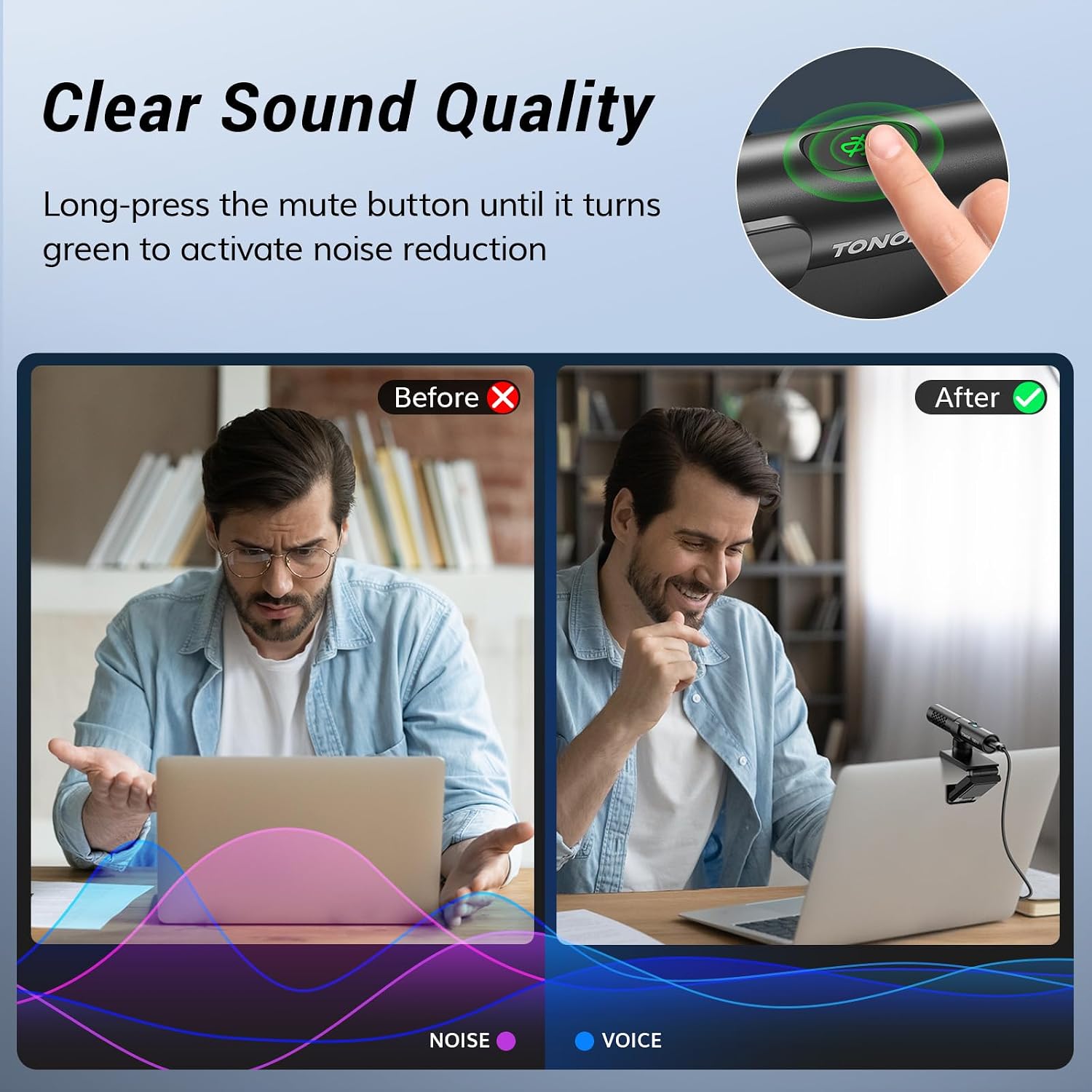
Figure 5.2: Visual representation of sound quality improvement with noise reduction.
5.2 Usage Scenarios
The TM310 is versatile for various applications:
- Video Conference/Online Meetings: Ensures your voice is clear and prominent, even in busy environments.
- Content Creation: Ideal for recording podcasts, voice-overs, or streaming with professional audio.
- Gaming: Enhances in-game communication with clear voice transmission.

Figure 5.3: Microphone in use during a gaming session, enhancing communication.

Figure 5.4: Portable design of the microphone, making it suitable for business travel.
6. Maintenance
To ensure the longevity and optimal performance of your TONOR TM310 microphone, follow these simple maintenance guidelines:
- Cleaning: Use a soft, dry cloth to wipe the microphone's surface. Avoid using liquid cleaners or abrasive materials, as they may damage the finish or internal components.
- Storage: When not in use, store the microphone in a cool, dry place away from direct sunlight and extreme temperatures.
- Handling: Handle the microphone with care. Avoid dropping it or subjecting it to strong impacts, which could affect its performance.
7. Troubleshooting
If you encounter any issues with your TONOR TM310 microphone, please refer to the following common troubleshooting steps:
- No Sound/Poor Sound Quality:
- Ensure the microphone is securely plugged into your computer's USB port.
- Check the LED indicator on the microphone. If it's red, the microphone is muted. Tap the button to unmute (blue light).
- Verify that the correct microphone is selected as the input device in your computer's sound settings (e.g., Windows Sound Settings, macOS System Preferences > Sound).
- Adjust the microphone's input level in your computer's sound settings.
- Ensure the microphone is positioned correctly, facing you, and within optimal range.
- Try activating the noise reduction feature (long press for green light) if you are in a noisy environment.
- Microphone Not Recognized by Computer:
- Try plugging the microphone into a different USB port on your computer.
- Restart your computer.
- Ensure your operating system is up to date.
- Intermittent Connection:
- Check the USB cable for any damage or kinks.
- Ensure the cable connections are firm at both the microphone and the computer.
If these steps do not resolve the issue, please contact TONOR customer support for further assistance.
8. Specifications
| Feature | Detail |
|---|---|
| Microphone Form Factor | Shotgun |
| Polar Pattern | Super Cardioid |
| Connectivity Technology | USB |
| Connector Type | USB Type-C, USB A |
| Compatible Devices | Personal Computer, Gaming Console |
| Hardware Platform | Windows (7, 8, 10, and 11), macOS |
| Special Feature | Mute Function |
| Power Source | Corded Electric |
| Material | Aluminum, Acrylonitrile Butadiene Styrene |
| Signal-to-Noise Ratio | 78 dB |
| Item Weight | 10.6 ounces (300 Grams) |
| Product Dimensions | 5.91 x 3.94 x 1.97 inches |
| Manufacturer | TONOR |
| Model Name | TM310 |
9. Warranty and Support
TONOR products are designed and manufactured to the highest quality standards. For information regarding warranty coverage and customer support, please refer to the warranty card included in your product packaging or visit the official TONOR store on Amazon:
Our customer service team is available to assist you with any questions or concerns you may have about your TONOR TM310 microphone.


