
Introduction
Thank you for choosing PowerLocus P6 Bluetooth Headphones. These over-ear headphones are designed to provide a high-quality audio experience with the convenience of wireless connectivity. Featuring a foldable design and a hard-shell carry case, they are ideal for travel and daily use. This manual provides detailed instructions on how to set up, operate, and maintain your headphones.
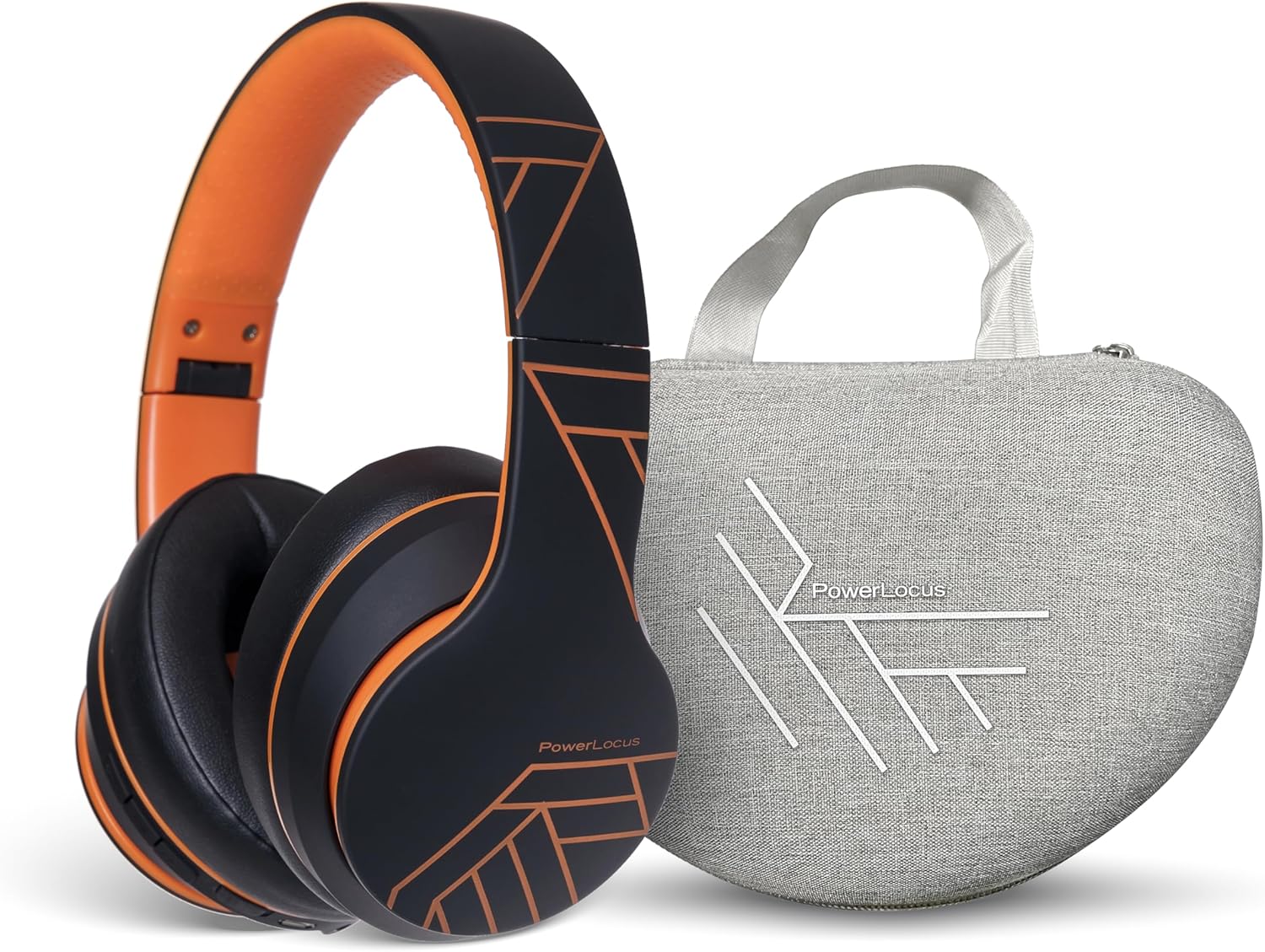
Image: PowerLocus P6 Bluetooth Headphones in black and orange, shown alongside their grey hard-shell carry case. The headphones are folded, demonstrating their compact design for portability.
Safety Information
- Do not expose the headphones to extreme temperatures, humidity, or corrosive substances.
- Avoid dropping or subjecting the headphones to strong impacts.
- Do not disassemble or attempt to repair the headphones yourself. This will void the warranty.
- Clean the headphones with a soft, dry cloth only. Do not use liquid cleaners.
- Prolonged listening at high volume levels may cause hearing damage. Adjust volume to a safe level.
Package Contents
Ensure all items are present in the package:
- PowerLocus P6 Bluetooth Headphones
- Hard Shell Carry Case
- USB Charging Cable
- Audio Cable (3.5mm)
- User Manual

Image: A hand holding the grey hard-shell carry case for the PowerLocus P6 headphones by its fabric loop. The case features the PowerLocus logo on its front.
Product Overview
The PowerLocus P6 headphones are designed for comfort and functionality. Key features include:
- Flexible Earpads: Designed for a comfortable fit.
- Soft Memory Foam Earmuffs: Provide enhanced comfort during extended listening sessions.
- One Size Fits All: Adjustable headband to suit various head sizes.
- Foldable Design: Allows for compact storage and easy portability.
- Built-in Microphone: For hands-free calls.
- Control Buttons: Located on the earcup for easy access to media and call controls.

Image: A person wearing PowerLocus P6 headphones, demonstrating their comfortable fit. Insets highlight key features: flexible earpads, soft memory foam earmuffs, and the adjustable "one size fits all" design.

Image: A close-up of the PowerLocus P6 headphones, accompanied by icons illustrating their key features: Hi-Fi Stereo Sound, Stable Wireless Connectivity, HD Microphones for Clear Calls, Foldable Design, and Long Battery Life.
Setup
1. Charging the Headphones
Before first use, fully charge the headphones. Connect the USB charging cable to the charging port on the headphones and the other end to a USB power source (e.g., computer USB port, wall adapter). The LED indicator will show charging status and turn off or change color when fully charged.
2. Bluetooth Pairing
- Ensure the headphones are turned off.
- Press and hold the Power button until the LED indicator flashes blue and red alternately, indicating pairing mode.
- On your device (smartphone, tablet, PC), enable Bluetooth and search for available devices.
- Select "PowerLocus P6" from the list of devices.
- Once paired, the LED indicator will flash blue slowly or turn solid blue.
3. Connecting to Multiple Devices (Multi-Point)
The PowerLocus P6 headphones support multi-point connection, allowing you to connect to two Bluetooth devices simultaneously. This is useful for switching between a phone and a laptop without re-pairing.
- Pair the headphones with the first device as described above.
- Disable Bluetooth on the first device. The headphones will re-enter pairing mode.
- Pair the headphones with the second device.
- Re-enable Bluetooth on the first device. The headphones should automatically connect to both devices.
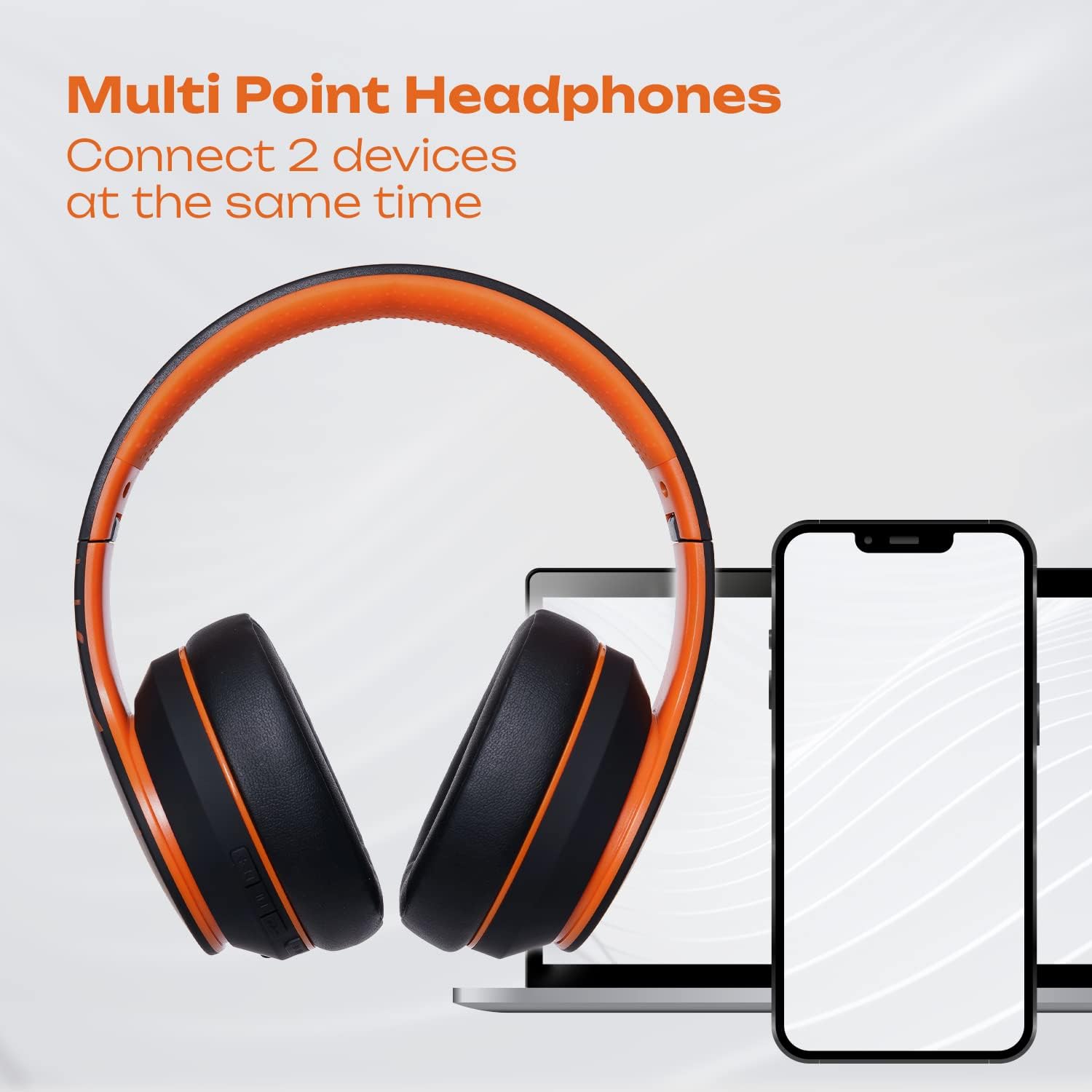
Image: PowerLocus P6 headphones positioned between a laptop and two smartphones, illustrating their capability to connect to multiple devices simultaneously via multi-point Bluetooth technology.

Image: A person using PowerLocus P6 headphones with a laptop, with icons below indicating universal compatibility with phones, tablets, PCs, and TVs.
Operating Instructions
Power On/Off
- Power On: Press and hold the Power button for 3 seconds.
- Power Off: Press and hold the Power button for 3 seconds.
Music Playback
- Play/Pause: Press the Multi-function button once.
- Next Track: Press and hold the Volume Up button.
- Previous Track: Press and hold the Volume Down button.
- Volume Up: Short press the Volume Up button.
- Volume Down: Short press the Volume Down button.
Call Management
- Answer/End Call: Press the Multi-function button once.
- Reject Call: Press and hold the Multi-function button for 2 seconds.
- Redial Last Number: Double-press the Multi-function button.
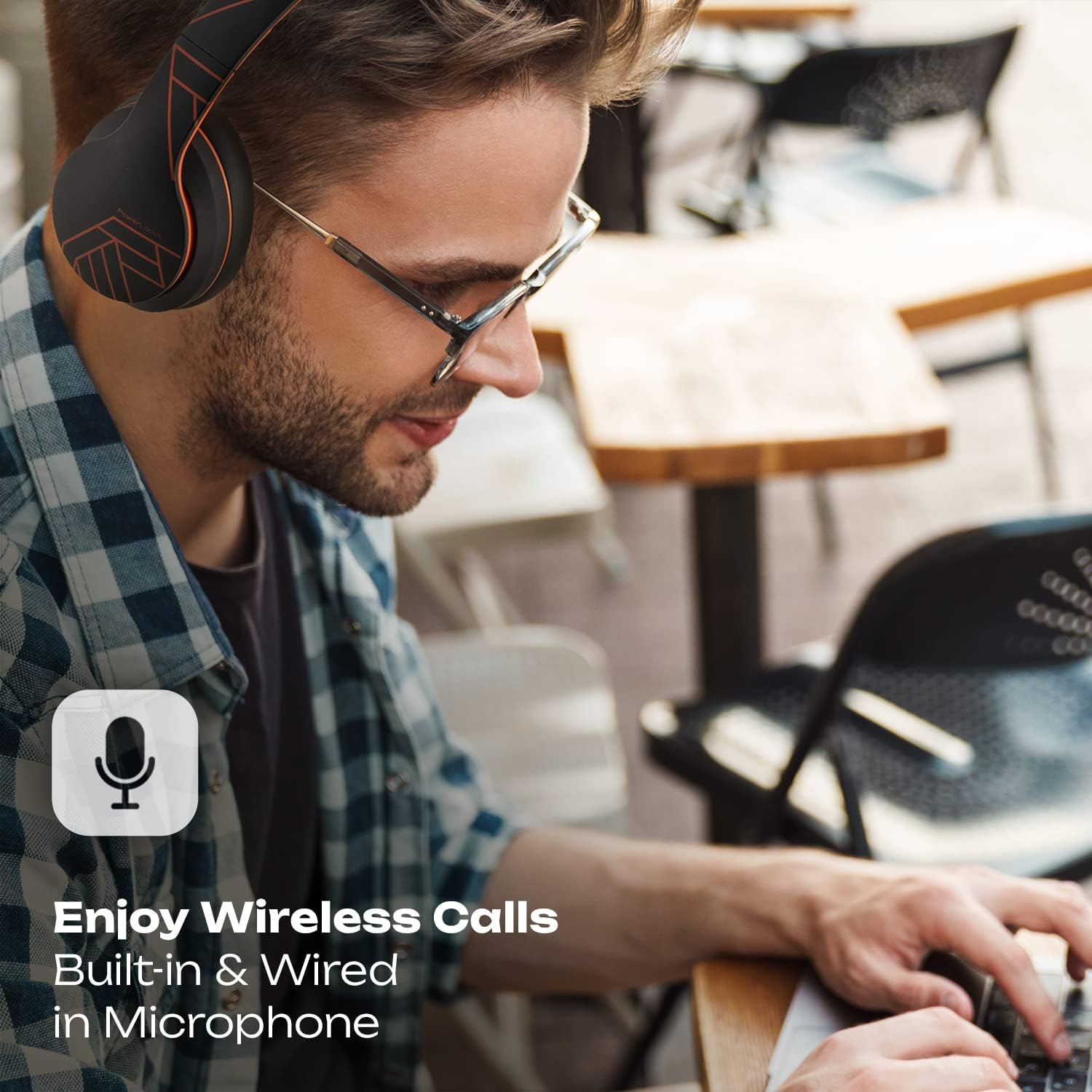
Image: A person wearing PowerLocus P6 headphones while working on a laptop, with an icon emphasizing the built-in and wired microphone for clear wireless calls.
Voice Assistant
- Activate Voice Assistant: Triple-press the Multi-function button (e.g., Siri, Google Assistant).
Maintenance
Cleaning
Use a soft, dry, lint-free cloth to clean the headphones. Do not use abrasive cleaners, alcohol, or chemical solvents, as these may damage the surface or internal components.
Storage
When not in use, store the headphones in their hard-shell carry case to protect them from dust, scratches, and impacts. Store in a cool, dry place away from direct sunlight and extreme temperatures.

Image: A hand placing the grey PowerLocus P6 hard-shell carry case into the main compartment of a grey backpack, demonstrating its portability and ease of storage.

Image: The grey PowerLocus P6 hard-shell carry case placed neatly inside an open suitcase alongside folded clothing, illustrating its compact size and suitability for travel.
Troubleshooting
| Problem | Possible Cause | Solution |
|---|---|---|
| Headphones do not power on. | Low battery. | Charge the headphones fully. |
| Cannot pair with device. | Headphones not in pairing mode; Bluetooth disabled on device; device too far. | Ensure headphones are in pairing mode (flashing blue/red). Enable Bluetooth on your device. Move device closer to headphones (within 10 meters). |
| No sound or poor sound quality. | Volume too low; headphones not connected; interference. | Increase volume on both headphones and device. Reconnect headphones. Move away from other wireless devices. |
| Microphone not working. | Microphone muted on device; incorrect audio input selected. | Check device settings to ensure microphone is not muted and PowerLocus P6 is selected as the input device. |
Specifications
- Model: PowerLocus P6
- Connectivity: Bluetooth
- Form Factor: Over Ear
- Control Type: Media Control, Touch
- Microphone: Built-in
- Noise Control: Sound Isolation
- Included Components: Protective Case
- ASIN: B0CSC3PH3Y
Warranty and Support
PowerLocus P6 headphones come with a 2-year full warranty. This warranty covers manufacturing defects and ensures the reliability of your product. For warranty claims or technical support, please contact PowerLocus customer service through the official PowerLocus website or your point of purchase.
For further assistance, visit the PowerLocus Store on Amazon.


