
1. Introduction
This manual provides instructions for the proper use and maintenance of your Lomiluskr SY-T25 RGB Cat Ear Wireless Headset. Please read this manual thoroughly before using the product to ensure optimal performance and longevity.
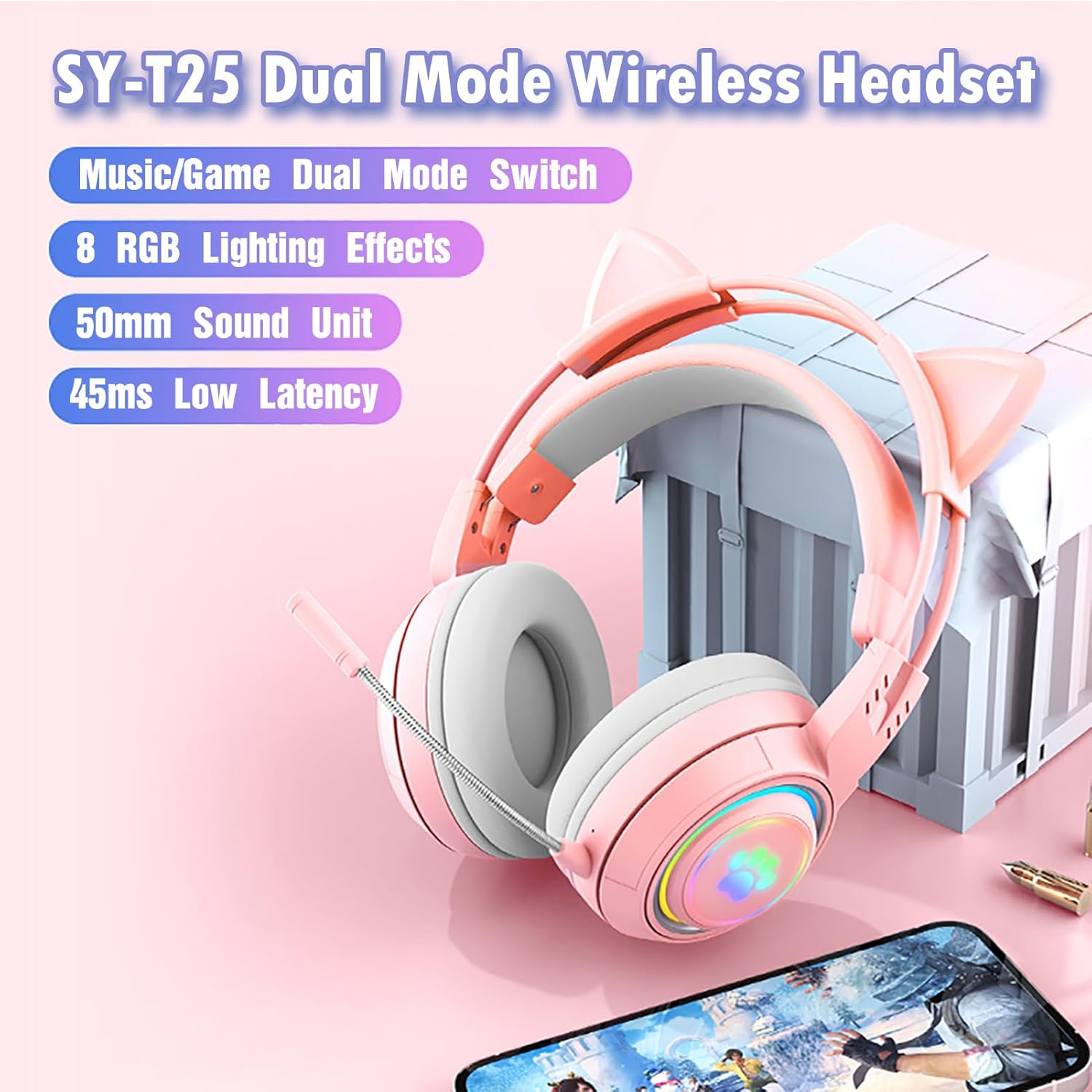
Figure 1: Lomiluskr SY-T25 RGB Cat Ear Wireless Headset.
2. Package Contents
Verify that all items are present in the package:
- Lomiluskr SY-T25 RGB Cat Ear Wireless Headset
- Detachable Cat Ears (pre-installed or separate)
- Interchangeable Deer Ears
- Detachable Microphone
- USB Charging Cable (Type-C)
- 3.5mm Audio Cable
- User Manual

Figure 2: Headset and included accessories.
3. Product Overview
The Lomiluskr SY-T25 headset features a dual-mode design, allowing for both wireless (Bluetooth) and wired (3.5mm audio cable) connectivity. It includes a detachable microphone and interchangeable decorative ears.
3.1 Key Components
- Adjustable Headband: For comfortable fit.
- Earmuffs: Skin-friendly and comfortable for extended wear.
- Detachable Microphone: Flexible and high-sensitivity.
- Control Buttons: Power, Volume Up/Down, Mode (M), RGB Lighting Switch.
- Charging Port: Type-C.
- Audio Jack: 3.5mm.
- RGB Lighting: Integrated into earcups with multiple effects.

Figure 3: Adjustable Headband.

Figure 4: Comfortable Earmuffs.

Figure 5: Charging Port and Audio Jack.
4. Setup
4.1 Attaching/Changing Decorative Ears
The headset comes with detachable cat ears and a set of deer ears. To attach or change the ears:
- Gently pull the existing ears upwards to detach them from the headband slots.
- Align the base of the desired ears (cat or deer) with the slots on the top of the headband.
- Press firmly until they click into place.

Figure 6: Interchangeable Cat and Deer Ears.
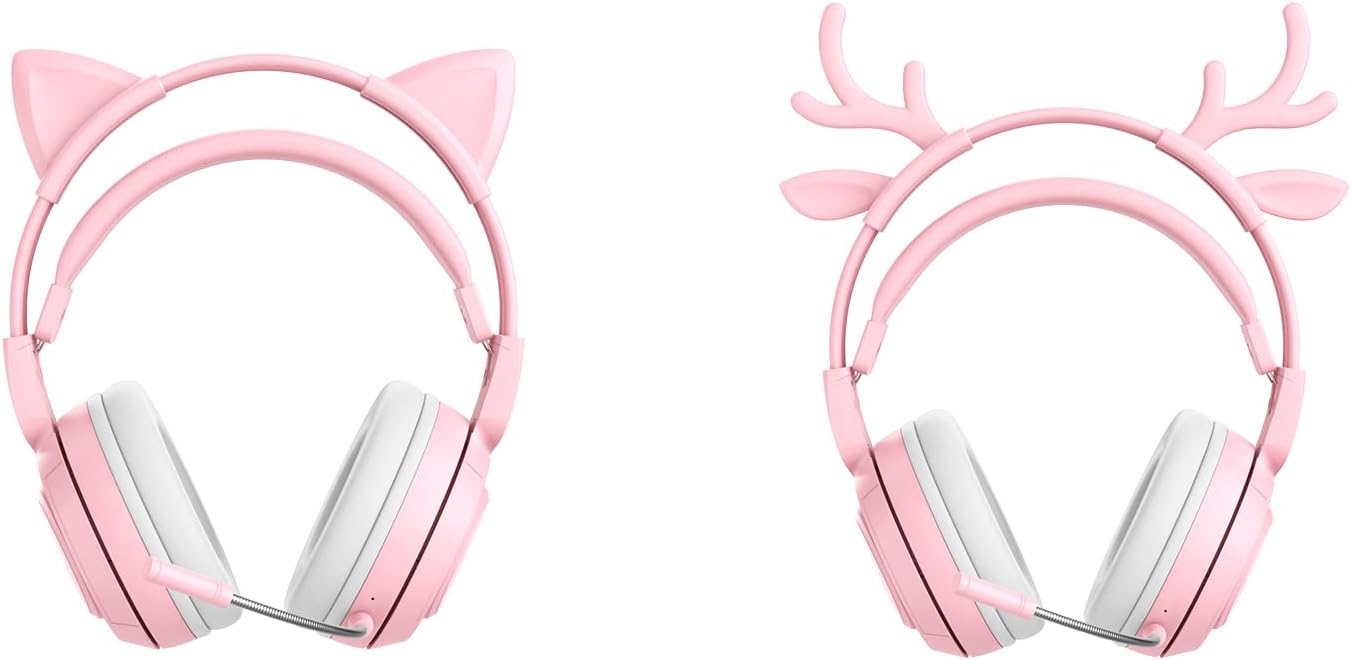
Figure 7: Cat Ears vs. Deer Ears.
4.2 Attaching the Microphone
The microphone is detachable. To attach it:
- Locate the microphone input port on the left earcup.
- Insert the microphone jack firmly into the port.
- Adjust the flexible microphone arm to your preferred speaking position.

Figure 8: Detachable Microphone.
4.3 Charging the Headset
Before first use, fully charge the headset. Use the provided USB Type-C cable.
- Connect the Type-C end of the charging cable to the headset's charging port.
- Connect the USB-A end to a compatible USB power source (e.g., computer, wall adapter).
- The indicator light will show charging status. A full charge provides up to 20 hours of battery life.
5. Operating Instructions
5.1 Power On/Off
To power on the headset, press and hold the power button until you hear the prompt sound "Power on" and the indicator light flashes red and blue alternately. To power off, press and hold the power button until the headset turns off.

Figure 9: Power Button.
5.2 Bluetooth Pairing
Ensure the headset is powered off before starting the pairing process.
- Activate Pairing Mode: Press and hold the power button until the indicator light flashes red and blue alternately. The prompt sound "Power on" will be heard.
- Enable Bluetooth on Device: On your mobile phone, tablet, or laptop, go to Bluetooth settings and enable Bluetooth.
- Select Headset: Search for "SY-T25" in the list of available devices and select it to connect.
- Connection Confirmation: Once successfully connected, you will hear the prompt sound "Connected" and the indicator light will be solid blue.
Note: If the headset prompts "Connected" immediately after turning on, it means it has automatically reconnected to a previously paired device. Ensure other Bluetooth headsets/speakers are disconnected from your device before attempting to pair the SY-T25.
5.3 Wired Connection
To use the headset in wired mode:
- Connect one end of the 3.5mm audio cable to the headset's 3.5mm audio jack.
- Connect the other end to the 3.5mm audio port on your PC, laptop, or other compatible device.
Note: When using a 3.5mm audio cable, the microphone is unavailable. The headset can still be charged in wired mode.

Figure 10: Wide Device Compatibility.
5.4 RGB Lighting Effects
The headset features 8 RGB lighting effects, including 6 monochromatic and 2 cycle light effects. Use the dedicated button on the earcup to switch between effects or turn them on/off.
Video 1: Demonstration of the various RGB lighting effects on the headset.
5.5 Volume Control
Adjust the volume using the volume knob located on the headset. Rotate the knob to increase or decrease the audio output.

Figure 11: Volume Up Button.

Figure 12: Volume Down Button.
5.6 Game/Music Dual Modes
The headset supports dual modes for Game and Music. Use the 'M' button to switch between these modes, optimizing audio for your activity.

Figure 13: Game/Music Dual Modes.

Figure 14: Mode Switch Button ('M').
6. Maintenance
To ensure the longevity and optimal performance of your headset, follow these maintenance guidelines:
- Cleaning: Use a soft, dry cloth to clean the headset. Avoid using harsh chemicals or abrasive materials.
- Storage: Store the headset in a cool, dry place away from direct sunlight and extreme temperatures.
- Cable Care: Avoid bending or twisting cables excessively to prevent damage.
- Battery: For optimal battery life, avoid fully discharging the battery frequently. Charge regularly.
7. Troubleshooting
If you encounter issues with your headset, refer to the following common problems and solutions:
| Problem | Possible Cause | Solution |
|---|---|---|
| Headset does not power on. | Low battery. | Charge the headset using the provided USB Type-C cable. |
| Cannot pair via Bluetooth. | Headset not in pairing mode; previously connected device. | Ensure the headset is in pairing mode (flashing red/blue light). Disconnect other Bluetooth devices from your source device. |
| Microphone not working in wired mode. | Wired mode does not support microphone functionality. | The microphone is only active in Bluetooth mode. |
| No sound or low volume. | Volume too low; incorrect audio output selected; loose cable connection. | Adjust headset volume. Check device audio settings. Ensure 3.5mm cable is fully inserted. |
| RGB lights not working. | Lights turned off; low battery. | Press the RGB lighting button to cycle effects or turn on. Charge the headset. |
8. Specifications
| Feature | Detail |
|---|---|
| Model Number | SY-T25 |
| Connectivity | Bluetooth 5.3, Wired (3.5mm Jack) |
| Bluetooth Range | Up to 10 meters |
| Speaker Size | 50mm High Magnetic Horn |
| Impedance | 32 Ohms |
| Frequency Range | 20 Hz - 20,000 Hz |
| Battery Capacity | 400mAh Rechargeable Lithium Battery |
| Battery Life | Up to 20 hours (varies with volume and lighting) |
| Standby Time | Up to 200 hours |
| Microphone | Detachable, High Sensitivity |
| RGB Lighting | 8 effects (6 monochromatic + 2 cycle) |
| Material | Acrylonitrile Butadiene Styrene (ABS) |
| Compatible Devices | Mobile Phones, Tablets, Laptops, PCs |
9. Warranty and Support
Lomiluskr provides a 12-month warranty for this product from the date of purchase. This warranty covers manufacturing defects and quality issues. If you experience any quality-related problems within this period, please contact Lomiluskr customer support for a refund or free replacement.
For further assistance or inquiries, please refer to the contact information provided with your purchase or visit the official Lomiluskr website.