
1. Introduction
This manual provides essential information for the installation, operation, and maintenance of your Dell OEM Nvidia RTX A2000 4GB GDDR6 Graphics Card. Please read these instructions carefully before proceeding with installation or use to ensure proper functionality and to prevent damage to the component or your system.
2. Setup and Installation
Proper installation is crucial for the performance and longevity of your graphics card. Ensure your computer is powered off and unplugged from the wall outlet before beginning.
2.1 Pre-installation Checklist
- System Compatibility: Verify your motherboard has an available PCI-Express x16 slot.
- Power Supply: Ensure your power supply unit (PSU) meets the minimum wattage requirements for your system configuration, including the RTX A2000.
- Clearance: Check your computer case for adequate space to accommodate the card's dimensions.
- Tools: You may need a Phillips head screwdriver.
2.2 Physical Installation
- Prepare Your System: Power down your computer completely and unplug the power cable. Open the computer case.
- Locate PCIe Slot: Identify an available PCI-Express x16 slot on your motherboard. Remove any expansion slot covers from the back of the case that correspond to the slot.
- Insert Graphics Card: Carefully align the graphics card with the PCI-Express x16 slot. Apply even, firm pressure to both ends of the card until it is fully seated in the slot. You should hear a click as the retention clip engages.
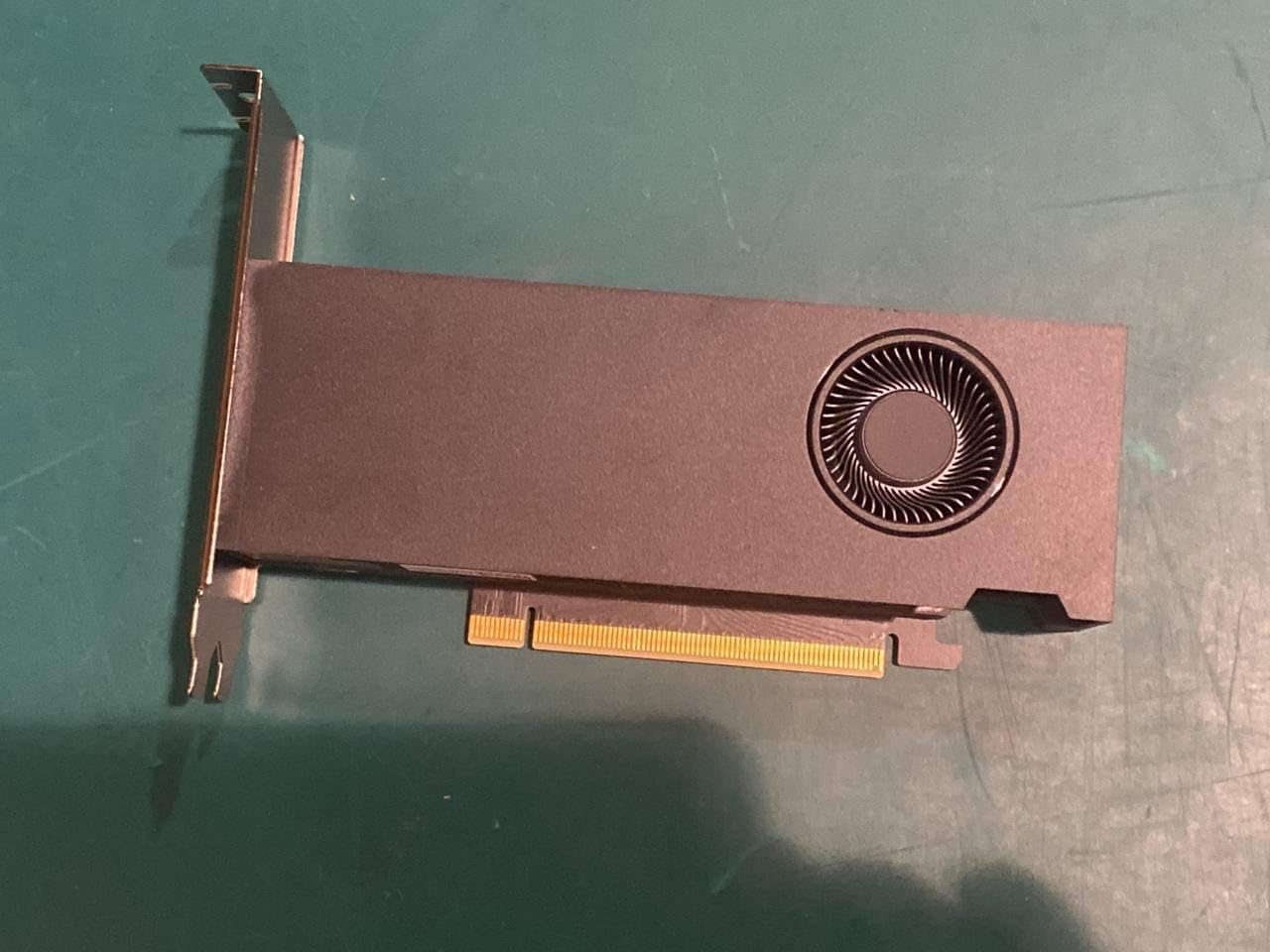
Figure 1: Side view of the Dell OEM Nvidia RTX A2000 graphics card, illustrating its compact design with a single fan cooler and the PCIe connector.
- Secure the Card: Use a screw to secure the graphics card's mounting bracket to the computer case.
- Connect Power (if applicable): The RTX A2000 typically draws power directly from the PCIe slot. If your specific model requires an auxiliary power connector, connect the appropriate PCIe power cable from your PSU to the card.
- Close Case and Connect Peripherals: Close your computer case, reconnect all peripherals (monitor, keyboard, mouse), and plug in the power cable.
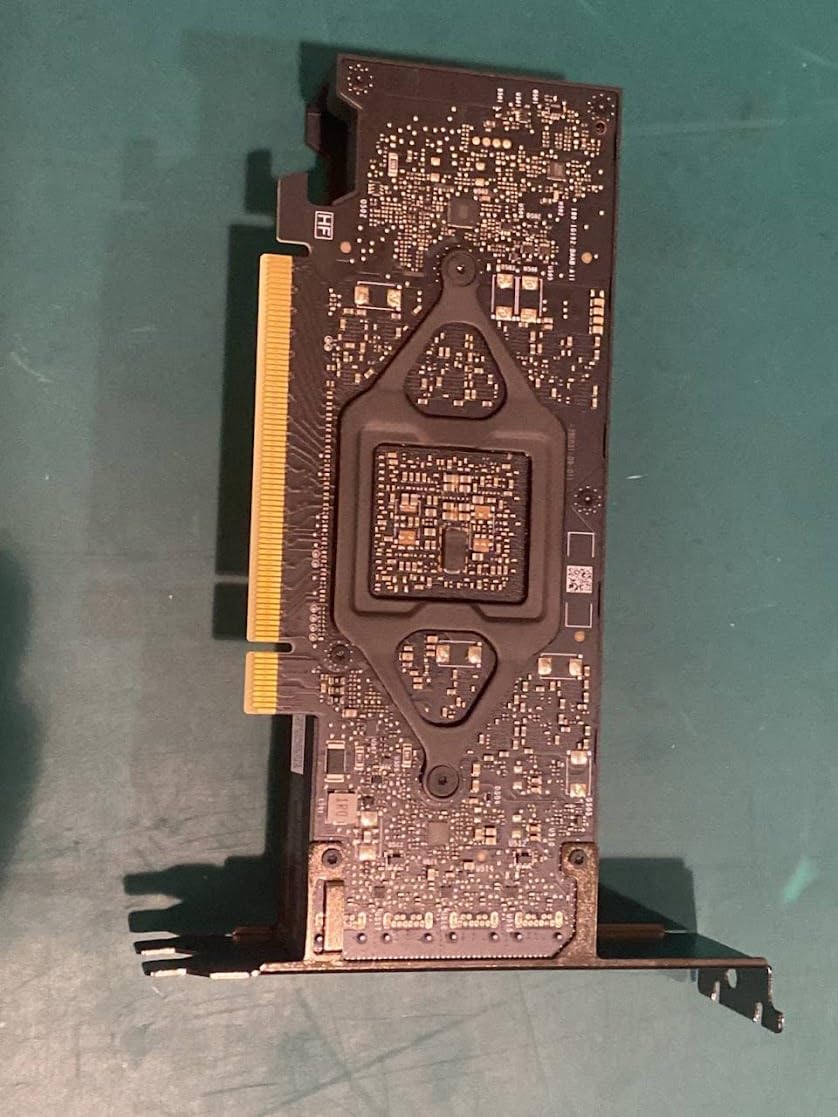
Figure 2: Rear view of the RTX A2000 PCB, displaying the intricate circuitry and component layout.
2.3 Driver Installation
- Power On: Turn on your computer. It may boot into a basic display mode.
- Download Drivers: Visit the official Nvidia website (www.nvidia.com/drivers) or the Dell support website. Select your product (RTX A2000) and operating system to download the latest recommended drivers.
- Install Drivers: Run the downloaded driver installer and follow the on-screen prompts. A system restart will likely be required to complete the installation.
3. Operating the Graphics Card
Once installed and drivers are updated, your RTX A2000 is ready for use. The card will automatically handle graphics processing for applications and games.
3.1 Display Output
Connect your monitor(s) to the display outputs on the graphics card. The RTX A2000 typically features Mini DisplayPort outputs. Ensure you use appropriate cables and adapters if necessary.
3.2 Nvidia Control Panel
The Nvidia Control Panel software, installed with the drivers, allows you to configure various display and 3D settings. You can access it by right-clicking on your desktop and selecting 'Nvidia Control Panel'.
- Adjust display resolution and refresh rates.
- Configure multiple displays.
- Optimize 3D application settings for performance or quality.
4. Maintenance
Regular maintenance helps ensure optimal performance and extends the lifespan of your graphics card.
4.1 Cleaning
Dust accumulation can impede cooling performance. Periodically, with the computer powered off and unplugged:
- Open your computer case.
- Use compressed air to gently clear dust from the graphics card's fan, heatsink fins, and surrounding areas. Hold the fan blades to prevent them from spinning rapidly during cleaning.
- Avoid touching the PCB directly with your hands to prevent electrostatic discharge.
4.2 Driver Updates
Regularly check for and install the latest graphics drivers from the Nvidia or Dell website. Driver updates often include performance improvements, bug fixes, and compatibility enhancements for new software and games.
5. Troubleshooting
If you encounter issues with your graphics card, refer to the following common troubleshooting steps.
5.1 No Display Output
- Check Cables: Ensure all display cables (e.g., DisplayPort) are securely connected to both the graphics card and the monitor.
- Monitor Input: Verify your monitor is set to the correct input source.
- Reseat Card: Power off your PC, unplug it, and reseat the graphics card in its PCIe slot to ensure it's fully connected.
- Test with Integrated Graphics: If your CPU has integrated graphics, remove the RTX A2000 and test if the system displays output using the integrated graphics. This helps determine if the issue is with the card or another system component.
5.2 Driver Issues or Instability
- Reinstall Drivers: Perform a clean installation of the graphics drivers. Use the 'Custom' installation option in the Nvidia installer and select 'Perform a clean installation'.
- Check for Conflicts: Ensure no other graphics drivers (e.g., from a previous AMD card) are installed. Use a tool like Display Driver Uninstaller (DDU) in Safe Mode to thoroughly remove old drivers before installing new ones.
5.3 Performance Problems
- Monitor Temperatures: Use monitoring software (e.g., HWMonitor, MSI Afterburner) to check the GPU temperature during load. High temperatures can lead to thermal throttling and reduced performance.
- Driver Updates: Ensure you have the latest drivers installed.
- System Resources: Close unnecessary background applications that might be consuming CPU or RAM resources.
6. Specifications
| Feature | Specification |
|---|---|
| Brand | Dell |
| Model Name | RTX A2000 |
| Graphics Processor | Nvidia RTX A2000 |
| Video Memory | 4GB GDDR6 |
| Memory Interface | 192-bit |
| Memory Clock Speed | 12Gbps |
| Base Clock Speed | 562MHz |
| Boost Clock Speed | 1200MHz |
| Interface | PCI-Express 4.0 x16 |
| Maximum Digital Resolution | 3840x2160 |
| Recommended Use | Gaming |
| Manufacturer | Dell Computers |
| UPC | 787058646113 |
| ASIN | B0CS9FLM6T |
7. Warranty and Support
This product is listed as 'Amazon Renewed'. For specific warranty details and support related to renewed products, please refer to the Amazon Renewed program terms and conditions or contact Amazon customer service directly.
For technical support regarding the Dell OEM Nvidia RTX A2000, you may also visit the official Dell support website or Nvidia's support resources for driver updates and troubleshooting guides.
- Amazon Renewed Support: https://www.amazon.com/renewed
- Dell Support: https://www.dell.com/support
- Nvidia Drivers: https://www.nvidia.com/drivers


