
1. Introduction
This manual provides essential information for the setup, operation, and maintenance of your TCL 43S310R 43" Class S Class (1080p) FHD LED Smart TV with Roku TV. This television features a 1080p Full HD resolution display, a FullView metal bezel-less design, and Direct LED Backlight technology for an enhanced viewing experience. Integrated with Roku TV Smart OS, it offers seamless access to a wide range of streaming services and smart features.
Key features include Dynamic Contrast, Game Mode for optimized gaming, and multiple HDMI inputs (including one with ARC). The TV supports screen mirroring and Airplay2, and is compatible with popular voice assistants such as Amazon Alexa, Google Assistant, and Apple HomeKit, allowing for convenient voice control via a mobile app. Dual-Band 802.11 Wi-Fi and a USB input provide versatile connectivity options.
2. What's in the Box
Upon unboxing your TCL 43S310R TV, please ensure all components are present:
- TCL 43S310R 43" Class S Class (1080p) FHD LED Smart TV
- Roku TV Remote Control
- TV Stand/Legs (if applicable)
- Power Cable
- Quick Start Guide (this manual provides detailed information)
- Screws for stand assembly (if applicable)
3. Setup
3.1 Unpacking and Placement
Carefully remove the TV from its packaging. It is recommended to have two people for safe handling. Place the TV on a stable, flat surface or mount it on a wall using a compatible VESA mount (sold separately). Ensure adequate ventilation around the TV.

Image: The TCL 43S310R TV displaying the Roku TV home screen with various streaming app icons.
3.2 Connecting Power and Devices
- Connect the power cable to the TV's power input and then to a wall outlet.
- Connect your external devices (e.g., cable box, Blu-ray player, gaming console) to the HDMI inputs on the back of the TV. This model includes 3 HDMI inputs, with one supporting ARC (Audio Return Channel).
- For USB devices, use the dedicated USB input.
3.3 Initial Roku TV Setup
Upon first power-on, the TV will guide you through the initial setup process:
- Language Selection: Choose your preferred language.
- Network Connection: Connect to your home Wi-Fi network using the Dual-Band 802.11 Wi-Fi.
- Roku Account: You will be prompted to link or create a Roku account. This is necessary to access streaming channels and features.
- Channel Scan: If connecting an antenna, the TV will scan for available over-the-air channels.
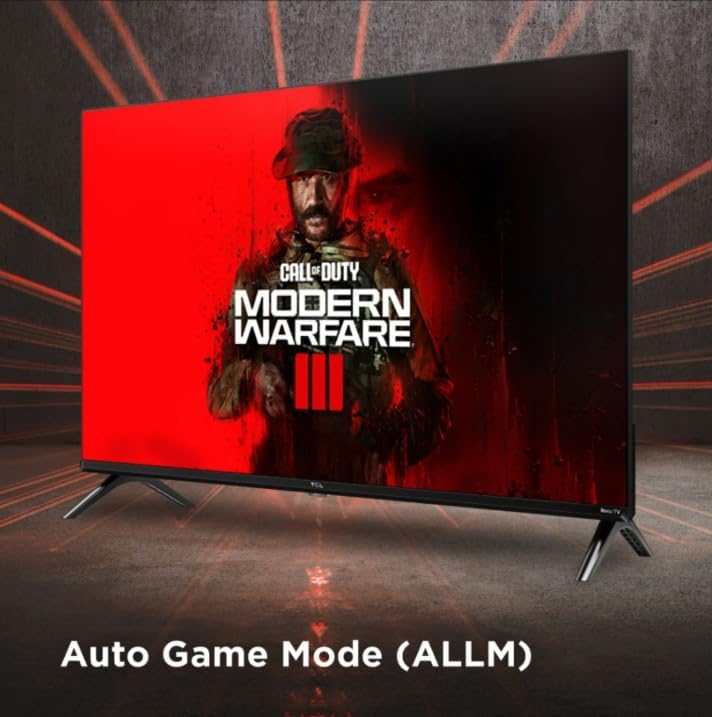
Image: A close-up of the sleek, black Roku TV remote control, featuring a purple directional pad and dedicated streaming service buttons.
4. Operating Your TCL Roku TV
4.1 Navigating the Roku TV Interface
Use the Roku TV remote control to navigate the intuitive home screen. The left-hand menu provides quick access to Home, Live TV, Featured Free content, Sports, What to Watch, Daily Trivia, and the Streaming Store. The main screen displays your installed apps and inputs.
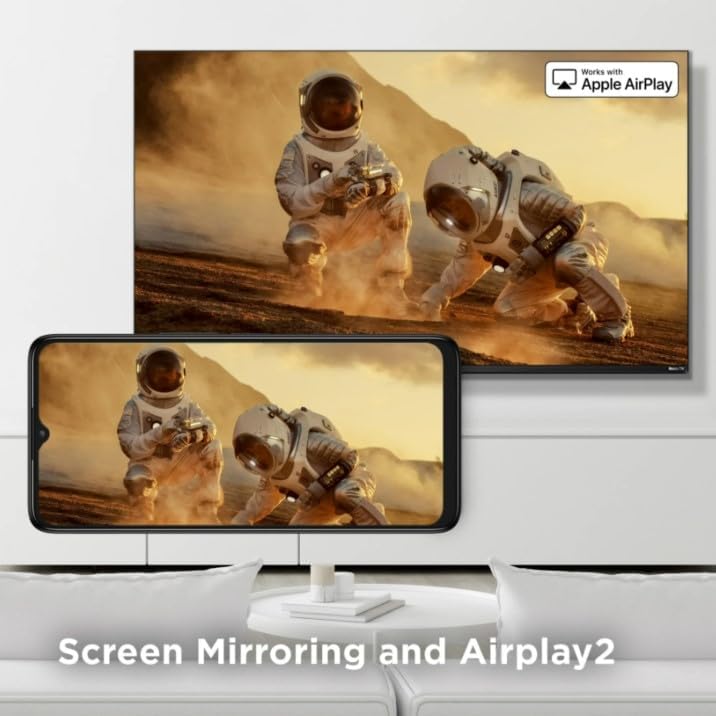
Image: The TCL Roku TV home screen, showing a grid of popular streaming applications like Netflix, Disney+, Apple TV, and Hulu, alongside input options.
4.2 Streaming Services
Your TCL Roku TV provides access to a vast library of streaming services including Prime Video, Netflix, Hulu, Disney+, HBO Max, YouTube, Vudu, Spotify, iHeartRadio, and many more. Simply select the desired app from the home screen and log in with your account credentials.
4.3 Screen Mirroring and Airplay2
Easily share content from your compatible mobile devices or computers to your TV using Screen Mirroring or Apple Airplay2. This feature allows you to display photos, videos, and presentations directly on the large screen.

Image: A smartphone screen mirroring its content, featuring astronauts on a desert landscape, to a larger TCL TV screen, illustrating the Screen Mirroring and Airplay2 functionality.
4.4 Game Mode
Activate Game Mode for a fast and smooth gaming experience. This mode optimizes display settings to reduce input lag, providing a more responsive gaming session.

Image: A TCL TV displaying a scene from the video game "Call of Duty: Modern Warfare III," with text indicating "Auto Game Mode (ALLM)" at the bottom, showcasing the TV's gaming optimization.
4.5 Voice Control
The TCL 43S310R is voice control capable via a mobile app and works with Amazon Alexa, Google Assistant, and Apple HomeKit. This allows for convenient control of your TV using voice commands.

Image: A smartphone displaying the Roku TV remote application, highlighting its voice control capabilities and integration with popular voice assistants like Amazon Alexa, Google Assistant, and Apple HomeKit.
5. Maintenance
5.1 Cleaning Your TV
- Always unplug the TV before cleaning.
- Use a soft, lint-free cloth to gently wipe the screen and cabinet.
- For stubborn marks, lightly dampen the cloth with water or a mild, non-abrasive screen cleaner. Never spray cleaner directly onto the screen.
- Avoid using abrasive cleaners, waxes, or solvents as they can damage the finish.
5.2 Software Updates
Your Roku TV will automatically check for and install software updates when connected to the internet. Ensure your TV remains connected to the internet to receive the latest features and performance improvements.
6. Troubleshooting
If you encounter issues with your TCL Roku TV, refer to the following common solutions:
- No Power: Ensure the power cable is securely connected to both the TV and a working electrical outlet. Try a different outlet.
- No Picture/Sound: Verify that the correct input source is selected. Check all cable connections (HDMI, etc.) are secure.
- Network Connection Issues: Restart your Wi-Fi router. Go to the TV's network settings and try reconnecting to your Wi-Fi. Ensure your Wi-Fi password is correct.
- Remote Not Responding: Replace the batteries in the remote control. Ensure there are no obstructions between the remote and the TV.
- App Crashing/Freezing: Try restarting the app. If the issue persists, restart the TV by unplugging it from the power outlet for a few minutes, then plugging it back in.
For more detailed troubleshooting or persistent issues, visit the official TCL support website or the Roku support page.
7. Specifications
Below are the technical specifications for the TCL 43S310R TV:
| Feature | Detail |
|---|---|
| Brand | TCL |
| Model Number | 43S310R |
| Screen Size | 43 Inches |
| Display Technology | LED |
| Resolution | 1080p Full HD |
| Refresh Rate | 60 Hz |
| Product Dimensions | 37.6"D x 23.9"W x 7.3"H |
| Item Weight | 18.46 pounds (8.39 Kilograms) |
| Aspect Ratio | 16:9 |
| Connectivity Technology | Wi-Fi (Dual-Band 802.11), USB, HDMI (3 inputs, one with ARC) |
| Special Features | Parental Controls, Mobile App, FullView Metal Bezel-less Design, Direct LED Backlight, Dynamic Contrast, Game Mode, Screen Mirroring, Airplay2, Voice Control (Alexa, Google Assistant, Apple HomeKit compatible) |
| Included Components | Roku TV (main unit) |
| Voltage | 110 Volts |
| Wattage | 16 watts |

Image: The Energy Guide label for the TCL 43S310R television, indicating an estimated yearly energy cost of $20 based on 16 cents per kWh and 5 hours use per day.
8. Warranty and Support
8.1 Warranty Information
As a renewed product, the TCL 43S310R typically comes with a specific return policy. For this product, a 90-day refund/replacement return policy is offered. Please refer to your purchase documentation for exact warranty terms and conditions provided by the seller.
8.2 Customer Support
For technical assistance, troubleshooting, or service inquiries, please contact TCL customer support or refer to the Roku support resources online. You may also contact the seller, Exclusive Bulbs, for support related to your renewed product purchase.
- TCL Support: Visit the official TCL website for product support, FAQs, and contact information.
- Roku Support: Access the Roku support website for assistance with the Roku TV operating system and streaming services.
- Seller Support: For issues specific to your renewed purchase, contact "Exclusive Bulbs" via your Amazon order details.