
Introduction
Thank you for choosing the Geevon Digital Atomic Alarm Clock. This advanced clock features a vibrant color VA display, automatic time synchronization via WWVB, and provides essential information such as indoor temperature, humidity, date, and moon phases. It also includes convenient features like a dimmable backlight and two USB charging ports. This manual will guide you through the setup, operation, and maintenance of your new alarm clock.
Safety Information
- Read all instructions carefully before use and retain for future reference.
- Do not expose the device to extreme temperatures, direct sunlight, or high humidity.
- Use only the provided AC adapter.
- Ensure proper battery polarity when inserting backup batteries.
- Keep out of reach of children.
Package Contents
- Geevon Digital Atomic Alarm Clock (Model: 230342)
- AC Power Adapter
- User Manual
Product Overview
The Geevon Digital Atomic Alarm Clock features a large, clear VA display with distinct sections for time, date, day, indoor temperature, humidity, and moon phase. Control buttons are conveniently located on the front and side of the unit.

Figure 1: Front view of the Geevon Digital Atomic Alarm Clock, highlighting its clear display and USB charging capabilities.

Figure 2: Overview of the clock's main features, including its color HD display, alarm, temperature/humidity, and moon phase.
Setup
1. Powering the Clock
The clock is primarily powered by the included AC adapter. For continuous operation and to retain settings during power outages, it is recommended to install 3 AAA batteries (not included) as a backup.
- Connect the AC adapter to the clock's power input port and plug it into a standard wall outlet.
- Open the battery compartment on the back of the clock and insert 3 AAA batteries, observing the correct polarity (+/-).

Figure 3: The clock connected to its AC power adapter, demonstrating its primary power source.

Figure 4: The battery compartment on the back of the clock, indicating where to insert 3 AAA batteries for backup power.
2. Initial Time Synchronization (Atomic Clock)
The clock is designed to automatically sync with the WWVB atomic time signal. Ensure the WWVB function is enabled and the clock is plugged in overnight for optimal synchronization.
- Upon first power-up, the clock will attempt to receive the WWVB signal. This process may take several minutes or hours depending on your location and signal strength.
- Set your desired time zone (AST, EST, CST, MST, PST, AKST, HST) using the appropriate buttons (refer to the 'Operating Instructions' section for detailed button functions).
- The clock will automatically adjust for Daylight Saving Time (DST) if the DST function is enabled.

Figure 5: The clock's atomic time synchronization feature, showing its ability to automatically set and update time via WWVB across various time zones.
Operating Instructions
1. Setting Time and Date Manually
If atomic synchronization is not desired or available, you can set the time and date manually.
- Press and hold the SET/OFF button to enter setup mode.
- Use the UP or DOWN/RCC buttons to adjust the values.
- Press SET/OFF to confirm each setting and move to the next (e.g., 12/24H format, hour, minute, year, month, day, time zone, DST ON/OFF).
2. Setting the Alarm
The clock features an alarm function with a 5-minute snooze.
- Press and hold the ALARM button to enter alarm setting mode.
- Use the UP or DOWN/RCC buttons to set the desired alarm hour and minute.
- Press ALARM to confirm.
- To activate/deactivate the alarm, briefly press the ALARM button. An alarm icon will appear/disappear on the display.
- When the alarm sounds, press the SNZ/LIGHT button for a 5-minute snooze. Press any other button to turn off the alarm.

Figure 6: The alarm clock with its 5-minute snooze function, activated by pressing the SNZ/LIGHT button.
3. Adjusting Display Brightness
The clock offers 5 levels of adjustable brightness (100%, 60%, 30%, 5%, or off) when powered by the AC adapter.
- Briefly press the SNZ/LIGHT button to cycle through the brightness levels.

Figure 7: Visual representation of the 5-level adjustable brightness feature, suitable for various lighting conditions.
4. Indoor Temperature and Humidity Display
The clock continuously displays indoor temperature and humidity, providing comfort indicators for your living environment.
- Temperature range: 14°F to 122°F (-10°C to 50°C).
- Humidity range: 1% to 99%.
- Press the MEM button to view maximum and minimum temperature and humidity records. Press again to clear records.

Figure 8: The clock displaying indoor temperature and humidity, helping monitor your home's living conditions.
5. Moon Phase Display
The clock displays the current moon phase, which updates automatically based on the set date.

Figure 9: The clock's moon phase display, showing the current lunar cycle.
6. USB Charging Ports
The clock is equipped with two USB ports (2.1A and 1A) on the side, allowing you to conveniently charge your mobile devices.
- Connect your device's USB charging cable to either of the USB ports on the clock.
- Ensure the clock is powered by the AC adapter for charging functionality.
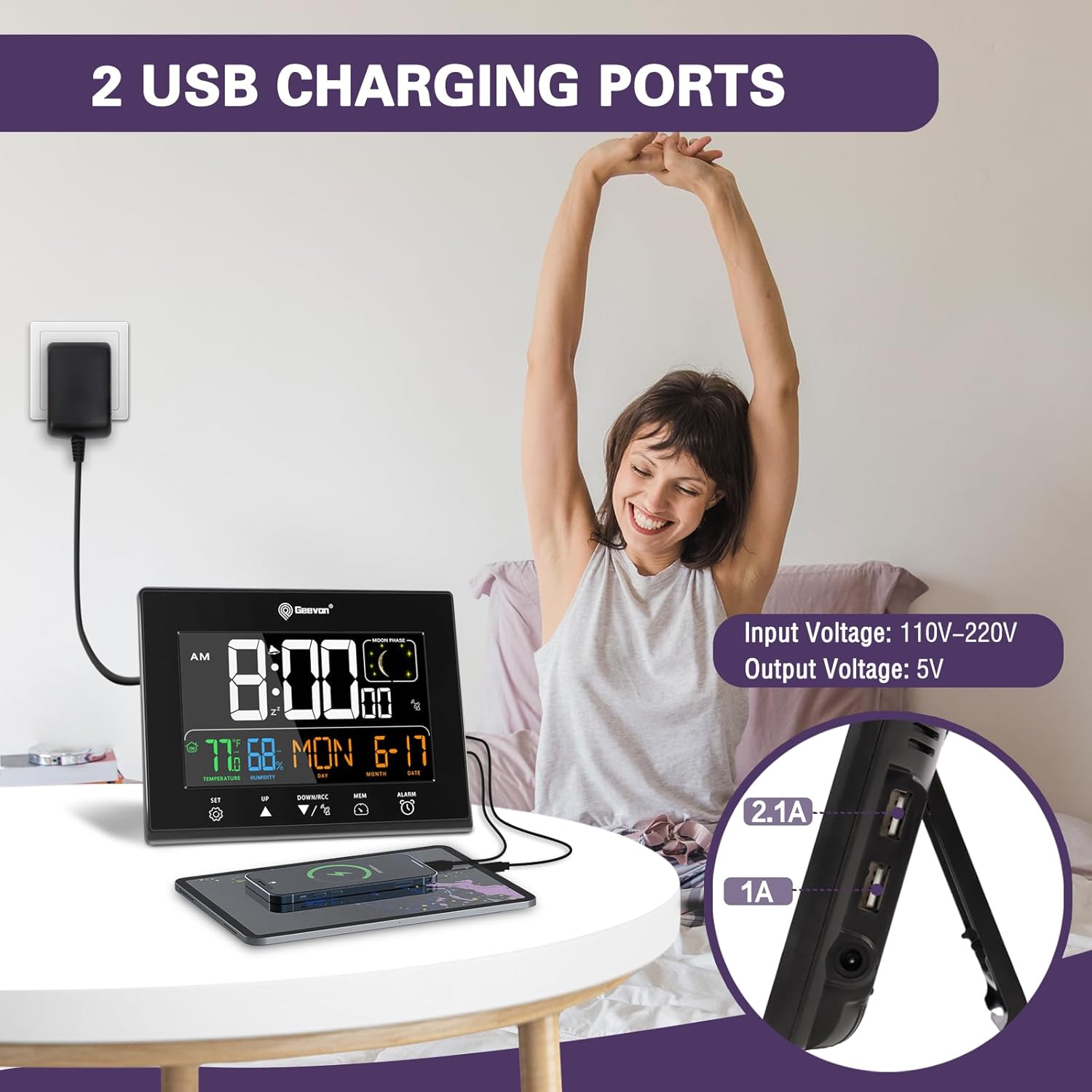
Figure 10: The clock's two USB charging ports, providing convenient power for your devices.
Maintenance
- Clean the clock's surface with a soft, dry cloth. Do not use abrasive cleaners or solvents.
- If the clock will not be used for an extended period, remove the backup batteries to prevent leakage.
Troubleshooting
| Problem | Possible Cause | Solution |
|---|---|---|
| Display is blank or dim. | No power or low battery. | Ensure AC adapter is securely plugged in. Check and replace backup batteries if needed. Adjust brightness using the SNZ/LIGHT button. |
| Atomic time (WWVB) not syncing. | Weak signal, interference, or incorrect time zone. | Place the clock near a window, away from electronic devices. Ensure correct time zone is selected. Allow overnight for synchronization. |
| USB charging not working. | Clock not powered by AC adapter. | USB charging only works when the clock is powered by the AC adapter, not solely on backup batteries. |
| Incorrect temperature/humidity readings. | Sensor interference or extreme conditions. | Ensure the clock is not placed near heat sources, direct sunlight, or vents. Allow time for readings to stabilize after relocation. |
Specifications
| Feature | Detail |
|---|---|
| Brand | Geevon |
| Model Number | 230342 |
| Display Type | Digital VA LCD Color Display |
| Product Dimensions | 6.3"W x 4.7"H |
| Power Source | Corded Electric & Battery Powered (3 AAA batteries required, not included) |
| Special Features | Adjustable Brightness (5-level), Alarm, Battery Indicator, Calendar Display, Charging Port (2 USB ports), Atomic Time (WWVB), Indoor Temperature & Humidity, Moon Phases |
| Indoor Temperature Range | 14°F to 122°F (-10°C to 50°C) |
| Indoor Humidity Range | 1% to 99% |
| Mounting Type | Tabletop/Wall Mount |
| Item Weight | 11.2 ounces |
Warranty and Support
Geevon offers a 30-day money-back guarantee, a 12-month warranty, and lifetime consulting services for this product. For support or inquiries, please contact Geevon customer service or visit the official Geevon store on Amazon: Geevon Store.
