1. Introduction
The JAGTRADE USB 2.0 Keyboard and Mouse Emulator is a physical hardware device designed to automate repetitive keyboard and mouse actions. It connects to a computer's USB port and can be programmed to execute a sequence of up to 31 keyboard keys or mouse events. This device is ideal for tasks requiring repeated inputs, offering both sequential and randomized playback options for the first 15 stored events.
Key features include:
- Automatic execution of programmed key and mouse events upon re-connection.
- Storage for up to 31 distinct keyboard keys or mouse events.
- First 15 events can be played in random or sequential order.
- Last 16 events are played in the exact written order.
- Adjustable key interval times, randomly generated within a set range.
- Loop playback functionality.
- Automatic operation upon power-on.
- Automatic increment of storage location during key writing, simplifying programming.
- Script data can be saved locally or written directly to the device.

Figure 1: Front view of the JAGTRADE USB 2.0 Keyboard and Mouse Emulator. The device features a blue translucent casing, a standard USB-A connector, and an internal circuit board with a digital display and control buttons.
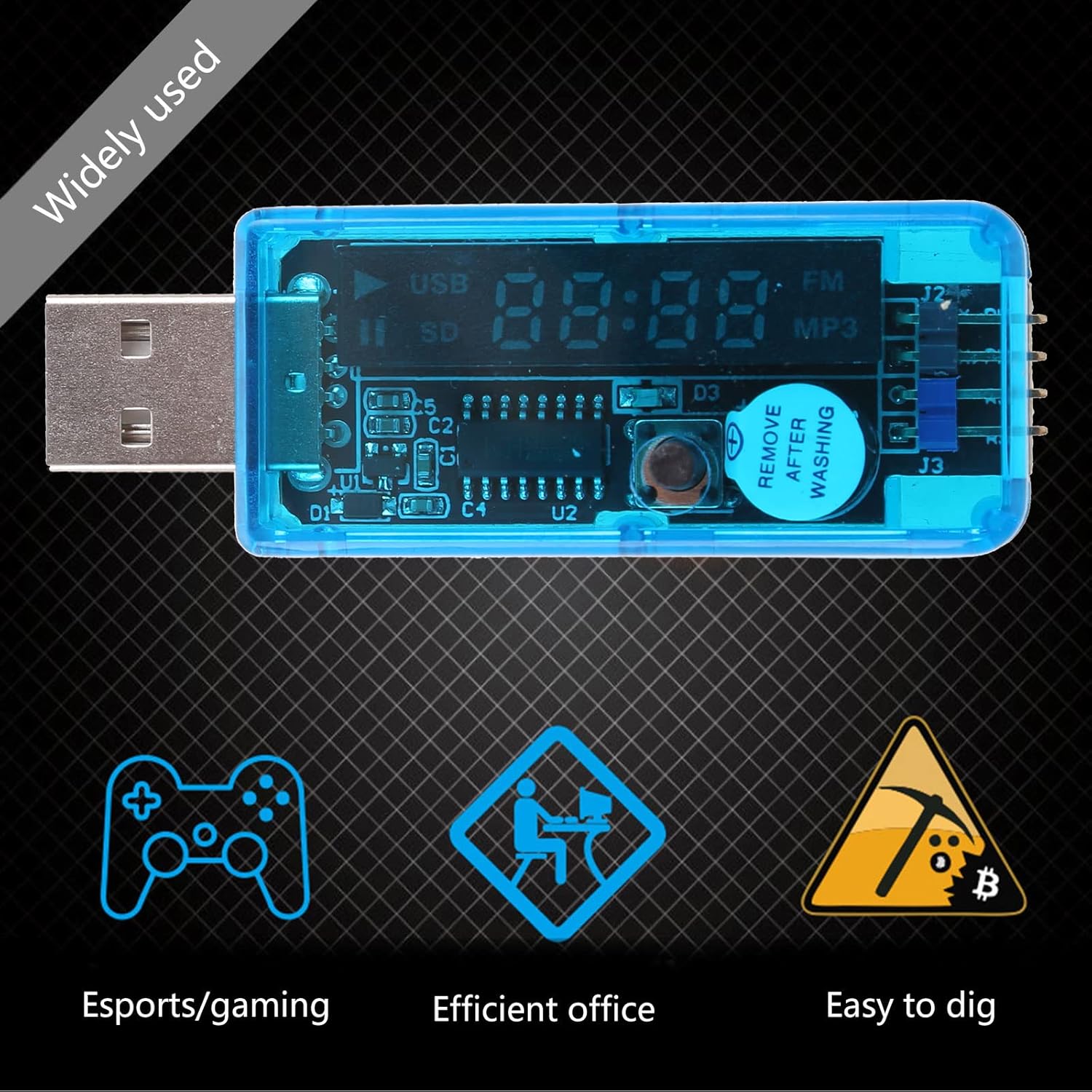
Figure 2: The emulator is widely used for various applications including esports/gaming, efficient office tasks, and automated data entry.
2. Setup
The JAGTRADE USB 2.0 Keyboard and Mouse Emulator is designed for plug-and-play operation. No driver installation is typically required for basic functionality.
- Connect to PC: Insert the USB-A connector of the emulator into an available USB 2.0 port on your computer.
- Software Installation: Obtain the dedicated configuration program from the manufacturer's website or provided media. Install this software on your computer. This program is essential for writing and managing the key and mouse event sequences.
- Initial Recognition: Your operating system should recognize the device as a standard USB Human Interface Device (HID).

Figure 3: Angled view of the emulator, showing its compact size and USB connector, ready for connection to a computer.
3. Operating Instructions
Operating the emulator involves programming the desired key and mouse events using the dedicated configuration software, and then allowing the device to execute these sequences.
3.1 Programming Key and Mouse Events
- Launch Configuration Software: Open the keyboard and mouse configuration program on your computer.
- Select Event Type: Within the software, choose whether you want to program a keyboard key press or a mouse event (e.g., click, movement).
- Input Event: Enter the specific key or mouse action. The software will guide you through this process.
- Store Event: Write the programmed event to the emulator. The device can store up to 31 events. The storage location automatically increments after each event is written.
- Set Interval Time: Configure the desired interval time between events. This can be a fixed value or a range for random generation.
- Save Script (Optional): You can save the entire sequence of events as a script file on your computer for future use or batch programming.
The first 15 stored events can be configured to play in a random order or a strict sequential order. The subsequent 16 events will always play in the order they were written.
3.2 Executing Programmed Sequences
- Disconnect and Reconnect: After programming, disconnect the emulator from the USB port and then reconnect it. The emulator will automatically begin executing the stored sequence.
- Loop Playback: If configured in the software, the emulator will continuously repeat the programmed sequence.
- Power-On Auto Operation: The device can be set to automatically start its operation when power is supplied (e.g., when the computer boots up with the emulator connected).
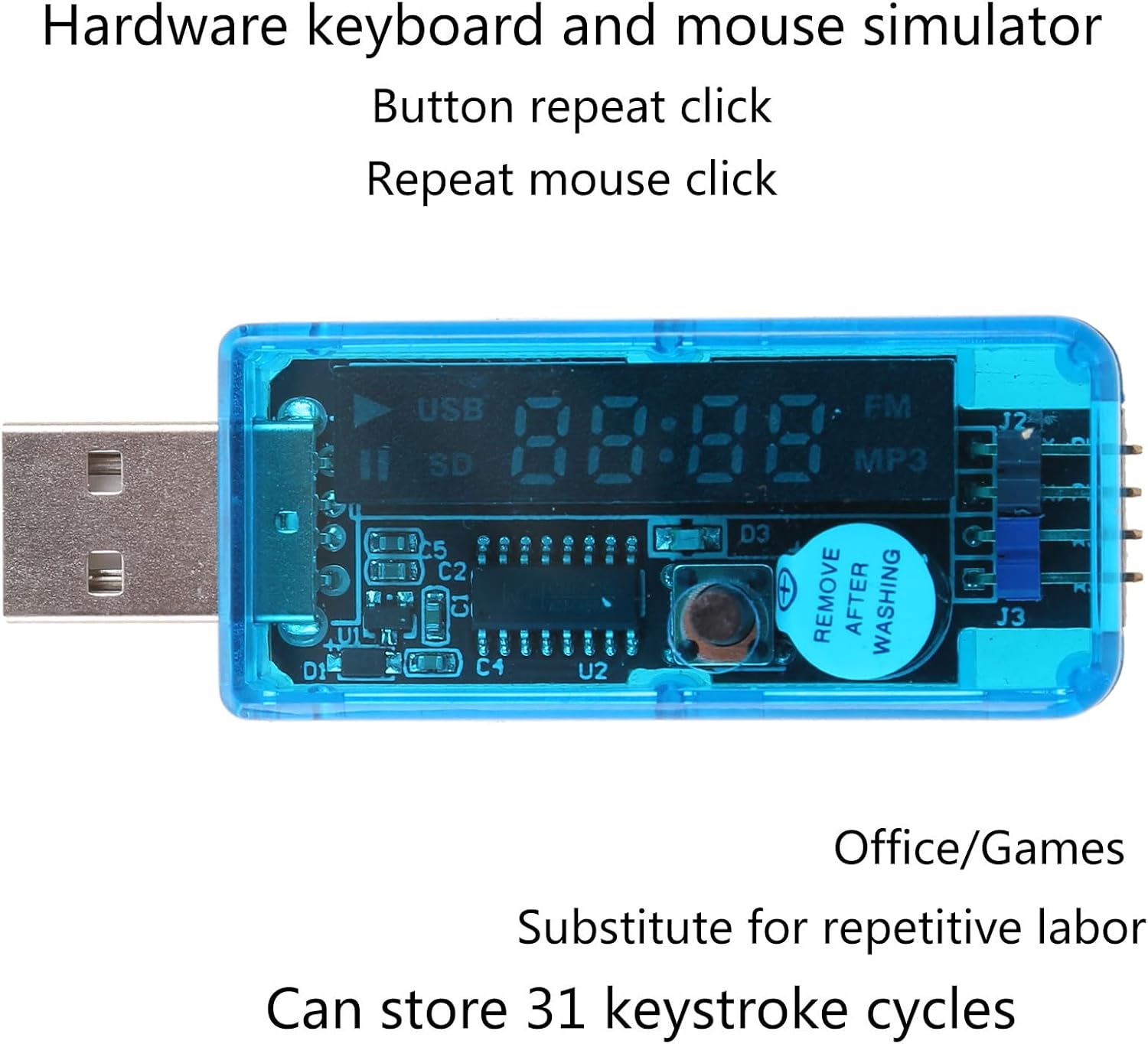
Figure 4: The emulator highlighting its function as a hardware keyboard and mouse simulator for repetitive clicks and actions.
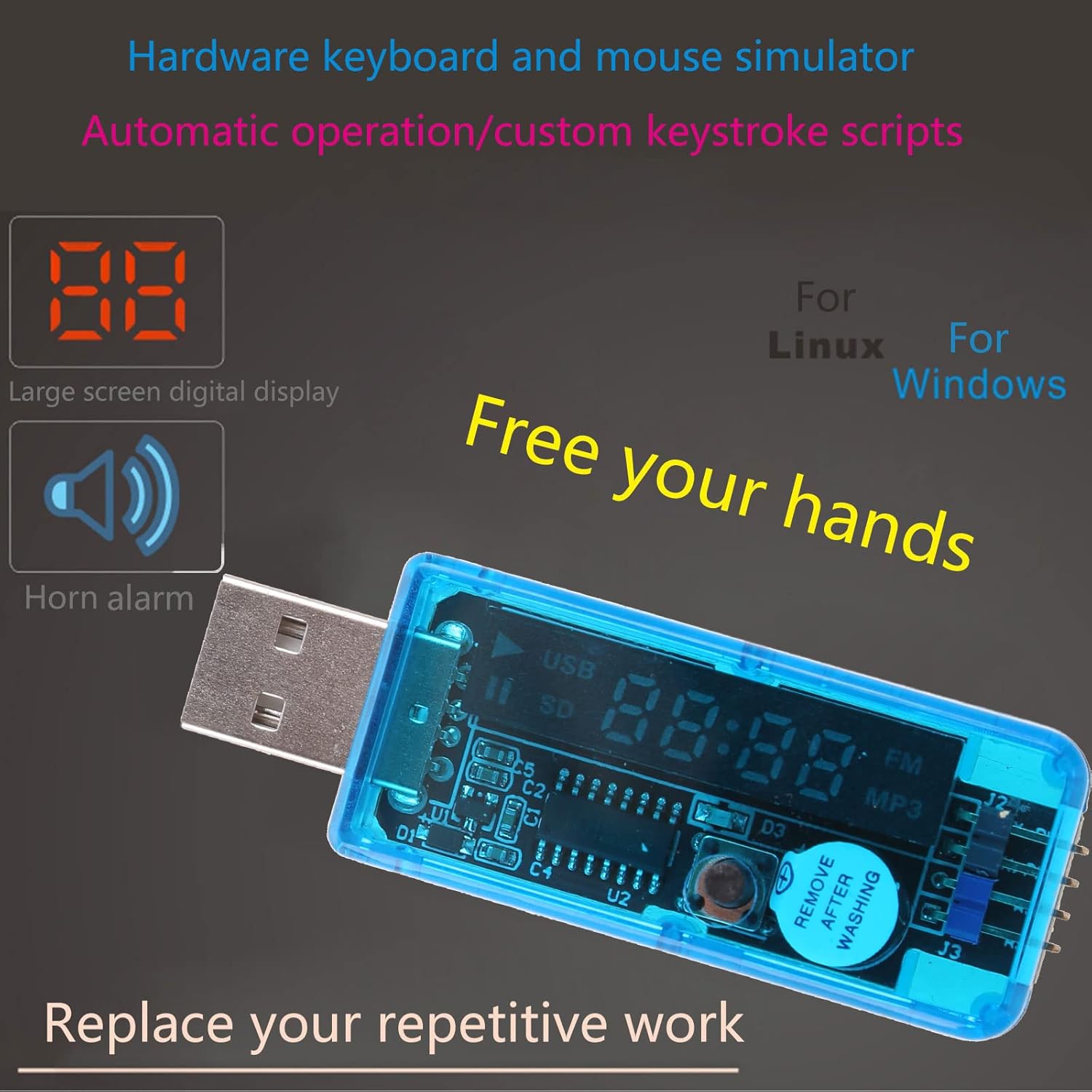
Figure 5: The emulator demonstrating its compatibility with Windows and Linux, emphasizing its role in automating tasks and freeing users from repetitive work.
4. Maintenance
To ensure the longevity and reliable operation of your JAGTRADE USB 2.0 Keyboard and Mouse Emulator, follow these simple maintenance guidelines:
- Keep Clean: Regularly wipe the device with a soft, dry cloth to remove dust and debris. Avoid using liquid cleaners directly on the device.
- Avoid Moisture: Do not expose the emulator to water or excessive humidity.
- Protect from Physical Damage: Handle the device carefully. Avoid dropping it or subjecting it to strong impacts.
- Proper Storage: When not in use, store the emulator in a cool, dry place away from direct sunlight.
- USB Port Care: Ensure the USB port on your computer is clean and free of obstructions before inserting the emulator.
5. Troubleshooting
If you encounter issues with your JAGTRADE USB 2.0 Keyboard and Mouse Emulator, refer to the following troubleshooting steps:
- Device Not Recognized:
- Try plugging the emulator into a different USB port on your computer.
- Ensure the USB port is functional by testing it with another USB device.
- Restart your computer and try again.
- Check your operating system's Device Manager (Windows) or system information (Linux/macOS) to see if the device is listed, even with an error.
- Programmed Actions Not Executing:
- Verify that the events were successfully written to the emulator using the configuration software.
- Ensure you have disconnected and reconnected the emulator after programming.
- Check the configuration software for any error messages during the programming process.
- Confirm that the loop playback or auto-start settings are correctly configured if desired.
- Incorrect or Unexpected Actions:
- Review your programmed sequence in the configuration software for any errors or unintended inputs.
- If using random playback for the first 15 events, understand that the order will vary.
- Ensure the key interval times are set appropriately for the target application.
- Configuration Software Issues:
- Ensure you are using the latest version of the configuration software.
- Reinstall the software if it is crashing or not functioning correctly.
6. Specifications
Detailed technical specifications for the JAGTRADE USB 2.0 Keyboard and Mouse Emulator:
| Feature | Specification |
|---|---|
| Storage Capacity | 31 key-values (keyboard keys or mouse events) |
| Emulation Type | Keyboard and Mouse Device |
| Interface Type | Standard USB 2.0 |
| Compatible Operating Systems | Windows, Linux, macOS, Android (requires USB OTG support) |
| Button Delay Range | 0.1 to 6553.5 seconds |
| Time Accuracy | 0.1 seconds |
| Entry Method | PC terminal input (via configuration software) |
| Display Mode | Large screen LED digital tube |
| Color | Blue (translucent casing) |
| Connectivity Technology | USB |
| Special Feature | Programmable Key Sequences |
| Compatible Devices | Personal Computer |

Figure 6: Dimensions of the emulator: approximately 67mm (2.64") in length, 23mm (0.91") in width, and 14mm (0.55") in height.
7. Warranty Information
Specific warranty details for the JAGTRADE USB 2.0 Keyboard and Mouse Emulator are not provided in the product information. Please refer to the retailer or manufacturer's official website for current warranty terms and conditions, or contact their customer service directly.
8. Customer Support
For further assistance, technical support, or inquiries regarding the JAGTRADE USB 2.0 Keyboard and Mouse Emulator, please contact the seller or manufacturer through their official channels. Refer to your purchase documentation or the product listing page for contact information.


