
Introduction
This manual provides detailed instructions for the setup, operation, and maintenance of your Rapoo M300G Silent Wireless Mouse. Please read this guide thoroughly to ensure proper use and to maximize the performance of your device. The Rapoo M300G offers versatile connectivity options, silent clicking, and adjustable DPI settings for an optimized user experience.
Package Contents
Verify that all items are present in the package:
- Rapoo M300G Wireless Mouse x 1
- AA Battery x 1
- USB Receiver x 1 (typically stored inside the mouse)
- Product Manual x 1
Product Overview
Familiarize yourself with the components of your Rapoo M300G mouse:

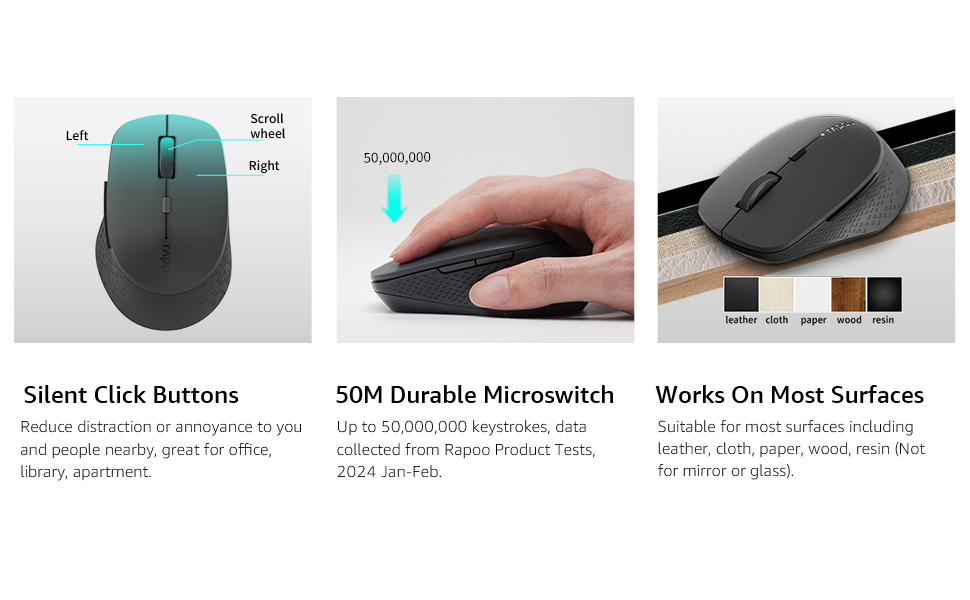
- Left Button: Standard click function.
- Right Button: Standard right-click function.
- Scroll Wheel: For scrolling through documents and web pages. Can also be pressed for middle-click functionality.
- DPI Switch Button: Adjusts the mouse sensitivity (DPI).
- Forward Button: Navigates forward in web browsers or file explorers.
- Backward Button: Navigates backward in web browsers or file explorers.
- Multi-function Button Switch (Underside): Used to switch between 2.4GHz and Bluetooth modes, and for Bluetooth pairing.
Setup
1. Battery Installation
The Rapoo M300G mouse requires one AA battery (included).
- Locate the battery compartment cover on the underside of the mouse.
- Slide the cover open.
- Insert the AA battery, ensuring the positive (+) and negative (-) terminals align correctly with the markings inside the compartment.
- Close the battery compartment cover securely.

2. 2.4GHz Wireless Connection
To connect via the 2.4GHz USB receiver:
- Remove the USB receiver from its storage slot inside the mouse's battery compartment.
- Plug the USB receiver into an available USB port on your computer.
- Turn on the mouse using the power switch on the underside.
- Set the multi-function button switch on the underside of the mouse to the 2.4G mode (indicated by a small icon).
- Your computer should automatically detect and install the necessary drivers. The mouse is ready for use.
3. Bluetooth Connection
The Rapoo M300G supports Bluetooth 5.0 and 4.0. To connect via Bluetooth:
- Turn on the mouse using the power switch on the underside.
- Set the multi-function button switch on the underside of the mouse to the Bluetooth mode (indicated by a Bluetooth icon).
- Press and hold the multi-function button switch for 3-5 seconds until the indicator light on the mouse starts blinking, indicating it is in pairing mode.
- On your computer or device, open Bluetooth settings and search for new devices.
- Select "Rapoo M300G" from the list of available devices to pair.
- Once paired, the indicator light on the mouse will stop blinking and remain solid for a few seconds, then turn off. The mouse is now connected.

Operation
1. DPI Adjustment
The Rapoo M300G features 5 adjustable DPI levels: 800, 1000, 1200, 1600, and 2400. To change the DPI:
- Press the DPI Switch Button located behind the scroll wheel.
- Each press cycles through the available DPI settings. The mouse cursor speed will change accordingly.

2. Multi-Device Switching
The M300G supports connection to two devices simultaneously (one via 2.4GHz, one via Bluetooth). To switch between connected devices:
- Briefly press the Multi-function Button Switch on the underside of the mouse.
- The mouse will switch between the 2.4GHz connection and the Bluetooth connection.

3. Surface Compatibility
The advanced optical tracking technology allows the Rapoo M300G to operate effectively on various surfaces without a mouse pad, including leather, cloth, paper, wood, and resin. Performance may vary on glass or mirrored surfaces.

Maintenance
- Cleaning: Use a soft, dry cloth to clean the mouse. Avoid using harsh chemicals or abrasive materials.
- Battery Replacement: Replace the AA battery when the mouse performance degrades or the indicator light signals low power.
- Storage: When not in use for extended periods, turn off the mouse to conserve battery life. Store the USB receiver in its dedicated slot to prevent loss.

Troubleshooting
| Problem | Possible Cause | Solution |
|---|---|---|
| Mouse not responding | Low battery; Mouse turned off; Incorrect connection mode; USB receiver not connected (2.4GHz); Bluetooth not paired (Bluetooth). | Replace battery; Turn on mouse; Switch to correct mode (2.4G or BT); Plug in USB receiver; Re-pair Bluetooth. |
| Cursor movement is erratic | Dirty optical sensor; Unsuitable surface; Low battery. | Clean optical sensor; Use on a suitable surface or mouse pad; Replace battery. |
| Cannot switch between devices | Incorrect button press; Device not properly paired. | Ensure a brief press of the multi-function button; Verify both devices are correctly paired/connected. |
| Side buttons not working (Mac OS) | Limited Mac OS compatibility for side buttons. | This is a known limitation. Side buttons may not function on Mac OS. |
Specifications
- Model: M300G
- Connectivity: Bluetooth 5.0, Bluetooth 4.0, 2.4GHz Wireless
- DPI Settings: 800, 1000, 1200, 1600, 2400 (Adjustable)
- Buttons: 6 (Left, Right, Scroll Wheel, DPI Switch, Forward, Backward)
- Power: 1 x AA Battery
- Battery Life: Up to 12 months (under normal conditions)
- Dimensions: 4.09 x 2.57 x 0.04 inches (103.91 x 65.43 x 37.29 mm)
- Weight: 2.46 ounces (70g approx.)
- Compatibility: Windows, Mac OS, Linux, iOS, Android, Chrome OS
Warranty and Support
Your Rapoo M300G Silent Wireless Mouse comes with a One Year Warranty from the date of purchase. Additionally, a 30-day return and refund or replacement policy is offered. For technical support or warranty claims, please refer to the contact information provided on the Rapoo official website or your retailer's support channels.


