
1. Introduction
This manual provides detailed instructions for the installation, operation, and maintenance of your TMEZON Indoor Security Camera (Model X12). This 2K 3MP HD camera offers pan/tilt functionality, Wi-Fi connectivity, two-way audio, motion detection, and night vision, designed to help you monitor your home, pets, or baby with ease.

Image: The TMEZON Indoor Security Camera, a white spherical camera on a base, shown next to a smartphone displaying a live video feed of a child. This illustrates the camera's primary function for home monitoring.
2. Package Contents
Please check the package contents carefully. If any items are missing or damaged, please contact customer support.
- TMEZON Indoor Security Camera (Model X12)
- USB Power Cable
- Power Adapter
- Mounting Screws and Wall Anchors
- User Manual

Image: A flat lay of the TMEZON Indoor Security Camera and its accessories, including the camera unit, a USB power cable, a power adapter, mounting screws, and a quick start guide.
3. Product Overview
The TMEZON Indoor Security Camera is equipped with advanced features for comprehensive home monitoring.
Key Features:
- 2K 3MP HD Video: Provides clear and detailed video footage.
- Pan/Tilt Functionality: Offers a 350° horizontal pan and 45° vertical tilt for a wide field of view.
- Two-Way Audio: Built-in microphone and speaker allow for real-time communication.
- Motion Detection & Notifications: Sends real-time alerts to your smartphone upon detecting movement.
- Night Vision: Ensures clear monitoring even in low-light conditions.
- Local & Cloud Storage: Supports Micro SD card (up to 128GB) for local recording and optional cloud service for secure storage.
- One-Click Call: Allows family members to initiate a video call to your smartphone directly from the camera.
- Wi-Fi Connectivity: Supports 2.4GHz Wi-Fi for easy setup and remote access.
- Multi-User Access: One account supports multiple users for live video viewing.
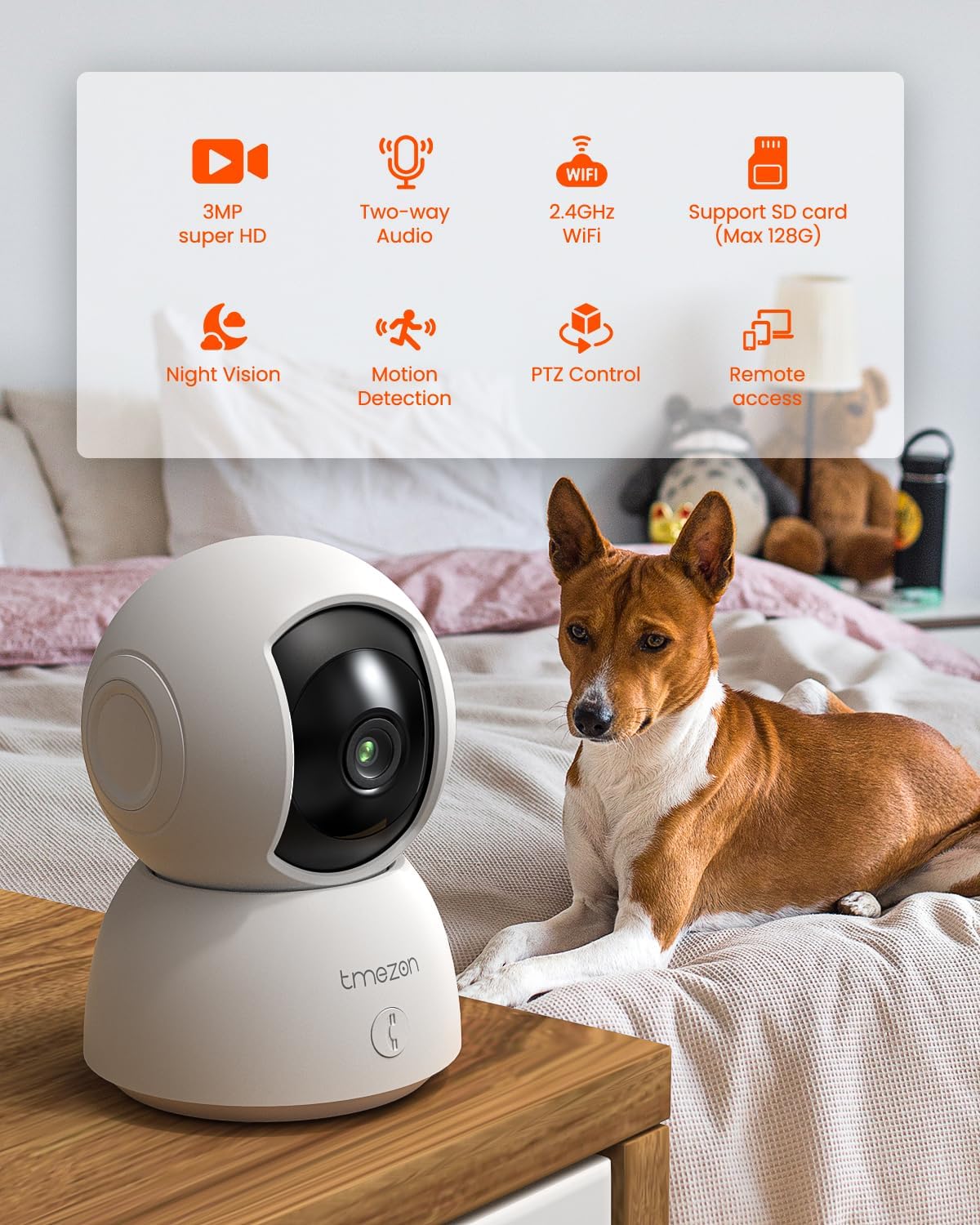
Image: The TMEZON Indoor Security Camera positioned on a table next to a dog, with a graphic overlay highlighting its key features: 3MP Super HD, Two-way Audio, 2.4GHz WiFi, Support for SD card (Max 128G), Night Vision, Motion Detection, PTZ Control, and Remote Access.
4. Setup Guide
Follow these simple steps to set up your TMEZON Indoor Security Camera:
- Download the Vicohome App: Search for "Vicohome" in the Apple App Store or Google Play Store and install the application on your smartphone.
- Power on the Camera: Connect the camera to a power source using the provided USB cable and power adapter. The camera will power on and indicate readiness for pairing.
- Configure Wi-Fi Connection: Open the Vicohome app, create an account or log in, and follow the in-app instructions to add a new device. You will be prompted to connect the camera to your 2.4GHz Wi-Fi network. The app will generate a QR code; present this QR code to the camera lens for scanning.
- Connection Success: Once the camera successfully scans the QR code and connects to your Wi-Fi, you will hear a confirmation sound, and the app will display a live view. You can now enjoy monitoring.

Image: A visual guide showing the four steps for simple connection: 1. Download and install the Vicohome Application (with App Store and Google Play icons). 2. Power on the camera. 3. Configure 2.4G WiFi Connection and target the camera at the QR Code displayed in the "VicoHome" app. 4. Connection succeeded, enjoy live view.
5. Operating Instructions
5.1 Pan and Tilt Control
From the live view in the Vicohome app, use the on-screen joystick or swipe gestures to remotely control the camera's pan (horizontal) and tilt (vertical) movements. The camera offers a 360° horizontal rotation and 90° vertical tilt to cover all angles of your room.

Image: The TMEZON Indoor Security Camera illustrating its 360° pan and 90° tilt capabilities. A hand holds a smartphone displaying the camera's live feed with on-screen controls for movement, showing two children playing.
5.2 Two-Way Audio
To use the two-way audio feature, tap the microphone icon in the live view interface of the Vicohome app. You can speak into your phone, and your voice will be transmitted through the camera's speaker. Similarly, the camera's built-in microphone will pick up sounds from the camera's environment, allowing you to hear through your phone.

Image: The TMEZON Indoor Security Camera on a small table, with a baby playing nearby. Speech bubbles "Honey!" and "Mom!" illustrate the clear two-way audio functionality, enabling communication between the camera's location and the app user.
5.3 Motion Detection and Notifications
The camera is equipped with motion detection capabilities. When motion is detected within the camera's field of view, the camera will automatically record the event and send a real-time notification to your smartphone via the Vicohome app. You can customize motion detection sensitivity and notification settings within the app.

Image: An illustration of the camera's motion detection feature. A person in a balaclava is shown within the camera's detection zone, and a smartphone displays a notification from "TMEZON Smart Camera" stating "A person detected".
5.4 Night Vision
The camera automatically switches to night vision mode in low-light conditions, providing clear black-and-white video footage. This ensures continuous monitoring day and night.

Image: The TMEZON Indoor Security Camera providing clear night vision. A child is sleeping in the background, and a smartphone displays the camera's live feed in black and white, demonstrating its low-light monitoring capability.
5.5 One-Click Call
The camera features a physical button that allows anyone near the camera to initiate a video call to the connected smartphone. Pressing this button will send a call notification to your Vicohome app, enabling instant communication.

Image: The "One-Click Call Your Families" feature in action. An elderly man presses the call button on the TMEZON camera, and a smartphone receives an incoming video call, facilitating easy communication.
5.6 Local and Cloud Recording
The camera supports continuous recording or event-triggered recording. You can insert a Micro SD card (up to 128GB, not included) into the designated slot for local storage. Alternatively, you can subscribe to the Vicohome cloud service for secure, off-site video storage and playback.

Image: The TMEZON Indoor Security Camera demonstrating its local and cloud recording capabilities. An SD card is shown inserted into the camera, and a film strip graphic displays various recorded moments. Icons for "Cloud Service" and "Micro SD card" are also present.
6. Maintenance
6.1 Cleaning the Camera
To ensure optimal performance, periodically clean the camera lens and body. Use a soft, dry cloth to wipe away dust and smudges. Avoid using harsh chemicals or abrasive materials that could damage the lens or finish.
6.2 Firmware Updates
Regularly check the Vicohome app for available firmware updates. Keeping your camera's firmware up-to-date ensures you have the latest features, security enhancements, and bug fixes. Follow the in-app instructions for firmware updates.
6.3 SD Card Management
If using a Micro SD card for local storage, it is recommended to format the card periodically through the Vicohome app to maintain optimal recording performance and prevent data corruption. Replace the SD card if it shows signs of degradation or error.
7. Troubleshooting
| Problem | Possible Cause | Solution |
|---|---|---|
| Camera fails to connect to Wi-Fi. | Incorrect Wi-Fi password, camera too far from router, 5GHz Wi-Fi network used. |
|
| No live view or video feed. | Camera offline, poor Wi-Fi signal, app issue. |
|
| Motion detection notifications not received. | Notifications disabled, incorrect sensitivity settings, app permissions. |
|
| Two-way audio not working. | Microphone/speaker muted, app permissions, internet connection. |
|
8. Specifications
| Feature | Detail |
|---|---|
| Model Number | X12 |
| Video Resolution | 2K 3MP HD (Note: Some specifications may list 1080p, but the product is advertised as 2K 3MP HD) |
| Field of View | 360° Pan, 90° Tilt |
| Connectivity | 2.4GHz Wi-Fi (IEEE 802.11b/g/n) |
| Storage | Micro SD Card (up to 128GB), Cloud Storage (subscription required) |
| Audio | Two-Way Audio (Built-in microphone and speaker) |
| Night Vision | Yes |
| Power Source | Corded Electric (5 Watt-hours) |
| Dimensions (L x W x H) | 6.02 x 4.06 x 3.54 inches |
| Weight | 1.1 pounds (0.5 Kilograms) |
| Compatible Devices | Smartphone (iOS, Android) |
9. Warranty and Support
9.1 Warranty Information
TMEZON products typically come with a limited warranty. Please refer to the warranty card included in your product packaging or visit the official TMEZON website for detailed warranty terms and conditions. Keep your purchase receipt as proof of purchase for warranty claims.
9.2 Customer Support
If you encounter any issues or have questions regarding your TMEZON Indoor Security Camera, please contact our customer support team. You can usually find contact information (email, phone, or support portal) on the TMEZON official website or within the Vicohome app's help section.
For online support, visit: TMEZON Official Store on Amazon


