
1. Introduction
The BoxWave AllReader SD Card Reader is a versatile and compact device designed for seamless file transfer between various memory cards and your digital devices. It supports both standard SD cards and microSD cards, offering multiple interface options for broad compatibility with smartphones, tablets, laptops, and desktop computers. This manual provides detailed instructions on setting up, operating, maintaining, and troubleshooting your AllReader SD Card Reader.

Image: The BoxWave AllReader SD Card Reader shown alongside a ZOOAOXO M600 device, illustrating its compact size and compatibility.
2. Product Features
- Four Versatile Interfaces: The AllReader is equipped with USB-C, USB-A, Micro-USB, and Apple interfaces, ensuring compatibility with a wide range of devices without the need for additional adapters.
- Easy File Transfer: Facilitates quick and straightforward transfer of photos, videos, music, and other files between your memory cards and connected devices.
- Plug and Play Functionality: No drivers or complex software installations are required. Simply plug in your memory card and connect the reader to your device for immediate access.
- Expandable Storage: Utilize your existing SD or microSD cards to expand the storage capacity of your smartphone, tablet, or computer.
- Compact and Portable Design: Its small size and built-in connectors make it highly portable, fitting easily into a bag, purse, or pocket for on-the-go use.
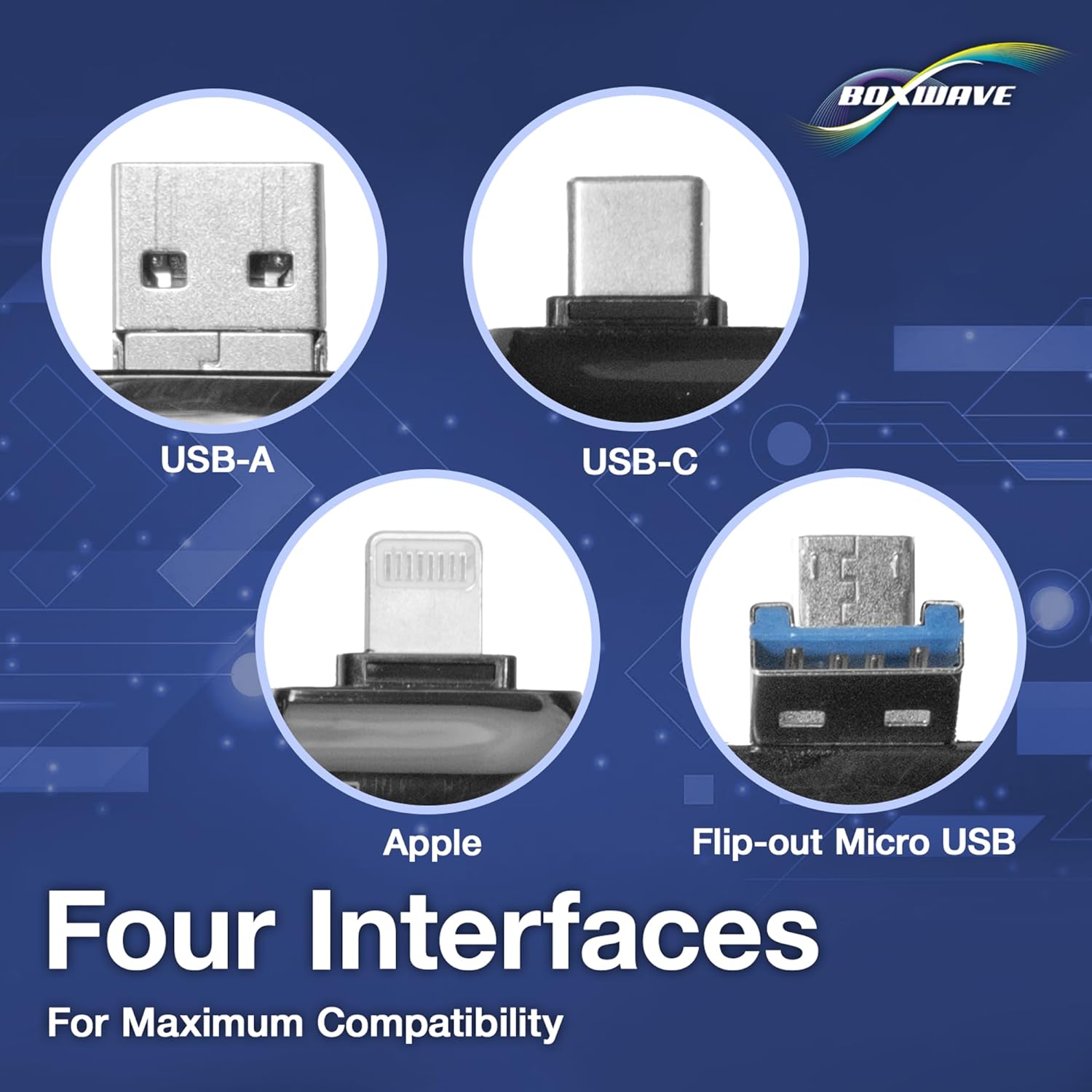
Image: A detailed view of the four distinct connector types integrated into the AllReader: USB-A, USB-C, Apple, and a flip-out Micro USB, highlighting its broad compatibility.

Image: The AllReader SD Card Reader resting in the palm of a hand, emphasizing its small and highly portable design.
3. Setup Guide
Setting up your BoxWave AllReader SD Card Reader is a simple process. Follow these steps to begin using your device:
- Insert Memory Card: Locate the appropriate slot on the AllReader for your SD or microSD card. Gently insert the card until it clicks into place. Ensure the card is inserted correctly to avoid damage.
- Identify Device Port: Determine which port on your smartphone, tablet, laptop, or desktop computer is compatible with one of the AllReader's interfaces (USB-C, USB-A, Micro-USB, or Apple).
- Connect AllReader: Plug the corresponding interface of the AllReader into your device's port. The device should automatically recognize the card reader.
- Access Files: Once connected, navigate to your device's file manager or photo gallery to access the contents of the inserted memory card.

Image: A close-up view of the AllReader SD Card Reader, highlighting the slot where memory cards are inserted.
4. Operating Instructions
The BoxWave AllReader SD Card Reader is designed for intuitive operation. Here’s how to use it for various tasks:
4.1. Transferring Files
- Connect the AllReader: Ensure your SD or microSD card is inserted into the AllReader and the AllReader is connected to your target device (e.g., smartphone, tablet, laptop, PC).
- Locate Files: On your device, open the file management application (e.g., "Files" on iOS, "My Files" on Android, "File Explorer" on Windows, "Finder" on macOS). The inserted memory card will appear as an external storage device.
- Select and Copy: Browse to the files you wish to transfer. Select the files or folders, then choose the "Copy" option.
- Paste to Destination: Navigate to the desired destination folder on your device's internal storage or another connected storage. Select "Paste" to complete the transfer.

Image: The AllReader SD Card Reader with an SD card, connected to a smartphone, demonstrating the ease of file transfer.

Image: A visual representation of the AllReader connected to various devices including smartphones, tablets, laptops, and desktop PCs, illustrating its versatile file transfer capabilities.
4.2. Safe Removal
To prevent data corruption, always safely eject the AllReader before disconnecting it from your computer or mobile device.
- For Computers (Windows/macOS): Right-click on the drive icon representing the AllReader in "File Explorer" (Windows) or "Finder" (macOS) and select "Eject" or "Safely Remove Hardware." Wait for the "Safe to Remove Hardware" message before unplugging.
- For Mobile Devices (Android/iOS): Close any applications accessing the card reader. On some Android devices, you may find an "Eject" option in the notification panel or storage settings. For iOS, simply closing the Files app and unplugging is generally sufficient, as iOS manages external storage more dynamically.
5. Maintenance
To ensure the longevity and optimal performance of your BoxWave AllReader SD Card Reader, follow these simple maintenance guidelines:
- Cleaning: Use a soft, dry, lint-free cloth to wipe the exterior of the device. Avoid using liquid cleaners, solvents, or abrasive materials, as these can damage the reader.
- Storage: Store the AllReader in a cool, dry place away from direct sunlight and extreme temperatures. When not in use, it is recommended to keep it in a protective pouch or case to prevent dust and physical damage to the connectors.
- Handling: Avoid dropping the device or subjecting it to strong impacts. Do not force memory cards or connectors into their slots, as this can cause damage to both the reader and the cards.
6. Troubleshooting
If you encounter issues with your BoxWave AllReader SD Card Reader, refer to the following common problems and their solutions:
| Problem | Possible Cause / Solution |
|---|---|
| Card Not Detected |
|
| Slow File Transfer |
|
| AllReader Not Recognized by Device |
|
7. Specifications
| Feature | Detail |
|---|---|
| Product Name | BoxWave AllReader SD Card Reader |
| Model Number | B0CS48QRYB |
| Interfaces | USB-C, USB-A, Micro-USB, Apple |
| Supported Card Types | SD, microSD |
| Item Weight | 6 ounces |
| Manufacturer | BoxWave |
| Country of Origin | China |
| Date First Available | November 15, 2023 |
8. Warranty and Support
BoxWave products are manufactured with high-quality standards. For information regarding the product warranty, please refer to the warranty card included with your purchase or visit the official BoxWave website.
For technical support, troubleshooting assistance, or any inquiries about your BoxWave AllReader SD Card Reader, please contact BoxWave Customer Service through their official website or the contact information provided in your product packaging.