
1. Introduction
Welcome to your new TCL 40-Inch Class 3-Series FHD LED Smart Android TV. This television combines Full High Definition (1080p) resolution with the power of Android TV, offering a seamless and intelligent viewing experience. Enjoy integrated features like Google Assistant for voice control, Chromecast built-in for easy content casting, and Bluetooth connectivity for expanded audio options. This manual will guide you through the setup, operation, and maintenance of your new device.
2. Safety Information
Please read all safety instructions carefully before using your TV. Keep this manual for future reference. Always ensure the TV is placed on a stable surface or securely mounted. Avoid exposing the TV to direct sunlight, extreme temperatures, or high humidity. Do not block ventilation openings. Disconnect the power cord during lightning storms or when unused for long periods.
3. What's in the Box
Verify that all components are present in the packaging:
- TCL 40-Inch Class 3-Series FHD LED Smart Android TV
- Remote Control (with batteries)
- Power Cable
- TV Stand Legs (2)
- Screws for TV Stand
- Quick Start Guide & User Manual
- Wall Mount (if included with your specific package)

Figure 3.1: TCL 40-Inch Smart Android TV with included wall mount components.
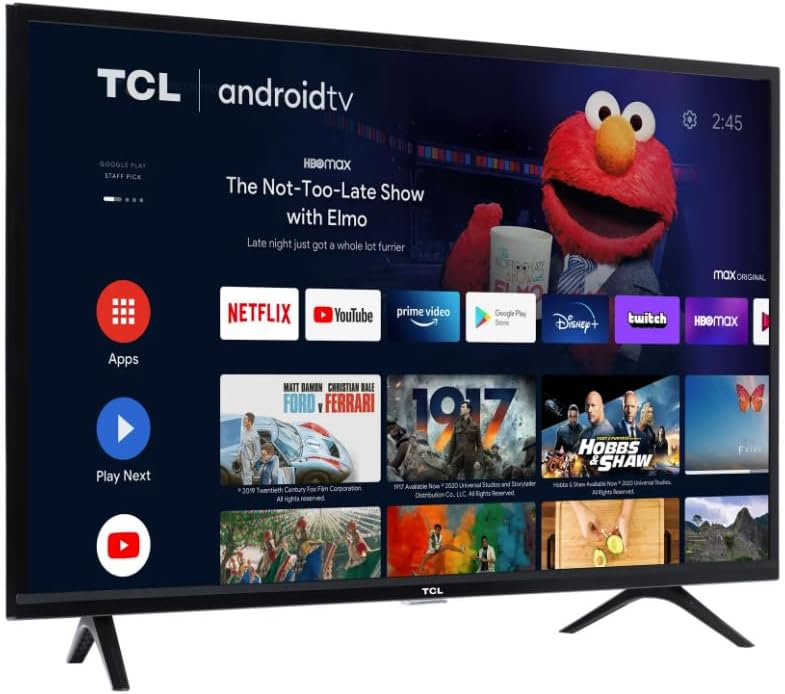
Figure 3.2: TCL 40-Inch Smart Android TV resting on its desktop stand.
4. Setup
4.1 Installing the TV Stand
- Carefully place the TV face-down on a soft, clean surface to prevent screen damage.
- Align the stand legs with the screw holes on the bottom of the TV.
- Secure each leg with the provided screws using a screwdriver.
- Carefully lift the TV and place it on a stable, level surface.
4.2 Wall Mounting (Optional)
If you choose to wall mount your TV, please refer to the instructions provided with your specific wall mount kit. Ensure the wall mount is compatible with your TV's VESA mounting pattern and weight. Professional installation is recommended for wall mounting.
4.3 Connecting Peripherals
Your TCL Android TV offers various ports for connecting external devices:
- HDMI Ports: Connect Blu-ray players, gaming consoles, cable boxes, etc.
- USB Port: For media playback from USB drives.
- Ethernet Port: For a wired internet connection.
- Optical Digital Audio Out: For connecting to a soundbar or audio receiver.
- Antenna/Cable Input: For connecting an antenna or cable TV.
4.4 Initial Power On and Network Connection
- Plug the power cable into the TV and then into a power outlet.
- Press the power button on the remote control or on the TV.
- Follow the on-screen instructions to select your language, connect to your Wi-Fi network, and sign in with your Google account to activate Android TV features.
5. Operating Your Smart TV
5.1 Home Screen Navigation
The Android TV home screen provides quick access to your favorite apps, movies, shows, and settings. Use the directional pad on your remote to navigate through the interface.
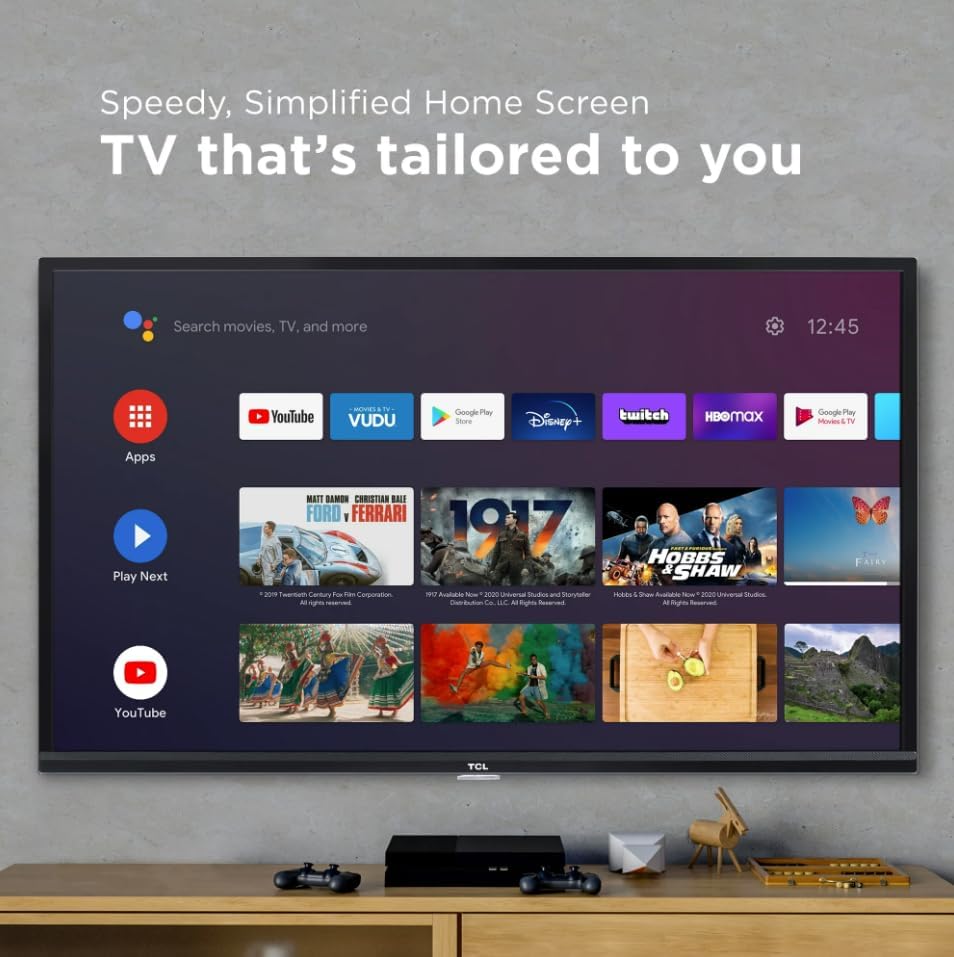
Figure 5.1: The intuitive Android TV home screen.
5.2 App Access
Access thousands of apps from the Google Play Store directly on your TV. Popular streaming services like Netflix, YouTube, Prime Video, and more are readily available.

Figure 5.2: A selection of available streaming applications on Android TV.
5.3 Voice Control with Google Assistant
Your TV features Google Assistant built-in. Press the Google Assistant button on your remote and speak your commands to search for content, control playback, get weather updates, manage smart home devices, and more.
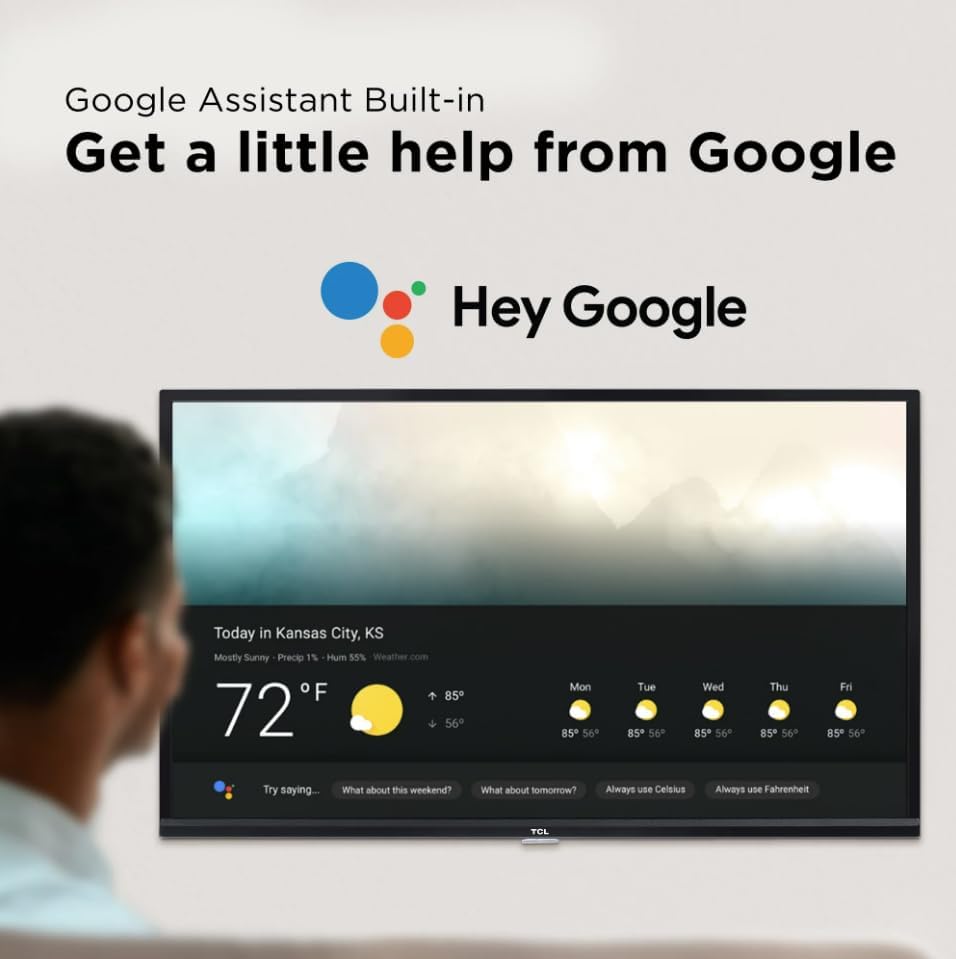
Figure 5.3: Interacting with Google Assistant on your TV.
5.4 Chromecast Built-in
Easily cast movies, shows, photos, and more from your Android or iOS device directly to your TCL Android TV using Chromecast built-in. Simply tap the Cast icon in compatible apps on your mobile device.

Figure 5.4: Seamless content casting with Chromecast built-in.
5.5 Remote Control
The included remote control is designed for ease of use, featuring dedicated buttons for popular streaming services and voice search functionality. It also includes volume controls and a mute button for quick adjustments.
6. Picture and Sound Settings
6.1 Picture Quality
Your TV delivers Full HD (1080p) resolution, providing excellent detail, color, and contrast. The Direct LED backlighting ensures uniform brightness across the screen.
6.2 Picture Modes
Adjust picture settings to suit your viewing preferences. Common modes include:
- Standard: Balanced settings for general viewing.
- Vivid: Enhanced brightness and color saturation.
- Sports: Optimized for fast-moving action.
- Movie: Calibrated for cinematic viewing.
- Low Power: Reduces energy consumption.
6.3 Sound Features
Experience full, rich sound for an immersive audio experience. The TV also supports Bluetooth wireless connectivity, allowing you to stream audio to headphones or a soundbar.
7. Maintenance
7.1 Cleaning Your TV
To clean the screen, gently wipe it with a soft, lint-free cloth. For stubborn marks, dampen the cloth with a small amount of water or a screen cleaner. Avoid harsh chemicals. Clean the TV's exterior with a soft, dry cloth.
7.2 Software Updates
Your Android TV may receive automatic software updates to improve performance and add new features. Ensure your TV is connected to the internet to receive these updates.
8. Troubleshooting
If you encounter issues with your TV, try the following basic troubleshooting steps:
- No Power: Check if the power cable is securely plugged into the TV and the wall outlet. Try a different outlet.
- No Picture/Sound: Ensure the correct input source is selected. Check all cable connections (HDMI, audio).
- Remote Not Responding: Replace the batteries in the remote control. Ensure there are no obstructions between the remote and the TV.
- Network Connection Issues: Restart your Wi-Fi router. Check the TV's network settings to ensure it's connected to the correct network.
- Frozen Screen/App Issues: Restart the TV by unplugging it from the power outlet for 30 seconds, then plugging it back in.
For more advanced troubleshooting or persistent issues, please refer to the full user manual or contact TCL customer support.
9. Specifications
| Feature | Detail |
|---|---|
| Brand | TCL |
| Model | 3-Series |
| Screen Size | 40 Inches |
| Resolution | 1080p (Full HD) |
| Display Technology | LED |
| Refresh Rate | 60 Hz |
| Operating System | Android TV |
| Special Features | Google Assistant Built-in, Chromecast Built-in, Bluetooth, Works with Alexa and Google Assistant |
| Connectivity | Bluetooth, Wi-Fi, HDMI, USB |
| Product Dimensions | 40"D x 6"W x 26"H |
| Item Weight | 19 pounds |

Figure 9.1: Physical dimensions of the TCL 40-Inch Smart Android TV.
10. Warranty and Support
Your TCL 40-Inch Class 3-Series FHD LED Smart Android TV is covered by a manufacturer's warranty. For detailed warranty information, including terms and conditions, please refer to the warranty card included in your product packaging or visit the official TCL support website. For technical assistance, troubleshooting, or service requests, please contact TCL customer support through their official channels.


