Introduction
The Wacom Movink 13 is a portable 13.3-inch OLED drawing tablet designed for creative professionals. It features a thin and lightweight design, an OLED display with vibrant color reproduction, and the Wacom Pro Pen 3 for precise input. This manual provides essential information for setting up, operating, and maintaining your device.
The Movink 13 is compatible with Mac, PC, Chromebook, and Android operating systems, offering versatility for various creative workflows.
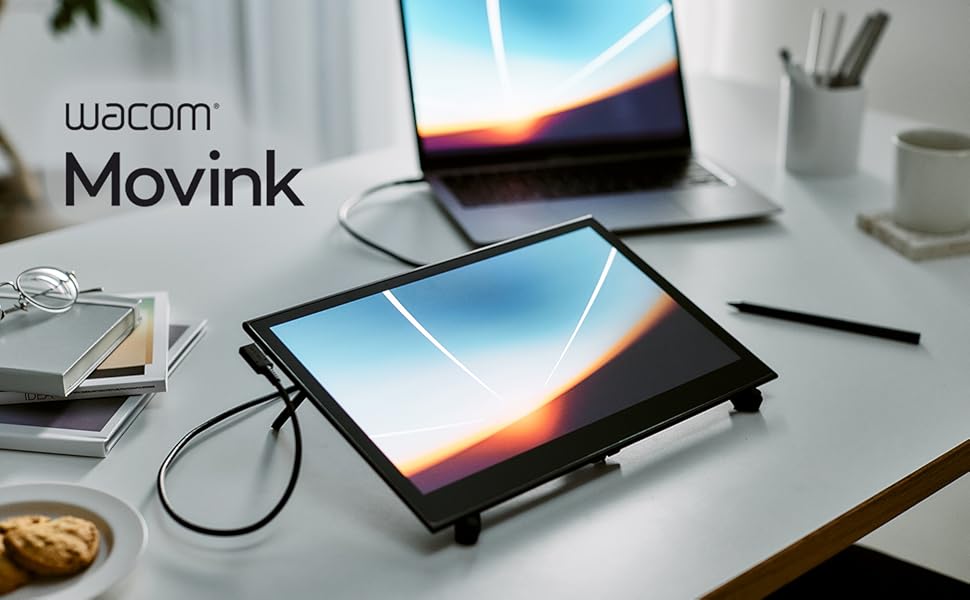
Image: The Wacom Movink 13.3-inch OLED Drawing Tablet positioned on a desk next to a laptop, showcasing its compact design.
What's in the Box
Upon unboxing your Wacom Movink 13, verify that all the following components are present:
- Wacom Movink 13 digital drawing pad
- Wacom Pro Pen 3 (slim barrel)
- USB-C cable for connectivity and charging (1m)
- Nib holder with 3 replacement Nibs (1 standard, 2 felt)
- Nib remover
- Quick Start Guide
- Regulation Sheet

Image: An illustration detailing the items included in the Wacom Movink 13 package: the Movink 13 tablet, Pro Pen 3, USB-C cable, Quick Start Guide, and extra nibs.
Setup and Connectivity
The Wacom Movink 13 connects to your computer or compatible device via a single USB-C cable. This cable handles power, data, and display signals.
Connecting to a Computer with USB-C (DisplayPort Alt Mode / Thunderbolt 3 or 4)
- Ensure your computer has a USB-C port that supports DisplayPort Alt Mode or Thunderbolt 3/4.
- Connect one end of the included USB-C cable to a USB-C port on your Movink 13.
- Connect the other end of the USB-C cable to the compatible USB-C port on your computer.
- The Movink 13 display should activate, and your computer should detect it as an external display and input device.
- Install the latest Wacom drivers from the official Wacom website for full functionality and customization options.
Connecting to a Computer with HDMI (Requires Adapter)
If your computer only has an HDMI port, you will need additional accessories, including a Wacom Converter, an HDMI cable, a USB-C to USB-A cable, and a USB-C power adapter. These items are not included with the Movink 13.

Image: A diagram illustrating the connectivity options for the Wacom Movink 13, showing direct USB-C connection for DisplayPort Alt or Thunderbolt, and the required additional components for HDMI connections.
Driver Installation
For optimal performance and access to all features, download and install the latest drivers for your Wacom Movink 13 from the official Wacom support website. Drivers enable pen pressure sensitivity, tilt recognition, and customization of ExpressKeys and touch gestures.
Operating the Device
Wacom Pro Pen 3
The included Wacom Pro Pen 3 offers 8192 levels of pressure sensitivity and tilt recognition, providing a natural drawing and painting experience. It features three customizable side switches that can be programmed for various functions such as right-click, scroll, or modifier keys.
- Customizing Pen Buttons: Use the Wacom Tablet Properties software (available after driver installation) to assign functions to the pen's side switches.
- Replacing Nibs: The Pro Pen 3 includes a nib holder with replacement nibs (standard and felt) and a nib remover. To replace a nib, use the remover to gently pull out the old nib and insert a new one until it clicks into place.

Image: A close-up view of an artist's hand using the Wacom Pro Pen 3 on the Movink 13 tablet, demonstrating precise digital drawing.
Touchscreen and ExpressKeys
The Movink 13 features a multi-touch screen, allowing for intuitive navigation and gesture-based controls. It also includes two customizable ExpressKeys for quick access to frequently used functions.
- Touch Gestures: Use standard multi-touch gestures (e.g., pinch-to-zoom, two-finger scroll) for navigation within applications.
- Customizing ExpressKeys: The two physical ExpressKeys can be assigned specific shortcuts or commands through the Wacom Tablet Properties software to streamline your workflow.
- On-Screen Shortcuts: The device supports customizable on-screen shortcuts, providing additional quick access options.

Image: A user interacting with the Wacom Movink 13 touchscreen using both touch gestures and the Pro Pen 3 simultaneously, highlighting its multi-input capabilities.
Display Features
The Movink 13 features a 13.3-inch OLED display, offering exceptional visual quality for creative work.
- Vibrant Color: The 10-bit color display provides a wide spectrum of colors, with hardware presets for Adobe RGB, sRGB, DCI-P3, Rec. 709, EBU, and Rec2020.
- High Contrast: An ultra-high contrast ratio of 100,000:1 ensures deep blacks and bright whites, enhancing detail and visual precision.
- Anti-Glare Surface: The anti-glare, anti-fingerprint bonded etched glass touchscreen minimizes reflections and provides a natural pen-on-paper feel.

Image: The Wacom Movink 13 tablet displaying a high-resolution image with rich colors, connected to a laptop, illustrating its vibrant OLED display capabilities.
Maintenance
Proper care and maintenance will extend the lifespan of your Wacom Movink 13.
- Cleaning the Screen: Use a soft, lint-free cloth specifically designed for electronics. For stubborn smudges, lightly dampen the cloth with water or a screen cleaner approved for OLED displays. Avoid harsh chemicals or abrasive materials.
- Cleaning the Pen: Wipe the Pro Pen 3 with a dry, soft cloth. Do not immerse it in water or use cleaning solutions.
- Storage: When not in use, store the Movink 13 in a protective sleeve or case to prevent scratches and damage. Avoid placing heavy objects on the tablet.
- Cable Care: Handle the USB-C cable carefully. Avoid sharp bends or excessive pulling that could damage the connectors or cable insulation.
Troubleshooting
If you encounter issues with your Wacom Movink 13, try the following troubleshooting steps:
- No Display/No Power:
- Ensure the USB-C cable is securely connected to both the Movink 13 and a compatible USB-C port on your computer.
- Verify that your computer's USB-C port supports DisplayPort Alt Mode or Thunderbolt 3/4.
- If using an adapter for HDMI, ensure all connections are correct and the power adapter is connected.
- Try a different USB-C port on your computer, if available.
- Pen Not Responding/No Pressure Sensitivity:
- Check if the Wacom drivers are installed correctly and are up to date.
- Restart your computer and the Movink 13.
- Ensure the pen nib is properly inserted. Try replacing the nib.
- Test the pen in different applications to determine if the issue is software-specific.
- Touch Gestures Not Working:
- Verify that touch input is enabled in the Wacom Tablet Properties.
- Ensure your operating system settings allow for touch input.
- Clean the screen to remove any dirt or smudges that might interfere with touch detection.
- Display Issues (Flickering, Incorrect Colors):
- Update your computer's graphics drivers.
- Check display settings on your computer to ensure the correct resolution and refresh rate are selected for the Movink 13.
- If possible, test the Movink 13 with another compatible computer to rule out a device-specific issue.
For further assistance, refer to the Wacom support website or contact Wacom customer service.
Specifications
| Feature | Detail |
|---|---|
| Product Dimensions | 12.6 x 0.26 x 0.1 inches (319.5 x 6.6 x 4 mm) |
| Item Weight | 14.8 ounces (approx. 420g) |
| Display Size | 13.3 inches |
| Display Technology | OLED |
| Color Depth | 10-bit color |
| Contrast Ratio | 100,000:1 |
| Pen | Wacom Pro Pen 3 |
| Pressure Sensitivity | 8192 Levels |
| Connectivity Technology | USB-C (DisplayPort Alt Mode, Thunderbolt 3 or 4) |
| Operating System Compatibility | macOS, Windows, ChromeOS, Android |
| Special Features | 2 ExpressKeys, Anti-Glare Glass, Extra-Slim, Multi-Touch Screen, Shortcut Key |

Image: A side-profile view of the Wacom Movink 13 tablet, highlighting its thin design and precise dimensions.
Warranty and Support
For detailed warranty information, please refer to the warranty card included with your product or visit the official Wacom website. Wacom provides technical support and resources to assist with any product-related inquiries.
Online Support: Visit wacom.com/support for drivers, FAQs, and troubleshooting guides.
Customer Service: Contact Wacom customer service for personalized assistance. Contact details can be found on the Wacom support website for your region.


