
THINKWARE Q200
THINKWARE Q200 Dash Cam User Manual
Model: Q200
1. Introduction
This manual provides detailed instructions for the installation, operation, and maintenance of your THINKWARE Q200 Dash Cam. Please read this manual thoroughly before using the device to ensure proper functionality and safety.
2. Product Overview
The THINKWARE Q200 is a high-performance 2K QHD dash camera designed to capture clear video evidence and enhance driving safety. Key features include:
- 2K QHD Recording: Captures clear evidence at 30fps with WDR and Super Night Vision 2.0.
- Distortion-Free 125° Wide Angle: Dewarped lens covers more of the road without fisheye effects.
- Smart Parking Surveillance Suite: Automatically records motion or impacts while parked, with Time Lapse or Energy Saving modes.
- Incident Lock & File Integrity: Built-in 3-axis G-sensor auto-saves critical footage.
- Wi-Fi App Control: Connect via the THINKWARE DASH CAM LINK app for settings adjustment and footage download.
3. What's in the Box
Verify that all components are present before proceeding with installation:
- Dash Cam
- 3M Windshield Mount with Spare Tape
- 12V Car Charger Cable
- Hardwiring Cable
- Adhesive Cable Holders
- Quick Start Guide
- CS Information
- 32 GB MicroSD Card

Image: All components included in the THINKWARE Q200 Dash Cam package.
4. Setup and Installation
Proper installation ensures optimal performance and recording coverage. It is recommended to install the dash cam near the center of your windshield, behind the rearview mirror, to avoid obstructing your view.
4.1 Mounting the Dash Cam
- Clean the windshield surface where the dash cam will be mounted.
- Attach the 3M adhesive pad to the windshield mount.
- Securely attach the mount with the dash cam to the chosen location on the windshield.
- Adjust the camera angle to ensure a clear view of the road ahead.
4.2 Power Connection
The Q200 can be powered via the included 12V car charger cable or the hardwiring cable for continuous parking surveillance.
- 12V Car Charger: Plug the cable into your vehicle's cigarette lighter socket and the dash cam's power input.
- Hardwiring Cable: For parking mode functionality, connect the hardwiring cable to your vehicle's fuse box. Professional installation is recommended for this method.
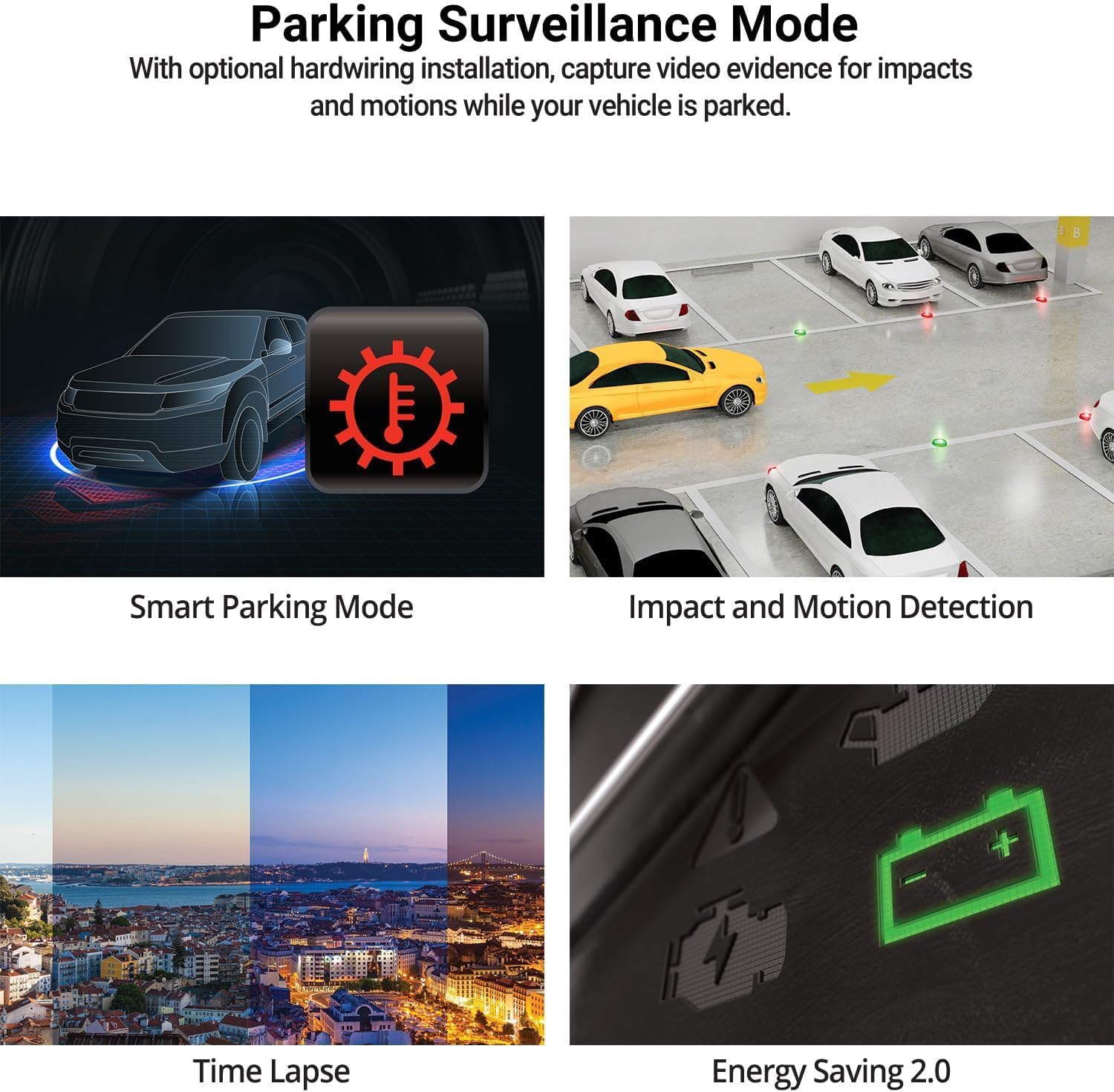
Image: The THINKWARE Q200 Dash Cam installed on a vehicle's windshield.
Video: An overview of the THINKWARE Q200 Dash Cam, demonstrating its features and installation.
5. Operating Instructions
5.1 Automatic Recording
The Q200 Dash Cam automatically powers on and begins continuous recording when the vehicle's ignition is turned on. It will power off automatically when the ignition is turned off.
5.2 Recording Modes
- Continuous Recording: Standard recording while driving.
- Incident Recording: Triggered by the built-in G-sensor upon impact, saving a 20-second clip (10 seconds before and 10 seconds after the event) to a protected folder.
- Manual Recording: Press the REC button to manually initiate an incident recording.
6. Parking Surveillance Mode
When connected via the hardwiring cable (or optional OBD II cable), the Q200 automatically switches to Parking Surveillance Mode when the ignition is off, providing continuous protection for your parked vehicle.
- Motion & Impact Detection: Records video when motion or impact is detected around the vehicle.
- Time Lapse: Records at 2 frames per second to minimize storage space, ideal for prolonged parking.
- Energy Saving Mode: Reduces power consumption by recording only when impacts are detected, extending parking surveillance duration.
- Smart Parking Mode: Automatically disables power during high temperatures to prevent overheating and resumes recording seamlessly.

Image: Visual representation of the various parking surveillance features.
7. Wi-Fi App Control
The THINKWARE DASH CAM LINK app (available on iOS and Android) allows you to connect to your Q200 Dash Cam via Wi-Fi for convenient control and access to recordings.
- Download the THINKWARE DASH CAM LINK app from your device's app store.
- Enable Wi-Fi on your smartphone and connect to the dash cam's Wi-Fi network.
- Use the app to adjust settings, view live footage, and download recorded videos directly to your phone.

Image: The THINKWARE DASH CAM LINK app interface on a smartphone.
8. Advanced Driver Assistance System (ADAS) & Safety Camera Alerts
The Q200 features ADAS functions and safety camera alerts to assist drivers and enhance road safety. An optional GPS module is required for full ADAS functionality and safety camera alerts.
- Front Vehicle Departure Warning (FVDW): Alerts when the vehicle in front starts to move.
- Forward Collision Warning System (FCWS): Warns of potential forward collisions based on speed and distance.
- Lane Departure Warning System (LDWS): Alerts if the vehicle drifts from its lane.
- Safety Camera Alerts: Provides real-time alerts for speed cameras and red light cameras.

Image: Illustration of ADAS and safety camera alert features.
9. Video Quality Features
The Q200 is equipped with advanced video technology to ensure high-quality recordings in various conditions.
- 2K QHD Recording: Captures video at 2560x1440 resolution at 30 frames per second, providing clear and detailed footage.
- Super Night Vision 2.0: Enhances video brightness and reduces noise in low-light environments for improved night recordings.
- Wide Dynamic Range (WDR): Corrects images for optimal color balance and clarity in challenging lighting conditions, such as strong sunlight or shadows.
- Smart Auto-Exposure (AE): Automatically adjusts exposure to ensure clear footage, especially when facing bright headlights or direct sunlight.
- Dewarping Video Technology: Provides a distortion-free 125-degree wide-angle view, preserving clarity across the entire frame.

Image: Examples of 2K QHD video quality in various lighting conditions.
10. Maintenance
- MicroSD Card Management: Regularly format the microSD card to prevent data corruption and ensure optimal recording performance. Replace the card periodically (e.g., every 6-12 months) as they have a limited lifespan.
- Lens Cleaning: Keep the camera lens clean using a soft, lint-free cloth to ensure clear video recordings.
- Firmware Updates: Check the THINKWARE website for the latest firmware updates to ensure your dash cam has the most current features and bug fixes.
11. Troubleshooting
| Problem | Possible Solution |
|---|---|
| Dash cam does not power on. | Check the power cable connection to the dash cam and the vehicle's power source. Ensure the vehicle's ignition is on if using the 12V car charger. If hardwired, check fuse connections. |
| Recording is not working. | Ensure a microSD card is inserted and properly formatted. Check if the card is full; if so, format it or replace it. Verify the recording mode settings via the app. |
| Wi-Fi connection issues. | Restart the dash cam and your smartphone. Ensure you are within range of the dash cam's Wi-Fi signal. Re-establish the connection through the THINKWARE DASH CAM LINK app. |
| Poor video quality. | Clean the camera lens. Ensure the protective film has been removed. Check the video resolution settings in the app. |
12. Specifications
| Feature | Detail |
|---|---|
| Product Dimensions | 0.87 x 3.88 x 1.34 inches |
| Item Weight | 2.56 ounces |
| Item Model Number | TW-Q200CH |
| Connectivity Technologies | Wi-Fi |
| Special Features | G-Sensor |
| Other Display Features | Wireless |
| Color | 1CH Front |
| Manufacturer | THINKWARE |
| Model Name | Q200 |
| Vehicle Service Type | Bus, Car, Minivan, RV, Truck |
| Video Capture Resolution | 1440p |
| Mounting Type | Windshield Mount |
| Field Of View | 125 Degrees |
13. Warranty and Support
The THINKWARE Q200 Dash Cam comes with a standard manufacturer's warranty. For specific warranty terms, conditions, and duration, please refer to the warranty information included in your product packaging or visit the official THINKWARE website.
For technical support, troubleshooting assistance, or service inquiries, please contact THINKWARE customer support through their official channels. Contact information can typically be found in the Quick Start Guide or on the THINKWARE website.
Related documentsQ200


Ask a question about this manual
Ask about setup, troubleshooting, compatibility, parts, safety, or missing instructions. Manuals+ will review the question and use this page’s manual context to help answer it.