
1. Product Overview
The TP-Link TC72 is an advanced Pan/Tilt AI Home Security Wi-Fi Camera designed for indoor surveillance. It offers high-quality 2K 4MP QHD video recording, extensive movement capabilities, enhanced night vision, and smart AI detection features to keep your home secure.

Figure 1: TP-Link TC72 camera alongside a smartphone showing live feed.
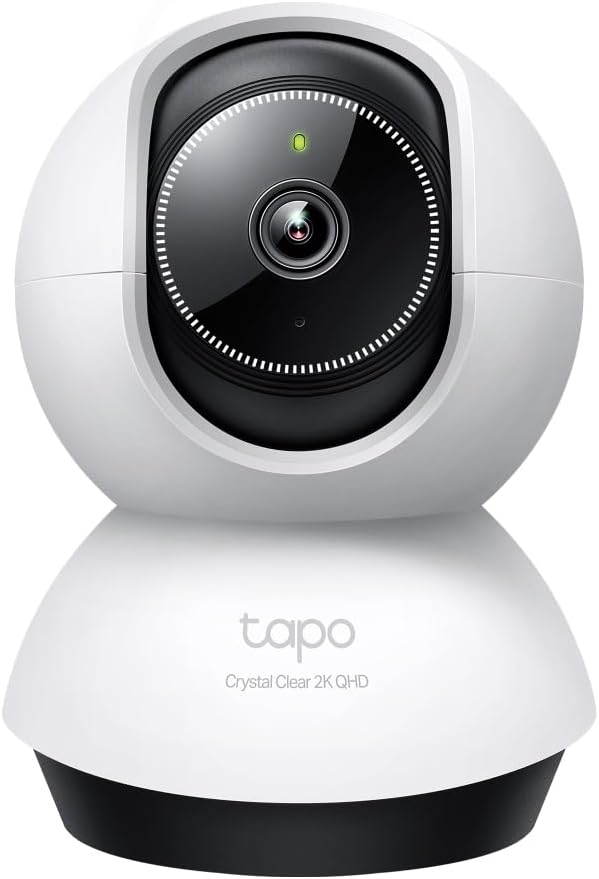
Figure 2: Detailed front view of the TP-Link TC72 camera.
2. Key Features
- 2K 4MP QHD Video: Captures clear and detailed video footage.
- Pan and Tilt: Offers a 360° horizontal and 114° vertical viewing range.
- Enhanced Night Vision: Provides clear visibility up to 30 ft in low-light conditions.
- Smart AI Detection: Identifies persons, pets, vehicles, and baby crying, sending instant notifications.
- Two-Way Audio: Built-in microphone and speaker for communication.
- Local Storage: Supports microSD card up to 512 GB (card sold separately).
- Voice Control: Compatible with Google Assistant and Amazon Alexa.

Figure 3: Overview of the TP-Link TC72's main features.
3. Setup Guide
3.1. What's Included
Before you begin, ensure all components are present:
- TP-Link TC72 Camera
- Power Adapter
- Mounting Screws and Anchors
- Mounting Template
- Quick Start Guide
3.2. App Installation and Account Creation
- Download the Tapo app from your device's app store (available for iOS and Android).
- Open the Tapo app and create a TP-Link ID. If you already have an account, log in.
3.3. Camera Connection
- Plug in your camera using the provided power adapter. Wait for the LED to blink red and green.
- In the Tapo app, tap the "+" icon to add a new device.
- Select your camera model (TC72) and follow the in-app instructions to connect it to your Wi-Fi network.
3.4. Physical Installation (Optional)
The camera can be placed on a flat surface or mounted to a wall or ceiling. For mounting:
- Choose a suitable location for optimal viewing and Wi-Fi signal.
- Use the provided mounting template to mark screw positions.
- Drill holes and insert anchors if necessary.
- Secure the mounting plate with screws.
- Attach the camera to the mounting plate.
4. Operating the Camera
4.1. Live View and Pan/Tilt Control
Access the live feed of your camera through the Tapo app. Use the on-screen controls to pan horizontally (360°) and tilt vertically (114°) to adjust the viewing angle.

Figure 4: Pan and Tilt capabilities of the TC72 camera.
4.2. Video Quality and Night Vision
The camera records in 2K 4MP QHD resolution (2560 x 1440 px) at 30 frames per second, providing clear images. Enhanced night vision allows for monitoring up to 30 feet in low-light conditions.

Figure 5: Comparison of 2K 3MP and 2K QHD video resolutions.
4.3. Smart AI Detection and Notifications
The TC72 features smart AI technology that can differentiate between various events:
- Person Detection: Identifies human presence.
- Pet Detection: Recognizes pets within the camera's view.
- Vehicle Detection: Detects vehicles.
- Baby Crying Detection: Alerts you to the sound of a baby crying.
- Other Beta Functions: Includes glass breaking, dog barking, and cat meowing detection.
You will receive instant notifications on your smartphone when these events are detected. Customizable activity zones allow you to define specific areas for motion detection.

Figure 6: Smart AI detection capabilities.
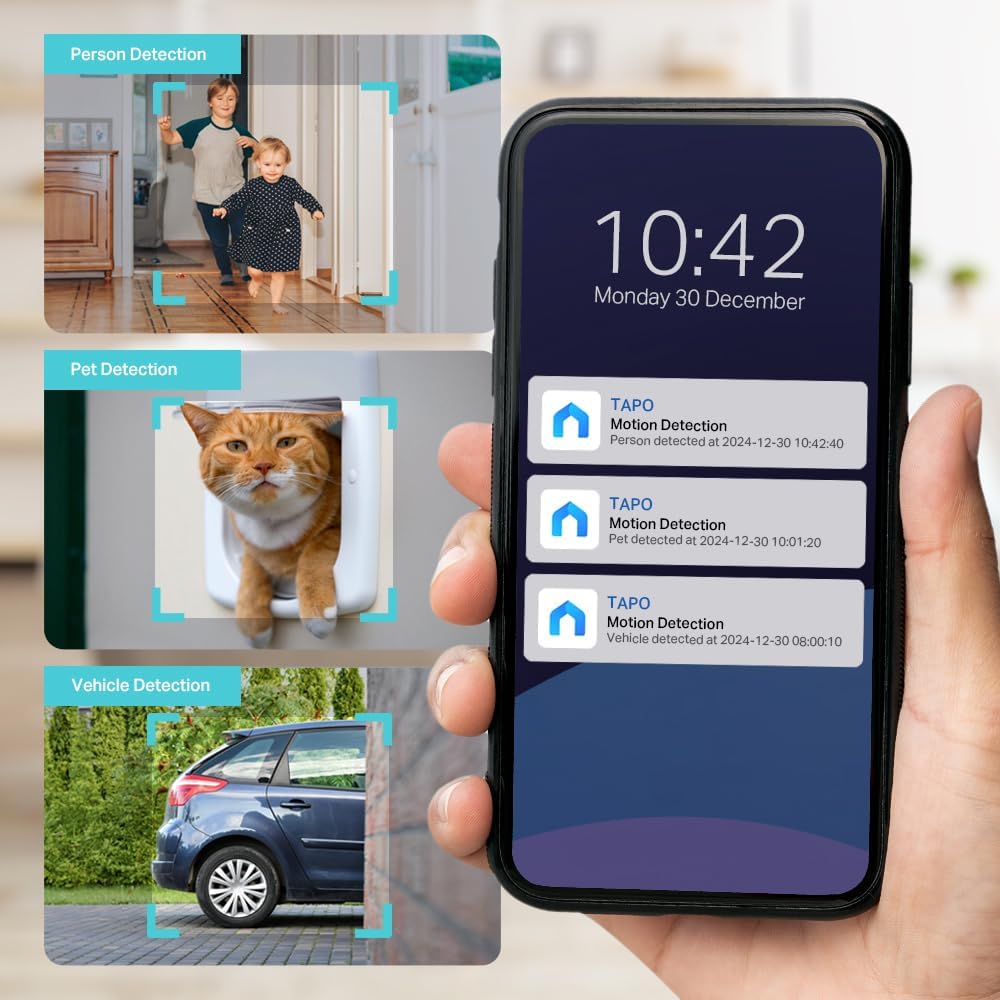
Figure 7: Example of motion detection notifications on a smartphone.
The camera also supports precise smart motion tracking, which allows it to follow detected subjects to keep them in view.
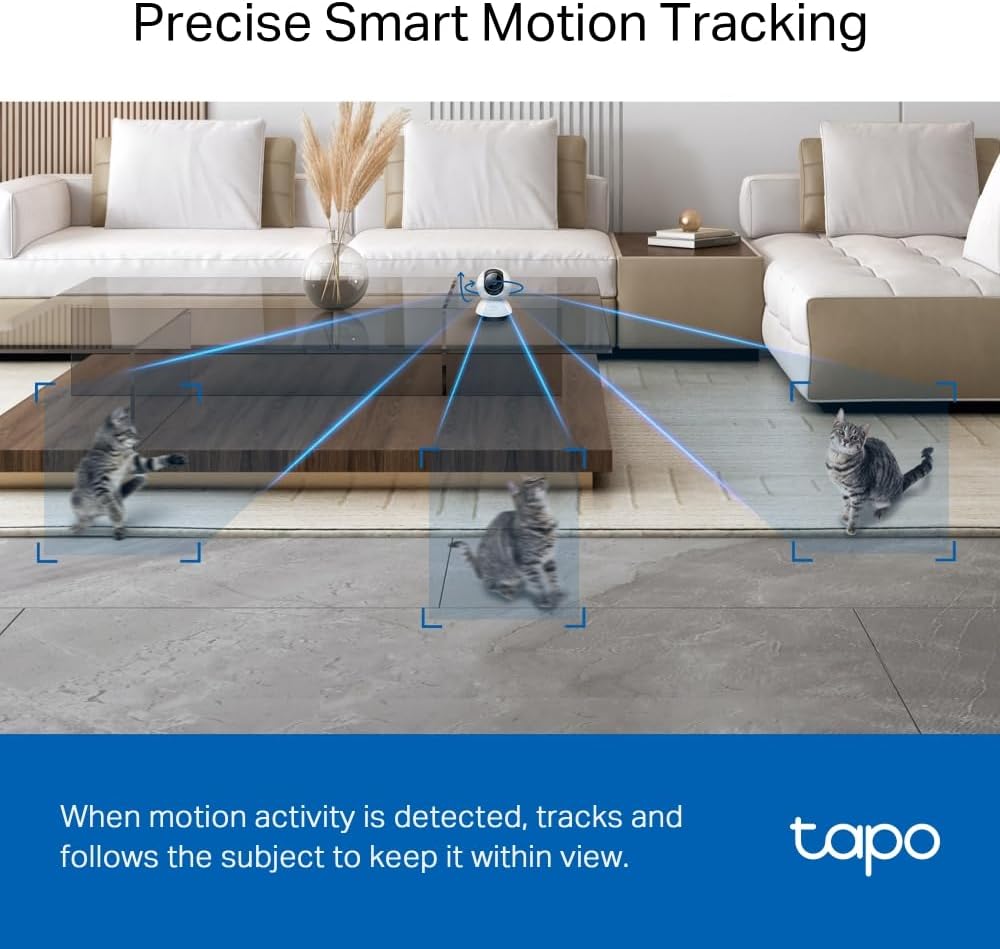
Figure 8: Smart motion tracking in action.
4.4. Two-Way Audio
Utilize the built-in microphone and speaker for two-way communication. This feature allows you to speak to individuals near the camera or deter unwanted visitors.

Figure 9: Demonstrating two-way audio communication.
4.5. Storage Options
Footage can be stored directly on a microSD card (up to 512 GB, purchased separately) for local storage. Cloud storage options may also be available through the Tapo app (subscription may be required).
4.6. Voice Control Integration
The camera is compatible with Amazon Alexa and Google Assistant, allowing for hands-free control using voice commands. (Availability may vary based on region and language).
5. Maintenance
The TP-Link TC72 is designed for indoor use. Keep the lens clean with a soft, dry cloth. Ensure the camera is placed in a location where it is not exposed to extreme temperatures or direct moisture.
6. Troubleshooting
If you encounter issues with your TP-Link TC72 camera, please refer to the following general troubleshooting steps:
- No Power: Ensure the power adapter is securely connected to the camera and a working power outlet.
- Wi-Fi Connection Issues: Verify your Wi-Fi network is active and the camera is within range. Try restarting your router and the camera.
- Poor Video Quality: Check your internet connection speed. Ensure the camera lens is clean and free from obstructions.
- Notifications Not Received: Confirm that notifications are enabled in the Tapo app settings and your phone's system settings.
- MicroSD Card Not Detected: Ensure the microSD card is inserted correctly and is not damaged. Format the card through the Tapo app if necessary.
For more detailed troubleshooting or technical support, please visit the official TP-Link support website or contact their customer service.
7. Specifications
| Feature | Detail |
|---|---|
| Model Number | TC72 |
| Brand | TP-Link |
| Video Capture Resolution | 2K 4MP QHD (2560 x 1440p) |
| Frame Rate | 30 frames per second |
| Viewing Angle | 360 Degrees (Horizontal), 114 Degrees (Vertical) |
| Wireless Communication | Wi-Fi |
| Special Features | 2 Way Audio, Smart AI Detection (Person, Pet, Vehicle, Baby Crying) |
| Storage | microSD card up to 512 GB (not included) |
| Power Source | Corded Electric (240 Volts DC, 6 watts) |
| Indoor/Outdoor Use | Indoor |
| Compatible Devices | Smartphone, Tablet |
| Controller Type | Amazon Alexa, Google Assistant |
| Product Dimensions (L x W x H) | 16 x 19 x 11 cm |
| Weight | 0.46 Kilograms |
8. Warranty and Support
For warranty information and customer support, please refer to the documentation included with your product or visit the official TP-Link website. You can also find FAQs and additional resources on their support pages.


