
1. Product Overview
The SUPVAN T200M is a compact and lightweight portable thermal printer designed for on-the-go printing. It utilizes thermal printing technology, eliminating the need for ink or ribbons. This manual provides essential information for setting up, operating, and maintaining your device.

Figure 1: SUPVAN T200M Portable Printer in use, showing a document being printed.
2. What's in the Box
- T200M Printer
- Stack Paper (50 sheets included)
- Roll Paper (1 roll included)
- USB C Cable
- PC Software Harddrive (for driver installation)

Figure 2: The SUPVAN T200M printer alongside its included accessories, including paper and cables.
3. Setup Guide
3.1 Charging the Printer
Before initial use, fully charge the printer using the provided USB-C cable. The indicator light will blink green while charging and turn solid green when fully charged. A 10-minute fast charge provides enough power to print approximately 20 pages.
3.2 Loading Paper
The T200M supports both stack paper and roll paper.
Loading Stack Paper:
- Open the paper entry cover.
- Insert the stack paper into the paper entry slot, ensuring the print side is facing the correct direction (usually the side that reacts to heat).
- The printer features an automatic paper loading function for batch printing.

Figure 3: Illustration of how to load stack paper into the printer for batch printing.
Loading Roll Paper:
- Open the printer's case by pulling both latches.
- Place the roll paper into the designated compartment inside the printer.
- Ensure the paper feeds smoothly through the print mechanism.
- Close the case securely. The printer has an on-device blade for tearing off prints.
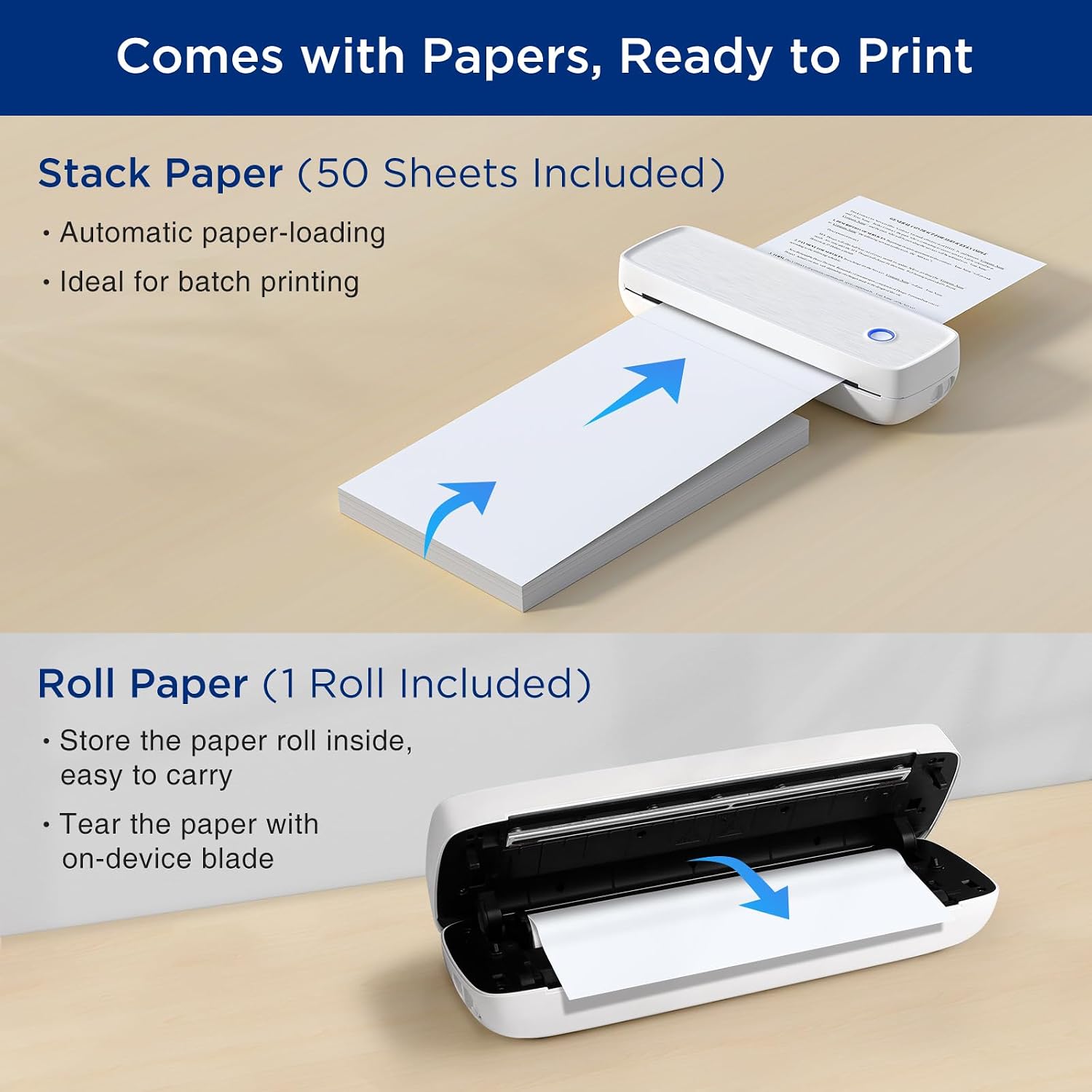
Figure 4: Steps for loading roll paper into the printer's internal compartment.
3.3 Connecting to Your Device
The SUPVAN T200M supports both stack paper and roll paper.
Smartphone Connection (Bluetooth):
- Download the "Katasymbol" App from the App Store (iOS) or Google Play Store (Android).
- Turn on the Bluetooth on your smartphone.
- Long press the power button on the printer to turn it on.
- Open the "Katasymbol" App, click "Add printer", and find "T200M printer" to connect.
PC/Laptop Connection (USB):
- Install the printer's driver for Windows or macOS from the included PC Software Harddrive or download it from the official website.
- Connect the printer to your PC/laptop using the provided USB-C cable.
4. Operating the Printer
Once connected, you can use the "Katasymbol" App or your computer's print function to print documents, images, and various templates.
4.1 Printing Documents and Images
- File Print: Import documents (PDF, Word, Excel, etc.) directly into the app for printing.
- File Scan: Use the app's scanning feature to digitize physical documents and print them.
- Images Print: Select images from your device's gallery to print.

Figure 5: The SUPVAN T200M printer being used in different professional and personal settings.
4.2 Print Quality and Performance
- High Resolution: The T200M offers 300 DPI print resolution, ensuring clear and detailed monochrome prints.
- Battery Performance: Equipped with a 2600 mAh battery, it can print up to 400 pages or 366 feet of roll paper on a single charge.

Figure 6: Visual representation of the 300 DPI print resolution, highlighting its clarity for detailed graphics.
5. Maintenance
5.1 Indicator Light Meanings
- Green: Normal operation / Charge completed
- Green blinks: Charging
- Red: Charging / No paper / Overheating / Case opening
- Red blinks: Low battery
- Blue: Bluetooth connected
- Blue blinks: Bluetooth error
5.2 Cleaning the Printer Head
To ensure optimal print quality and longevity, regularly clean the printer head. Turn off the device, open the case, and gently wipe the print head with a soft, lint-free cloth. Do not use harsh chemicals or abrasive materials.
6. Troubleshooting
- Paper Not Aligning: Ensure the paper is inserted straight and correctly aligned with the feed guides. For stack paper, ensure the stack is even.
- Blank Prints: If you are getting blank prints, try flipping the roll paper around so the curve is at the top, as thermal paper has a specific print side.
- Connection Issues: Ensure Bluetooth is enabled on your device and the printer is within range. Try restarting both the printer and your device.
- Low Battery: If the indicator light blinks red, charge the printer using the provided USB-C cable.
7. Specifications
| Feature | Detail |
|---|---|
| Model Name | T200M |
| Printing Technology | Thermal |
| Printer Output | Monochrome |
| Maximum Black and White Print Resolution | 300 DPI |
| Max Printspeed Monochrome | 20 ppm |
| Connectivity Technology | Bluetooth, USB |
| Compatible Devices | Laptops, PC, Smartphones, Tablets, iPhone |
| Maximum Media Size | 8.5 x 11 Inches (US Letter) |
| Max Input Sheet Capacity | 400 pages per charge |
| Item Weight | 1.6 pounds |
| Product Dimensions | 11"D x 3.3"W x 2.3"H |
| Battery | 2600 mAh Lithium Ion (included) |
| Power Consumption (On-mode) | 2 Watts |
8. Warranty and Support
The SUPVAN T200M Portable Printer comes with a limited warranty provided by SUPVAN. For detailed warranty terms and conditions, please refer to the documentation included with your product or contact SUPVAN customer support.
8.1 Customer Support
For any questions, technical assistance, or support needs, please utilize the online service feature within the "Katasymbol" App or visit the official SUPVAN website.


