
1. Introduction
Thank you for choosing the ESR Stylus Pen for iPad. This digital pencil is designed to enhance your iPad experience with features like magnetic wireless charging, tilt sensitivity, and palm rejection, making it ideal for drawing, note-taking, and navigation.

Image: The ESR Stylus Pen, highlighting its magnetic charging capability, included USB-C cable, and three replacement nibs. An iPad is shown on the left, indicating the pen's compatibility and use.
2. Compatibility
The ESR Stylus Pen is compatible with various iPad models released in 2018 or later. Please refer to the compatibility chart below to ensure your iPad model supports all features, especially magnetic wireless charging.

Image: A detailed compatibility chart showing different iPad models (iPad 11" 2025/10th-7th Gen, iPad Pro 12.9", iPad Pro 11", iPad Air 5/4, iPad mini 6, iPad Pro 2024, iPad Air 2025/2024) and their support for the pen's features, including wireless charging.
Note: Magnetic wireless charging is compatible with iPad Pro 12.9"/11", iPad Air 5/4, and iPad Mini 6. USB-C charging is compatible with iPad 10/9/8/7, iPad Pro 12.9"/11", iPad Air 5/4, and iPad Mini 6/5.
3. Setup and Charging
3.1 Initial Setup
The ESR Stylus Pen typically connects automatically to your compatible iPad when attached magnetically or when powered on. No complex pairing is required.
3.2 Power On/Off
To power on the stylus, press and hold the top button for approximately 2 seconds until the LED indicator illuminates. To power off, press and hold the button again for 2 seconds.
3.3 Charging the Stylus
The stylus offers two convenient charging methods:
- Magnetic Wireless Charging: Attach the stylus to the magnetic side of your compatible iPad. The stylus will automatically begin charging. A full charge takes approximately 2 hours.
- USB-C Charging: Connect the stylus to a power source using the provided USB-C cable. A full charge takes approximately 30 minutes.
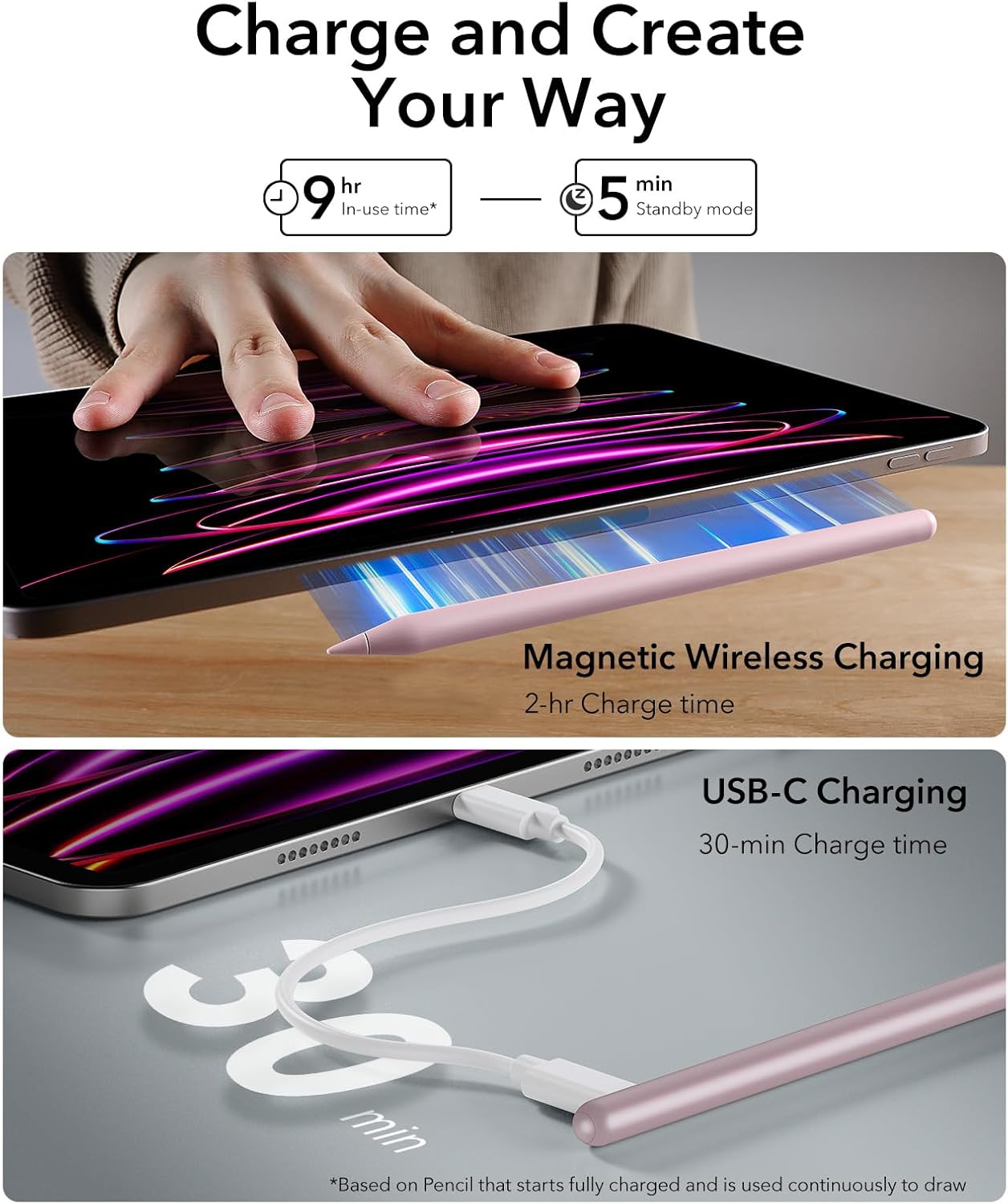
Image: Demonstrates both magnetic wireless charging (2-hour charge time) by attaching the pen to the side of an iPad, and USB-C charging (30-minute charge time) with the pen connected via a cable.
3.4 Battery Indicator
The LED indicator on the stylus provides battery status:
- Green Light: Indicates the stylus is charging or fully charged.
- Red Light: Indicates low battery and requires charging.
4. Operating Instructions
4.1 Palm Rejection and Tilt Sensitivity
The stylus features advanced palm rejection technology, allowing you to comfortably rest your hand on the iPad screen while writing or drawing without interference. Its tilt sensitivity enables you to vary line thickness and shading by simply tilting the pen, mimicking a real pencil.

Image: A person using the ESR Stylus Pen on an iPad, illustrating the palm rejection feature. Insets show how tilt sensitivity works at different angles (90°, 60°, 30°) to create varied line strokes.
4.2 Smooth and Precise Writing
Experience zero lag and exceptional precision with the ESR Stylus Pen. Its fine 1.5mm tip allows for intricate details and smooth, continuous lines, providing a natural writing and drawing experience.

Image: A side-by-side comparison demonstrating the superior smooth and sensitive performance of the ESR Stylus Pen compared to a generic pen that exhibits lag and unresponsiveness during drawing.
4.3 Time-Saving Shortcut Button
The top button on the stylus serves as a convenient shortcut for quick navigation:
- Press Once: Go to the Home Page.
- Double Press: Go to Multitasking View.

Image: Close-up of the ESR Stylus Pen's top button, illustrating its shortcut functions: a single press navigates to the Home Page, and a double press opens the Multitasking View on the iPad.
5. Maintenance
5.1 Replacing Nibs
The stylus comes with three replacement nibs to ensure long-lasting performance. To replace a nib, gently twist the old nib counter-clockwise to remove it, then twist a new nib clockwise until it is securely in place.
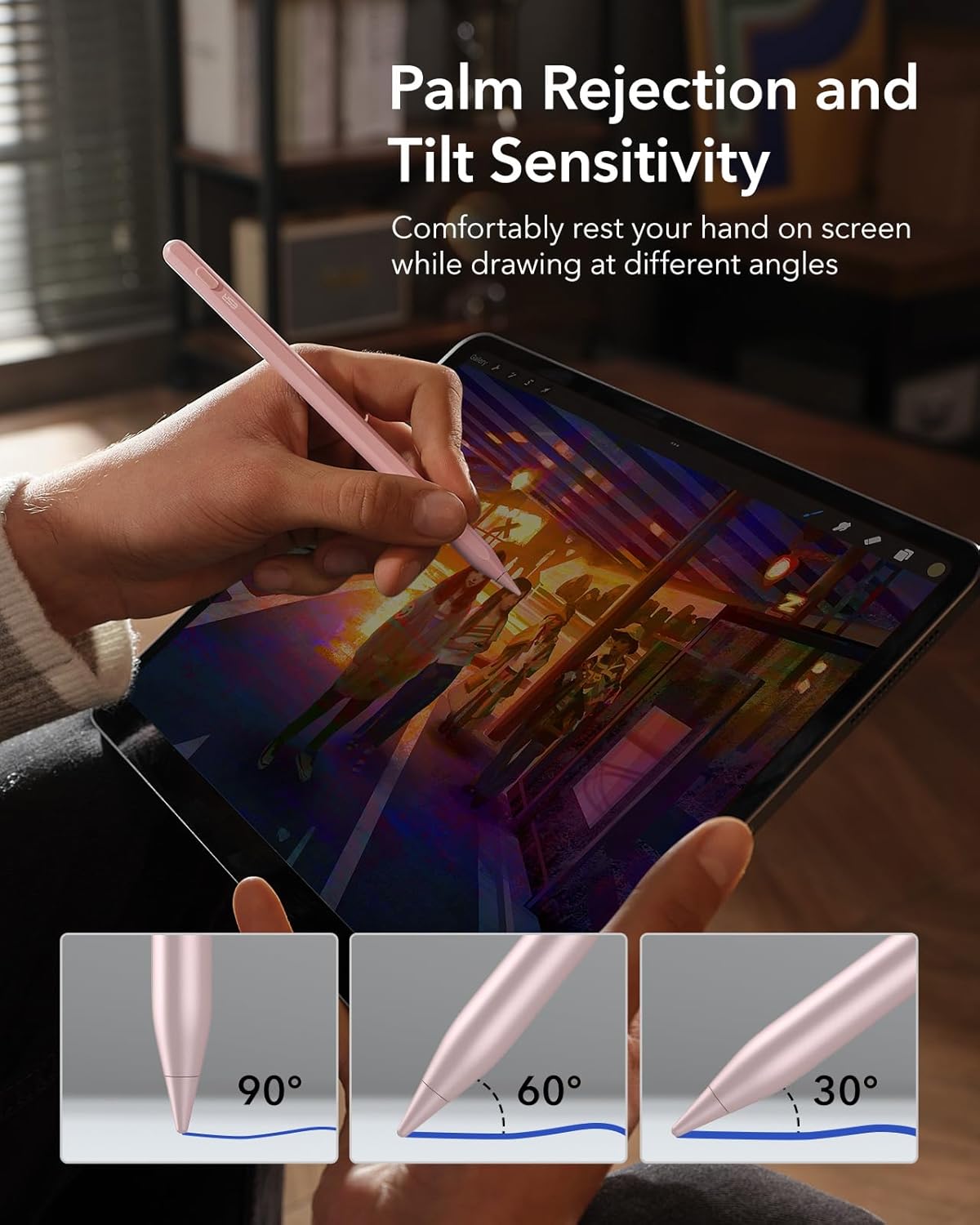
Image: A detailed view of the ESR Stylus Pen's 1.5mm tip and three additional replacement nibs, emphasizing their high quality and durability for intricate designs.
5.2 Cleaning
To clean the stylus, wipe it gently with a soft, dry, lint-free cloth. Avoid using abrasive materials or harsh chemicals.
6. Troubleshooting
- Stylus not connecting or responding:
- Ensure the stylus is charged (check LED indicator).
- Make sure your iPad model is compatible (refer to Section 2).
- Restart your iPad and the stylus.
- If using magnetic charging, ensure it's correctly aligned on the iPad's magnetic strip.
- Red LED indicator:
- The red light indicates low battery. Charge the stylus immediately using either magnetic or USB-C charging.
- Lag or imprecise writing:
- Ensure the nib is securely attached and not worn out. Replace if necessary.
- Check for any screen protectors that might interfere with sensitivity.
- Ensure your iPad's software is up to date.
7. Specifications
| Feature | Detail |
|---|---|
| Brand | ESR |
| Model Number | TSAJHBQ17 |
| Item Weight | 1.45 ounces (41 Grams) |
| Product Dimensions | 6.42 x 0.35 x 0.35 inches |
| Material Type | Plastic |
| Compatible Devices | iPad (2018 and later models, including iPad Pro 12.9"/11", iPad Air 5/4, iPad Mini 6/5, iPad 10/9/8/7) |
| Charging Methods | Magnetic Wireless Charging, USB-C Charging |
| Features | Tilt Sensitivity, Palm Rejection, Shortcut Button |
8. Warranty and Support
ESR products come with a standard manufacturer's warranty. For detailed warranty information, product support, or any inquiries, please visit the official ESR website or contact their customer service directly.
Official ESR Website: esrgear.com
Customer Support Email: esr.support@esrgear.com


