Introduction
Thank you for choosing the Maxuni USB Bluetooth 5.4 EDR Adapter. This adapter provides advanced Bluetooth 5.4 technology, offering higher stability, faster speeds, and extended transmission range for your Windows 11, 10, or 8.1 computer. It enables seamless wireless connection with a wide array of Bluetooth-enabled devices such as keyboards, mice, headsets, speakers, and more. This manual will guide you through the setup, operation, and troubleshooting of your new adapter.

Image: The Maxuni USB Bluetooth 5.4 EDR Adapter, a compact black dongle with an integrated antenna, designed for enhanced wireless connectivity.
Features
- Bluetooth 5.4 Technology: Provides higher stability, faster data transfer speeds (up to 3Mbps), and lower latency compared to previous Bluetooth versions.
- Extended Range: Achieves long-range transmission up to 100 meters (492 feet) in open spaces, significantly improving connectivity across your home or office.
- Wide Compatibility: Backward compatible with Bluetooth 2.1, 3.0, 4.0, 4.1, 5.0, 5.1, and 5.3 devices.
- Plug and Play: No driver installation required for Windows 11, 10, and 8.1 operating systems.
- Multi-Device Support: Connects simultaneously to multiple Bluetooth devices, including keyboards, mice, headsets, speakers, gamepads, and printers.

Image: Diagram illustrating the key features of Bluetooth 5.4, including higher stability, faster speed, portability, 3Mbps transmission speed, 2.4GHz frequency, support for multiple devices, and 100M transmission range.
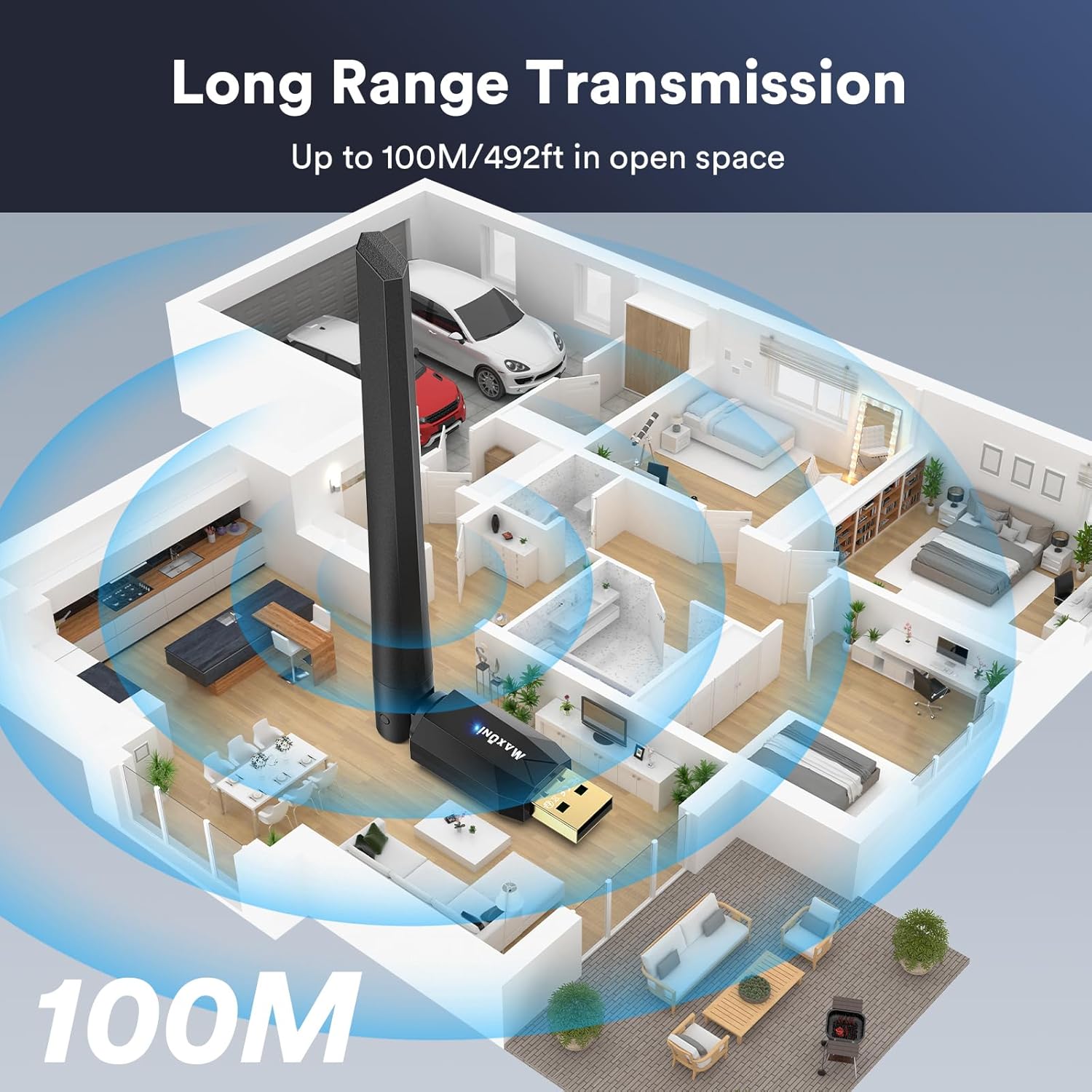
Image: An architectural diagram showing the Maxuni Bluetooth adapter providing 100-meter long-range transmission throughout a multi-room environment, indicating strong signal penetration.
Setup Guide
System Requirements
- Operating System: Windows 11 / 10 / 8.1 (Plug and Play)
- For Windows 7: Driver installation is required.
- Not compatible with MacOS, Linux, TV, Car Stereo, or Microsoft Surface devices.

Image: A laptop screen displaying Windows, with the Maxuni Bluetooth adapter plugged in, indicating compatibility with Windows 11, 10, 8.1, and 7.
Installation Steps (Windows 11/10/8.1)
- Disable Existing Bluetooth (if applicable): If your computer has a built-in Bluetooth adapter, it is recommended to disable it first to avoid conflicts.
- Plug In: Insert the Maxuni USB Bluetooth 5.4 EDR Adapter into an available USB port on your computer.
- Automatic Recognition: Your Windows operating system (11/10/8.1) will automatically detect and install the necessary drivers. This process may take a few moments.
- Verify Installation: Once installed, you should see the Bluetooth icon in your system tray or in the Windows Settings under 'Bluetooth & devices'.

Image: A visual guide showing the three steps for plug-and-play installation: 1) Plug in the adapter, 2) Pair a device via Windows settings, and 3) Enjoy the wireless connection.
Driver Installation (Windows 7 Only)
For Windows 7 users, a driver download and manual installation are required. Please follow these steps:
- Download Driver: Visit the official Maxuni support website or search online for "Maxuni Bluetooth 5.4 driver for Windows 7" to download the appropriate driver package.
- Extract Files: Unzip the downloaded driver file (e.g., `BRLINK_V_1.1.1.39.ZIP`).
- Run Installer: Locate and run the `setup.exe` or `install.exe` file within the extracted folder.
- Follow Prompts: Follow the on-screen instructions to complete the driver installation. You may be prompted to restart your computer.
- Finish: Once the installation is complete, your adapter will be ready for use.
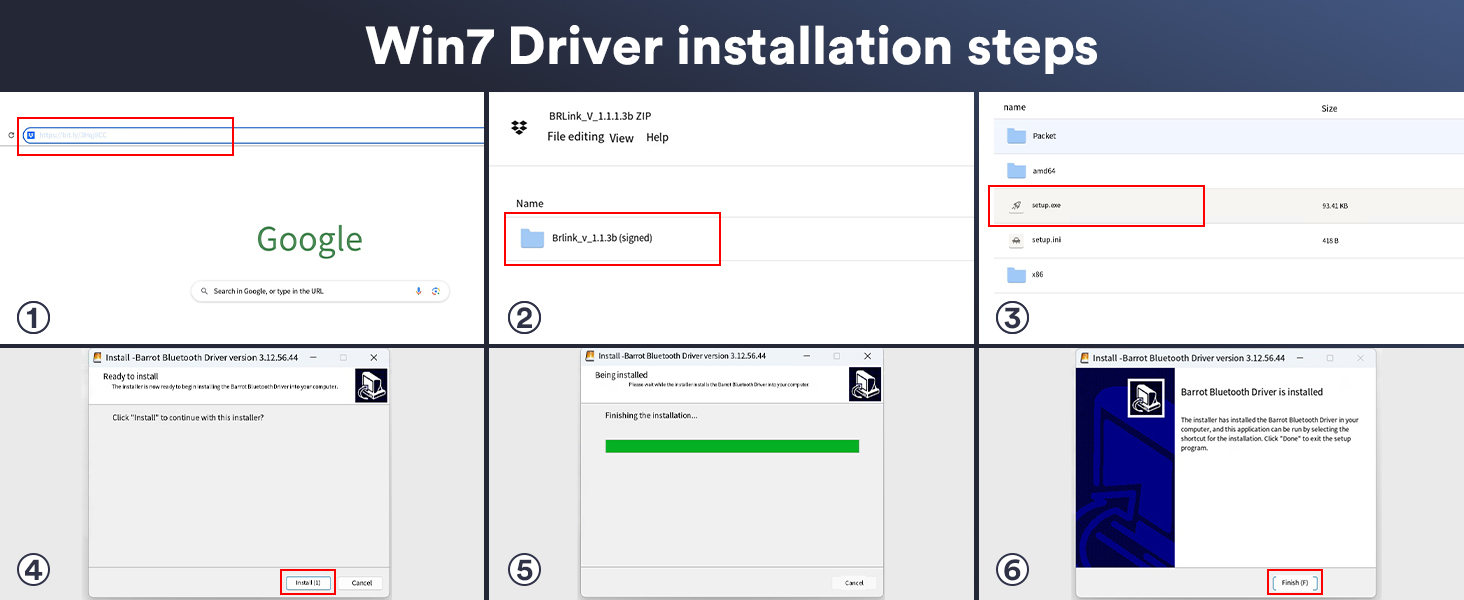
Image: A six-step visual guide demonstrating the process of installing drivers for Windows 7, from searching for the driver to completing the setup.
Operating Instructions
Pairing Bluetooth Devices
- Enable Bluetooth: Ensure Bluetooth is turned on in your computer's settings. Go to Settings > Bluetooth & devices (Windows 11/10) or Control Panel > Devices and Printers > Bluetooth Devices (Windows 8.1/7).
- Put Device in Pairing Mode: Place your Bluetooth device (e.g., headphones, mouse, keyboard) into pairing mode. Refer to your device's manual for specific instructions.
- Add Device: In your computer's Bluetooth settings, click on "Add device" or "Add Bluetooth or other device."
- Select Device: Choose "Bluetooth" from the options and select your device from the list of discovered devices.
- Complete Pairing: Follow any on-screen prompts to complete the pairing process. Your device should now be connected.
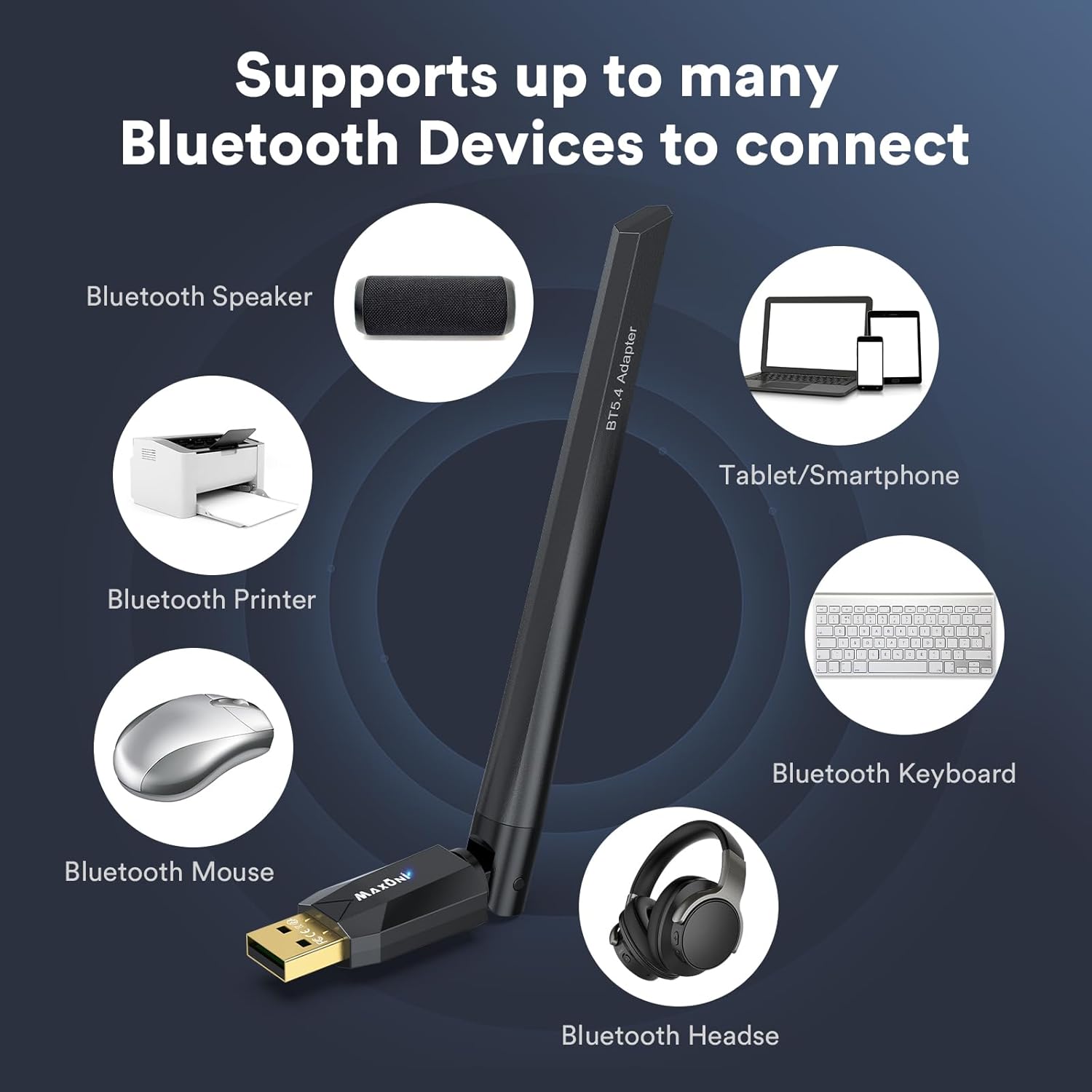
Image: An illustration showing the Maxuni Bluetooth adapter connecting to various devices, including a Bluetooth speaker, printer, mouse, headset, keyboard, and tablet/smartphone.
Common Usage Scenarios
- Wireless Audio: Connect Bluetooth headphones or speakers for high-quality audio streaming.
- Peripherals: Use Bluetooth keyboards and mice for a clutter-free workspace.
- Data Transfer: Transfer files between your computer and Bluetooth-enabled smartphones or tablets.
- Gaming: Connect Bluetooth gamepads for an enhanced gaming experience.

Image: A person playing a video game using a wireless controller connected to a desktop PC via the Maxuni Bluetooth adapter, illustrating a wireless gaming setup.

Image: A collage of images depicting various usage scenarios for the Bluetooth adapter, including video calls, playing music, transferring data, and use in home, office, library, and restaurant settings.
Maintenance
The Maxuni USB Bluetooth Adapter is designed for durability and requires minimal maintenance. Follow these guidelines to ensure optimal performance:
- Keep Clean: Gently wipe the adapter with a dry, soft cloth to remove dust or debris. Avoid using liquid cleaners.
- Proper Storage: When not in use, store the adapter in a cool, dry place away from direct sunlight and extreme temperatures.
- Handle with Care: Avoid dropping the adapter or subjecting it to strong impacts, which could damage internal components.
- USB Port Care: Ensure the USB port on your computer is clean and free of obstructions before inserting the adapter.
Troubleshooting
Frequently Asked Questions (FAQ)
- Q1: What can I do if the Bluetooth adapter does not work?
- If your computer already has built-in Bluetooth, please disable your computer's built-in Bluetooth first and then re-plug the dongle into the computer. This prevents conflicts between multiple Bluetooth adapters.
- Q2: How to disable built-in Bluetooth?
- Right-click on 'My Computer' or 'This PC' > Select 'Manage' > Go to 'Device Manager' > Expand 'Bluetooth' > Right-click on your built-in Bluetooth device > Select 'Disable device'.
- Q3: Will this work with PS3, PS4, PS5, Switch or Xbox?
- No, it cannot be used directly on PS3, PS4, PS5, Switch, or Xbox Consoles. However, it works with compatible PC game controllers when connected to your Windows computer.
- Q4: Which systems does it support?
- It only supports Windows 11/10/8.1 (Plug and Play) and Windows 7 (requires driver installation). It does not support MacOS, Linux, TV, Car Stereo, or Microsoft Surface devices.
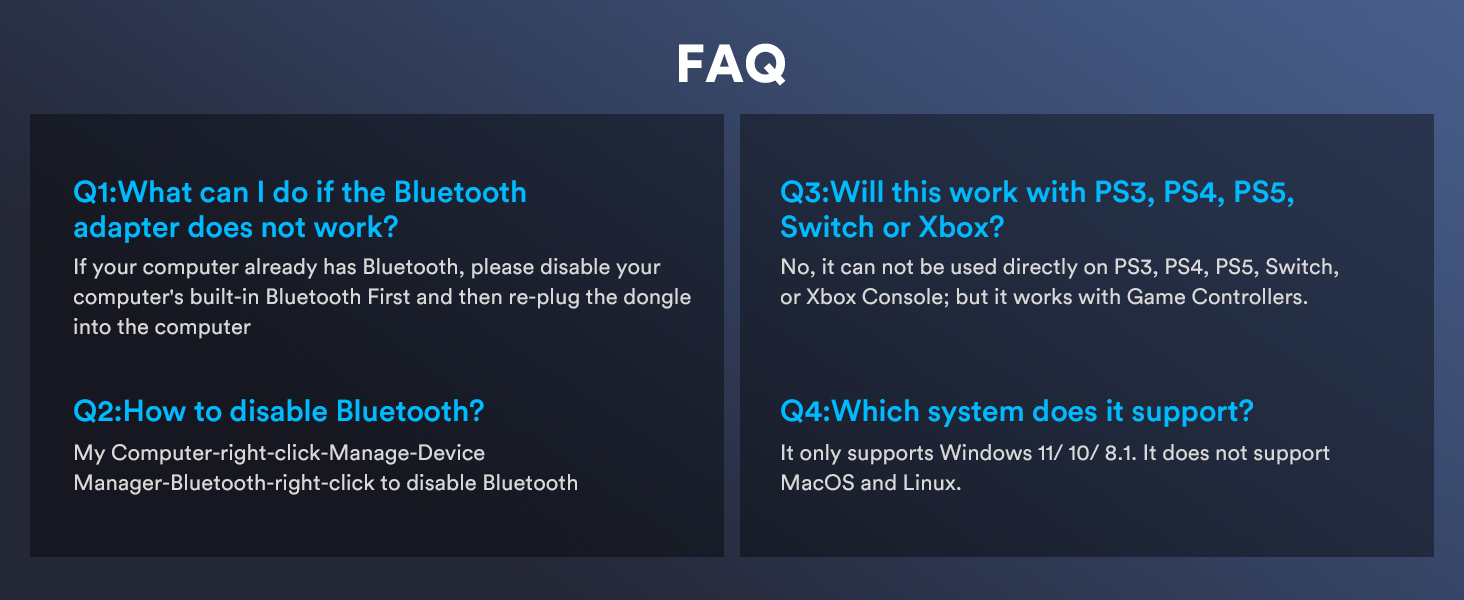
Image: A visual representation of the FAQ section, addressing common user queries regarding adapter functionality, disabling Bluetooth, console compatibility, and supported operating systems.
Specifications
| Feature | Specification |
|---|---|
| Brand | Maxuni |
| Model Number | 1 |
| Bluetooth Version | 5.4 EDR |
| Data Transfer Rate | 3 Megabits Per Second |
| Transmission Range | Up to 100 meters (492 feet) in open space |
| Operating System Support | Windows 11 / 10 / 8.1 (Plug and Play), Windows 7 (Driver required) |
| Color | Black |
| Item Weight | 1.06 ounces (0.03 Kilograms) |
| Package Dimensions | 6.06 x 3.15 x 0.75 inches |
Warranty and Support
Maxuni is committed to providing high-quality products and customer satisfaction. For any technical assistance, warranty inquiries, or support needs, please contact our customer service team.
- Online Support: Visit the official Maxuni website for FAQs, driver downloads, and support resources.
- Email Support: Refer to your product packaging or the Maxuni website for customer service email contact information.


