
1. Introduction
This manual provides detailed instructions for the setup, operation, and maintenance of your TMEZON C31 Two-Way Video Calling Smart Camera. This device is designed to offer comprehensive indoor monitoring with advanced features such as two-way video and audio communication, 1080P HD resolution, 360-degree panoramic view, motion detection, and night vision. It is suitable for monitoring pets, children, or elderly family members, and for general home security.
2. Product Overview and Features
The TMEZON C31 Smart Camera integrates several functionalities to enhance your home monitoring experience:
- Two-Way Video/Audio Communication: Features a 2.8-inch high-definition display and two-way video calling, enabling direct interaction with individuals or pets in the camera's vicinity.
- One-Button Call: Facilitates easy video calls between the camera and mobile phones. This is particularly useful for users who may find mobile phone operation challenging, such as elderly individuals or young children.
- 1080P HD WiFi Video: Delivers crystal clear, smooth live video, allowing you to monitor your home, children, elderly, or pets from anywhere. The camera operates on 2.4G WiFi networks (5G is not supported).
- Wide Angle & 360° Panoramic View: Equipped with a motion-activated sensor and a wide viewing angle, offering 360° horizontal and 60° vertical rotation for comprehensive coverage without blind spots.
- Crystal Clear Night Vision: Ensures clear visibility in low-light conditions, allowing for continuous monitoring around the clock.
- Motion Detection & Alerts: Provides real-time notifications to your mobile device upon detecting movement, ensuring you are aware of any activity.

Figure 2.1: TMEZON C31 Smart Camera highlighting key features like 1080P resolution, PTZ control, two-way video, one-button call, alarm push, motion tracking, two-way audio, night vision, local/cloud storage, and motion detection.

Figure 2.2: Illustration of the two-way video feature, showing a child communicating with a parent via the camera and a smartphone.
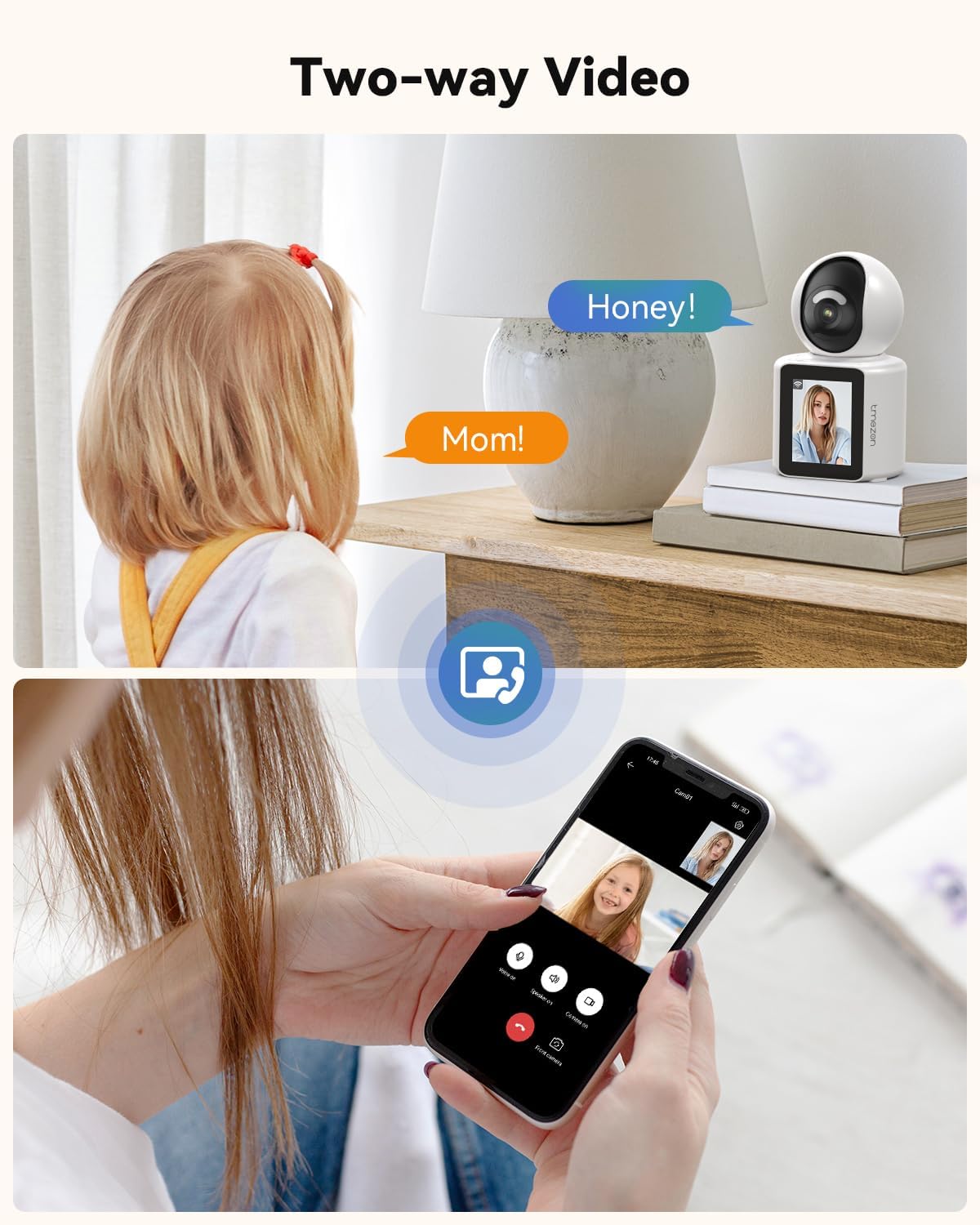
Figure 2.3: A hand pressing the call button on the camera, initiating a video call, emphasizing the ease of use for one-click communication.
3. What's in the Box
Upon unpacking your TMEZON C31 Smart Camera, please ensure all the following components are present:
- TMEZON C31 Smart Camera Unit
- Power Adapter
- USB Power Cable
- User Manual (this document)

Figure 3.1: The camera unit, power adapter, and USB cable are shown as included accessories.
4. Setup Instructions
4.1 Powering On the Camera
- Connect the USB power cable to the camera's Type-C port.
- Plug the power adapter into a standard electrical outlet.
- The camera will power on and display a welcome message on its screen.
4.2 App Download and Installation
- Scan the QR code provided in the quick start guide or on the product packaging using your smartphone's camera. This will direct you to download the "Im Cam" application.
- Alternatively, search for "Im Cam" in your device's app store (App Store for iOS, Google Play Store for Android) and install the application.
- Register for a new account or log in if you already have one.
Video 4.1: This video demonstrates the initial setup process, including connecting the camera to power and downloading the "Im Cam" application via QR code.
4.3 Connecting to Wi-Fi
The camera supports 2.4GHz Wi-Fi networks only. Ensure your smartphone is connected to a 2.4GHz Wi-Fi network during the setup process.
- Open the "Im Cam" app and follow the on-screen instructions to add a new device.
- Select "Wi-Fi Camera" as the connection method.
- The app will guide you through connecting the camera to your home Wi-Fi network. This typically involves scanning a QR code displayed on your phone with the camera's lens or using Bluetooth for initial pairing.
- If the device is not in the correct state for configuration, press and hold the reset button on the back of the device for more than 5 seconds to perform a reset.
- Once connected, the camera will display "Connecting..." and then confirm successful network connection.
Video 4.2: This video illustrates the process of connecting the camera to your Wi-Fi network using the mobile application.
5. Operating Instructions
5.1 Remote Monitoring via App
Once the camera is connected to the app, you can view live video, control the camera's movement, and access various features from your smartphone.
- Open the "Im Cam" app and select your camera from the device list.
- The live feed will appear. You can pinch to zoom in/out and use on-screen controls to pan (360° horizontally) and tilt (60° vertically) the camera.
- Ensure the app has access to your microphone and local network for full functionality.
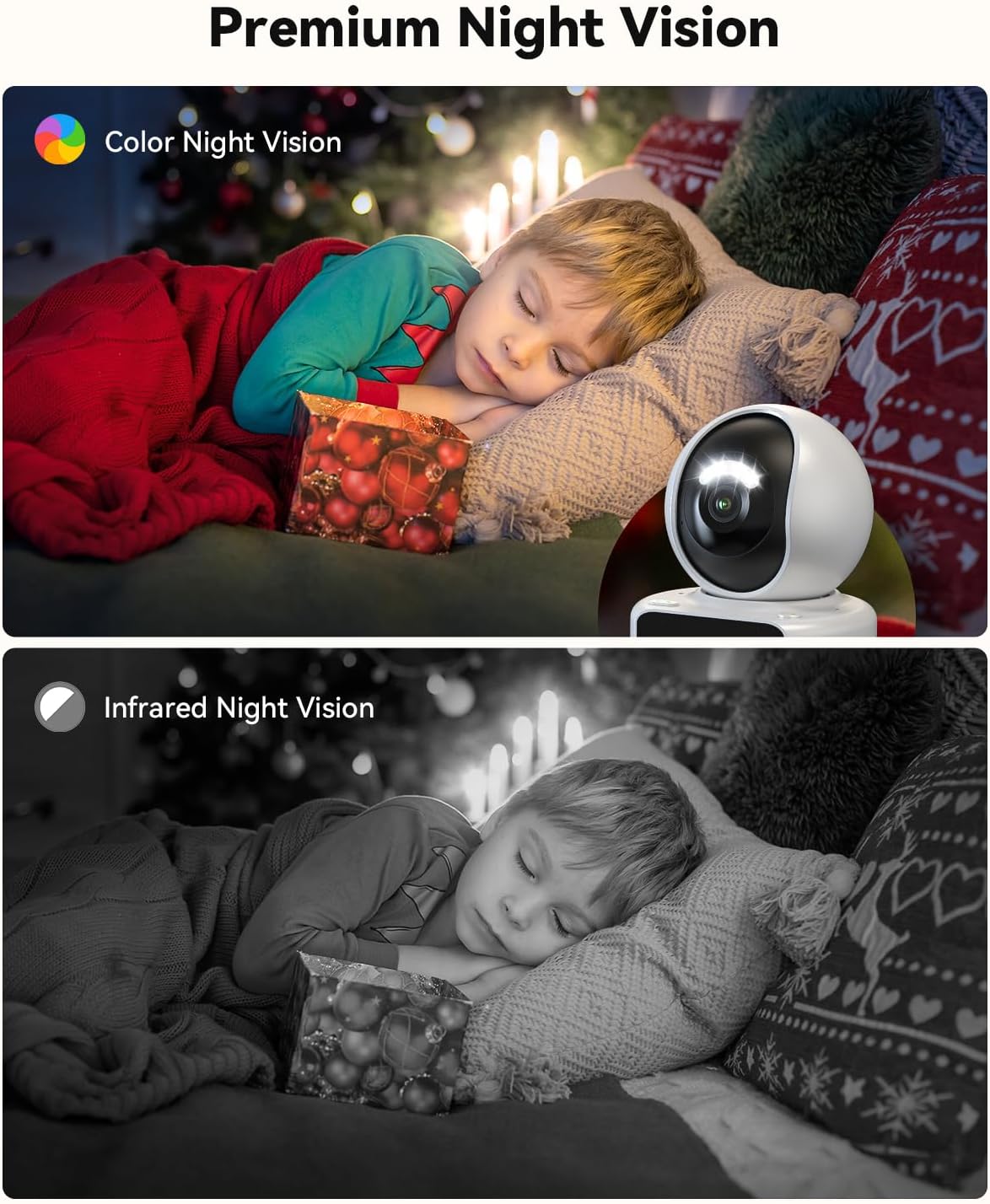
Figure 5.1: The camera's 360° panoramic view capability, allowing users to monitor an entire room from their smartphone.
5.2 Two-Way Video and Audio Calls
The camera supports both voice and video calls, allowing for real-time communication.
- Initiating a Call from the Camera: Press the call button on the camera unit. This will initiate a video call to the pre-configured mobile device(s) in the app settings.
- Receiving a Call on the Camera: When a call is initiated from the app to the camera, the camera's screen will display an incoming call notification. The user near the camera can answer the call directly from the camera unit.
- Initiating a Call from the App: From the live view in the "Im Cam" app, you can select "Voice Call" or "Video Call" to communicate with the person or pet near the camera.
Video 5.2: This video demonstrates the two-way video and audio calling feature, showing how to initiate and receive calls between the camera and a smartphone.

Figure 5.3: An illustration of video calls between two TMEZON C31 devices, emphasizing automatic connection after initiation.
5.3 Motion Detection and Tracking
The camera is equipped with motion detection and tracking capabilities to keep you informed of any activity.
- When motion is detected, the camera can automatically track the movement.
- You will receive instant notifications on your mobile device through the "Im Cam" app.

Figure 5.4: The camera's motion tracking feature, showing it following a baby's movement within its field of view.
5.4 Night Vision
The camera provides clear surveillance even in complete darkness.
- The camera automatically switches to night vision mode in low-light conditions.
- This ensures continuous monitoring and recording without interruption.

Figure 5.5: Comparison of color night vision and infrared night vision, demonstrating the camera's ability to capture clear images in the dark.
5.5 Storage Options
The camera supports both local and cloud storage for recorded footage.
- Micro SD Card: Insert a Micro SD card (up to 128GB, not included) into the designated slot for local storage.
- Cloud Storage: Cloud storage options may be available through the "Im Cam" app (subscription may be required).
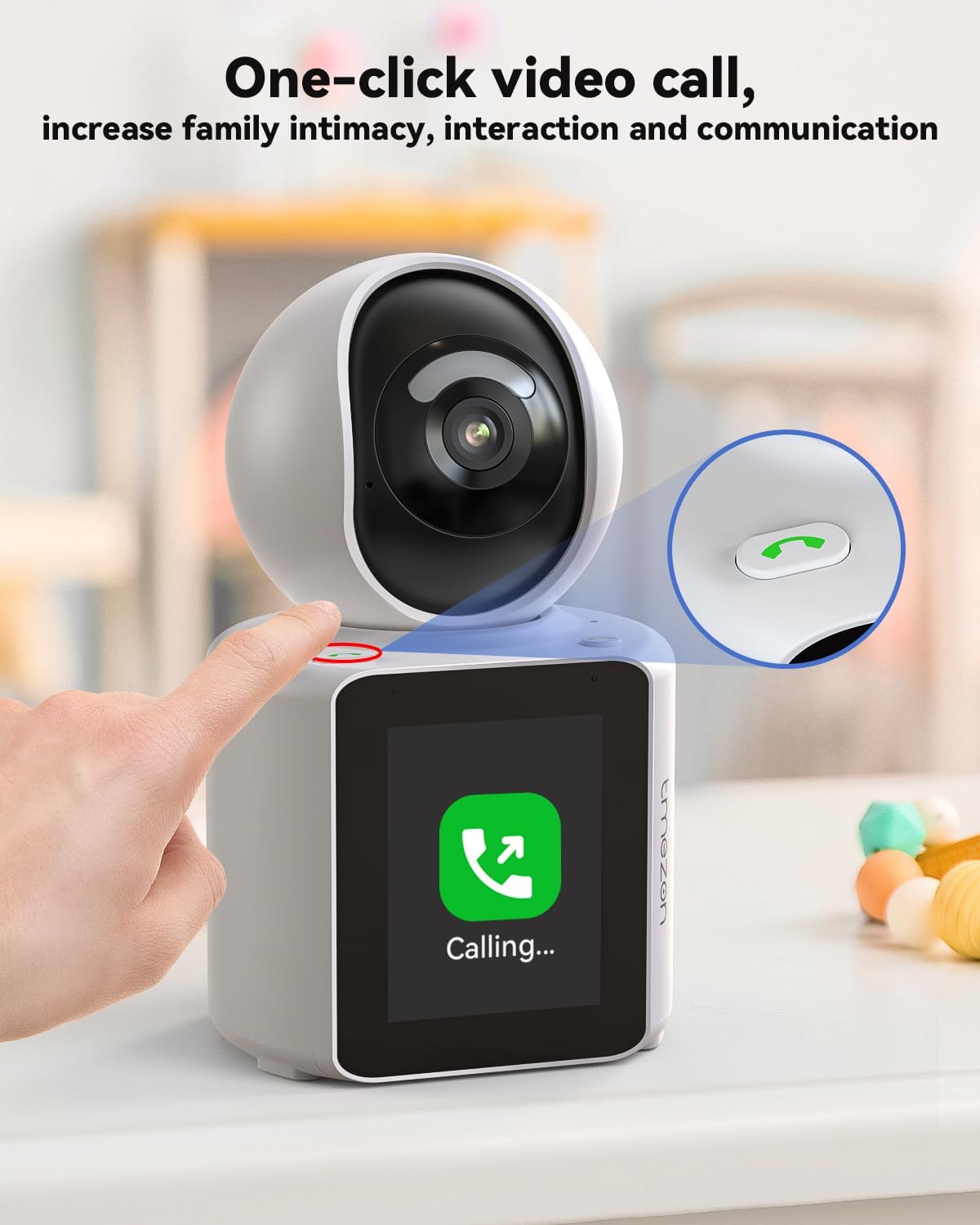
Figure 5.6: The camera unit showing the Micro SD card slot for local video storage.
5.6 Sharing Camera Access
You can share access to your camera with other family members or trusted individuals through the "Im Cam" app.
- In the app, navigate to the camera settings and find the sharing option.
- Add the other party's account (they must also have an "Im Cam" account) to grant them viewing access.
- Note: The camera supports only one user to simultaneously watch the surveillance screen.

Figure 5.7: The "Im Cam" app interface demonstrating how to share camera access with family members.
6. Maintenance
- Cleaning: Use a soft, dry cloth to clean the camera lens and body. Avoid using liquid cleaners or aerosols.
- Software Updates: Regularly check the "Im Cam" app for firmware updates to ensure optimal performance and access to new features.
- Placement: Place the camera on a stable surface or mount it securely to prevent accidental falls. Ensure it is within range of your 2.4GHz Wi-Fi network.
7. Troubleshooting
| Problem | Possible Cause | Solution |
|---|---|---|
| Camera fails to connect to Wi-Fi. | Incorrect Wi-Fi password, 5GHz network used, weak signal, or temporary network issue. | Ensure you are connecting to a 2.4GHz Wi-Fi network. Verify the Wi-Fi password. Move the camera closer to the router. Try resetting the camera (press and hold reset button for 5 seconds) and re-pairing. |
| No live video feed in the app. | Camera offline, poor internet connection, or app permissions. | Check if the camera is powered on and connected to Wi-Fi. Verify your phone's internet connection. Ensure the "Im Cam" app has necessary permissions (microphone, local network). Restart the app. |
| Two-way audio is unclear or has echo. | Interference, microphone/speaker too close, or network latency. | Ensure there is no obstruction near the microphone or speaker. Avoid placing the camera too close to other audio devices. Check your network stability. |
| Motion detection alerts are not received. | Motion detection settings disabled, app notifications off, or camera offline. | Verify motion detection is enabled in the app settings. Check your phone's notification settings for the "Im Cam" app. Ensure the camera is online. |
| Camera screen is blank or unresponsive. | Power issue, software glitch. | Check power connection. Try unplugging and replugging the camera. If unresponsive, perform a hard reset. |
8. Specifications
| Feature | Detail |
|---|---|
| Model Number | C31 |
| Video Capture Resolution | 1080p |
| Connectivity Technology | Wireless (Wi-Fi) |
| Wireless Communication Technology | Wi-Fi (2.4GHz only) |
| Compatible Devices | Smartphone (via APP) |
| Controller Type | APP |
| Power Source | Power Adapter |
| Indoor/Outdoor Usage | Indoor |
| Special Feature | 360° PTZ (Pan/Tilt/Zoom) |
| Alert Type | Motion Only |
| Product Dimensions | 3.94 x 3.94 x 3.94 inches |
| Item Weight | 1.7 pounds |
| Mounting Type | Ceiling Mount, Wall Mount |
| Video Capture Format | MPEG-4 |
| Batteries Required? | No |
9. Warranty and Support
For warranty information and technical support, please refer to the official TMEZON website or contact their customer service directly. Keep your purchase receipt for warranty claims.
Manufacturer: TMEZON
