
TP-Link EAP670 V2
TP-Link EAP670 V2 Omada WiFi 6 Ultra-Slim AX5400 Wireless Access Point
Model: EAP670 V2 | Brand: TP-Link
Product Overview
The TP-Link EAP670 V2 is an AX5400 Ceiling Mount Wi-Fi 6 Access Point designed for high-performance wireless networking. It integrates seamlessly into the Omada Software Defined Networking (SDN) platform, offering centralized cloud management without additional fees. This device supports advanced Wi-Fi 6 technologies to deliver fast and efficient wireless connectivity.
Key Features:
- Free Omada Essentials: Cloud management with no additional fees, managed via the Omada app by scanning the S/N code.
- Blazing-Fast True Wi-Fi 6 Speeds: Achieves dual-band Wi-Fi speeds up to 5400 Mbps using 1024-QAM, HE60, and Long OFDM Symbol technologies.
- Ultra-Slim Design: Compact and elegant design for simple installation and aesthetic integration into various environments.
- 2.5GE Port with PoE+ for Easy Installation: Features a 2.5 Gigabit Ethernet port for multi-gigabit performance. Supports standard 802.3at PoE+ and 12V/1.5A DC power supply for flexible deployment.
- Integrated into Omada SDN: Part of the Omada SDN platform, integrating access points, switches, and gateways with multiple control options (Hardware, Software, or Cloud-based controller). Standalone mode is also supported.
- Cloud Access & Omada App Compatibility: Enables remote cloud access and centralized management of the entire network from different sites via a single interface.
- Advanced Wireless Tech: Supports Mesh WiFi, Seamless Roaming (requires Omada SDN controllers), Band Steering, Load Balancing, Airtime Fairness, and Beamforming.
Installation and Setup
This section provides instructions for physically installing and initially setting up your EAP670 V2 Access Point.
Package Contents:
- EAP670 Access Point
- Power Adapter (12V/1.5A DC)
- Ceiling/Wall Mounting Kits
- Installation Guide
Physical Installation:
The EAP670 V2 is designed for ceiling or wall mounting. Use the provided mounting kits for secure installation. Its ultra-slim design allows for discreet placement in various environments.

Image Description: This image displays the TP-Link EAP670 V2 access point from a side view, highlighting its compact dimensions (8.7 inches diameter, 1.3 inches thickness). It clearly labels the 12V/1.5A DC power input and the 2.5 Gbps Ethernet Port, which also supports 802.3at PoE. An arrow indicates the push-up and rotate mechanism for easy mounting.
Powering the Device:
The EAP670 V2 can be powered in two ways:
- Power over Ethernet (PoE+): Connect an Ethernet cable from a standard 802.3at PoE+ switch or PoE+ injector to the 2.5 Gbps Ethernet port on the EAP670. This method provides both power and data over a single cable, simplifying deployment.
- DC Power Adapter: Connect the provided 12V/1.5A DC power adapter to the DC power input port on the EAP670 and plug it into a power outlet.
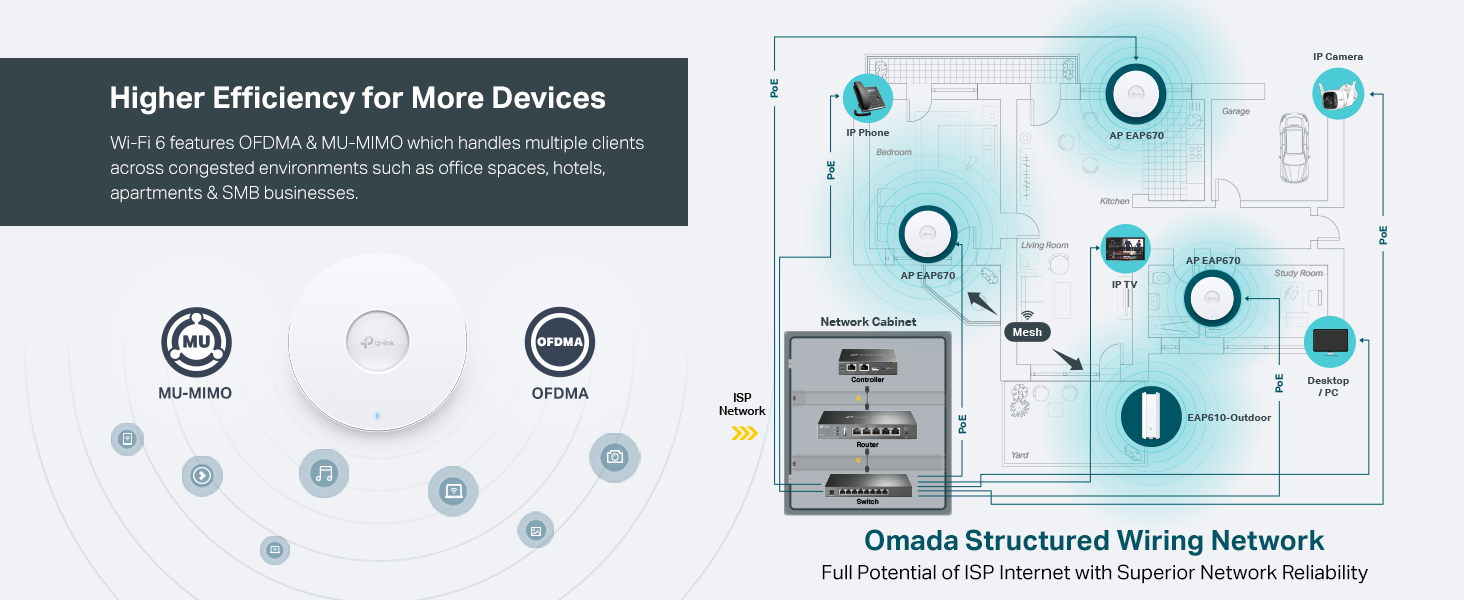
Image Description: This diagram illustrates two methods for effortless deployment of the EAP670 access point: using Power over Ethernet (PoE+) or a Mesh connection. One EAP670 is shown connected to a PoE switch via an Ethernet cable, indicating power and data delivery. Another EAP670 is shown wirelessly connected in a mesh configuration, highlighting cable-free network access. The background shows a busy office environment, suggesting suitability for commercial spaces.
Operating and Management
The EAP670 V2 can be managed through the Omada SDN platform, offering flexible control options and advanced wireless features.
Omada Software Defined Networking (SDN):
The Omada SDN platform integrates various network devices, including access points, switches, and gateways, providing a unified management interface. You can choose from the following control options:
- Omada Hardware Controller: A dedicated hardware device for on-premises management.
- Omada Software Controller: Software that can be installed on a PC or server for on-premises management.
- Omada Cloud-Based Controller: A cloud service for remote management (contact TP-Link for details on compatible models and availability).
Standalone mode is also supported for managing individual access points without an Omada controller.

Image Description: This image depicts the Omada SDN platform, showcasing its flexible management capabilities. It illustrates how Omada Access Points (including ceiling mount, wall plate, and outdoor models), Jetstream Switches, and Omada Security Gateways are integrated. These devices can be managed through a Unified Management Interface via various controllers: Hardware Controller, Software Controller, or Cloud Access. The diagram emphasizes the centralized control and unified network management provided by Omada SDN.
Cloud Access and Omada App:
For convenient remote management, the Omada app allows you to control your network from anywhere, anytime. Simply launch the app, scan the S/N code on the product package, and follow the on-screen instructions to add your device and begin managing it. This feature is ideal for managing multiple sites or for administrators on the go.

Image Description: This image illustrates the Omada Smarter Cloud Solution for Business Networking. It shows various Omada devices, including the EAP670 Wi-Fi 6 AP, Wall Plate AP, Outdoor AP, Omada Security Gateway, and JetStream PoE Switches, all connected and managed centrally. The bottom part of the image displays a tablet and a smartphone running the Omada app, demonstrating remote cloud access and management. QR codes for downloading the Omada app from the App Store and Google Play are also visible.
Download the Omada App: https://www.tp-link.com/common/app/omada/qrcode.php
Advanced Wireless Technologies:
- Mesh WiFi: Create a seamless mesh network for extended coverage and simplified management.
- Seamless Roaming: Allows clients to automatically switch between access points as they move, ensuring an uninterrupted connection. (Note: Omada Mesh Seamless Roaming requires the use of Omada SDN controllers).
- Band Steering: Automatically pushes dual-band clients to the faster 5 GHz band to optimize network performance.
- Load Balancing: Distributes client connections across multiple access points to prevent overload and ensure optimal performance.
- Airtime Fairness: Ensures that slower clients do not monopolize airtime, improving overall network efficiency.
- Beamforming: Focuses Wi-Fi signals towards connected devices, improving signal strength and range.

Image Description: This image illustrates the concept of seamless roaming in a multi-story building or large area. It shows three EAP670 access points strategically placed to provide overlapping Wi-Fi coverage. As a user moves through different areas, their device automatically switches to the access point with the strongest signal, ensuring a continuous and stable connection without manual intervention. Icons for Smart Roaming, Unified Network, Easy Pairing, and Remote Management are also displayed.
Maintenance
To ensure optimal performance and longevity of your EAP670 V2 Access Point, regular maintenance is recommended.
Cleaning:
- Gently wipe the exterior of the device with a soft, dry cloth.
- Avoid using liquid cleaners or aerosol sprays, as they may damage the device.
- Ensure the device is powered off before cleaning.
Firmware Updates:
Periodically check the TP-Link official website for the latest firmware updates for your EAP670 V2. Firmware updates often include performance improvements, security enhancements, and new features. Follow the instructions provided with the firmware update package carefully to avoid any issues during the update process.
Troubleshooting
This section addresses common issues you might encounter with your EAP670 V2 Access Point.
No Power Indicator Light:
- Ensure the power adapter is securely connected to the device and a working power outlet.
- If using PoE+, verify that the Ethernet cable is properly connected and the PoE+ source (switch or injector) is functioning correctly.
- Try a different power outlet or PoE+ port.
No Internet Access:
- Check the Ethernet cable connection between the EAP670 and your router/switch.
- Verify that your router or gateway has an active internet connection.
- Ensure the EAP670 is properly configured within the Omada SDN controller or in standalone mode.
- Restart the EAP670 and your main network devices (router, modem).
Poor Wi-Fi Signal or Slow Speeds:
- Ensure the EAP670 is mounted in a central location, away from obstructions like thick walls, metal objects, or large appliances.
- Check for sources of interference, such as microwaves, cordless phones, or neighboring Wi-Fi networks.
- Verify that your client devices support Wi-Fi 6 (802.11ax) to take full advantage of the EAP670's capabilities.
- If using multiple EAPs, ensure Omada Mesh and Seamless Roaming are properly configured.
Resetting the Device:
If you encounter persistent issues, you may need to reset the EAP670 to its factory default settings. Locate the reset button (usually a small pinhole) on the device. With the device powered on, use a paperclip to press and hold the reset button for approximately 5-10 seconds until the LED indicators change, then release. The device will restart with factory defaults.
Technical Specifications
| Feature | Specification |
|---|---|
| Model Name | EAP670 V2 |
| Product Dimensions | 8.66 x 8.66 x 1.28 inches |
| Item Weight | 1.52 pounds |
| Frequency Band Class | Dual-Band |
| Wireless Communication Standard | 802.11ac, 802.11ax (Wi-Fi 6), 802.11b, 802.11g, 802.11n |
| Connectivity Technology | Ethernet |
| Special Feature | WPS (Wi-Fi Protected Setup) |
| Compatible Devices | Personal Computer |
| Recommended Uses | Business, Home |
| Color | White |
Warranty and Support
Warranty Information:
The TP-Link EAP670 V2 is backed by an industry-leading 5-year warranty, providing assurance for your investment.
Technical Support:
Free technical support is available from 6 AM to 6 PM PST, Monday to Friday. For assistance, please visit the official TP-Link support website or contact their customer service.
Legal Disclaimer:
Please note the following important information regarding product performance and features:
- Maximum wireless signal rates are theoretical physical rates. Actual wireless data throughput and coverage may vary due to environmental factors, network conditions, and client limitations.
- Use of Wi-Fi 6 features (OFDMA, HE160, 1024-QAM) requires client devices to support these corresponding features. The 160 MHz bandwidth is primarily available on the 5 GHz band and may be subject to regional regulatory restrictions.
- Omada Mesh, Seamless Roaming, and Captive Portal functionalities require the use of an Omada SDN controller. Refer to TP-Link's website for compatible models and configuration guides.
- Zero-Touch Provisioning and Auto Channel Selection/Power Adjustment require an Omada Cloud-Based Controller.
- Actual client capacity depends on the wireless environment and traffic, generally being less than the maximum stated connections.
- Coverage values are based on laboratory testing; actual coverage is not guaranteed and varies with environmental factors and client limitations.
Related documentsEAP670 V2


Ask a question about this manual
Ask about setup, troubleshooting, compatibility, parts, safety, or missing instructions. Manuals+ will review the question and use this page’s manual context to help answer it.