1. Introduction
Thank you for choosing the Olympia Vitus 2G Senior Mobile Phone. This device is designed with ease of use in mind, featuring a foldable design, large buttons, and essential functions to keep you connected. It is also hearing aid compatible for enhanced accessibility.

Image 1.1: The Olympia Vitus 2G phone in both open and closed positions, alongside its charging dock.

Image 1.2: A selection of Olympia Vitus 2G phones, showcasing available colors and their charging docks.
2. Safety Information
- Read all instructions carefully before using the device.
- Keep the device away from water and moisture.
- Do not expose the device to extreme temperatures.
- Use only approved batteries, chargers, and accessories.
- Avoid dropping or subjecting the device to severe impact.
- Consult a qualified service professional for any repairs.
- Dispose of the device and its battery responsibly according to local regulations.
3. Setup
3.1. Unboxing and Package Contents
Carefully unpack your Olympia Vitus 2G phone. The package should contain:
- Olympia Vitus 2G Senior Mobile Phone
- Charging Dock
- USB-C Charging Cable
- Power Adapter
- Battery
- User Manual (this document)
3.2. Battery Installation and Charging
- Remove the back cover of the phone.
- Insert the battery, ensuring the gold contacts align with the phone's terminals.
- Replace the back cover.
- Connect the USB-C charging cable to the phone or place the phone in the charging dock.
- Connect the other end of the cable to the power adapter and plug it into a wall outlet.
- Allow the phone to charge fully before first use. The battery indicator on the display will show charging status.
The Vitus 2G offers a standby time of up to 240 hours and a talk time of up to 3.5 hours. An automatic SMS notification will alert you when the battery level is low, prompting timely charging.

Image 3.1: The Olympia Vitus 2G phone securely placed in its charging dock, indicating the charging process.
3.3. SIM Card Installation
- Ensure the phone is powered off.
- Remove the back cover and battery.
- Locate the SIM card slot(s). This phone supports 2G cellular technology.
- Carefully insert your SIM card(s) into the designated slot(s) with the gold contacts facing down, following the diagram usually found near the slot.
- Reinsert the battery and replace the back cover.
3.4. Powering On/Off
- To power on: Press and hold the Power/End Call button until the screen lights up.
- To power off: Press and hold the Power/End Call button, then select "Power off" from the options on the screen.
4. Operating Instructions
The Olympia Vitus 2G is designed for straightforward operation with its intuitive user interface and large, easy-to-press buttons.

Image 4.1: A user demonstrating the ease of making a call with the Olympia Vitus 2G, highlighting its large buttons and clear display.
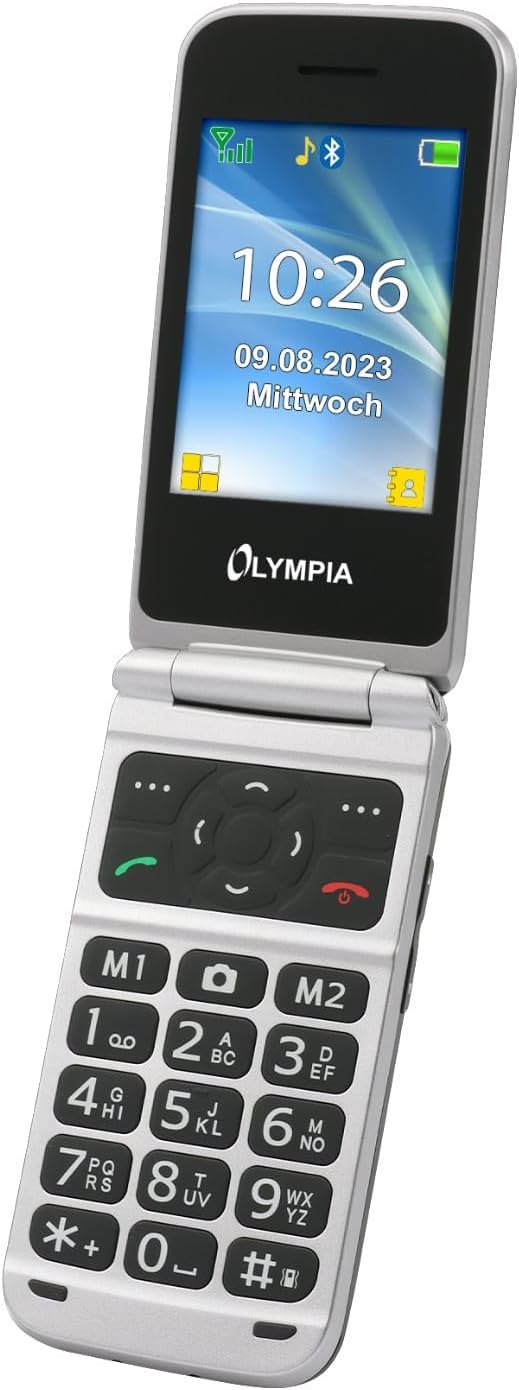
Image 4.2: A detailed view of the Olympia Vitus 2G's keypad, emphasizing the large, well-spaced, and clearly labeled buttons for easy dialing and navigation.
4.1. Making and Receiving Calls
- To make a call: Dial the number using the large keypad and press the Call button (green receiver icon).
- To answer a call: Press the Call button when the phone rings.
- To end a call: Press the End Call button (red receiver icon).
4.2. Emergency Call Button (SOS Function)
The Vitus 2G features a dedicated SOS button for emergencies. When activated, it can trigger an SOS sound alarm, send SOS SMS messages, and initiate calls to pre-programmed emergency contacts.

Image 4.3: The rear view of the Olympia Vitus 2G, clearly showing the prominent red SOS emergency call button.
- To activate: Press and hold the SOS button on the back of the phone for a few seconds.
- Ensure emergency contacts are set up in the phone's settings for this feature to function correctly.
4.3. Speed Dial and Direct Dial Buttons
The phone supports image speed dialing and includes two direct dial buttons (M1, M2) for quick access to important contacts.
- To set up: Refer to the phone's menu for "Speed Dial" or "Direct Dial" settings to assign contacts to M1, M2, or other number keys.
- To use: Simply press the assigned M1 or M2 button, or hold down a number key for speed dial.
4.4. Multimedia and Extra Features
Your Vitus 2G phone includes several useful features:
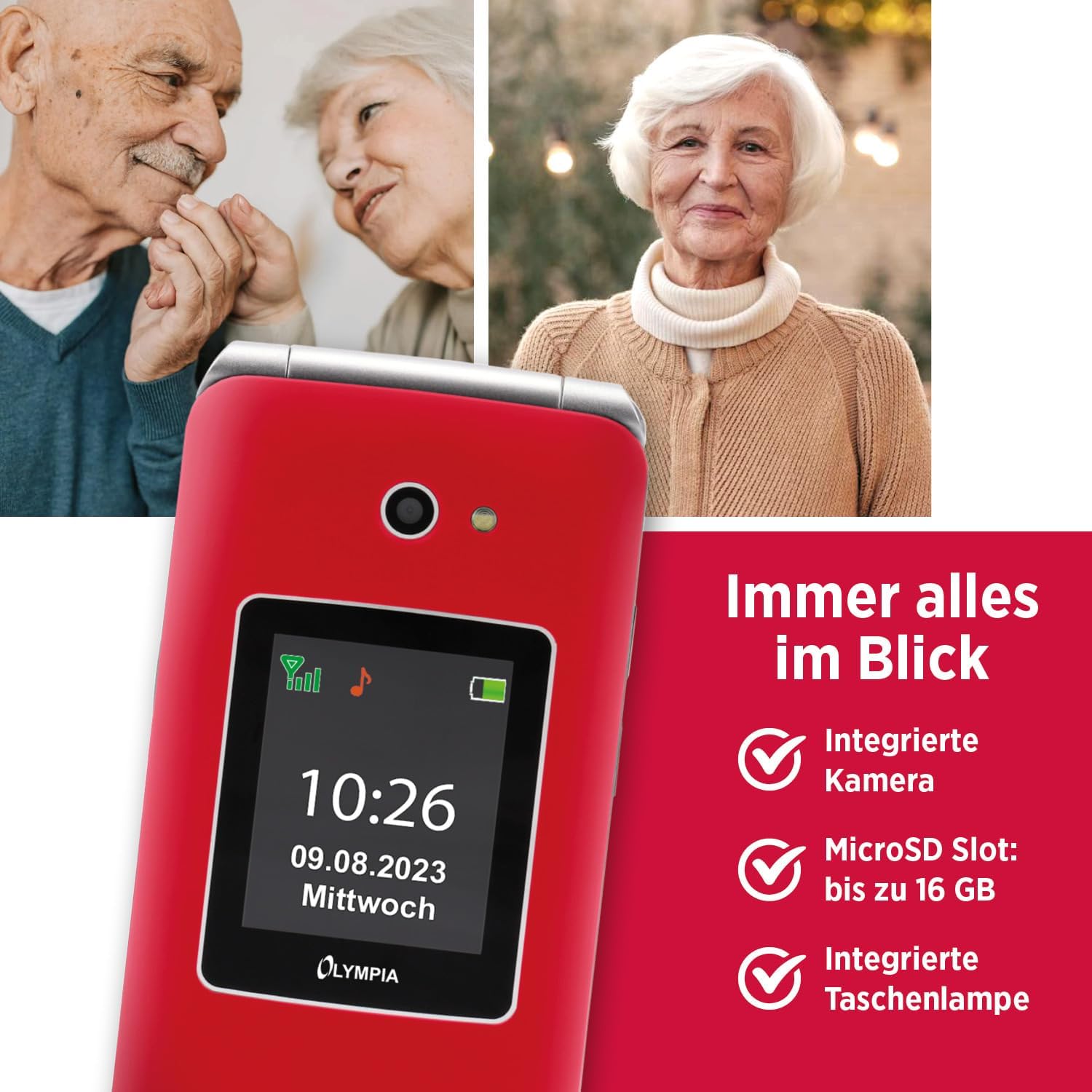
Image 4.4: The Olympia Vitus 2G phone, showcasing its integrated camera, microSD card slot for expandable storage, and built-in torch.
- Camera: Capture photos using the integrated camera. Access it via the main menu.
- FM Radio: Listen to your favorite radio stations. Headphones may be required for optimal reception.
- Torch: Activate the built-in torch for illumination in dark environments.
- MicroSD Slot: Expand storage up to 16GB for photos, music, and other files.
- Calendar, Calculator, Alarm Clock: Access these utility functions from the main menu.
- Bluetooth: Connect wirelessly to compatible devices such as headsets or other phones.
4.5. Hearing Aid Compatibility (HAC)
The Olympia Vitus 2G is designed to be compatible with hearing aids, reducing interference and improving call clarity for users with hearing devices.

Image 4.5: The Olympia Vitus 2G phone in its closed state, featuring the Hearing Aid Compatible (HAC) logo, indicating its suitability for users with hearing aids.
- When using a hearing aid, position the phone near your hearing aid to find the optimal listening position.
- Adjust the volume on both your phone and hearing aid for the best experience.
5. Maintenance
5.1. Cleaning Your Phone
- Use a soft, dry, lint-free cloth to clean the phone's exterior.
- Do not use harsh chemicals, cleaning solvents, or strong detergents.
- Avoid getting moisture into any openings.
5.2. Battery Care
- To prolong battery life, avoid fully discharging the battery frequently.
- Charge the phone regularly, especially when the low battery notification appears.
- Store the phone in a cool, dry place when not in use for extended periods.
5.3. Software Updates
Periodically check for software updates in the phone's settings menu. Updates can improve performance, add new features, and enhance security.
6. Troubleshooting
| Problem | Possible Solution |
|---|---|
| Phone does not power on | Ensure the battery is correctly installed and charged. Connect to charger and try again. |
| Cannot make/receive calls | Check SIM card installation. Ensure you have network signal. Contact your service provider. |
| Poor call quality | Move to an area with better network reception. If using a hearing aid, adjust phone position. |
| Battery drains quickly | Reduce screen brightness. Close unused applications. Limit background data usage. |
| SOS button not working | Ensure emergency contacts are correctly set up in the phone's settings. |
7. Specifications
The following are the technical specifications for the Olympia Vitus 2G Senior Mobile Phone:

Image 7.1: An overview of the Olympia Vitus 2G's key features and specifications, including its SOS button, USB-C, FM Radio, Bluetooth, and battery life.
- Model Name: VITUS 2G
- Item Model Number: 2225
- Brand: OLYMPIA
- Operating System: KaiOS
- CPU Model: Snapdragon
- Display: 1.7 inches (outer), 2.88 inches (inner)
- Resolution: 240 x 320 pixels
- Wireless Carrier: Unlocked for All Carriers
- Cellular Technology: 2G
- Connectivity Technology: USB-C, Bluetooth
- Colour: Red (other colors may be available)
- Battery Standby Time: Up to 240 hours
- Battery Talk Time: Up to 3.5 hours
- MicroSD Support: Up to 16 GB
- Dimensions (WxHxD): 56 x 19 x 106 mm (closed)
- Weight: 115 g
8. Warranty Information
Your Olympia Vitus 2G Senior Mobile Phone comes with a standard manufacturer's warranty. Please refer to the warranty card included in your package for specific terms, conditions, and duration. Keep your proof of purchase for warranty claims.
9. Customer Support
For technical assistance, troubleshooting, or further inquiries regarding your Olympia Vitus 2G, please contact Olympia customer support. Contact details can typically be found on the manufacturer's website or on the warranty card.
Please note: Product specifications and features are subject to change without prior notice.


