
Introduction
The ANFIER W09 PRO AI Voice Translator Device is designed to facilitate seamless multilingual communication, offering both online and offline translation capabilities. This manual provides essential information for setting up, operating, maintaining, and troubleshooting your device.
Key Features:
- Offline Translation: Supports 16 major languages without internet connection.
- Online Translation: Access to 144+ languages and accents with Wi-Fi or hotspot.
- High Accuracy: Up to 97% translation accuracy with a response time of less than 0.5 seconds.
- Photo Translation: Translates printed and handwritten text in 42 languages using the built-in camera.
- HD Touch Screen: 480*854 2.4" retina screen for clear display and easy operation.
- Long-Lasting Battery: 1500mAh battery provides up to 8 hours of continuous use and 7 days standby.
- Dual World Clocks: Integrated world clocks for international travel convenience.
Package Contents
Upon opening the package, ensure all items are present:
- ANFIER W09 PRO AI Voice Translator Device
- USB-C Charging Cable
- Pre-installed Screen Protector
- Silicone Sleeve
- Neck Strap
Device Overview

Figure 1: Front and back view of the ANFIER W09 PRO AI Voice Translator Device, showing the screen with main menu icons and the rear camera.
The device features a compact design with a touch screen interface and physical buttons for intuitive operation.
- Front: 2.4-inch HD touch screen, two tactile buttons for voice input (A and B).
- Side: Power button, volume up/down buttons.
- Rear: OCR camera for photo translation.
- Bottom: USB-C charging port.
Setup
1. Initial Charge
Before first use, fully charge the device using the provided USB-C cable and a compatible power adapter (not included). A full charge typically takes 1-2 hours.
2. Power On/Off
Press and hold the power button on the side of the device to turn it on or off. Swipe up on the screen to unlock the device.
3. Network Connection (for Online Features)
To access the full range of 144+ languages and ensure optimal accuracy, connect your device to a Wi-Fi network or mobile hotspot.
- From the main menu, tap on "Settings" (gear icon).
- Select "WLAN" (Wi-Fi).
- Toggle Wi-Fi to "On".
- Select your desired network from the list and enter the password if prompted.
- The device will indicate a successful connection.
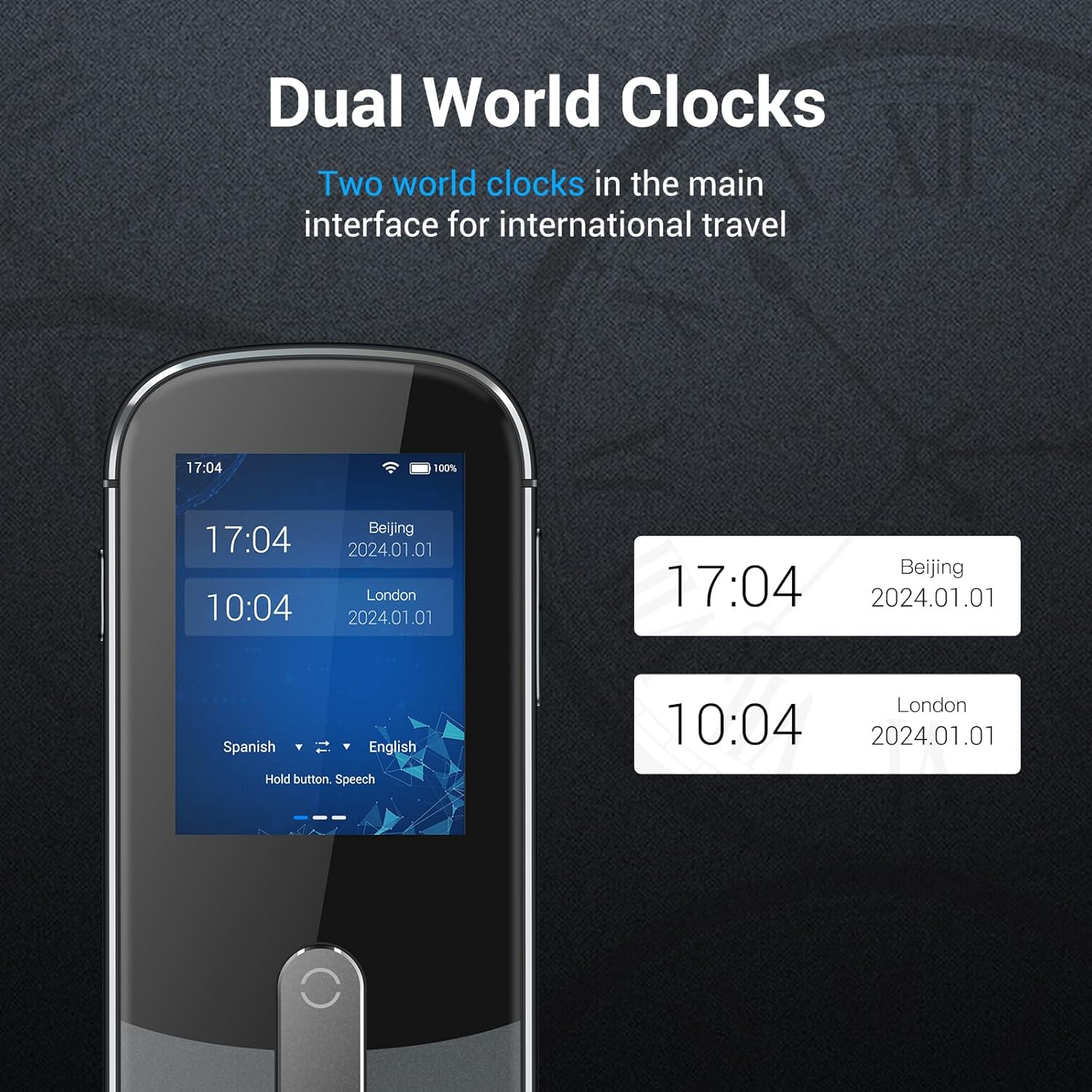
Figure 2: Screen showing Wi-Fi and Hotspot connection options, essential for online translation features.
4. Language Selection
From the main menu, tap on "Voice Translation" or "Offline Translation" to select your desired languages.
- Tap on the flag icon for "Language A" (your language) and select from the list.
- Tap on the flag icon for "Language B" (the target language) and select from the list.
For offline translation, ensure the desired language packs are downloaded via the "Offline download" option in settings while connected to Wi-Fi.
Operating Instructions
1. Voice Translation (Online/Offline)
The device supports two-way instant voice translation.
- Select your source and target languages on the main translation screen.
- To speak in Language A, press and hold the corresponding button (usually the top button). Speak clearly into the microphone.
- Release the button. The device will display and speak the translation in Language B.
- To speak in Language B, press and hold the corresponding button (usually the bottom button). Speak clearly into the microphone.
- Release the button. The device will display and speak the translation in Language A.
Video 1: Demonstration of two-way voice translation using the ANFIER W09 PRO device. Shows a user speaking into the device and receiving a spoken translation, highlighting its real-time communication capabilities.
2. Photo Translation
This feature allows you to translate text from images, such as signs or menus.
- From the main menu, tap on "Photo Translation" (camera icon).
- Align the text you wish to translate within the camera frame on the screen.
- Tap the capture button.
- The device will process the image and display the translated text.

Figure 3: Illustrates the photo translation function, showing the device scanning text from a sign and displaying the translated output. This feature is useful for translating menus, street signs, and other printed materials.
3. Recorder Function
The device includes a recorder function to capture audio, which can then be translated.
- Navigate to "Settings" and then "Recorder".
- Tap the record button to start recording.
- Tap again to stop.
- Recorded audio can be played back or selected for translation.
Maintenance
To ensure the longevity and optimal performance of your ANFIER W09 PRO device, follow these maintenance guidelines:
- Cleaning: Use a soft, dry cloth to clean the device. Avoid abrasive cleaners or solvents.
- Storage: Store the device in a cool, dry place away from direct sunlight and extreme temperatures.
- Battery Care: For long-term storage, charge the battery to about 50% every three months to prevent deep discharge.
- Software Updates: Periodically check for software updates in the "Settings" menu to ensure you have the latest features and performance improvements.
- Protection: Utilize the provided silicone sleeve and pre-installed screen protector to guard against scratches and minor impacts.
Troubleshooting
| Problem | Possible Cause | Solution |
|---|---|---|
| Device does not power on. | Low battery; device frozen. | Charge the device for at least 30 minutes. If still unresponsive, press and hold the power button for 10-15 seconds to force restart. |
| Inaccurate translation. | Poor network connection (online mode); unclear speech; outdated language packs. | Ensure stable Wi-Fi/hotspot connection. Speak clearly and at a moderate pace. Update offline language packs in settings. |
| Photo translation not working. | Insufficient lighting; text too small/blurry; incorrect language selected. | Ensure adequate lighting. Position the device closer or further to get clear text. Verify the correct source and target languages are selected for photo translation. |
| Device is slow or unresponsive. | Too many background processes; low memory. | Restart the device. Clear history or unnecessary downloaded files. |
| Cannot connect to Wi-Fi. | Incorrect password; out of range; network issue. | Double-check Wi-Fi password. Move closer to the Wi-Fi router. Restart the router. |
Specifications
| Feature | Detail |
|---|---|
| Model Number | A-W10-PRO-OFFLINE |
| Display | 2.4-inch HD Touch Screen (480*854 resolution) |
| Battery Capacity | 1500mAh Lithium Ion (included) |
| Continuous Use Time | Up to 8 hours |
| Standby Time | Up to 7 days |
| Charging Time | 1-2 hours (USB-C) |
| Offline Languages | 16 major languages (Arabic, Russian, French, German, Korean, Chinese (Simplified/Traditional), Japanese, Spanish, English, Thai, Vietnamese, Hindi, Portuguese, Indonesian, Italian) |
| Online Languages | 144+ languages and accents |
| Photo Translation Languages | 42 languages |
| Item Weight | 10.2 ounces |
| Package Dimensions | 6.26 x 3.43 x 1.73 inches |
| Manufacturer | Anfier |
| Country of Origin | USA |
Warranty and Support
The ANFIER W09 PRO device comes with a standard warranty. For specific warranty terms and conditions, please refer to the warranty card included in your product packaging or visit the official ANFIER website.
For technical support, troubleshooting assistance, or any inquiries regarding your device, please contact ANFIER customer service:
- Online Support: Visit the ANFIER Store on Amazon for FAQs and contact options.
- Email Support: Refer to your product documentation for the dedicated support email address.
Protection plans are also available for extended coverage:
- 3-Year Protection Plan
- 4-Year Protection Plan
- Complete Protect (monthly plan)