
ARRIS SB6190 & SURFboard mAX Mesh System
ARRIS SURFboard SB6190 DOCSIS 3.0 Modem & SURFboard mAX Mesh Wi-Fi System Bundle User Manual
Your comprehensive guide to setting up, operating, and maintaining your ARRIS home networking solution.
1. Introduction
Welcome to the ARRIS SURFboard SB6190 DOCSIS 3.0 Modem and SURFboard mAX Mesh Wi-Fi System Bundle. This manual provides detailed instructions to help you install, configure, and troubleshoot your new home networking equipment. This bundle is designed to deliver high-speed internet connectivity and expansive Wi-Fi coverage throughout your home, ensuring a seamless online experience.

Figure 1.1: The ARRIS SURFboard SB6190 DOCSIS 3.0 Modem and SURFboard mAX Mesh Wi-Fi System Bundle. This image displays the white modem unit and two cylindrical white mesh Wi-Fi units, highlighting the complete networking solution.
2. Product Overview
The ARRIS SURFboard bundle combines a high-performance cable modem with a robust mesh Wi-Fi system to provide comprehensive internet coverage. Understanding each component is key to optimal performance.
2.1. Components
- SURFboard SB6190 DOCSIS 3.0 Cable Modem: This modem connects to your cable internet service provider (ISP) to deliver internet access to your home network. It supports speeds up to 1 Gbps.
- SURFboard mAX Mesh Wi-Fi System (2 Units): These units work together to create a seamless, whole-home Wi-Fi network, eliminating dead zones and providing consistent high-speed wireless connectivity.
- Ethernet Cable: Used to connect the modem to the primary mesh Wi-Fi unit or a computer.
- Power Adapters: For both the modem and the mesh Wi-Fi units.
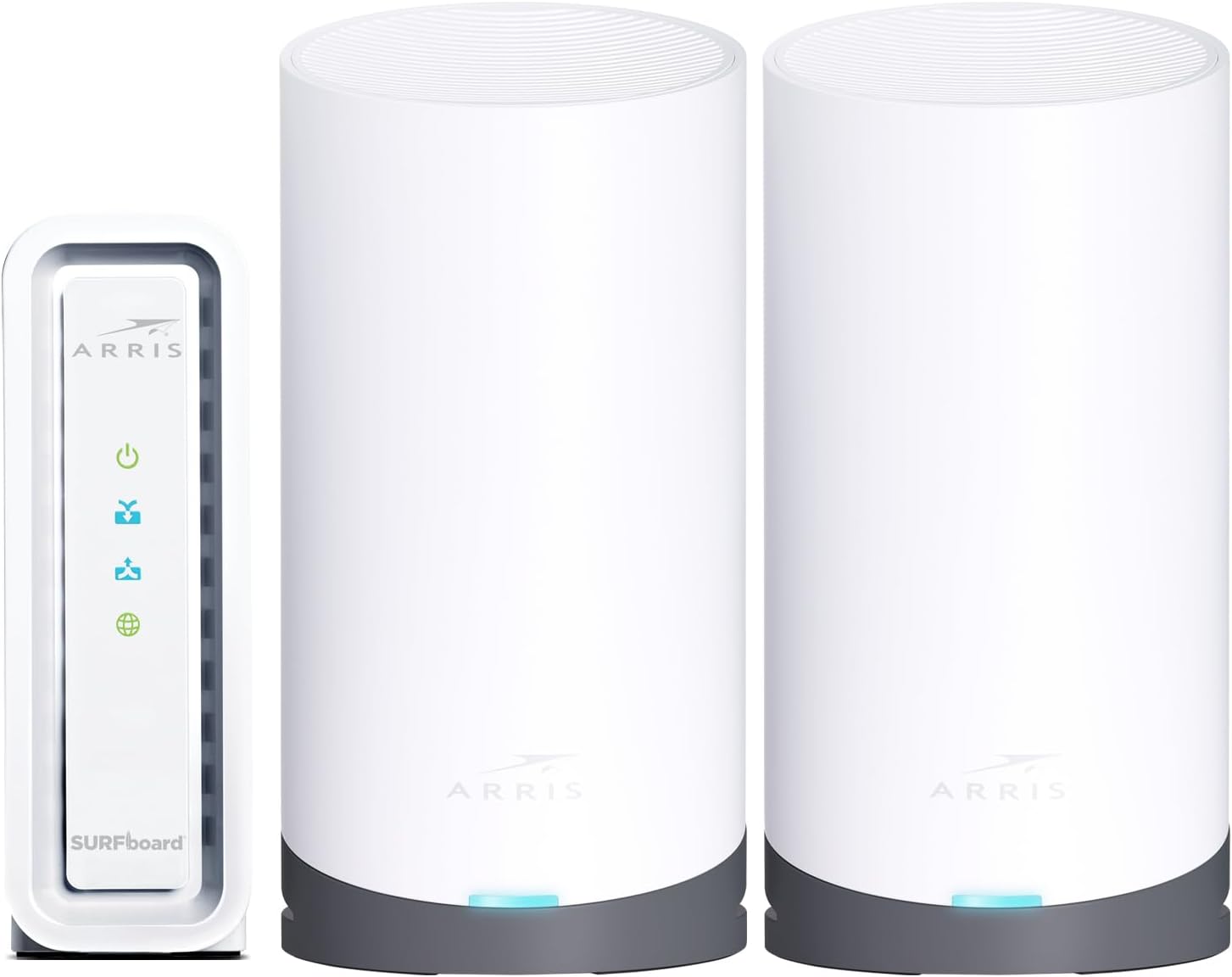
Figure 2.1: Front view of the ARRIS SURFboard SB6190 Modem and two SURFboard mAX Mesh Wi-Fi units. This image shows the distinct design of each component, with the modem on the left and the two cylindrical mesh units on the right, all in white with grey bases.
3. Setup
Follow these steps to set up your ARRIS SURFboard modem and mesh Wi-Fi system. Ensure you have an active cable internet service subscription before proceeding.
3.1. Initial Modem Setup (SB6190)
- Connect Coaxial Cable: Connect one end of the coaxial cable (not included) to the cable wall outlet and the other end to the Cable port on the back of your SB6190 modem.
- Connect Power: Connect the power adapter to the Power port on the modem and plug the other end into an electrical outlet.
- Wait for Lights: Allow the modem to power on and connect to the network. The Power, Receive, Send, and Online indicator lights on the front of the modem should turn solid green or blue. This may take several minutes.
- Activate with ISP: Contact your cable internet service provider to activate the modem. You will need to provide the modem's MAC address (located on a sticker on the bottom or back of the modem).
3.2. SURFboard mAX Mesh Wi-Fi System Setup
The SURFboard mAX Mesh Wi-Fi system is designed for easy setup using the SURFboard Central App.

Figure 3.1: Illustration of easy setup and activation using the SURFboard Central App. The image shows the SB6190 Cable Modem and WC4S Mesh Router System alongside a graphic indicating three steps: Download the SURFboard Central App, Follow step-by-step instructions, and Set up your network and connect your devices.
- Download App: Download the "SURFboard Central" app from your mobile device's app store (Apple App Store or Google Play Store).
- Connect Primary Unit: Connect one end of the included Ethernet cable to the Ethernet port on the back of your SB6190 modem and the other end to the WAN/LAN port on the primary SURFboard mAX mesh unit.
- Power On Primary Unit: Connect the power adapter to the primary mesh unit and plug it into an electrical outlet. Wait for the unit to power on.
- Follow App Instructions: Open the SURFboard Central app and follow the on-screen instructions to set up your primary mesh unit and create your Wi-Fi network.
- Place Secondary Unit: Once the primary unit is set up, place the second SURFboard mAX mesh unit in a central location within your home, ideally halfway between the primary unit and the area needing improved coverage. Ensure it is within range of the primary unit.
- Power On Secondary Unit: Connect the power adapter to the secondary mesh unit and plug it into an electrical outlet. It will automatically connect to the primary unit and extend your Wi-Fi network.
- Verify Connection: Check the indicator lights on both mesh units to ensure they are properly connected and broadcasting Wi-Fi. Refer to the app for status updates.
4. Operating Your Network
Once your system is set up, you can manage your network and connect devices. The SURFboard mAX system provides a tri-band Wi-Fi 5 (AC3800) network for optimal performance.
4.1. Connecting Devices
- Wireless Devices: On your smartphone, tablet, laptop, or other Wi-Fi enabled device, search for available Wi-Fi networks. Select the network name (SSID) you created during setup and enter your Wi-Fi password.
- Wired Devices: For devices requiring a wired connection (e.g., desktop computers, gaming consoles), connect an Ethernet cable from the device to one of the available LAN ports on your SURFboard mAX mesh units.
4.2. Network Management with SURFboard Central App
The SURFboard Central app allows you to manage your network settings, view connected devices, set up parental controls, and perform firmware updates.
- View Network Status: Check the status of your modem and mesh units, including internet connection status and signal strength.
- Manage Devices: See which devices are connected to your network, pause internet access for specific devices, or prioritize bandwidth for certain activities.
- Guest Network: Create a separate Wi-Fi network for guests, keeping your main network secure.
- Parental Controls: Set time limits or block specific websites for connected devices.

Figure 4.1: Diagram illustrating the Tri-band Wi-Fi 5 system creating multiple express lanes for data. The image shows a house with the SB6190 modem and two WC4 mesh units, depicting how the multi-gig bands provide seamless connectivity throughout the home, resulting in true gigabit speeds.
5. Maintenance
Proper maintenance ensures the longevity and optimal performance of your ARRIS networking equipment.
- Keep Ventilated: Ensure the modem and mesh units are placed in well-ventilated areas, away from direct sunlight or heat sources. Do not cover ventilation openings.
- Regular Reboots: Periodically reboot your modem and mesh units (unplug from power for 30 seconds, then plug back in) to refresh their connection and clear any temporary issues. This can often resolve minor performance slowdowns.
- Firmware Updates: Keep your device firmware updated. The SURFboard Central app will typically notify you of available updates, or they may be pushed automatically by ARRIS or your ISP.
- Clean Gently: Use a soft, dry cloth to clean the exterior of the devices. Do not use liquid cleaners or abrasive materials.
- Secure Cables: Ensure all cables (coaxial, Ethernet, power) are securely connected and not crimped or damaged.
6. Troubleshooting
This section addresses common issues you might encounter with your ARRIS SURFboard modem and mesh Wi-Fi system.
6.1. No Internet Connection
- Check Modem Lights: Ensure the Power, Receive, Send, and Online lights on the SB6190 modem are solid. If any are blinking or off, check cable connections and contact your ISP.
- Reboot Devices: Power cycle both the modem and the mesh units. Unplug them from power for 30 seconds, then plug the modem back in first, wait for it to fully boot, then plug in the mesh units.
- Check Cable Connections: Verify that the coaxial cable is securely connected to the modem and the wall outlet. Ensure the Ethernet cable between the modem and the primary mesh unit is secure.
- ISP Outage: Check with your internet service provider for any known outages in your area.
6.2. Slow Wi-Fi Speeds or Dead Zones
- Mesh Unit Placement: Ensure your secondary mesh unit is placed optimally, not too far from the primary unit, and in a central location to cover dead zones. Avoid placing units near large metal objects or appliances that emit electromagnetic interference (e.g., microwaves, cordless phones).
- Interference: Other wireless devices (e.g., Bluetooth, baby monitors) can cause interference. Try changing the Wi-Fi channel via the SURFboard Central app if available, or move interfering devices.
- Too Many Devices: If many devices are actively streaming or downloading, it can impact overall speed. Consider prioritizing critical devices via the app.
- Firmware Update: Ensure all devices have the latest firmware.
6.3. Cannot Access SURFboard Central App
- App Update: Ensure your SURFboard Central app is updated to the latest version.
- Network Connection: Your mobile device must be connected to the SURFboard mAX Wi-Fi network to manage it.
- Reboot App/Phone: Close and reopen the app, or restart your mobile device.
7. Specifications
| Feature | Description |
|---|---|
| Product Model | ARRIS SURFboard SB6190 DOCSIS 3.0 Modem & SURFboard mAX Mesh Wi-Fi System (WC4) |
| Modem Standard | DOCSIS 3.0 |
| Modem Speed | Up to 1 Gbps (Gigabit per second) download speeds |
| Wi-Fi Standard | Wi-Fi 5 (802.11ac), Tri-Band (AC3800) |
| Wi-Fi Coverage | Up to 5,500 sq ft (with two mesh units) |
| Ethernet Ports (Modem) | 1 x Gigabit Ethernet Port |
| Ethernet Ports (Mesh Unit) | Multiple Gigabit Ethernet Ports (WAN/LAN auto-sensing) |
| Compatible ISPs | Cox (Gigablast), Spectrum (Internet Gig), Xfinity (Blast!/Extreme Pro) & others |
| Color | White |
| Manufacturer | CommScope |
8. Warranty and Support
ARRIS is committed to providing reliable products and excellent customer service.
8.1. Warranty Information
The ARRIS SURFboard SB6190 modem and SURFboard mAX Mesh Wi-Fi System bundle typically comes with a 2-year limited warranty. This warranty covers defects in materials and workmanship under normal use. Please retain your proof of purchase for warranty claims. For specific terms and conditions, refer to the warranty card included with your product or visit the official ARRIS support website.
8.2. Technical Support
For technical assistance, troubleshooting, or warranty inquiries, please contact ARRIS Customer Support:
- Online Support: Visit the official ARRIS SURFboard support website for FAQs, troubleshooting guides, and firmware downloads. www.surfboard.com/support
- Phone Support: Refer to the contact information provided in your product packaging or on the ARRIS support website for phone numbers specific to your region.
- SURFboard Central App: The app also provides access to support resources and diagnostic tools.
Before contacting support, please have your product model number (SB6190 and SURFboard mAX), serial number, and a description of the issue ready.
Related documentsSB6190 & SURFboard mAX Mesh System


Ask a question about this manual
Ask about setup, troubleshooting, compatibility, parts, safety, or missing instructions. Manuals+ will review the question and use this page’s manual context to help answer it.