
Introduction
Thank you for choosing the CREATE WIPEBOT Pro Automatic Window Cleaning Robot. This advanced device is designed to provide efficient and thorough cleaning for your windows, featuring dual water outlets, two spray levels, and intelligent corner and edge detection. With its 5-meter safety cable and 60ml water tank, it ensures a reliable and extended cleaning experience. This manual provides essential information for the safe and effective operation, maintenance, and troubleshooting of your WIPEBOT Pro.
Safety Instructions
Please read all safety instructions carefully before using the WIPEBOT Pro. Failure to follow these instructions may result in electric shock, fire, or serious injury.
- Always attach the safety rope securely to a fixed anchor point before operation. The 5-meter safety cable is crucial for preventing falls.
- Ensure the power adapter and cable are securely connected and free from damage. Do not use if damaged.
- Do not operate the robot in rainy or extremely humid conditions.
- Keep hands, hair, and loose clothing away from moving parts.
- Use only the cleaning solution recommended by CREATE or clean water. Do not use corrosive liquids.
- Do not use the robot on cracked or damaged glass surfaces.
- Supervise the robot during operation, especially when used on high windows.
- Keep out of reach of children and pets.
- Disconnect power before cleaning or performing maintenance.
Package Contents
Verify that all items are present in the package:

WIPEBOT Pro Robot Unit

Microfiber Cleaning Pads (multiple)
Power Adapter and AC Cable
5m Safety Rope with Carabiner
Remote Control
Cleaning Solution Bottle (empty)
Product Overview
Familiarize yourself with the components of your WIPEBOT Pro.
Front View: Displays the power button and the start/pause button. The "CREATE" logo is centered.
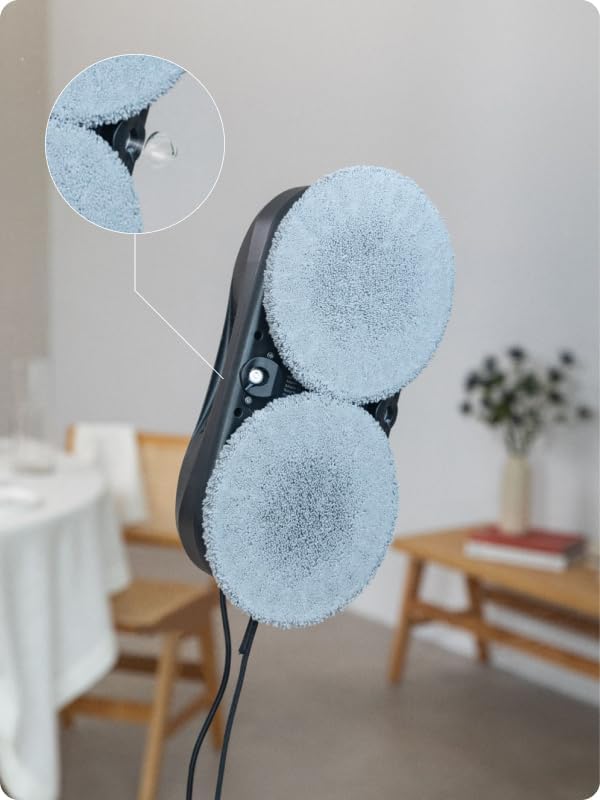
Water Spray Nozzles: Located between the cleaning pads, these nozzles provide precise water or cleaning solution application.

Water Tank Inlet: The opening for filling the 60ml water tank, typically located on the top surface.
Setup
- Charge the Robot: Before first use, ensure the robot is fully charged. Connect the power adapter to the robot and a power outlet. The indicator light will show charging status.
- Attach Cleaning Pads: Securely attach the microfiber cleaning pads to the designated areas on the bottom of the robot. Ensure they are clean and dry or slightly damp as per cleaning requirements.
- Fill Water Tank: Open the water tank inlet and carefully fill the 60ml tank with clean water or a recommended window cleaning solution. Close the cap tightly.
Filling the water tank with cleaning solution.
- Attach Safety Rope: Connect the 5-meter safety rope to the robot's safety attachment point and secure the other end to a strong, fixed anchor point indoors. This is critical for safety.
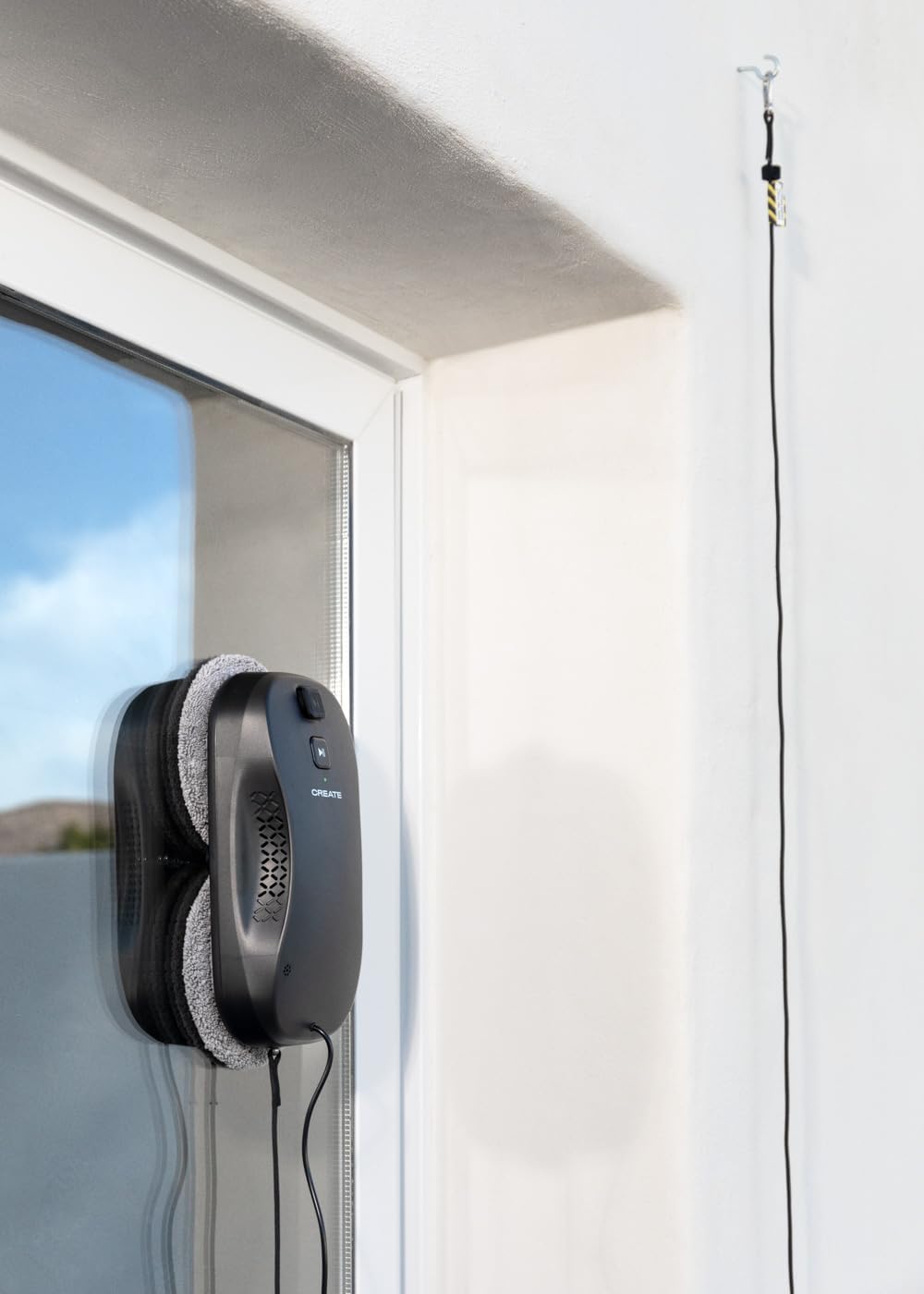
Ensure the safety rope is securely fastened.
- Power Connection: Connect the robot to the power adapter. The robot requires continuous power during operation.
- App Connection (Optional): Download the CREATE app on your smartphone. Follow the in-app instructions to connect your WIPEBOT Pro via WiFi for remote control and additional features.

Controlling the robot via the CREATE app on a smartphone.
Operating Instructions
- Placement: Place the robot firmly on the center of the window surface you wish to clean. Ensure it adheres securely.
- Start Cleaning:
- Manual Start: Press the Start/Pause button on the robot.

Pressing the start button on the robot.
- Remote Control: Use the remote control to start, pause, or direct the robot.

Controlling the robot with the remote control.
- App Control: Use the CREATE app on your smartphone to initiate cleaning cycles and adjust settings.
- Manual Start: Press the Start/Pause button on the robot.
- Adjust Spray Levels: The WIPEBOT Pro offers two polishing modes/spray levels. Adjust the intensity of the sprayer via the remote or app to suit the cleaning needs.
The robot's dual water outlets provide precise spraying.
- Edge and Corner Detection: The robot is equipped with intelligent sensors to detect edges and corners, ensuring comprehensive cleaning coverage.
- Stopping and Removing: Once cleaning is complete, the robot will return to its starting position or stop. Carefully remove the robot from the window by holding it firmly and pressing the release button (if applicable) or gently pulling it off.
Maintenance
Regular maintenance ensures optimal performance and extends the lifespan of your WIPEBOT Pro.
- Clean Cleaning Pads: After each use, remove and wash the microfiber cleaning pads. They can typically be hand-washed or machine-washed with mild detergent. Ensure they are completely dry before reattaching.
- Clean Robot Body: Wipe the exterior of the robot with a soft, damp cloth. Do not use abrasive cleaners or immerse the robot in water.
- Empty Water Tank: After each use, empty any remaining water or cleaning solution from the tank to prevent residue buildup.
- Check Nozzles: Periodically check the spray nozzles for blockages and clean them if necessary using a small brush or pin.
- Storage: Store the robot in a cool, dry place away from direct sunlight and extreme temperatures.
Troubleshooting
If you encounter issues with your WIPEBOT Pro, refer to the following common problems and solutions:
| Problem | Possible Cause | Solution |
|---|---|---|
| Robot does not start or respond. | Low battery; power cable disconnected; robot not securely placed. | Ensure robot is charged and connected to power. Re-position robot firmly on the window. |
| Robot leaves streaks or dirty marks. | Dirty cleaning pads; insufficient cleaning solution; window too dirty initially. | Replace or clean pads. Refill water tank. Pre-clean heavily soiled windows manually. |
| Robot falls off the window. | Safety rope not attached; insufficient suction; surface too wet/slippery. | Always attach the safety rope. Ensure window is not excessively wet. Check for obstructions. |
| App connectivity issues. | WiFi signal weak; incorrect pairing. | Ensure strong WiFi signal. Restart robot and app. Re-pair the device following app instructions. |
| Robot is too noisy. | Normal operating noise; internal component issue. | A certain level of noise (approx. 75 dB) is normal during operation. If noise is excessive or unusual, contact support. |
Specifications
| Feature | Detail |
|---|---|
| Brand | CREATE |
| Model | WIPEBOT Pro |
| Product Dimensions | 27L x 13.6W x 8H centimeters |
| Package Dimensions | 32.4 x 22 x 11 cm; 1.25 kg |
| Water Tank Capacity | 60 Milliliters |
| Power/Wattage | 72 watts |
| Voltage | 240 Volts AC (VAC) |
| Noise Level | 75 dB |
| Compatible Models | Smartphones (for app control) |
| Special Features | Anti-fall mechanism, Dual Water Outlet, 2 Spray Levels, Corner and Edge Detection |
| Surface Recommendation | Glass |
| Controller Type | App control, Remote control |
| Power Source | Battery (for backup), Mains powered during operation |
Warranty and Support
The CREATE WIPEBOT Pro comes with a standard manufacturer's warranty. Please refer to the warranty card included in your package or visit the official CREATE website for detailed warranty terms and conditions.
For technical support, troubleshooting assistance, or spare parts, please contact CREATE customer service. You can usually find contact information on the product packaging, the official website, or through your retailer.
Website: www.create.com (Note: This is a placeholder URL. Please refer to your product documentation for the actual support website.)


