
1. Product Overview
The SANSUI ES-24F2C is a 24-inch Full HD (1080P) computer monitor designed for versatile use, from daily desktop tasks to gaming and office work. It features a 100Hz refresh rate, USB Type-C connectivity, and HDR support for enhanced visual experiences.
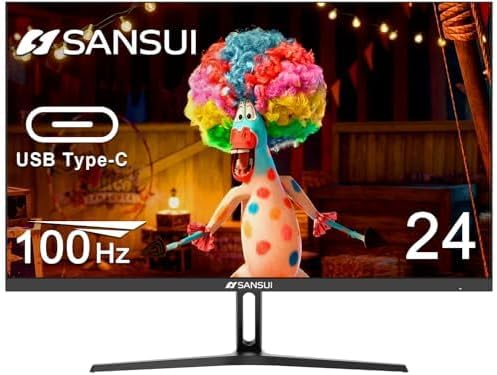
Front view of the SANSUI 24-inch monitor.
2. Package Contents
Please verify that all items listed below are present in your package:
- Monitor (x1)
- HDMI Cable (x1)
- Power Adaptor (x1)
3. Setup and Installation
3.1 Assembling the Stand
The monitor stand is designed for tool-free installation. Simply align the stand arm with the slot on the back of the monitor and push until it clicks securely into place. Ensure the stand base is firmly attached to the arm.

A diagram illustrating the simple, tool-free installation of the monitor stand and a close-up of the convenient visible button controls.
3.2 VESA Mount Compatibility
For alternative mounting solutions, the monitor supports a 75x75mm VESA mount. This allows for attachment to compatible wall mounts or monitor arms (sold separately).
3.3 Connecting to Devices
The monitor offers multiple connectivity options:
- USB Type-C: Connect compatible laptops, tablets, or desktop computers for video, audio, and data transfer through a single cable.
- HDMI 1.4: Use the included HDMI cable to connect to various devices such as PCs, gaming consoles, and media players.
- DisplayPort (DP): Connect to devices supporting DisplayPort for high-quality video and audio.
- Audio Jack: Connect external headphones or speakers.
- DC Port: Connect the provided power adaptor to power the monitor.

A diagram showing the monitor's dimensions and available ports: HDMI, DisplayPort (DP), USB-C, DC, and AUDIO OUT.
4. Operating Instructions
4.1 On-Screen Display (OSD) Menu
Navigate the monitor settings using the joystick control located on the bottom right of the monitor. The buttons are labeled as follows:
- M: Menu/Select
- ▼: Down/Game Centre
- ▲: Up/Brightness
- E: Exit/Input Menu
- ⏻: Standby/Power Off/On
4.2 Display Modes and Features
The monitor offers various preset modes and features to optimize your viewing experience:
- Movie Mode: Enhances visuals for watching films and videos.
- Reading Mode: Adjusts display settings for comfortable reading, reducing eye strain.
- Low Blue Light: Reduces harmful blue light emissions for eye care during prolonged use.
- Game Modes (RTS/FPS/RACING): Provides optimized settings for different gaming genres, enhancing visibility and response.
- HDR (High Dynamic Range): Supports HDR content, bringing out richer details and vivid colors in compatible media.
- AMD FreeSync: Synchronizes the monitor's refresh rate with your graphics card to eliminate screen tearing and stuttering during gaming.

Four panels showing the monitor screen in different preset modes: Game, Movie, Low Blue, and Reading.
5. Performance Features
- 100Hz Refresh Rate: Provides smoother motion and reduced input lag, ideal for fast-paced content and gaming.
- 5ms Response Time: Minimizes ghosting and blurring in dynamic scenes.
- FHD 1080P Resolution: Delivers crisp and clear images with 1920x1080 pixels.
- 178° Wide Viewing Angle: Ensures consistent image quality from various perspectives.
- 1000:1 Contrast Ratio: Offers deep blacks and bright whites for a more immersive visual experience.
- 99% sRGB Color Gamut: Provides accurate and vibrant color reproduction.

Infographic highlighting key features like 100Hz refresh rate, Type-C connectivity, Full HD resolution, and HDR support.

Image demonstrating the monitor's rich color reproduction and HDR technology support.

A visual comparison of motion blur at 5ms response time vs. 14ms, and 100Hz vs. 75Hz refresh rates.
6. Maintenance
To ensure the longevity and optimal performance of your SANSUI monitor, follow these maintenance guidelines:
- Cleaning: Gently wipe the screen with a soft, lint-free cloth. For stubborn marks, use a screen-cleaning solution specifically designed for monitors, applied to the cloth, not directly to the screen.
- Dusting: Regularly dust the monitor casing and vents to prevent dust buildup, which can affect performance and cooling.
- Avoid Harsh Chemicals: Do not use alcohol, ammonia-based cleaners, or abrasive materials, as these can damage the screen and casing.
- Ventilation: Ensure the monitor's ventilation openings are not blocked to prevent overheating.
7. Troubleshooting
If you encounter issues with your monitor, please refer to the following common troubleshooting steps:
- No Power: Ensure the power adaptor is securely connected to both the monitor and a working power outlet. Check the power indicator light on the monitor.
- No Signal: Verify that the video cable (HDMI, USB-C, or DisplayPort) is correctly connected to both the monitor and your device. Ensure the correct input source is selected via the OSD menu.
- Flickering/Distorted Image: Check the video cable for damage. Try a different cable or port. Ensure your device's graphics drivers are up to date. Adjust the refresh rate in your device's display settings.
- Incorrect Resolution: Adjust the display resolution in your computer's operating system settings to 1920x1080 for optimal clarity.
- Audio Issues: If using the monitor's built-in speakers or the audio jack, ensure the volume is not muted and is set to an audible level. Check audio output settings on your connected device.
- Stand Stability: Ensure the monitor stand is fully assembled and securely attached to the monitor.
If problems persist, please contact SANSUI customer support for further assistance.
8. Specifications
| Feature | Detail |
|---|---|
| Brand | SANSUI |
| Model Number | ES-24F2C |
| Screen Size | 24 Inches (23.8" viewable) |
| Resolution | FHD 1080p (1920 x 1080 Pixels) |
| Max Screen Resolution | 1920 x 1080 Pixels |
| Refresh Rate | 100Hz |
| Brightness | 250 Nits |
| Aspect Ratio | 16:9 |
| Viewing Angle | 178° V/H |
| VESA Mount | 75x75mm |
| Connectivity | 1x USB Type-C, 1x HDMI 1.4, 1x DisplayPort, Audio Jack, DC Port |
| Item Weight | 6.16 pounds |
| Product Dimensions | 7.73 x 21.2 x 16.69 inches |
| Color | Black |
| Voltage | 240 Volts |
9. Warranty and Support
SANSUI is committed to providing high-quality products and customer satisfaction.
- Money-Back and Free Replacement: The SANSUI 24-inch monitor is eligible for money-back and free replacement warranty within 30 days from the order date.
- Lifetime Technical Support: Enjoy peace of mind with lifetime technical support for your monitor.
For warranty claims or technical assistance, please contact SANSUI customer service.

