
1. Product Overview
This manual provides detailed instructions for replacing the screen digitizer on the Vortex Tab T10M Pro 10.1-inch tablet. Please ensure your device model matches before proceeding.
1.1 Compatible Models
- Vortex Tab T10M Pro
1.2 Package Contents
The package includes the following items:
- 1x Vortex Tab T10M Pro 10.1" Screen Replacement Touch Digitizer
- 1x Set of Repair Tools (including screwdrivers, prying tools, dust removal stickers, and disassembly card)
- 1x Double-sided Adhesive Tape

1.3 Product Features
The replacement screen offers enhanced visual and touch performance:
- High Brightness: Provides clear visibility in various lighting conditions.
- High Resolution: Ensures sharp and detailed image display.
- High Sensitivity: Delivers responsive and accurate touch interaction.

2. Important Safety Information
Screen replacement requires specialized tools and technical expertise. If you are not a professional maintenance personnel or lack experience in screen installation, it is strongly recommended to seek assistance from a local repair shop to prevent potential damage to your device.
Always power off your device completely before beginning any repair work. Disconnect the battery if possible to avoid short circuits.
3. Installation Guide
3.1 Before You Begin
- Verify Model: Confirm that the replacement screen is specifically for the Vortex Tab T10M Pro. Check the flex cable number (e.g., MJK-GG101-2389) for compatibility.
- Power Off: Ensure your tablet is completely powered off and disconnected from any power source.
- Gather Tools: Have all necessary repair tools ready, including screwdrivers, prying tools, and adhesive.
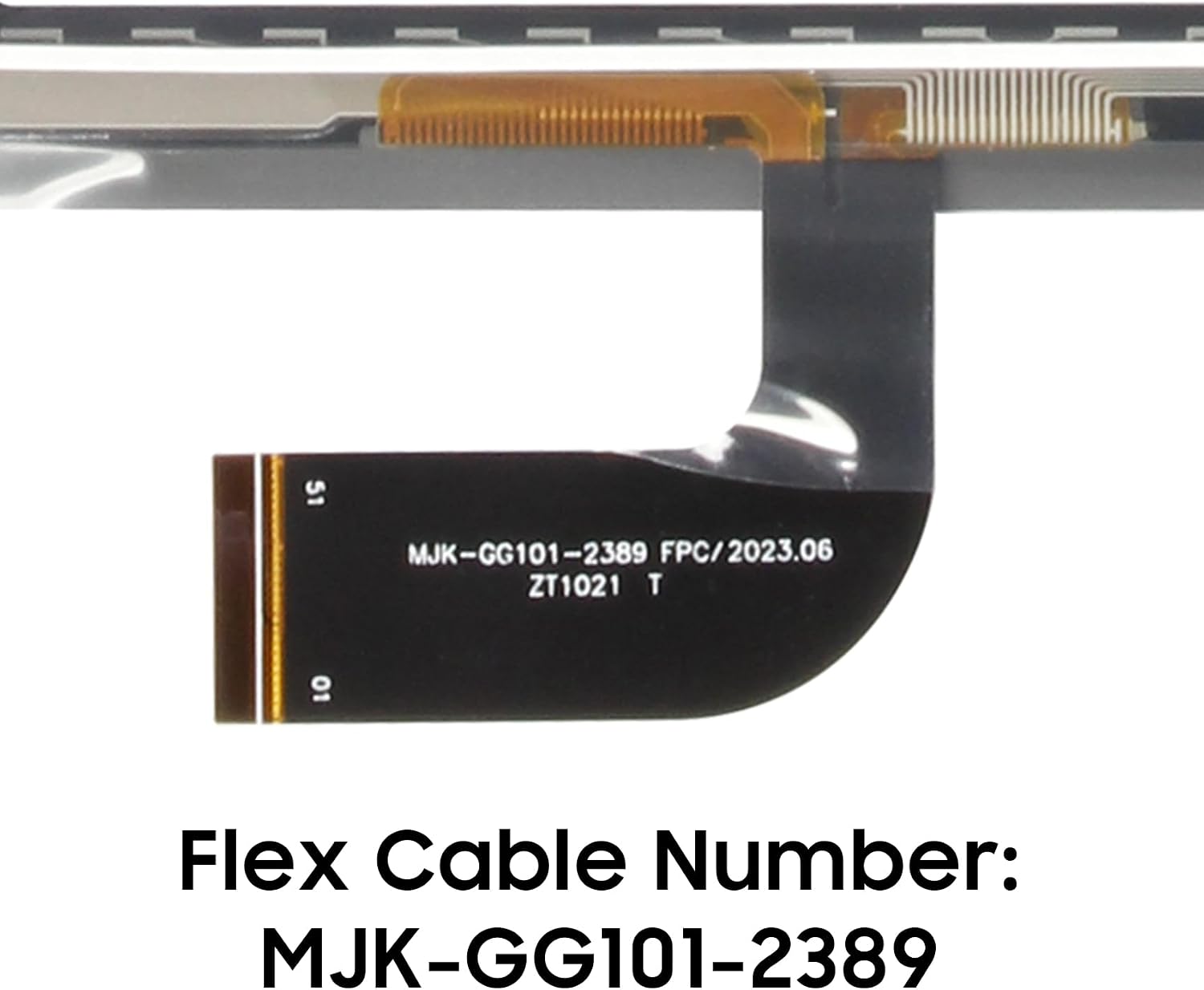
3.2 Step-by-Step Installation Overview
The following steps provide a general overview of the screen replacement process. Specific disassembly and reassembly procedures may vary and require careful attention to detail.
- Remove Back Cover: Carefully open the tablet's back cover using appropriate prying tools.
- Disconnect Battery: Locate and disconnect the battery connector to prevent electrical damage.
- Remove Damaged Screen: Gently detach the damaged screen assembly, paying attention to adhesive and flex cables.
- Clean Frame: Thoroughly clean any old adhesive residue from the tablet frame.
- Connect New Screen: Carefully connect the flex cable of the new screen to the tablet's motherboard.
- Test Functionality: Before fully adhering, temporarily power on the tablet to test the new screen's touch response and display quality.
- Apply Adhesive: Apply new double-sided adhesive tape around the tablet frame.
- Secure New Screen: Carefully position and press the new screen onto the tablet frame, ensuring a secure fit.
- Reconnect Battery & Close: Reconnect the battery, then reattach the back cover.

3.3 Product Overview Video
Watch this video for a visual overview of the screen replacement product and its handling:
4. Testing the New Screen
After installation, perform the following tests to ensure full functionality:
- Touch Functionality: Navigate through the tablet's interface, open apps, and type to confirm touch response across the entire screen.
- Display Quality: Check for any dead pixels, discoloration, or uneven backlighting. View various images and videos to assess clarity.
- Brightness Adjustment: Ensure the screen brightness can be adjusted correctly.
5. Maintenance and Care
To prolong the life of your new screen replacement:
- Avoid dropping the tablet or subjecting it to strong impacts.
- Use a soft, lint-free cloth to clean the screen. Avoid harsh chemicals.
- Consider using a screen protector for added durability.
6. Troubleshooting Common Issues
If you encounter issues after screen replacement, consider the following:
- Unresponsive Touch: Recheck the flex cable connection. Ensure it is securely seated.
- Display Problems (e.g., lines, no image): Verify the display flex cable connection. A faulty connection can cause display anomalies.
- Screen Not Turning On: Ensure the battery is properly connected and charged. Recheck all internal connections.
- Ghost Touch/Erratic Behavior: This can sometimes be caused by static electricity or improper grounding. Ensure all connections are clean and secure.

7. Product Specifications
| Specification | Detail |
|---|---|
| Package Dimensions | 10.83 x 8.54 x 1.34 inches |
| Item Weight | 11.3 ounces |
| Manufacturer | AGCUT |
| ASIN | B0CRH8P7W7 |
| Date First Available | January 4, 2024 |
8. Warranty and Support
8.1 Service Guarantee
The touch screen digitizer replacement for Vortex Tab T10M Pro undergoes 100% inspection by a professional QC team before delivery. We offer a lifetime exchange for non-human damage, ensuring a risk-free purchase.
8.2 After-Sale Service
A 6-month after-sale service is provided. If the item received has any problems, please contact us for technical support and satisfactory solutions. We are committed to providing a new replacement or a suitable resolution for any product issues.