
1. Introduction
This manual provides detailed instructions for the setup, operation, and maintenance of your Irfora Portable Mini Thermal Printer. Please read this manual thoroughly before using the device to ensure proper functionality and longevity.
The Irfora Portable Mini Thermal Printer is a compact and lightweight device designed for efficient receipt and ticket printing. It supports wireless Bluetooth and USB connections, making it compatible with various operating systems including iOS, Android, and Windows. Its thermal printing technology eliminates the need for ink cartridges, offering a cost-effective and convenient printing solution for various retail and service environments.
2. Package Contents
Please verify that all items listed below are included in your package:
- 1 x Portable Mini Thermal Printer
- 1 x USB Cable
- 1 x Thermal Paper Roll (58mm)
- 1 x User Manual (this document)
3. Product Overview
Familiarize yourself with the components of your thermal printer:

Figure 3.1: Labeled components of the printer. Key parts include the Power Button, Feed Button, USB Port, Paper Cover, Power Indicator, Function Indicator, and Battery compartment.
- Power Button: Used to turn the printer on or off.
- Feed Button: Used to advance the thermal paper.
- USB Port: For charging and wired connection to a computer.
- Paper Cover: Protects the thermal paper roll and printing mechanism.
- Power Indicator: Lights up to show power status.
- Function Indicator: Indicates various operational states.
- Battery: Rechargeable lithium battery located in the compartment.
4. Specifications
Detailed technical specifications of the Irfora Portable Mini Thermal Printer:
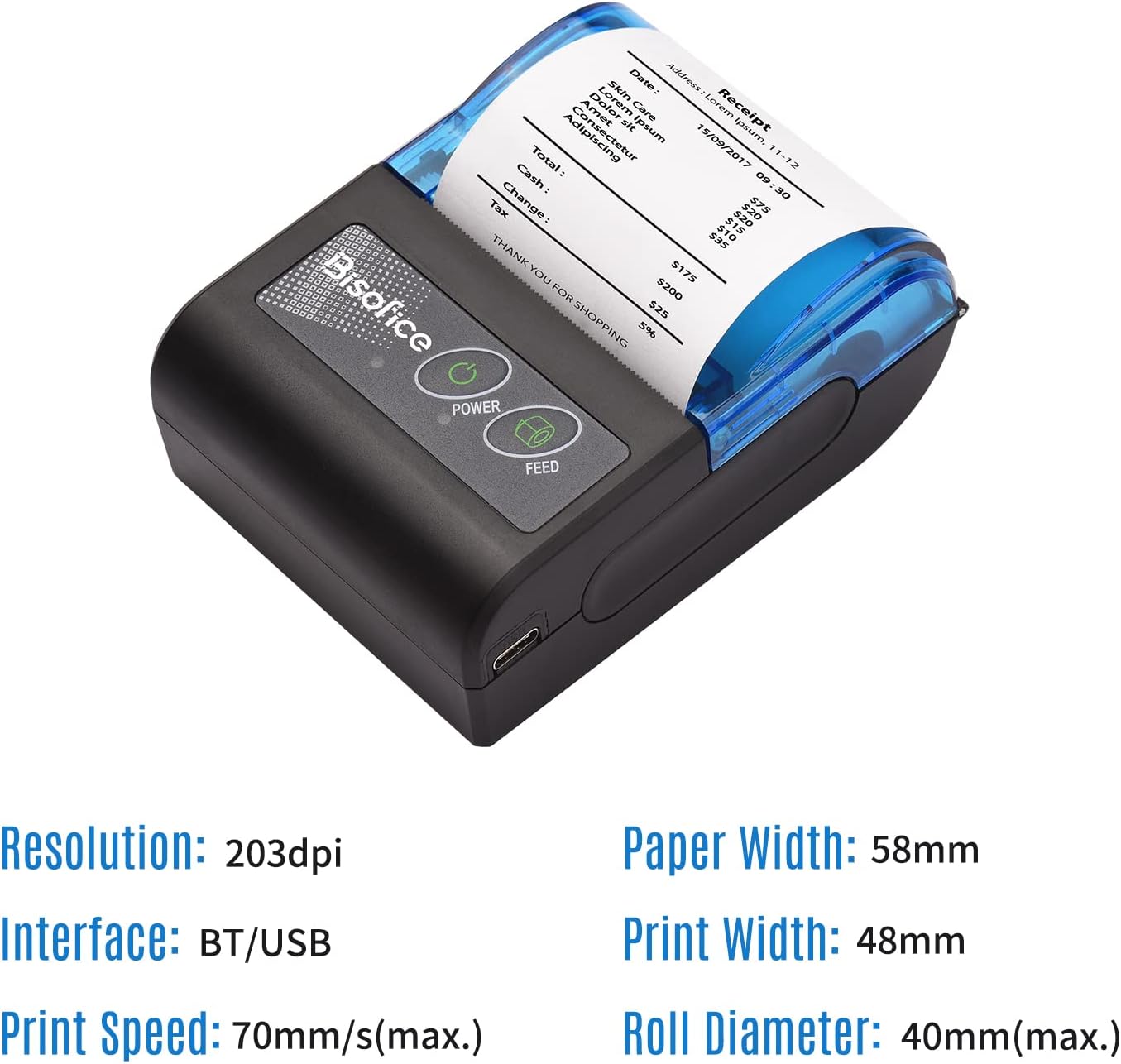
Figure 4.1: Visual representation of key printer specifications.
| Feature | Specification |
|---|---|
| Brand | Irfora |
| Color | Black & Blue |
| Material | Plastic |
| Print Paper Width | 58mm |
| Valid Printing Width | 48mm |
| Resolution | 8dots/mm (203dpi) |
| Print Speed | 70mm/s (Max) |
| Roll Diameter | 40mm (Max) |
| Barcode Type (1D) | UPC-A, UPC-E, EAN13, EAN8, CODE39, CODE93, CODE128, CODABAR, ITF |
| Barcode Type (2D) | QR CODE |
| Interface | Bluetooth (BT) / USB |
| Built-in Lithium Battery | 1500mAh / 7.4V |
| Operating System Compatibility | Android, iOS, Windows |
| Operating Condition | -5℃ ~ 50℃ |
| Storage Condition | -40℃ ~ 60℃ |
| Item Size | 10.2 * 7.4 * 4.5cm / 4.0 * 2.9 * 1.8in |
| Item Weight | 190g / 6.7oz |
| Package Size | 15.8 * 11.7 * 5.9cm / 6.2 * 4.6 * 2.3in |
| Package Weight | 309g / 10.9oz |

Figure 4.2: Printer dimensions for physical reference.
5. Setup
5.1 Charging the Printer
Before first use, ensure the printer is fully charged. Connect the provided USB cable to the printer's USB port and the other end to a compatible USB power adapter (not included) or a computer's USB port.
- The power indicator light will show charging status.
- A full charge typically takes a few hours.
5.2 Loading Thermal Paper
- Gently open the paper cover by sliding the latch or pressing the release button (refer to Figure 3.1).
- Insert the 58mm thermal paper roll into the compartment, ensuring the printing side of the paper faces the print head. The paper should feed smoothly from the bottom of the roll.
- Pull a small length of paper out beyond the print head.
- Close the paper cover firmly until it clicks into place. Ensure the paper is straight and not jammed.
5.3 Connecting the Printer
The printer supports both Bluetooth and USB connections.

Figure 5.1: Printer connectivity options: Bluetooth and USB.
5.3.1 Bluetooth Connection (for iOS/Android)
- Turn on the printer by pressing and holding the Power Button until the indicator light illuminates.
- On your mobile device (smartphone or tablet), go to Bluetooth settings and enable Bluetooth.
- Search for available devices. The printer should appear as a device like "Printer_XXXX" or similar.
- Select the printer to pair. If prompted for a PIN, enter "0000" or "1234".
- Once paired, you can use compatible printing applications to send print jobs.

Figure 5.2: The printer offers wide compatibility with various operating systems.
5.3.2 USB Connection (for Windows)
- Connect the printer to your Windows computer using the provided USB cable.
- Turn on the printer.
- Driver Installation: You will need to install the printer driver.
- Follow the on-screen instructions to complete the driver installation.
- Once the driver is installed, the printer should be recognized by your computer and ready for use.
6. Operating Instructions
6.1 Basic Printing
After successful setup and connection:
- Open the application from which you wish to print (e.g., a POS application, text editor).
- Select the print option within the application.
- Choose the "Irfora Portable Mini Thermal Printer" from the list of available printers.
- Adjust print settings if necessary (e.g., paper size, orientation).
- Confirm the print job. The printer will begin printing the receipt or ticket.

Figure 6.1: Printer in operation, producing a receipt.
6.2 Compatible Applications (for Mobile Devices)
The printer is suitable for use with various smartphone applications. Please ensure your cellphone is compatible with these software solutions:
- Loyverse: (Retail/Clothing)
- iREAP: (Retail/Inventory)
- CasierStock: (Shopping/Inventory Management)
- Kyte: (Mobile Sales)
These applications facilitate printing receipts directly from your mobile device via Bluetooth connection.

Figure 6.2: The printer's compact size makes it easy to carry and use on the go.

Figure 6.3: Example of the printer in a professional setting, such as a hotel.
7. Maintenance
7.1 Cleaning the Printer
Regular cleaning helps maintain print quality and extends the printer's lifespan.
- Print Head: Use a cotton swab lightly dampened with isopropyl alcohol to gently wipe the print head. Allow it to dry completely before use. Do not touch the print head with bare hands.
- Exterior: Wipe the exterior of the printer with a soft, dry cloth. Avoid using abrasive cleaners or solvents.
- Paper Path: Remove any paper dust or debris from the paper path using a soft brush or compressed air.
Caution:
- Always turn off the printer and disconnect it from power before cleaning.
- Do not use water directly on the printer.
7.2 Battery Care
- Charge the battery regularly, even if the printer is not in frequent use, to maintain battery health.
- Avoid fully discharging the battery frequently.
- Store the printer in a cool, dry place when not in use for extended periods.
8. Troubleshooting
If you encounter issues with your printer, refer to the following common problems and solutions:
| Problem | Possible Cause | Solution |
|---|---|---|
| Printer does not turn on. | Low battery or no power. | Charge the printer using the USB cable. Ensure the power adapter is working. |
| No paper feed. | Paper jammed or incorrectly loaded. | Open the paper cover, clear any jam, and re-load the paper correctly. Ensure the roll is not empty. |
| Poor print quality (faint, blank lines). | Print head dirty or thermal paper issues. | Clean the print head (refer to Maintenance section). Ensure you are using thermal paper and it is loaded correctly. Try a new roll of paper. |
| Cannot connect via Bluetooth. | Bluetooth not enabled, printer not discoverable, or incorrect pairing. | Ensure Bluetooth is enabled on both devices. Restart the printer and your mobile device. Re-attempt pairing. Check PIN (0000 or 1234). |
| Printer not recognized by computer (USB). | Driver not installed or USB cable issue. | Install the correct printer driver (refer to Setup section). Try a different USB port or cable. Restart the computer and printer. |
| Printer prints garbled text. | Incorrect driver or communication error. | Ensure the correct driver is installed. Restart the printer and the printing application. |