
Introduction
This manual provides detailed instructions for the setup, operation, and troubleshooting of your Anderic RC-A1R / RC-ALIR Streaming Player Remote Control. This remote is designed to enhance your entertainment experience by offering seamless control over various Roku devices, including Streaming Sticks, Streaming Players, Roku-enabled TVs, and Roku sound bars.
The Anderic RC-A1R / RC-ALIR remote replaces several original Roku remote models, such as RC-AL2, RC-AL7, RC-EL1, RC-EL2, RC-FA1, RC-GZ1, RC-A1R, RC-ALIR, and RC-81. Please note that specific app shortcut keys may vary.

Setup
1. Battery Installation
The remote requires two (2) AAA batteries (not included). Ensure correct polarity when inserting the batteries.
- Locate the battery compartment cover on the back of the remote.
- Slide the cover off.
- Insert two AAA batteries, matching the (+) and (-) terminals as indicated inside the compartment.
- Replace the battery compartment cover.

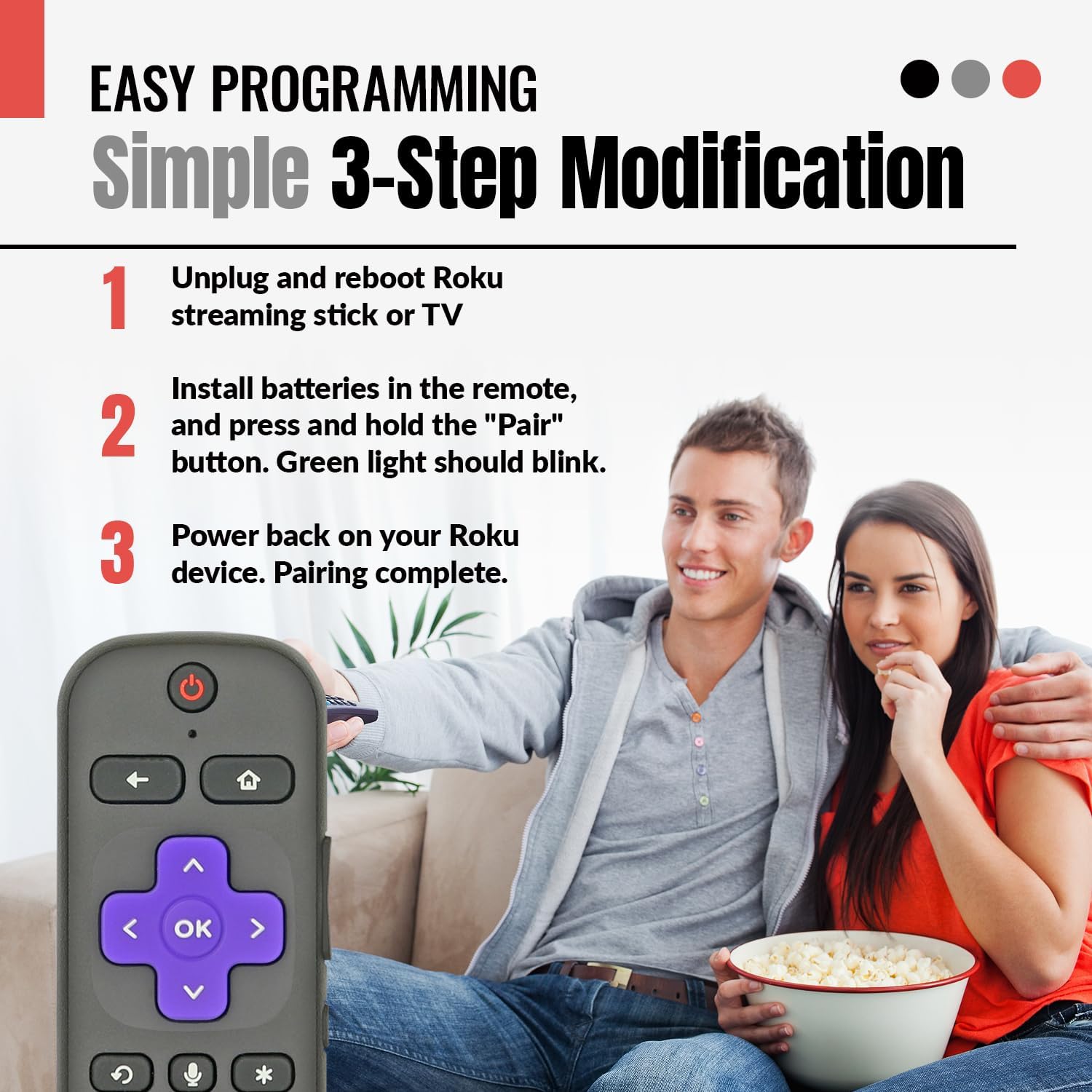
2. Pairing Instructions
The Anderic RC-A1R / RC-ALIR remote utilizes RF (Radio Frequency) technology for pairing with your Roku device. Follow these steps for easy plug-and-play setup:
- Power Off Roku Device: Unplug the USB cable or power adapter from your Roku Streaming Stick or Roku TV to power it off completely.
- Install Batteries & Initiate Pairing: Install the batteries into the remote control. Press and hold the [BACK] and [HOME] keys simultaneously until the indicator light on the remote illuminates.
- Power On Roku Device: Plug the USB cable or power adapter back into your Roku device to power it on.
- Complete Pairing: Wait for the Roku device to load. You should observe a pairing icon on your screen, indicating successful pairing.

Operating Instructions
1. Basic Navigation
- Use the Directional Pad (Up, Down, Left, Right) to navigate menus and select items.
- Press the OK button to confirm selections.
- The HOME button returns you to the Roku home screen.
- The BACK button returns to the previous screen or menu.
2. Voice Control
The remote features OEM-grade voice search capability. To use voice control:
- Press and hold the Microphone button.
- Speak your command clearly into the remote. You can search for content, launch apps, or control playback.
- Release the Microphone button when finished speaking.

3. TV Controls
This remote allows you to manage your TV's power and volume, eliminating the need for multiple remotes.
- Press the Power button to turn your TV on or off.
- Use the Volume Up and Volume Down buttons to adjust TV audio.
- The Mute button (often represented by an asterisk or speaker icon) mutes or unmutes TV audio.
4. App Shortcut Keys
The remote includes pre-programmed shortcut buttons for popular streaming channels, allowing instant access without navigating through menus.
- Press the dedicated button for Netflix, Disney+, Apple TV+, or Paramount+ to launch the respective application directly.


Compatibility
The Anderic RC-A1R / RC-ALIR remote is compatible with a wide range of Roku devices. This includes:
- Roku Streaming Sticks: Models 3600, 3800, 3810, 3810X, 3811, 3820, 3821.
- Roku Express: Models 3900, 3930, 3960, 3910, 3931, 3940, 3941.
- Roku Ultra: Models 4640, 4660, 4661, 4670, 4800, 4802, 4662, 4801.
- Roku Premiere: Models 3920, 4620, 3921, 4630.
- Other Roku Devices: Roku 2 (Model: 4210), Roku 3 (Models: 4200, 4230), Roku 4 (Model: 4400), Roku SE, Roku LE.
- Roku Sound Devices: Roku Streambar (Model: 9102), Roku Streambar Pro (Model: 9101R2), Roku Smart Soundbar (Model: 9101), ONN Roku Smart Soundbar (Model: 9100).
- Roku TVs: Including TCL, Sharp, Insignia, Magnavox, ONN, Philips, Westinghouse, LG, and others.
Note: Some older Roku devices not listed may support limited voice capabilities.

Maintenance
1. Battery Replacement
Replace batteries when the remote's response becomes sluggish or the indicator light fails to illuminate during button presses. Always replace both batteries simultaneously with new AAA alkaline batteries.
2. Cleaning
To clean the remote, use a soft, dry cloth. Avoid using liquid cleaners or abrasive materials, as these can damage the remote's surface or internal components.
Troubleshooting
- Remote Not Responding:
- Ensure batteries are correctly installed and not depleted. Replace if necessary.
- Re-attempt the pairing process as described in the "Setup" section.
- Ensure there are no obstructions between the remote and the Roku device.
- Voice Control Not Working:
- Confirm the remote is properly paired.
- Speak clearly and hold the microphone button while speaking.
- Verify your Roku device supports voice control. Some older models may have limited or no voice capabilities.
- TV Controls (Power/Volume) Not Working:
- Ensure the remote is paired with your Roku device, as TV controls are often routed through the Roku system.
- Some Roku TVs may require specific settings adjustments within the Roku OS for remote control integration. Consult your Roku TV's manual.
- App Shortcut Keys Not Launching Apps:
- Ensure the respective app is installed and updated on your Roku device.
- Confirm your Roku device is connected to the internet.
Specifications
| Product Dimensions | 5.75 x 1.75 x 1 inches |
| Item Weight | 2.11 ounces |
| Brand | Anderic |
| Model Numbers | RC-A1R, RC-ALIR |
| Special Features | Shortcut App Keys, TV Control, Voice Search |
| Color | Black |
| Max Number of Supported Devices | 2 (Streaming Device, Television) |
| Compatible Devices | Streaming Device, Television |
| Power Source | 2 x AAA Batteries (not included) |
Support
For further assistance or inquiries, please refer to the official Anderic website or contact their customer support. Specific warranty information may be available through your point of purchase or the manufacturer's official channels.