
Introduction

Figure 1: Daewoo D55DM54UAMS 55-inch 4K HDR Android TV.
Thank you for purchasing the Daewoo D55DM54UAMS 55-inch 4K HDR Android TV. This manual provides essential information for the safe and efficient use of your television. Please read it thoroughly before operating the device and keep it for future reference.
Important Safety Information
Always follow basic safety precautions when using this television to reduce the risk of fire, electric shock, and injury. Keep the TV away from moisture, direct sunlight, and heat sources. Ensure proper ventilation. Do not block ventilation openings. Use only attachments/accessories specified by the manufacturer. Refer all servicing to qualified service personnel.
What's in the Box
Upon unpacking, please ensure all the following items are present:
- Daewoo D55DM54UAMS 55-inch 4K HDR Android TV
- Remote Control
- Batteries for Remote Control
- User Manual (this document)
- Power Cable
- TV Stands (2 units) and screws
Setup Guide
1. Attaching the TV Stands
Place the TV face down on a soft, flat surface to prevent screen damage. Align each stand with the corresponding screw holes on the bottom of the TV. Secure the stands using the provided screws. Ensure the stands are firmly attached before placing the TV upright.
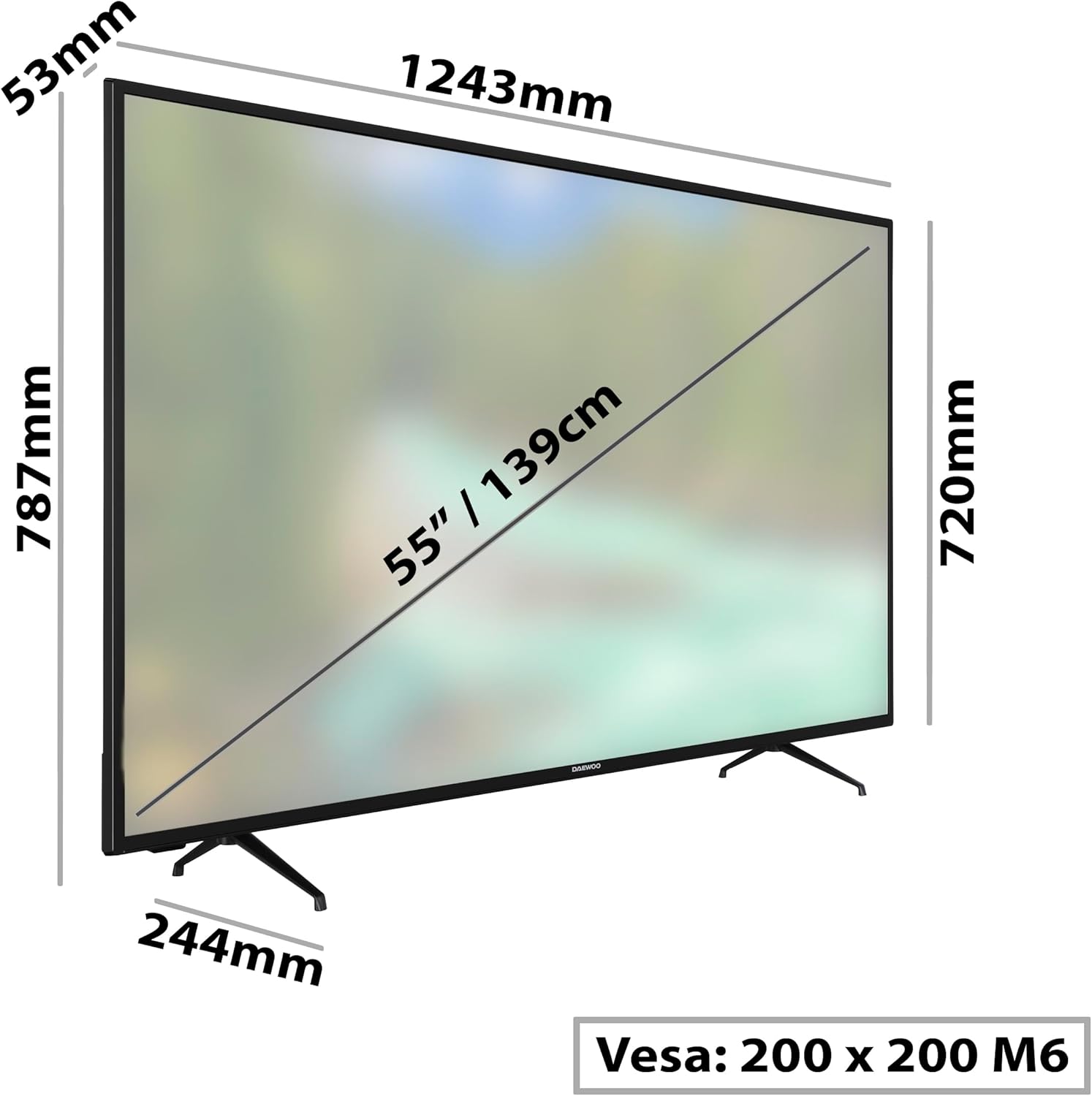
Figure 2: TV Dimensions and Stand Attachment Points. The TV measures approximately 124.3 cm in width, 78.7 cm in height with stands, and 24.4 cm in depth with stands. The VESA mounting pattern is 200x200 M6.
2. Wall Mounting (Optional)
This TV supports VESA wall mounting. The VESA standard for this model is 200x200 M6. Use a compatible wall mount bracket (sold separately) and follow the instructions provided with the wall mount. Ensure the wall can support the weight of the TV (16.5 kg) and the mount.
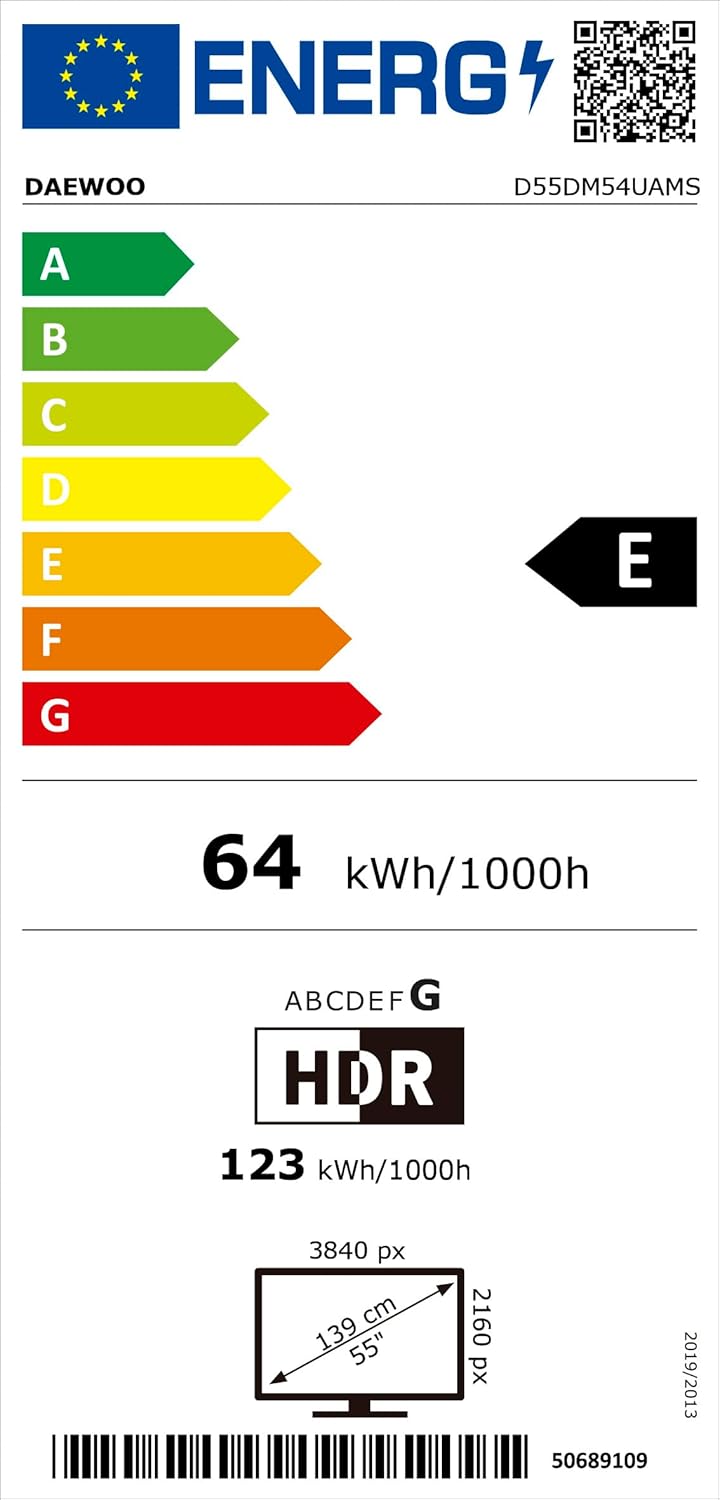
Figure 3: Daewoo D55DM54UAMS TV installed on a wall mount.
3. Connecting Power
Connect the power cable to the TV's power input and then plug the other end into a suitable electrical outlet. The TV will enter standby mode.
4. Initial Setup Wizard
Press the Power button on the remote control to turn on the TV. The initial setup wizard will guide you through language selection, network connection (Wi-Fi or Ethernet), Google account sign-in, and channel scanning.
Operating Instructions
Remote Control
The included Bluetooth remote control allows for easy navigation and voice commands. Insert the provided batteries into the remote control, ensuring correct polarity.

Figure 4: Remote Control with Google Assistant functionality.
- Power Button: Turns the TV on or off (standby mode).
- Volume Buttons: Adjust the sound level.
- Channel Buttons: Change TV channels.
- Input Button: Selects different input sources (HDMI, USB, etc.).
- Navigation Buttons: Use the arrow keys and OK button to navigate menus.
- Google Assistant Button: Press to activate voice control and speak commands.
- Home Button: Access the Android TV home screen.
- App Shortcut Buttons: Quick access to popular streaming services like Netflix, Prime Video, YouTube, etc.
Basic TV Functions
After initial setup, you can use the remote control to:
- Switch On/Off: Press the Power button.
- Select Input Source: Press the Input button and choose from the list (e.g., HDMI 1, HDMI 2, TV).
- Adjust Volume: Use the Volume Up/Down buttons.
- Change Channels: Use the Channel Up/Down buttons for broadcast TV.
- Access Smart TV Features: Press the Home button to go to the Android TV interface.
Connectivity
Your Daewoo D55DM54UAMS TV offers a variety of connection options for external devices.

Figure 5: TV Connectivity Ports (Side and Rear).
- HDMI Ports (x3): Connect Blu-ray players, game consoles, set-top boxes, and other HDMI-enabled devices. This TV supports HDMI 2.1 features including ALLM (Auto Low Latency Mode) for an optimized gaming experience.
- USB Ports (x2): Connect USB storage devices to play media files or for software updates.
- Ethernet (LAN) Port: For a wired internet connection.
- Wi-Fi: For wireless internet connection.
- RF Input: Connect an antenna or cable for broadcast TV channels.
- Optical Audio Output: Connect to a soundbar or home theater system for digital audio.
- Headphone Jack: Connect headphones for private listening.
- Bluetooth: Connect wireless headphones, soundbars, or the included remote control.
Smart Features
Android TV
Your Daewoo TV runs on the Android TV platform, providing access to a vast array of apps and services through the Google Play Store. You can download streaming apps, games, and more.
Chromecast Built-in
Easily cast content from your smartphone, tablet, or computer directly to your TV. Ensure your device and TV are connected to the same Wi-Fi network.
Google Assistant
Use your voice to control your TV, search for content, get answers, and manage smart home devices. Simply press the Google Assistant button on your remote and speak your command.
Picture and Sound Enhancements

Figure 6: Key Picture and Sound Technologies.
- 4K Ultra HD Resolution: Experience stunning clarity and detail with four times the pixels of Full HD.
- HDR10 & Dolby Vision: These High Dynamic Range technologies deliver enhanced contrast, brightness, and a wider color gamut for a more lifelike viewing experience.
- Dolby Atmos: Enjoy immersive, multi-dimensional audio that flows around you, bringing movies and shows to life.
- MEMC (Motion Estimation, Motion Compensation): Improves motion fluidity for a smoother, more natural picture, especially in fast-paced scenes.
- Micro Dimming: Dynamically adjusts brightness and contrast across different zones of the screen to achieve deeper blacks and brighter whites.
- Super Resolution: Advanced upscaling technology that enhances the detail of lower-resolution content (HD, Full HD) to near-4K quality.
- DTS Virtual:X: Provides an immersive audio experience without the need for additional speakers.

Figure 7: Visual explanation of MEMC, Micro Dimming, and Super Resolution technologies.
Maintenance
- Screen Cleaning: Gently wipe the screen with a soft, lint-free cloth. For stubborn marks, use a screen-specific cleaning solution applied to the cloth, not directly to the screen.
- Cabinet Cleaning: Wipe the TV cabinet with a soft, dry cloth. Do not use abrasive cleaners or solvents.
- Ventilation: Ensure the ventilation openings on the back of the TV are not blocked to prevent overheating.
- Power Cord: Regularly check the power cord for any damage. If damaged, replace it with an approved cord.
Troubleshooting
Before contacting customer support, try the following solutions for common issues:
| Problem | Possible Solution |
|---|---|
| No power | Check if the power cord is securely plugged into both the TV and the wall outlet. Try a different outlet. |
| No picture, but sound is present | Ensure the correct input source is selected. Check cable connections to external devices. |
| No sound, but picture is present | Check the volume level and mute status. Ensure external audio systems are properly connected and powered on. |
| Remote control not working | Replace batteries. Ensure there are no obstructions between the remote and the TV. Re-pair the Bluetooth remote if necessary (refer to TV settings). |
| Cannot connect to Wi-Fi | Check your router and modem. Ensure the Wi-Fi password is correct. Try restarting the TV and your router. |
| Picture quality issues (e.g., dull colors) | Adjust picture settings (brightness, contrast, color, sharpness) in the TV menu. Ensure the input source is providing a high-quality signal. |
Specifications
| Feature | Detail |
|---|---|
| Model Number | D55DM54UAMS (4610117754213) |
| Brand | Daewoo |
| Screen Size | 55 Inches (139 cm diagonal) |
| Display Technology | LED |
| Resolution | 4K Ultra HD (3840 x 2160 pixels) |
| Refresh Rate | 60 Hz |
| Aspect Ratio | 16:9 |
| HDR Support | HDR10, Dolby Vision |
| Audio Technology | Dolby Atmos, DTS Virtual:X |
| Operating System | Android TV |
| Special Features | Chromecast Built-in, Google Assistant (Voice Control), ALLM, Game Mode, VESA Wall Mount (200x200 M6), MEMC, Micro Dimming, Super Resolution |
| Connectivity | 3x HDMI (HDMI 2.1 features), 2x USB, Ethernet (LAN), Wi-Fi, RF, Optical Audio Out, Headphone Jack, Bluetooth |
| Dimensions (with stand) | 124.3 cm (W) x 78.7 cm (H) x 24.4 cm (D) |
| Weight (with stand) | 16.5 kg |
| Energy Efficiency Class (SDR) | E (EPREL Link) |
| Energy Efficiency Class (HDR) | G |
| Power Consumption (SDR) | 64 kWh/1000h |
| Power Consumption (HDR) | 123 kWh/1000h |

Figure 8: Daewoo D55DM54UAMS Energy Label. For more details, refer to the official EPREL database.
Figure 9: Detailed Product Information Sheet.
Warranty and Support
Daewoo is committed to providing quality products and support. This product comes with a minimum guaranteed availability of spare parts for 7 years and product support for 7 years from the date of introduction to the market. For specific warranty terms and conditions, please refer to the warranty card included with your product or contact Daewoo customer service.
For technical assistance or service inquiries, please visit the official Daewoo website or contact their customer support line.