
Labymos Q13 Dual Mode
Labymos Thunder Wolf Q13 Wireless Mouse User Manual
Model: Q13 Dual Mode
Introduction
This manual provides detailed instructions for the setup, operation, maintenance, and troubleshooting of your Labymos Thunder Wolf Q13 Dual Mode Wireless Mouse. Please read this manual carefully before using the product to ensure optimal performance and longevity.
Product Overview
The Labymos Thunder Wolf Q13 is a versatile wireless mouse designed for both gaming and business use. It features dual wireless connection modes (2.4 GHz USB receiver and Bluetooth 5.0), a silent click function, and a built-in rechargeable battery with intelligent sleep mode for power saving. Its ergonomic design provides a comfortable grip for extended use.

Image: Top-down view of the Labymos Thunder Wolf Q13 wireless mouse in pearl white, showcasing its ergonomic design and luminous accents.
Package Contents
- Labymos Thunder Wolf Q13 Wireless Mouse
- USB 2.4 GHz Receiver
- Charging Cable (Micro USB)
- User Manual (this document)
Setup Instructions
1. Charging the Mouse
Before initial use, ensure the mouse is fully charged. The Q13 mouse is equipped with a 500mAh rechargeable battery.
- Locate the Micro USB charging port on the front of the mouse.
- Connect the provided charging cable to the mouse and a USB power source (e.g., computer USB port, USB wall adapter).
- Ensure the power switch on the bottom of the mouse is in the "ON" position for charging to occur.
- A full charge takes approximately 2.5 hours. The mouse can be used while charging.

Image: Diagram illustrating the charging port, backlight switch, and USB receiver location on the mouse. Note: The switch must be "ON" for charging.
2. Connecting the Mouse
The Q13 mouse supports two connection modes: 2.4 GHz wireless via USB receiver and Bluetooth 5.0.
2.1. 2.4 GHz Wireless Connection (USB Receiver)
- Locate the USB 2.4 GHz receiver, typically stored in a compartment on the bottom of the mouse.
- Remove the receiver and plug it into an available USB port on your computer.
- Turn on the mouse using the power switch on the bottom.
- The mouse should automatically connect to your computer. The bottom indicator light will show connection status.
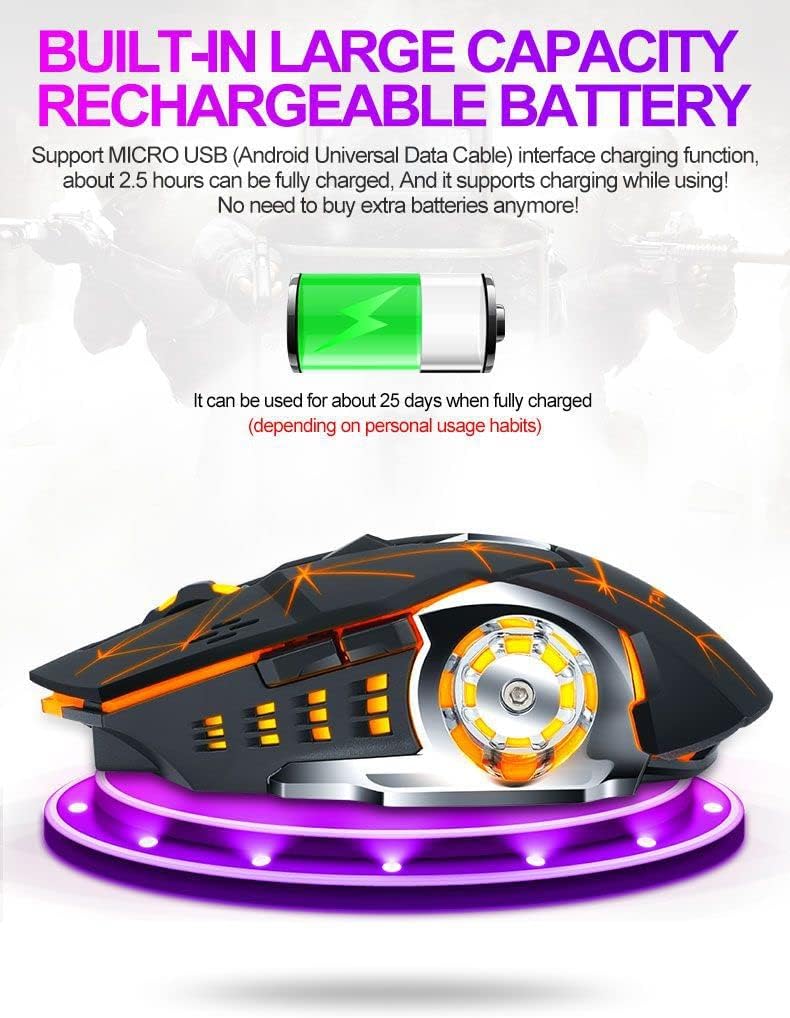
Image: A black Labymos Q13 mouse shown next to its compact USB receiver, highlighting the wireless connectivity option.
2.2. Bluetooth 5.0 Connection
- Turn on the mouse using the power switch on the bottom.
- Press the mode switch button (if available, or refer to specific button for Bluetooth pairing) on the mouse to switch to Bluetooth mode. The indicator light will change.
- On your computer or device, enable Bluetooth and search for new devices.
- Select "Labymos Q13" (or similar name) from the list of available devices to pair.
- The bottom indicator light will confirm successful pairing.
Operating Instructions
1. DPI Adjustment
The Q13 mouse features adjustable DPI (Dots Per Inch) settings, allowing you to change cursor sensitivity. It supports 1200, 1600, and 2400 DPI.
- Press the DPI button (usually located behind the scroll wheel) to cycle through the available DPI settings.
- Each press will switch to the next DPI level, indicated by a change in the mouse's LED lighting or a brief visual cue.
2. Silent Click Feature
The mouse is designed with silent click buttons, minimizing noise during use. This is particularly useful in quiet environments such as libraries or offices.
- Simply use the left and right click buttons as normal. The silent mechanism will ensure minimal audible feedback.
3. Luminous Backlight Control
The Q13 mouse features a 7-color breathing light backlight mode.
- A dedicated backlight switch is located on the bottom of the mouse.
- Toggle this switch to turn the luminous backlight on or off according to your preference.

Image: A pearl white Labymos Q13 mouse illuminated with a vibrant pink backlight, showcasing its aesthetic appeal.
4. Intelligent Sleep Mode
To conserve battery life, the mouse enters an intelligent sleep mode after periods of inactivity.
- After 1 minute of no operation, the mouse enters a shallow sleep state.
- After 15 minutes of no operation, it enters a deep sleep state, significantly saving power.
- To wake the mouse, simply click any button.
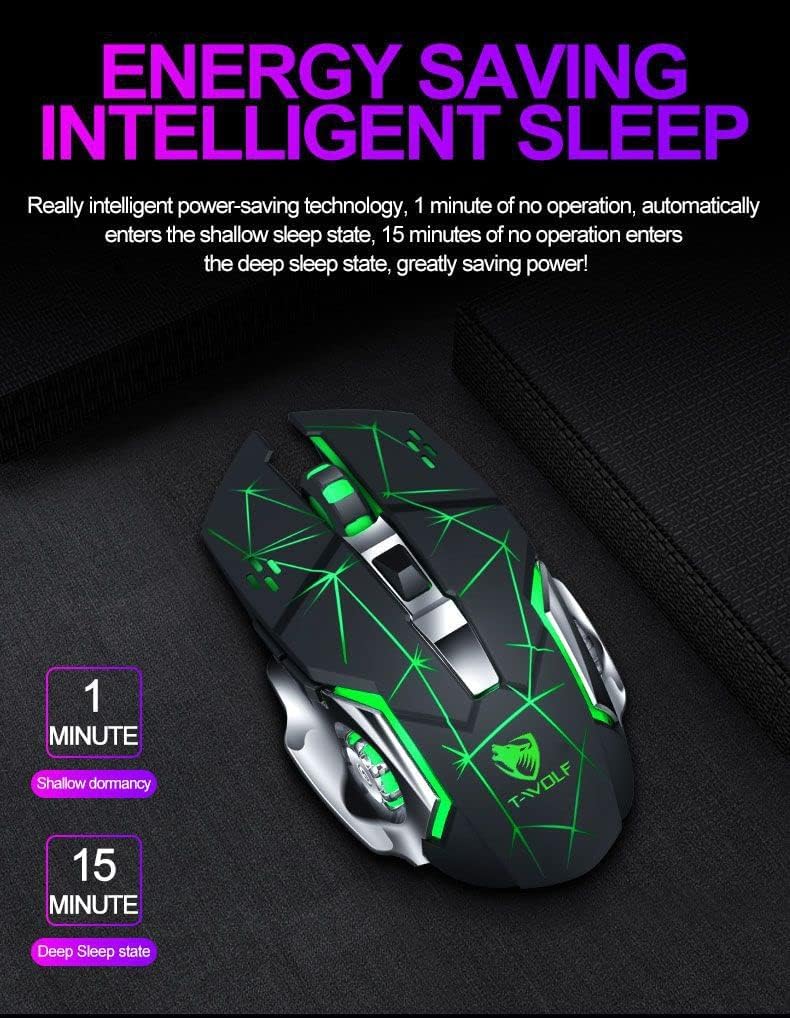
Image: A diagram illustrating the intelligent sleep mode of the Labymos Q13 mouse, showing shallow dormancy after 1 minute and deep sleep after 15 minutes of inactivity.
Maintenance and Care
Proper maintenance ensures the longevity and optimal performance of your mouse.
- Cleaning: Use a soft, dry cloth to wipe the mouse surface. For stubborn dirt, slightly dampen the cloth with water. Avoid harsh chemicals or abrasive cleaners.
- Storage: When not in use for extended periods, store the mouse in a cool, dry place away from direct sunlight.
- Battery Care: Avoid fully discharging the battery frequently. Charge the mouse when the battery indicator is low.
- Receiver Care: Keep the USB receiver in a safe place when not plugged into a computer to prevent loss or damage.
Troubleshooting
| Problem | Possible Cause | Solution |
|---|---|---|
| Mouse not responding | Low battery; Receiver not connected; Mouse turned off; Incorrect connection mode. | Charge the mouse; Ensure USB receiver is fully plugged in or Bluetooth is paired; Turn on the mouse; Switch to correct connection mode (2.4G or BT). |
| Lag or intermittent connection | Interference; Distance from receiver/device; Low battery. | Move mouse closer to receiver/device; Remove obstacles; Charge the mouse; Try a different USB port. |
| Cursor movement is erratic or jumpy | Dirty sensor; Unsuitable surface; Low battery. | Clean the optical sensor on the bottom of the mouse; Use on a clean, non-reflective mouse pad; Charge the mouse. |
| Backlight not working | Backlight switch off; Low battery. | Toggle the backlight switch on the bottom of the mouse; Charge the mouse. |
Specifications
| Feature | Detail |
|---|---|
| Model | Q13 Dual Mode |
| Connectivity | 2.4 GHz Wireless (USB Receiver), Bluetooth 5.0 |
| DPI Settings | 1200 / 1600 / 2400 DPI (adjustable) |
| Battery Capacity | 500mAh Rechargeable Lithium Battery |
| Charging Port | Micro USB |
| Buttons | 6 keys |
| Backlight | 7-color breathing light |
| Product Dimensions | 130 x 80 x 38 mm |
| Wireless Distance | Up to 10 meters |
| Weight | 170g (bare metal) |
| Compatibility | Windows, Mac OS |

Image: A table showing the main parameters and specifications of the T-WOLF Q13 mouse, including model, dimensions, DPI, battery, and connectivity.
Warranty and Support
Labymos provides a standard warranty for this product against defects in materials and workmanship under normal use. Please refer to your purchase receipt or contact your retailer for specific warranty terms and duration.
Customer Support
If you encounter any issues or have questions regarding your Labymos Thunder Wolf Q13 mouse that are not covered in this manual, please contact Labymos customer support through the retailer's platform or the official Labymos website (if available).
- For technical assistance, please provide your product model (Q13 Dual Mode) and a detailed description of the issue.
- Keep your proof of purchase for warranty claims.
Ask a question about this manual
Ask about setup, troubleshooting, compatibility, parts, safety, or missing instructions. Manuals+ will review the question and use this page’s manual context to help answer it.