
1. Product Overview
The Rabitpos Wireless Bluetooth Barcode Scanner, Model Rabitpos-U2WB, is a versatile device designed for efficient 1D and 2D barcode scanning. It offers multiple connectivity options and operational modes to suit various business environments such as retail, warehousing, and inventory management. This scanner is compatible with a wide range of operating systems and devices.

Image 1.1: The Rabitpos Wireless Bluetooth Barcode Scanner with its USB cable and 2.4G wireless dongle.
Key Features:
- Multi-Connectivity: Supports Bluetooth, 2.4G wireless, and USB wired connections.
- Broad Compatibility: Works with Windows, Mac, iOS, Android, and Linux systems.
- Dual Working Modes: Instant Upload for real-time data transfer and Storage Mode for offline scanning.
- Multiple Scanning Modes: Manual trigger, continuous scanning, and auto-sensing modes.
- Extensive Barcode Support: Decodes common 1D and 2D codes including QR, Data Matrix, PDF417, and Aztec.
- Long Battery Life: Equipped with a 2000mAh battery for extended operation.
2. Package Contents
Please verify that all items are present in your package:
- Rabitpos Barcode Scanner
- USB Charging/Data Cable
- 2.4G Wireless USB Dongle
- Instruction Manual (this document)
3. Setup and Connection
The Rabitpos barcode scanner is designed for plug-and-play functionality, requiring no driver installation for basic operation.

Image 3.1: Overview of the scanner's three connection methods: USB cable, 2.4G wireless dongle, and Bluetooth.
3.1. 2.4G Wireless Connection
- Insert the 2.4G wireless USB dongle into an available USB port on your computer or POS system.
- Turn on the barcode scanner. It will automatically attempt to connect to the dongle.
- A successful connection is indicated by a specific sound or LED indicator (refer to scanner's LED guide in the full manual if available).

Image 3.2: The barcode scanner shown alongside its 2.4G wireless USB dongle, ready for connection.
3.2. Bluetooth Connection
- Ensure your device (smartphone, tablet, laptop) has Bluetooth enabled.
- Turn on the barcode scanner.
- Scan the 'Bluetooth Pairing' barcode (if provided in the physical manual) to put the scanner into pairing mode.
- On your device, search for new Bluetooth devices and select 'Rabitpos Scanner' (or similar name) from the list.
- Confirm pairing. A successful connection is indicated by a specific sound or LED indicator.
3.3. USB Wired Connection
- Connect the scanner to your computer or POS system using the provided USB cable.
- The scanner will function as a wired device and will also charge simultaneously.
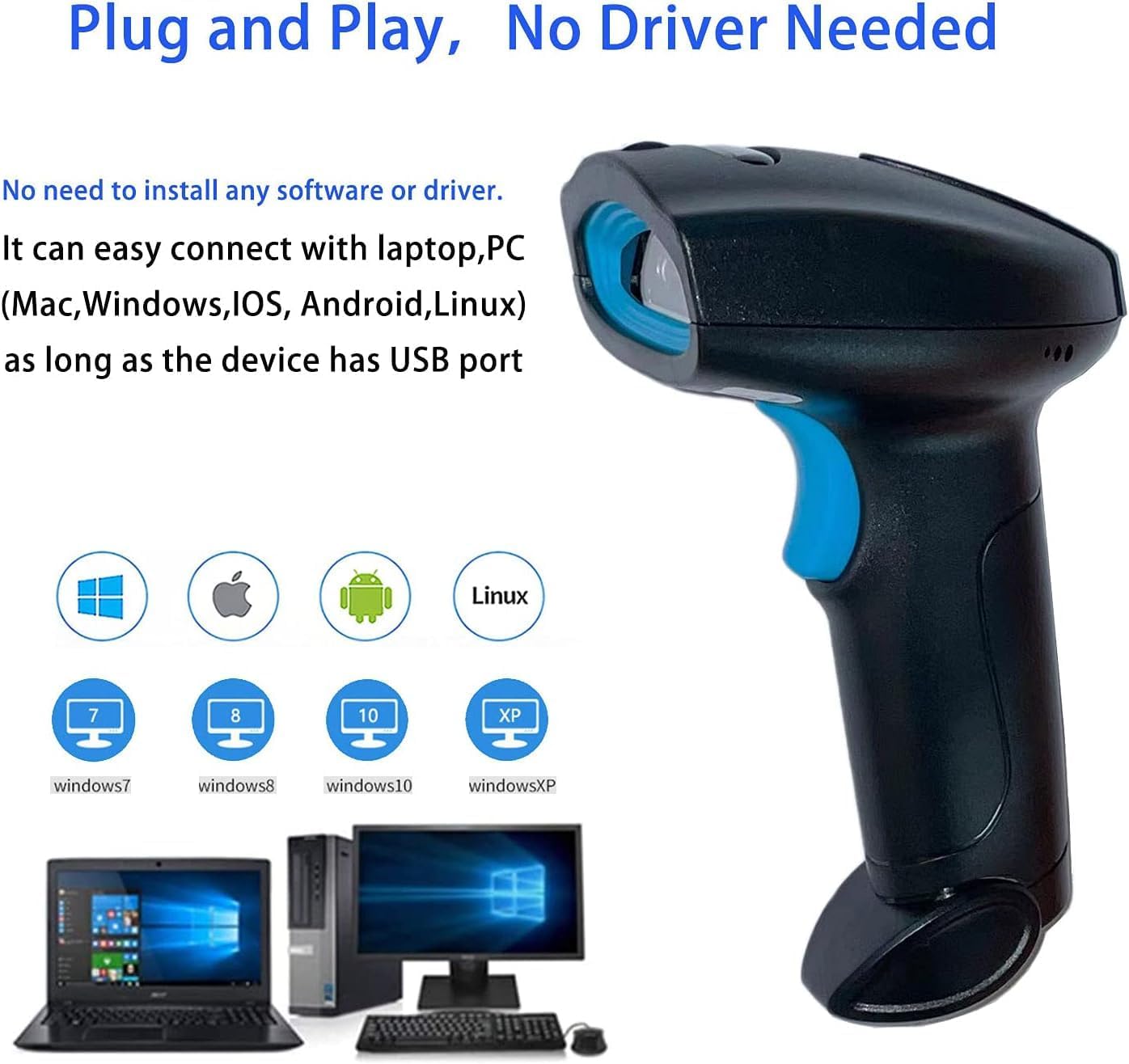
Image 3.3: The scanner demonstrating its plug-and-play capability and compatibility with various operating systems including Windows, Mac, iOS, Android, and Linux.
4. Operation Modes
4.1. Scanning Modes
The scanner supports three operational scanning modes:
- Manual Trigger Mode: Press the trigger button to scan each barcode.
- Continuous Scanning Mode: The scanner continuously emits a scan beam, reading barcodes as they pass through the field of view without needing to press the trigger.
- Auto-Sensing Scanning Mode: The scanner activates the scan beam automatically when a barcode is detected in its field of view.
To switch between these modes, scan the corresponding setting barcodes found in the complete user manual.
4.2. Data Upload Modes
The scanner offers two methods for uploading scanned data:
- Instant Upload Mode: Barcodes are transmitted directly to your connected device as soon as they are scanned.
- Storage Mode: Scanned barcodes are stored in the scanner's internal memory (up to 10,000 barcodes). Data can be uploaded to your device later when needed.
To activate Storage Mode or upload stored data, scan the appropriate setting barcodes from the complete user manual.

Image 4.1: Illustration of the two data upload modes: Instant Upload for real-time transfer and Storage Mode for deferred upload from internal memory.
4.3. Barcode Decoding Capabilities
The Rabitpos scanner utilizes a CMOS sensor for imaging, enabling it to read barcodes from various surfaces and conditions.
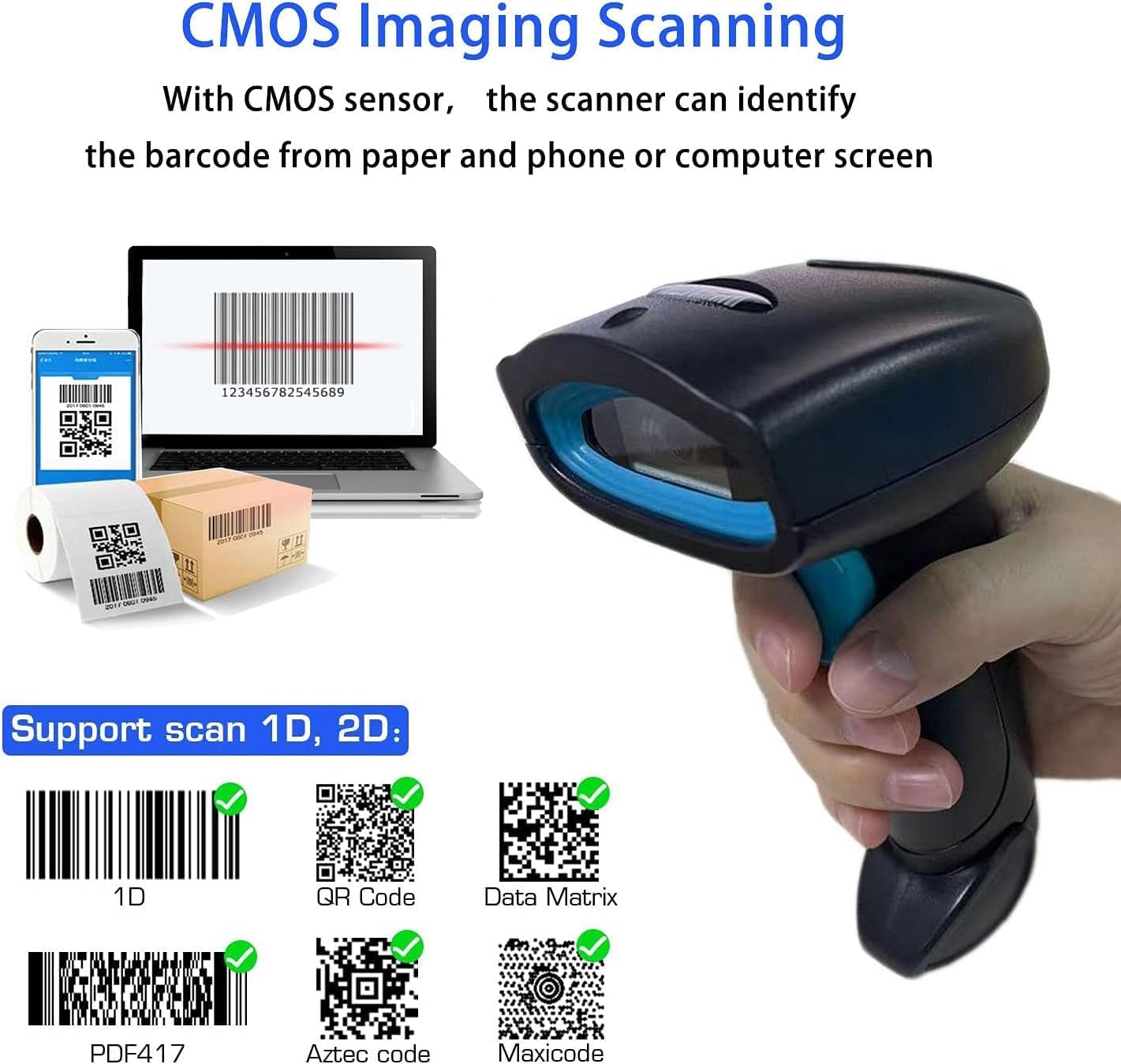
Image 4.2: The scanner's CMOS imaging technology allows it to read barcodes from paper, phone screens, and computer monitors.
It supports a wide range of 1D and 2D barcode symbologies, including:
- 1D Codes: UPC-A, UPC-E, EAN-8, EAN-13, Code 128, Code 39, Code 93, Code 11, Interleaved 2 of 5, Matrix 2 of 5, Standard 2 of 5, Codabar, MSI Plessey, GS1, Databar (RSS).
- 2D Codes: PDF417, Data Matrix, QR Code, Aztec Code, Micro QR.
The scanner is capable of accurately reading barcodes that are:
- Colorful
- Damaged
- Distorted
- Reflective
- Displayed on screens (phones, computers)
- On curved surfaces
- Irregularly printed

Image 4.3: Examples of various barcode types and conditions the scanner can decode, including damaged, distorted, and screen-displayed codes.
4.4. Adding Prefix and Suffix
The scanner allows for the addition of custom prefixes and suffixes to scanned data. This feature can be configured by scanning specific setting barcodes provided in the full instruction manual. For example, you can add 'ABC' before or after the scanned barcode data.

Image 4.4: Visual representation of adding a prefix (e.g., 'ABC') or suffix to scanned barcode data.
5. Battery and Charging
The scanner is equipped with a 2000mAh rechargeable battery, providing extended operational time.
- Battery Capacity: 2000mAh
- Continuous Working Time: Approximately 72 hours
- Standby Time: Up to 1 month
- Full Charge Time: Approximately 3.5 hours
To charge the scanner, connect it to a power source using the provided USB cable. The LED indicator will show charging status.

Image 5.1: Diagram illustrating the 2000mAh battery capacity and charging status.

Image 5.2: Information on the scanner's long working and standby times after a full charge.
6. Specifications
| Feature | Specification |
|---|---|
| Model Number | Rabitpos-U2WB |
| Product Dimensions | 8.27 x 4.72 x 4.33 inches |
| Item Weight | 10.5 ounces |
| Connectivity Technology | Bluetooth, USB Cable, Wireless (2.4G) |
| Compatible Devices | Desktop, Laptop, Smartphone, Tablet |
| Power Source | Battery Powered |
| Battery Type | 1 A battery (included) |
| Manufacturer | Rabitpos |
7. Troubleshooting
If you encounter issues with your Rabitpos barcode scanner, please refer to the following common solutions:
- Scanner Not Connecting:
- Ensure the scanner is fully charged.
- For 2.4G wireless, verify the USB dongle is securely inserted and recognized by your device.
- For Bluetooth, ensure Bluetooth is enabled on your host device and the scanner is in pairing mode. Re-pair if necessary.
- For USB wired, try a different USB port or cable.
- Scanner Not Reading Barcodes:
- Ensure the barcode is clean, clear, and not excessively damaged.
- Check the distance and angle between the scanner and the barcode.
- Verify the scanner is in the correct scanning mode (e.g., not in a paused state).
- Confirm that the barcode type is supported by the scanner (refer to Section 4.3).
- If scanning from a screen, ensure screen brightness is adequate and there is no glare.
- Data Not Uploading:
- If in Instant Upload Mode, ensure the scanner is properly connected to your device.
- If in Storage Mode, ensure you have scanned the 'Upload Data' barcode (from the full manual) to transfer stored data.
- Check that the cursor is active in the target application (e.g., Notepad, Excel) where you want the data to appear.
For more detailed troubleshooting or specific setting barcodes, please refer to the comprehensive manual that came with your product or visit the Rabitpos support website.
8. Maintenance and Care
To ensure the longevity and optimal performance of your Rabitpos barcode scanner, follow these maintenance guidelines:
- Cleaning: Use a soft, dry cloth to clean the scanner's exterior. For the scanning window, use a lens cleaning cloth and a mild, non-abrasive cleaner if necessary. Avoid harsh chemicals or abrasive materials.
- Storage: Store the scanner in a cool, dry place away from direct sunlight and extreme temperatures.
- Battery Care: Avoid fully discharging the battery frequently. If storing for an extended period, charge the battery to about 50% and recharge every few months.
- Handling: Handle the scanner with care to prevent drops or impacts that could damage internal components.
9. Warranty and Support
For information regarding the product warranty, please refer to the warranty card included with your purchase or visit the official Rabitpos website. Rabitpos is committed to providing reliable products and customer support.
For further assistance, technical support, or to view additional resources, please visit the Rabitpos Store on Amazon or their official website.


