
1. Introduction
The Acer Nitro Gaming Mouse II (NMW120) is engineered for precision and customization, offering an enhanced gaming experience. This manual provides detailed instructions for setting up, operating, and maintaining your gaming mouse to ensure optimal performance.

Figure 1: Acer Nitro Gaming Mouse II (NMW120) - Front View
2. Key Features
- PAW3325 Sensor: Offers adjustable DPI levels for precise control.
- Adjustable DPI: Six adjustable DPI levels with alternating LED colors to indicate the current setting.
- 8 Programmable Buttons: Includes a dedicated burst fire button for rapid actions.
- Customizable Weight: Adapt the mouse's weight with up to 20g of additional weight (4 x 5g each).
- 1,000Hz Polling Rate: Ensures responsive and synchronized movement.
- Wired USB Connectivity: Plug and play compatibility with Windows 7, 8, 8.1, 10, and 11.
- Ergonomic Design: Crafted for comfortable use during extended gaming sessions.
- LED Lighting: Features LED lights on the mouse wheel, logo, and sides for visual feedback.
3. Setup Guide
3.1. Package Contents
Before you begin, ensure all items are present in the package:
- Acer Nitro Gaming Mouse II (NMW120)
- USB Cable (attached)
- Weight Cartridge with 4 x 5g weights (pre-installed or separate)
- Quick Start Guide (this manual)
3.2. Connecting the Mouse
- Locate an available USB port on your computer.
- Plug the USB connector of the Acer Nitro Gaming Mouse II into the USB port.
- Your computer should automatically detect and install the necessary drivers. The mouse is plug-and-play compatible.
- The mouse's LED lighting will illuminate upon successful connection.
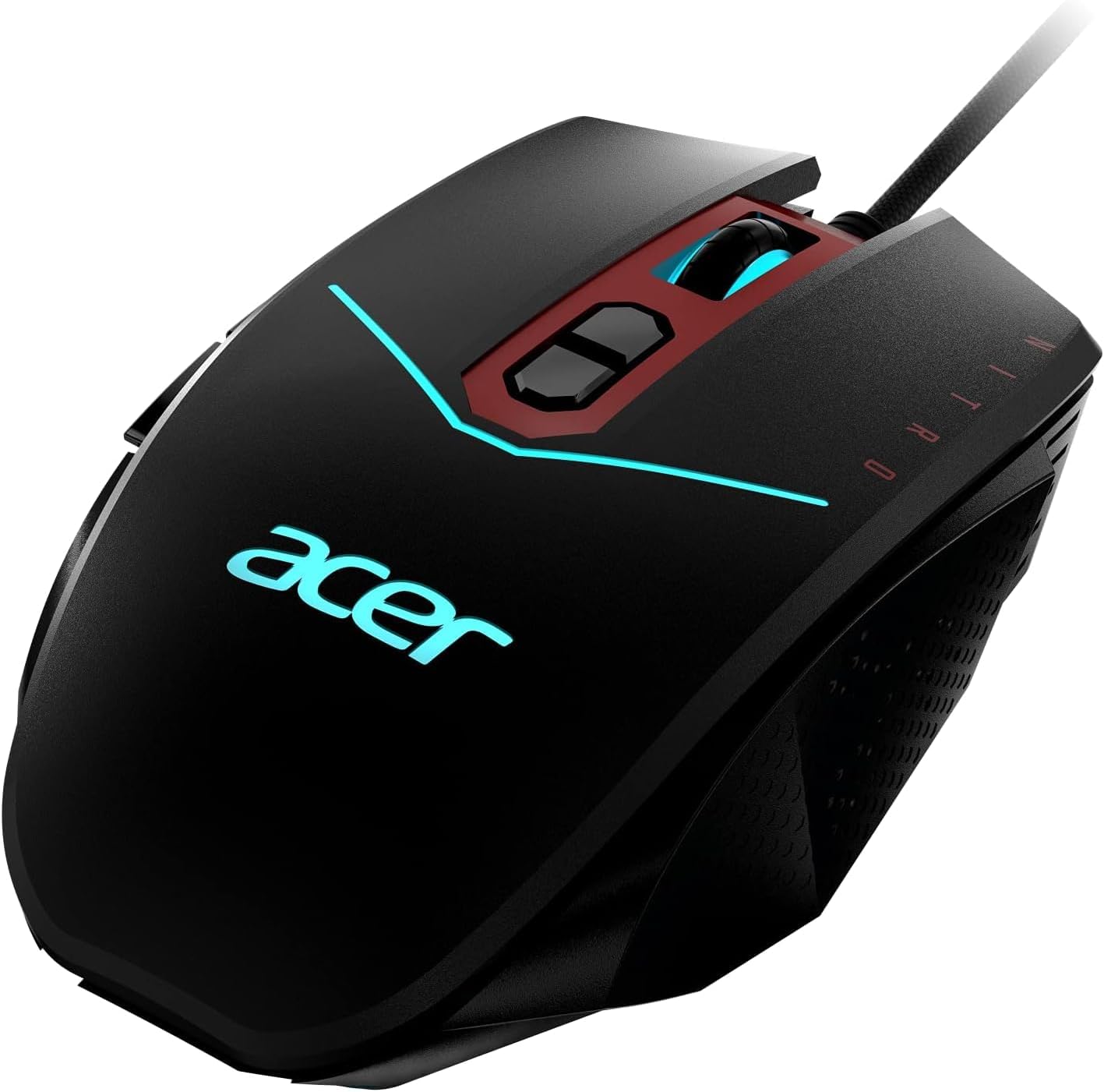
Figure 2: Connecting the Acer Nitro Gaming Mouse II via USB
4. Operating Instructions
4.1. Adjustable DPI Settings
The Acer Nitro Gaming Mouse II features a PAW3325 sensor with six adjustable DPI levels. You can cycle through these levels using the dedicated DPI buttons located on the top of the mouse, behind the scroll wheel.
- Press the DPI Up button to increase sensitivity.
- Press the DPI Down button to decrease sensitivity.
- Each DPI level is indicated by a different LED color, providing visual feedback on your current setting.

Figure 3: DPI Adjustment Buttons
4.2. Using the Burst Fire Button
The mouse includes a dedicated Burst Fire button, typically located on the side. Pressing this button allows you to execute quick, rapid-fire actions, such as shooting three times in quick succession with a single click, enhancing your in-game performance.
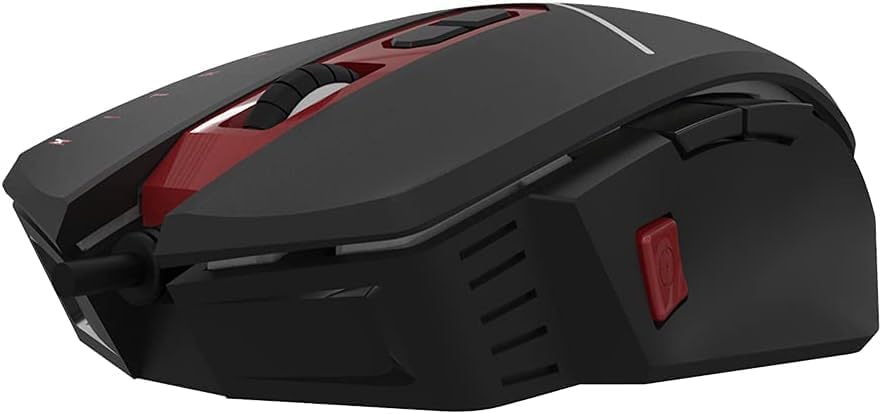
Figure 4: Burst Fire Button Location
4.3. Weight Customization
The Acer Nitro Gaming Mouse II allows you to adjust its weight for personalized comfort and control. The mouse comes with four 5g weights, totaling up to 20g of additional weight, located in a removable cartridge on the underside of the mouse.
- Carefully turn the mouse over.
- Locate the weight cartridge cover on the bottom.
- Remove the cover to access the weights.
- Add or remove 5g weights as desired to achieve your preferred mouse feel.
- Replace the cartridge cover securely.
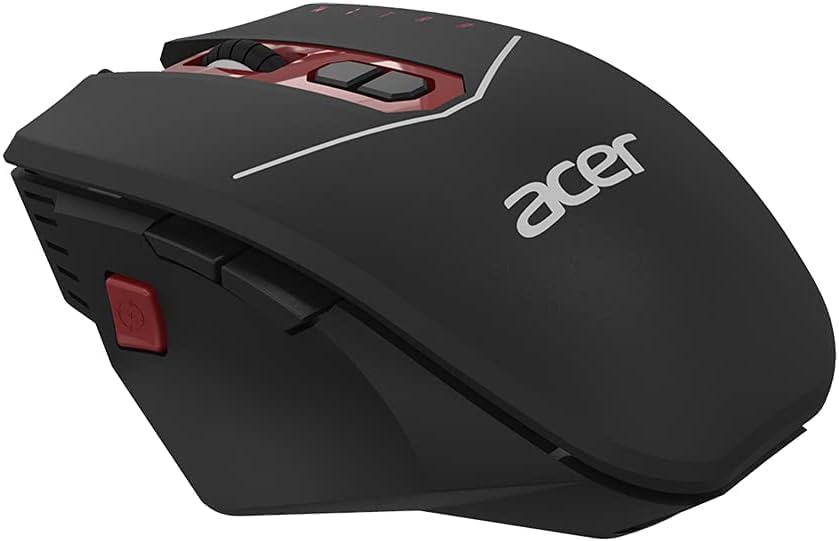
Figure 5: Weight Customization Compartment
5. Maintenance
- Cleaning: Use a soft, dry cloth to clean the mouse surface. For stubborn dirt, slightly dampen the cloth with water. Avoid harsh chemicals or abrasive materials.
- Sensor Care: Keep the optical sensor on the bottom of the mouse clean and free from dust or debris to ensure accurate tracking.
- Cable Management: Avoid sharp bends or excessive pulling on the USB cable to prevent damage.
6. Troubleshooting
6.1. Mouse Not Responding
- Ensure the USB cable is securely plugged into a working USB port on your computer.
- Try plugging the mouse into a different USB port.
- Restart your computer.
- Check if the mouse works on another computer to rule out a system-specific issue.
6.2. Inconsistent Tracking or Cursor Movement
- Clean the optical sensor on the bottom of the mouse with a soft, lint-free cloth.
- Ensure you are using the mouse on a suitable surface (e.g., a mouse pad) and not on reflective or uneven surfaces.
- Adjust the DPI settings to a lower or higher sensitivity to see if it resolves the issue.
6.3. LED Lights Not Working
- Verify the mouse is properly connected to your computer.
- If applicable, check any software settings for LED control (though the NMW120's DPI lights are hardware-controlled).
7. Specifications
| Model Number | NMW120 |
| Brand | Acer |
| Connectivity Technology | USB Wired |
| Movement Detection Technology | Optical (PAW3325 Sensor) |
| Adjustable DPI | Up to 4200 DPI (6 levels) |
| Buttons | 8 (including Burst Fire) |
| Polling Rate | 1,000Hz (1ms response) |
| Weight Customization | Up to 20g (4 x 5g weights) |
| Special Features | Ergonomic Design, LED Lights |
| Color | Black |
| Item Weight | 6.4 ounces (without additional weights) |
| Package Dimensions | 7.5 x 4 x 2.5 inches |
| Compatibility | Windows 11, Windows 10, Windows 8.1, Windows 8, Windows 7 |
8. Warranty and Support
For warranty information and technical support, please refer to the official Acer website or contact Acer customer service. Keep your purchase receipt for warranty claims.
- Online Support: Visit www.acer.com/support
- Customer Service: Refer to your regional Acer contact information provided with your product packaging.