
1. Introduction
Thank you for choosing the OMOTON Bluetooth Keyboard. This full-size, ultra-slim keyboard is designed for enhanced productivity and comfort, offering seamless connectivity across multiple Mac and PC devices. Please read this manual carefully to ensure proper setup and operation of your new keyboard.

Image: The OMOTON Bluetooth Keyboard, a full-size, black and grey wireless keyboard with a numeric keypad.
2. Key Features
- Wide Compatibility: Compatible with macOS 11.3 or Above, MacBook, MacBook Air, MacBook Pro, Mac, iMac Pro, Mac Mini, Mac Pro, and PC.
- Multi-Device Connectivity: Provides a stable Bluetooth connection at a range of 33ft/10m, supporting up to three devices simultaneously. Easily switch between devices by pressing Fn + Bluetooth button.
- Long-Lasting Battery: Built-in rechargeable battery offers up to 120 hours of operating time after a 1-2 hour full recharge. Features an environmentally friendly auto-sleep mode, waking up with any key press after 20 minutes of inactivity.
- Full-Size & Ultra-Slim Design: Includes a full row of macOS shortcut keys for quick access to controls (Home, Brightness, Volume, etc.) and a numeric keypad for easier data entry.
- Ergonomic & Durable: Features a refined scissor mechanism for a comfortable and responsive typing experience. Designed to withstand up to 5 million keystrokes.
3. Setup and Installation
3.1 Initial Charging
Before first use, ensure the keyboard is fully charged. Connect the provided USB-C cable to the keyboard's charging port and to a USB power source. The charging indicator light will show charging status and turn off when fully charged.

Image: The keyboard connected via its Type-C charging port, illustrating its built-in 450mAh lithium battery and quick charge capability (less than 2 hours for 120 hours operating time).
3.2 Bluetooth Pairing Instructions
- Turn On the Keyboard: Slide the power switch on the keyboard to the ON position.
- Activate Bluetooth on Your Device: On your Mac or PC, go to System Settings (or System Preferences) > Bluetooth and ensure Bluetooth is turned on.
- Enter Pairing Mode: Press and hold the Fn + BT1 keys for 3-5 seconds until the LED indicator light starts flashing blue. This indicates the keyboard is in pairing mode for the first device channel.
- Select Keyboard: On your device's Bluetooth settings, locate and select "OMOTON Keyboard" from the list of available devices to complete the pairing process. The blue indicator will turn off after a successful connection.
Tip: This product features three independent Bluetooth channels (BT1, BT2, BT3). To pair the keyboard with additional devices, press and hold Fn + BT2 or Fn + BT3 to enter pairing mode for the respective channel, then repeat steps 2-4.

Image: A visual guide demonstrating the four steps for Bluetooth pairing: turning on the keyboard, activating Bluetooth on the Mac, pressing Fn + BT1 to enter pairing mode, and selecting "OMOTON Keyboard" from the device list.
3.3 Setup Video Guide
Video: An official OMOTON video demonstrating the features and setup process of the Bluetooth Rechargeable Keyboard for Mac. This video provides a visual walkthrough of the keyboard's capabilities and initial connection steps.
4. Operating Instructions
4.1 Switching Between Devices
Once paired with multiple devices (up to three), you can easily switch between them by short-pressing the corresponding Bluetooth channel button (BT1, BT2, or BT3). The keyboard will automatically connect to the selected device.
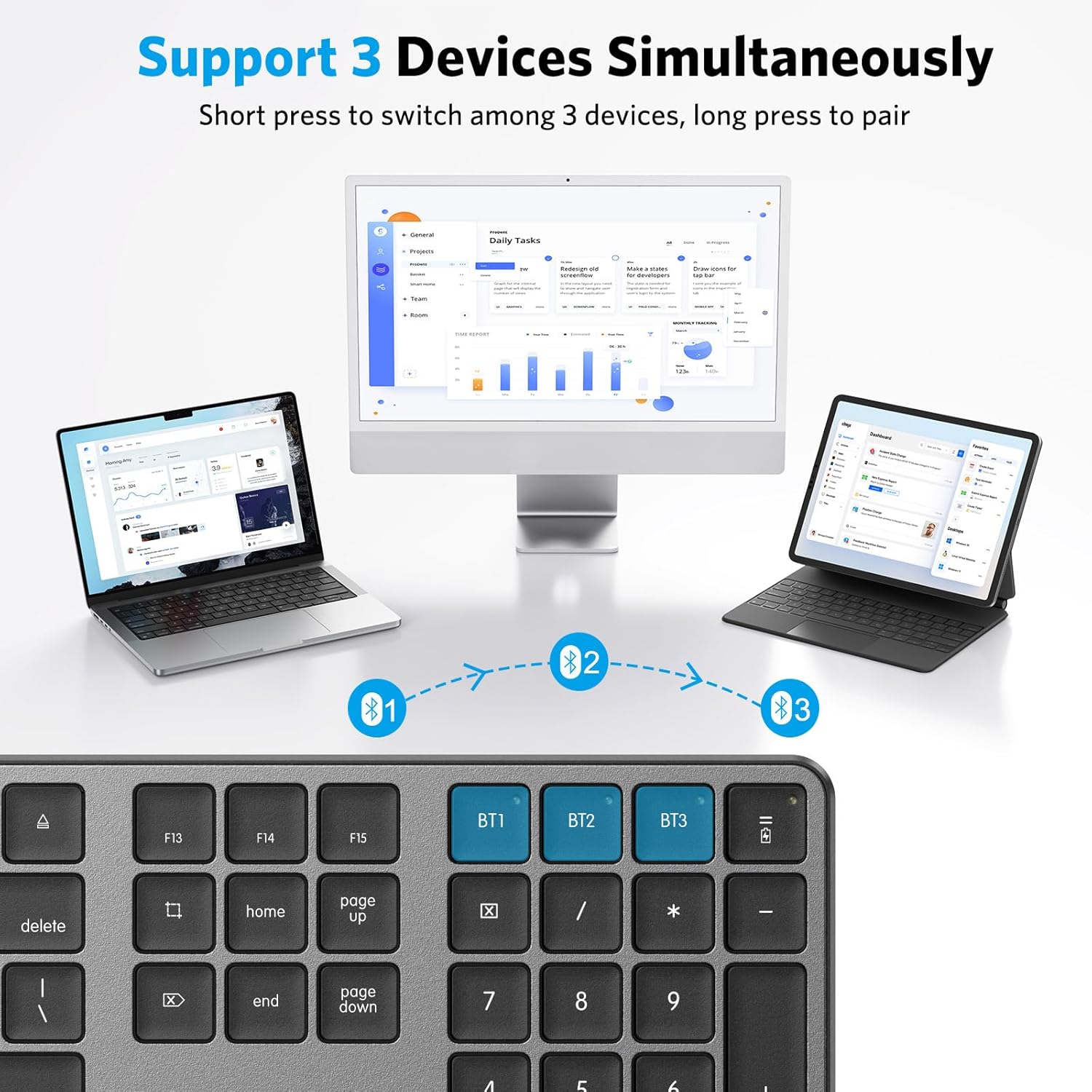
Image: Illustration showing the OMOTON keyboard connected simultaneously to a MacBook, iMac, and iPad, with arrows indicating the ability to switch between the three devices using the BT1, BT2, and BT3 keys.
4.2 Using Multimedia and Shortcut Keys
The keyboard features a dedicated row of macOS shortcut keys for quick access to various functions. These include:
- F1: Brightness Down
- F2: Brightness Up
- F3: Open Mission Control
- F4: Open Launchpad
- F7: Previous Track
- F8: Play/Pause
- F9: Next Track
- F10: Mute Volume
- F11: Volume Down
- F12: Volume Up

Image: A close-up of the keyboard's function keys (F1-F12) highlighting their optimized multimedia functions for Mac OS, such as brightness control, media playback, and volume adjustment.
4.3 Power Saving Mode
To conserve battery life, the keyboard will automatically enter sleep mode after 20 minutes of inactivity. To wake it up, simply press any key. The keyboard will reconnect to the last active device.
4.4 Ergonomic Design
The keyboard is designed with an ergonomic tilt to provide a comfortable and precise typing experience, reducing strain during prolonged use.

Image: A side view of the OMOTON keyboard on a desk, illustrating its 8-degree ergonomic angle designed for comfortable typing.
5. Maintenance
To maintain your OMOTON Bluetooth Keyboard in optimal condition, follow these simple guidelines:
- Cleaning: Use a soft, lint-free cloth slightly dampened with water or a mild cleaning solution to wipe the surface of the keyboard. Avoid excessive moisture.
- Dust Removal: Use compressed air to remove dust and debris from between the keys.
- Storage: When not in use for extended periods, store the keyboard in a dry, cool place.
- Avoid Liquids: Do not expose the keyboard to liquids, as this can cause damage to internal components.
- Handle with Care: Avoid dropping the keyboard or subjecting it to strong impacts.
6. Troubleshooting
If you encounter issues with your OMOTON Bluetooth Keyboard, please refer to the following common solutions:
6.1 Keyboard Not Connecting/Pairing
- Check Power: Ensure the keyboard is turned on and has sufficient battery charge.
- Re-enter Pairing Mode: Press and hold Fn + BT1/BT2/BT3 for 3-5 seconds until the LED flashes blue to re-enter pairing mode.
- Device Bluetooth: Verify that Bluetooth is enabled on your computer or device.
- Forget Device: On your device, try


