
Geevon VA8665-CA
Geevon Weather Station User Manual
Model: VA8665-CA
Introduction
Thank you for choosing the Geevon Weather Station. This device provides comprehensive weather information, including indoor and outdoor temperature and humidity, weather forecasts, moon phases, and barometric pressure. Its large 7.5-inch color VA display ensures all information is clearly visible and easy to read. This manual will guide you through the setup, operation, and maintenance of your new weather station.
Package Contents
Ensure all items are present before proceeding with the setup:
- 1 x Color Weather Station Display Unit
- 1 x Remote Outdoor Sensor
- 1 x Power Adapter
- 1 x User Manual
Setup
3.1 Inserting Batteries / Connecting Power Supply
The main display unit can be powered by the included AC power adapter or 3 AAA batteries (not included). The remote sensor requires 2 AAA batteries (not included).
- Connect the power supply unit to the power supply socket on the back of the color weather station.
- Place 3 AAA batteries into the color weather station.
- Place 2 AAA batteries into the wireless weather sensor.
- Place or hang the sensor outdoors.
Note: We recommend using high-quality batteries for best product performance. Heavy-duty or rechargeable batteries are not recommended. The outdoor sensor requires lithium batteries in low-temperature conditions, as cold temperatures can cause alkaline batteries to function improperly. Do not mix old and new batteries.
3.2 Placement Guidelines
Proper placement of both the display unit and the outdoor sensor is critical to the accuracy and performance of this product.
- Place the display unit in a dry area free of dirt and dust.
- The range is 200 ft (60m) unobstructed. The wireless range may be reduced by trees, walls, windows, etc.
- Do not place sensor in direct sunlight as this will give you an inaccurate temperature reading.
- To maximize wireless range, place units away from large metallic items, thick walls, metal surfaces, or other objects that may limit wireless communication.
- To prevent wireless interference, place both units at least 3 ft (1m) away from electronic devices (TV, microwave, computer, radio, etc.).
3.3 Default Settings
Upon initial power-up, the weather station will display default settings:
- Time: 12:00 (US) 0:00 (EU)
- Date: 01/01 (Year: 2019, date format: M/D/U)
- Default week: TU (Language: ENG)
- Default weather forecast: Sunny
- Barometer unit: inHg (US) 0.00 (EU)
- Default alarm: AM 7:00
3.4 Manually Setting the Time, Date & Units
To set the time, date, and units:
- Press and hold the 'MODE' button for 2 seconds until the display begins to flash.
- Set the following information in the order listed: Hours, Minutes, Year, Date, Month/Day or Day/Month format, Month, Day, Day of the week language, Air pressure unit.
- To select individual values, press 'UP' button or the 'DOWN' button and confirm each selection by pressing the 'MODE' button.
Note: You will automatically exit settings mode if no buttons are pressed for 10 seconds. Under normal mode, press 'MODE' button to check the year.
3.5 Alarm Clock
To set the alarm time:
- Hold the 'ALARM' button for about 3 seconds to set the alarm time. The display begins to flash. Set the following information in the order listed: Hours, Minutes.
- To select individual values, press 'UP' button or the 'DOWN' button and confirm each selection by pressing the 'ALARM' button.
- If you do not make an entry for 10 seconds, setting mode is exited automatically.
Activating/Deactivating the alarm: To turn the alarm ON or OFF, press the 'ALARM' button to enter alarm mode, press the 'ALARM' button again to turn ON or OFF the alarm. The alarm symbol should show next to the clock display when alarm is set to ON. Press the 'ALARM' button again to turn off the alarm, when the alarm is set to OFF, the alarm symbol should not display.
Stopping the alarm/snooze function: When the alarm is triggered, the alarm symbol begins to flash and an alarm sounds. By pressing any button (except the SNOOZE/LIGHT button) to stop the alarm. Otherwise, it will stop automatically after 2 minutes. While the alarm signal is sounding, press the 'SNOOZE/LIGHT' button to activate the snooze function. The alarm will sound after 5 minutes.
Operating
4.1 Controls and Displays
The weather station features a clear display and intuitive buttons for easy operation:
- Indoor Temperature: Displays the current indoor temperature.
- Indoor Humidity: Displays the current indoor humidity.
- Outdoor Temperature: Displays the current outdoor temperature from the remote sensor.
- Outdoor Humidity: Displays the current outdoor humidity from the remote sensor.
- Forecast: Icons indicating the weather forecast for the next 12-24 hours.
- Moon Phase: Displays the current moon phase.
- Barometric Pressure: Displays the current barometric pressure.
- Comfort Indicator: Shows the comfort level based on humidity.
- Time & Date: Displays the current time and date.
- Alarm & Snooze Icons: Indicates alarm status.
- USB Charging Port: Allows charging of external devices.

Figure 1: Overview of the 7.5-inch large color display multi-function weather station, highlighting various display sections and control buttons.
4.2 Adjusting Backlight Brightness
The display features 3-level adjustable brightness. If powered by batteries only, the backlight will turn off after 10 seconds to save power. If plugged in with the AC power cord, the backlight will stay on.
- Press the 'SNZ/LIGHT' button to switch the brightness from HI → LOW → OFF.
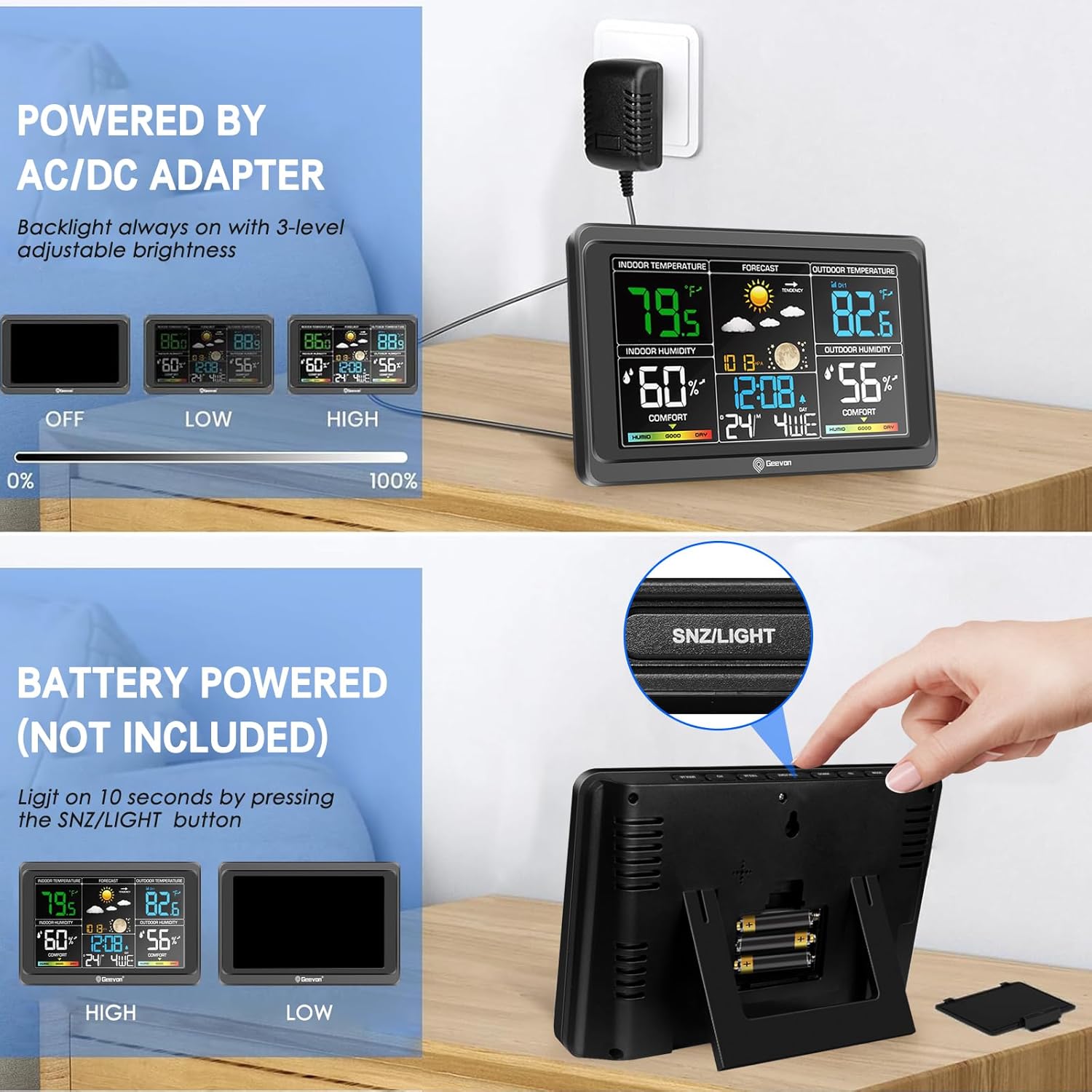
Figure 2: Illustration of the weather station's power modes (AC/DC adapter and battery) and how to adjust the 3-level backlight brightness.
4.3 Switching Temperature Units
To switch the temperature measurement between Celsius and Fahrenheit, press the 'UP' button. You can switch between Celsius and Fahrenheit at any time (except when setting other setting options).
4.4 Checking MAX/MIN Temperature and Humidity
- Press the 'DOWN' button to check MAX/MIN temperature and humidity.
- Hold the 'DOWN' button to clear the record of MAX/MIN temperature and humidity.
4.5 Temperature Alert
You can set alerts for specific temperature ranges:
- In standard mode, press 'ALERT' to enter alert mode.
- Use 'UP' or 'DOWN' to turn on/off temperature alert function.
- In standard mode, hold 'ALERT' to set temperature alert function.
- Set the outdoor temperature upper limit, outdoor temperature lower limit, indoor temperature upper limit, and indoor temperature lower limit.
- To select individual values, press 'UP' button or the 'DOWN' button and confirm each selection by pressing the 'ALERT' button.
- If you do not make an entry for 10 seconds, setting mode is exited automatically.
Note: In temperature alert status, alert temperature icon will flash and an alarm will display.
4.6 Weather Forecast
The unit predicts weather conditions for the next 12-24 hours based on the change of atmospheric pressure. The weather forecast is based on barometric pressure change and is about 70-75% correct. The following icons are used:

Figure 3: Weather forecast icons including Sunny, Partly Sunny, Cloudy, and Rainy.
Note: After setting up, weather forecast readings should be disregarded for the next 24 hours. This will allow sufficient time for the weather station to collect data and therefore result in a more accurate forecast. Common weather forecasting, absolute accuracy cannot be guaranteed.
4.7 Remote Sensor Transmission
This weather station is arranged to communicate with three external sensors. One of these comes with the unit, the remaining two are optional.
- Power the weather station as described in Getting Started.
- Insert the batteries in the external sensor, set the selector to the desired transmission channel (1, 2 or 3). Automatic weather station data will be transmitted.
- Press the 'CH' button more times to select the channel set on the external sensor. Sequentially selects the channel 1, channel 2, channel 3 or sequential display of 3 channels (icon flashing channel).
Notes: Place the weather station away from equipment that generates magnetic fields such as mobile phones, televisions etc. In case of non-receipt of the display, signal it is shown the character '- -'. Press and hold the 'CH' button to receive RF signal. Always make sure the channel chosen on the display unit MATCHES the channel option chosen on the outdoor sensor.

Figure 4: The weather station can track indoor/outdoor temperature and humidity in up to 4 locations with additional sensors.
4.8 USB Charging Port
The weather station is designed with an extra USB charging port (5V USB output) that can help charge your cellphones, tablets, or other electronic devices.

Figure 5: The weather station features a convenient USB port for charging mobile devices.
Maintenance
Proper care ensures the longevity and accuracy of your Geevon Weather Station:
- Place the display unit in a dry area free of dirt and dust.
- The remote sensor is totally wireless but has to avoid direct sunlight and rain.
- Immediately change the batteries if the low battery indicator is displayed on the LCD screen of main unit.
- Never immerse the product in water. This will damage the product.
- Do not subject the product to extreme force, shock, or fluctuations in temperature.
- Do not clean any part of the product with benzene, thinner or other solvent chemicals. When necessary, clean it with a soft cloth.
Troubleshooting
If your Geevon product does not operate properly after trying the troubleshooting steps, please contact the seller on your order page or shoot an email to: support@geevon.com
| Problem | Possible Solution |
|---|---|
| Outdoor reading is flashing or showing dashes |
|
| No outdoor sensor reception |
|
| Inaccurate temperature/humidity |
|
| Backlight doesn't stay on | The backlight turns off after 10s to save energy when powered by batteries. If you want the weather station always lights on, please plug in with power adaptor. |
| "HH.H/LL.L" display in indoor and/or outdoor temperature | If the temperature is higher than the detection range, HH.H will display on screen for indication; if lower than the detection range, LL.L will display on screen for indication. |
Specifications
- Product Dimensions: 0.98 x 7.87 x 5.12 inches; 1.1 Pounds
- Item Model Number: VA8665-CA
- Batteries: 3 AAA batteries required (main unit), 2 AAA batteries required (remote sensor)
- Manufacturer: Geevon
- Material: Acrylonitrile Butadiene Styrene (ABS)
- Power Source: Corded Electric & Battery Powered
- Special Feature: Adjustable Brightness, Alarm, Clock, Customizable Alert, Large Display
- Connectivity Technology: USB
- Style: Modern
- Finish Type: Polished
- Indoor Temperature Range: 0°C~50°C (32°F~122°F)
- Outdoor Temperature Range: -40°C~60°C (-40°F~140°F)
- Temperature Resolution: 0.1°C
- Indoor Humidity Range: 20%~95%
- Outdoor Humidity Range: 20%~99%
- Humidity Resolution: 1%RH
- Temperature Accuracy: +/-1°C (+/-2°F)
- Humidity Accuracy: +/-5% from 35% to 75% and +/-10% from 20% to 35% & 75% to 95%
Warranty and Support
Geevon offers a 30-day free money-back guarantee, a 12-month warranty, and lifetime consulting service for this product.
For support, please contact Geevon directly:
- Manufacturer: Geevon
- Email: support@geevon.com
- Web: www.geevon.com
Product Video Guide
Watch this official product video for a visual guide on setting up and operating your Geevon Weather Station:
Video: Geevon 238665 VA Display Weather Station - A comprehensive guide to the features and setup of the weather station.
Ask a question about this manual
Ask about setup, troubleshooting, compatibility, parts, safety, or missing instructions. Manuals+ will review the question and use this page’s manual context to help answer it.