
1. Introduction
The Pro’sKit Guide-TL430 is a state-of-the-art multispectral fusion thermal monocular designed for comprehensive day and night observation in various weather conditions. It integrates a high-end 12µm thermal sensor, a 1920×1080 CMOS sensor, and a 1920×1080 AMOLED display to deliver exceptionally clear and detailed images.
Equipped with an integrated laser rangefinder for precise distance measurements up to 600 meters, built-in GPS for target positioning, and a gyroscope, the Guide-TL430 provides critical information such as target latitude, longitude, distance, and device angle for rapid targeting and navigation. Its all-in-one design ensures reliable performance for a wide range of applications.
2. Safety Information
- Do not look directly at the sun or other intense light sources through the monocular, as this can cause permanent eye damage.
- Keep the device away from extreme temperatures, direct sunlight, and high humidity.
- Avoid dropping or subjecting the device to severe impacts.
- Do not attempt to disassemble or modify the monocular. This will void the warranty and may cause damage.
- Use only the specified battery type and charging accessories.
- Ensure the device is turned off when not in use and stored in a safe place.
- Dispose of batteries and electronic components according to local regulations.
3. Package Contents
Verify that all items are present in the package:
- Guide-TL430 Multispectral Fusion Thermal Monocular
- Lens Cover
- Wrist Strap
- Battery Charger
- 18650 Battery (included)
- USB Type-C Cable
- Quick Start Guide / Warranty Card
4. Product Overview
The Guide-TL430 features a robust design with intuitive controls for ease of use in the field.

Figure 4.1: Side view of the Pro’sKit Guide-TL430 Multispectral Fusion Thermal Monocular, showing the main body and eyepiece.

Figure 4.2: Top-down view of the monocular, highlighting the control buttons and the laser rangefinder module.
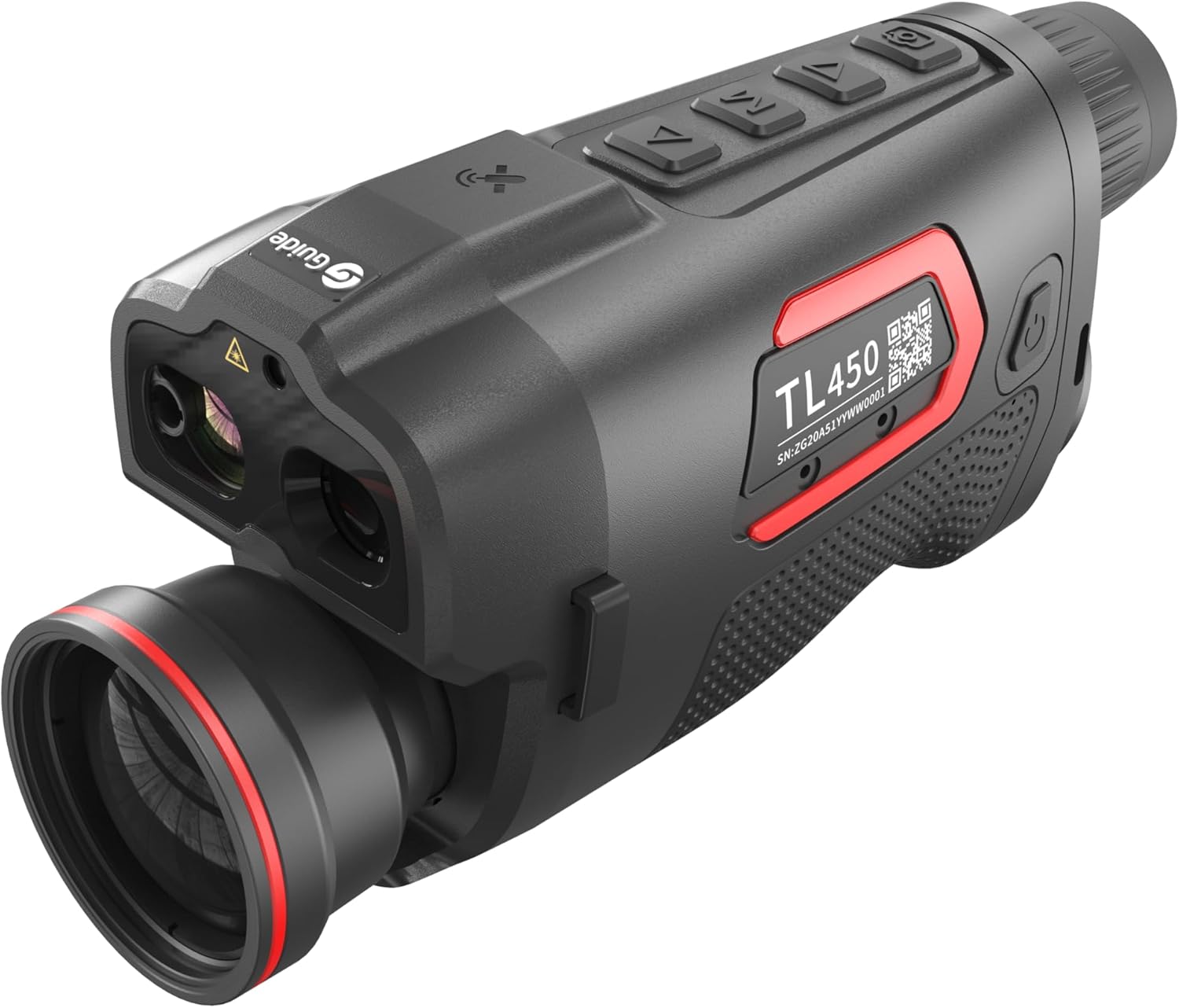
Figure 4.3: Angled view of the monocular, showing the objective lens and the ergonomic grip.
Key Components:
- Objective Lens: Captures thermal and digital images.
- Eyepiece: Features a 1920×1080 AMOLED display for viewing.
- Control Buttons: For power, menu navigation, mode selection, zoom, and recording.
- Laser Rangefinder: Integrated module for distance measurement.
- USB Type-C Port: For charging and data transfer.
- Battery Compartment: Houses the replaceable 18650 battery.
- Tripod Mount: UNC 1/4"-20 thread for stable mounting.
5. Setup
5.1 Battery Installation
- Locate the battery compartment cover, typically at the rear or bottom of the device.
- Open the cover by twisting or sliding it according to the markings.
- Insert the provided 18650 Lithium-polymer battery, ensuring correct polarity (+/-).
- Close the battery compartment cover securely.
5.2 Charging the Battery
- Connect the USB Type-C cable to the monocular's USB port.
- Connect the other end of the cable to a compatible USB power adapter (not included) or a computer's USB port.
- The charging indicator light will illuminate. It will change color or turn off when charging is complete.
- Alternatively, use the external battery charger provided to charge the 18650 battery.
5.3 Initial Power On
- Press and hold the Power button for a few seconds until the display illuminates.
- Adjust the diopter on the eyepiece for clear focus according to your vision.
- Adjust the objective lens focus ring to achieve a sharp image of your target.
6. Operating Instructions
6.1 Power On/Off
- Power On: Press and hold the Power button for approximately 3 seconds.
- Power Off: Press and hold the Power button for approximately 3 seconds until the display shuts down.
- Standby Mode: A short press of the Power button may put the device into standby mode to conserve battery. Press again to wake.
6.2 Display and Focus Adjustment
- Diopter Adjustment: Rotate the diopter ring on the eyepiece until the on-screen menu text is sharp.
- Objective Focus: Rotate the objective lens focus ring to bring your target into sharp focus.
6.3 Mode Selection (Multispectral Viewing)
The Guide-TL430 offers various viewing modes for different observation scenarios:
- IR (Thermal): Standard thermal imaging mode.
- Visible (Digital): Standard digital camera mode for daylight observation.
- Fusion 1, Fusion 2, Fusion 3: Combined multispectral viewing modes that blend thermal and digital images for enhanced detail and target identification. Refer to the on-screen menu for specific fusion options.
- Scene Modes: Enhanced, Highlight and Natural, Visible Day, Night and Low-light.
Use the designated mode button (refer to device controls) to cycle through these viewing modes.
6.4 Digital Zoom
Press the zoom button to cycle through available digital zoom levels (e.g., 1x, 2x, 4x).
6.5 GPS Target Positioning
The integrated GPS system automatically provides target latitude and longitude information on the display. This feature is crucial for navigation, mapping, and sharing target locations.
6.6 Laser Rangefinder (LRF)
To measure the distance to a target:
- Aim the monocular at the desired target.
- Press the dedicated LRF button (refer to device controls).
- The distance to the target (up to 600m) will be displayed on the screen. The device also integrates a gyroscope to provide device angle information.
6.7 Image/Video Recording
- Press the Photo/Video button to capture still images or start/stop video recording.
- Captured media is stored in the internal memory (64 GB).
6.8 Wi-Fi Connectivity and App Integration
- Activate Wi-Fi on the monocular via the menu.
- Download and install the "TargetIR" application on your smartphone or tablet.
- Connect your mobile device to the monocular's Wi-Fi network (2.4G).
- Use the app for remote control, live view, media management, and firmware upgrades (OTA).
6.9 Color Palettes (Thermal Mode)
In thermal mode, you can select different color palettes to visualize temperature differences:
- White Hot
- Black Hot
- Red Hot
- Iron Red
- Blue Hot
Cycle through these palettes using the designated button or menu option.
7. Maintenance
7.1 Cleaning
- Lenses: Use a soft, lint-free cloth specifically designed for optical lenses. Gently wipe the lens surfaces. For stubborn smudges, use a small amount of lens cleaning fluid.
- Body: Wipe the monocular body with a soft, damp cloth. Do not use abrasive cleaners or solvents.
- Ensure all caps and covers are in place when not in use to protect lenses and ports.
7.2 Storage
- Store the monocular in its protective case in a cool, dry place, away from direct sunlight and extreme temperatures.
- If storing for extended periods, remove the battery to prevent leakage.
7.3 Battery Care
- Charge the battery fully before first use.
- Avoid fully discharging the battery frequently.
- If the device will not be used for a long time, charge the battery to about 50% before storing.
8. Troubleshooting
| Problem | Possible Cause | Solution |
|---|---|---|
| Device does not power on. | Battery is depleted or incorrectly installed. | Charge the battery. Ensure the battery is inserted with correct polarity. |
| Image is blurry. | Diopter or objective lens not focused. | Adjust the diopter on the eyepiece and the objective lens focus ring. |
| Laser Rangefinder not working. | Obstruction in front of LRF, or target is out of range. | Ensure a clear line of sight. Target must be within 600m. |
| Wi-Fi connection issues. | Incorrect password, device too far from monocular, or Wi-Fi not enabled. | Verify Wi-Fi password. Move closer to the monocular. Ensure Wi-Fi is enabled in the monocular's menu. |
| Short battery life. | Battery not fully charged, or operating in extreme cold. | Ensure battery is fully charged. Battery performance decreases in cold temperatures. Consider carrying a spare. |
9. Specifications (Guide-TL430)
The following table outlines the key technical specifications for the Pro’sKit Guide-TL430 model.
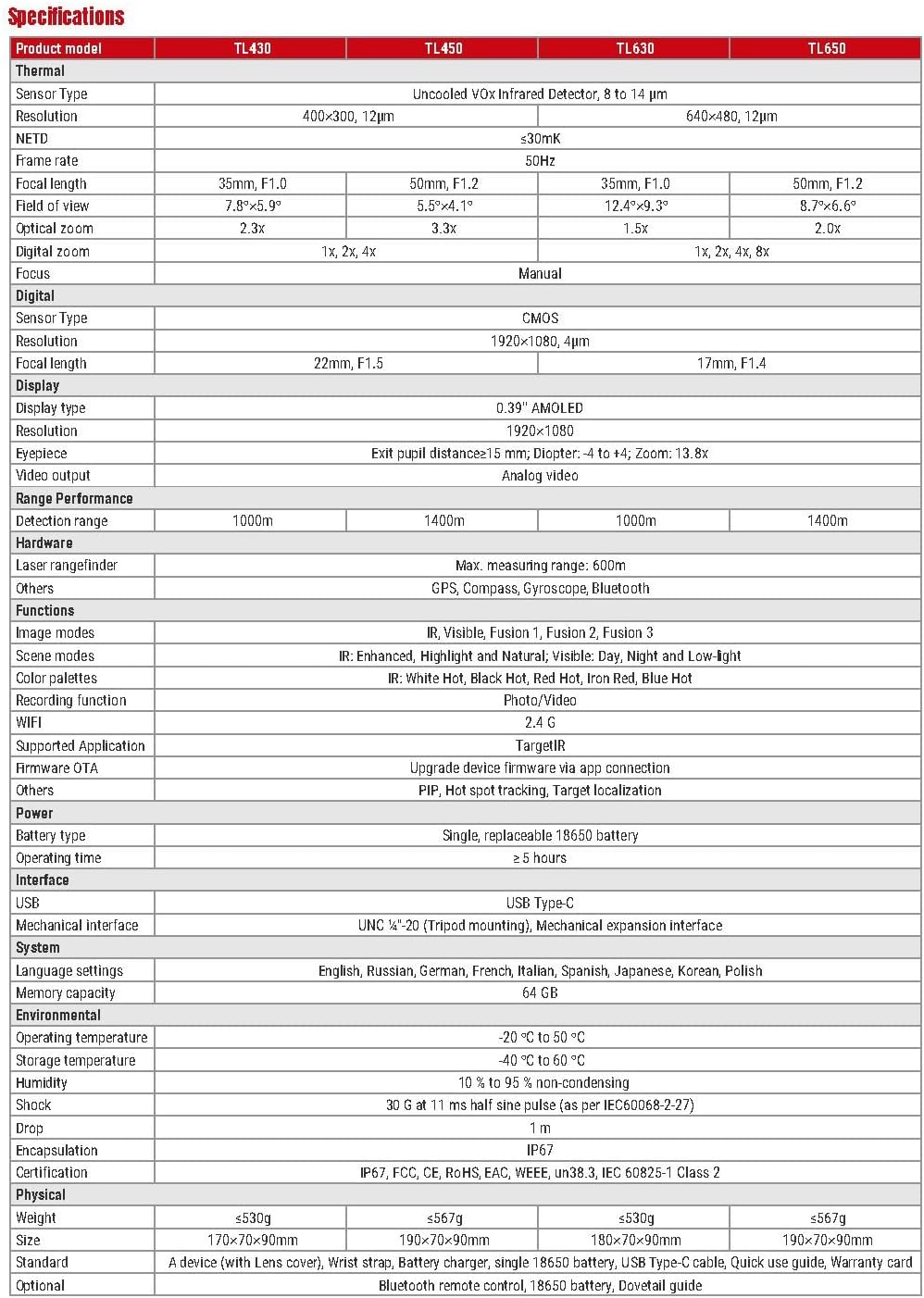
Figure 9.1: Detailed specifications for the Guide TL series, including TL430, TL450, TL630, and TL650 models.
| Feature | Specification |
|---|---|
| Thermal Sensor Resolution | 400 × 300 @ 12µm |
| NETD | ≤30mK |
| Frame Rate | 50Hz |
| Thermal Lens | 35mm, F1.0 |
| Thermal Field of View | 7.8° × 5.9° |
| Digital Zoom | 1x, 2x, 4x |
| Digital Sensor Type | CMOS |
| Digital Resolution | 1920 × 1080 |
| Digital Focal Length | 22mm, F1.5 |
| Display Type | 0.39" AMOLED |
| Display Resolution | 1920 × 1080 |
| Eyepiece | Exit pupil distance=15 mm; Diopter: -4 to +4; Zoom: 13.8x |
| Video Output | Analog video |
| Detection Range | 1000m |
| Laser Rangefinder Max. Range | 600m |
| Functions | GPS, Compass, Gyroscope, Bluetooth |
| Image Modes | IR, Visible, Fusion 1, Fusion 2, Fusion 3 |
| Scene Modes | Enhanced, Highlight and Natural, Visible Day, Night and Low-light |
| Color Palettes | IR: White Hot, Black Hot, Red Hot, Iron Red, Blue Hot |
| Recording Function | Photo/Video |
| Wi-Fi | 2.4G |
| Supported Application | TargetIR |
| Firmware OTA | Upgrade device firmware via app connection |
| Others | PIP, Hot spot tracking, Target localization |
| Power Type | Single, replaceable 18650 battery |
| Operating Time | ≥ 5 hours |
| USB Interface | USB Type-C |
| Mechanical Interface | UNC 1/4"-20 (Tripod mounting), Mechanical expansion interface |
| System Language Settings | English, Russian, German, French, Italian, Spanish, Japanese, Korean, Polish |
| Memory Capacity | 64 GB |
| Operating Temperature | -20 °C to 50 °C |
| Storage Temperature | -40 °C to 60 °C |
| Humidity | 10 % to 95 % (non-condensing) |
| Shock | 30 G at 11 ms half sine pulse (as per IEC60068-2-27) |
| Drop | 1 m |
| Encapsulation | IP67 |
| Certification | IP67, FCC, CE, RoHS, EAC, WEEE, UN38.3, IEC 60825-1 Class 2 |
| Weight | ≤530g |
| Dimensions (L×W×H) | 170 × 70 × 90mm |
10. Warranty and Support
The Pro’sKit Guide-TL430 Multispectral Fusion Thermal Monocular comes with a manufacturer's warranty. Please refer to the warranty card included in your package for specific terms and conditions, including the warranty period and coverage details.
For technical support, service, or inquiries regarding your product, please contact Pro'sKit customer service or visit their official website. Keep your purchase receipt and product serial number handy when contacting support.
Spare Parts Availability: 1 Year (as per product specifications).