
1. Introduction
This manual provides instructions for the RisoPhy RGB Gaming Mouse, Model e16dcd38-40c4-46c0-b0c5-d300288ed6e4. Please read this manual thoroughly before use to ensure proper operation and to maximize your experience with the product.

Image 1.1: RisoPhy RGB Gaming Mouse. This image displays the overall design of the mouse, highlighting its RGB lighting and ergonomic shape.
2. Package Contents
Verify that all items are present in the package:
- RisoPhy RGB Gaming Mouse
- User Manual (this document)
- Driver Disk (for software installation)

Image 2.1: Mouse Button Layout. This diagram illustrates the placement of the 8 programmable buttons on the RisoPhy RGB Gaming Mouse.
3. Setup Instructions
3.1. Connecting the Mouse
- Locate an available USB port on your computer.
- Plug the USB connector of the RisoPhy RGB Gaming Mouse into the USB port.
- The mouse is plug-and-play compatible and should be recognized automatically by your operating system.
3.2. Driver and Software Installation
For full functionality, including programmable buttons and advanced RGB customization, install the provided software:
- Insert the driver disk into your computer's CD/DVD drive.
- Follow the on-screen instructions to install the RisoPhy Gaming Software.
- If your computer does not have a CD/DVD drive, please visit the official RisoPhy support website to download the latest software.

Image 3.1: Gaming Software Interface. This image shows the user interface of the RisoPhy gaming software, demonstrating options for button programming and DPI adjustments.
The mouse is compatible with Windows 7, Windows 8, Windows 10, Windows XP, and Windows Vista.
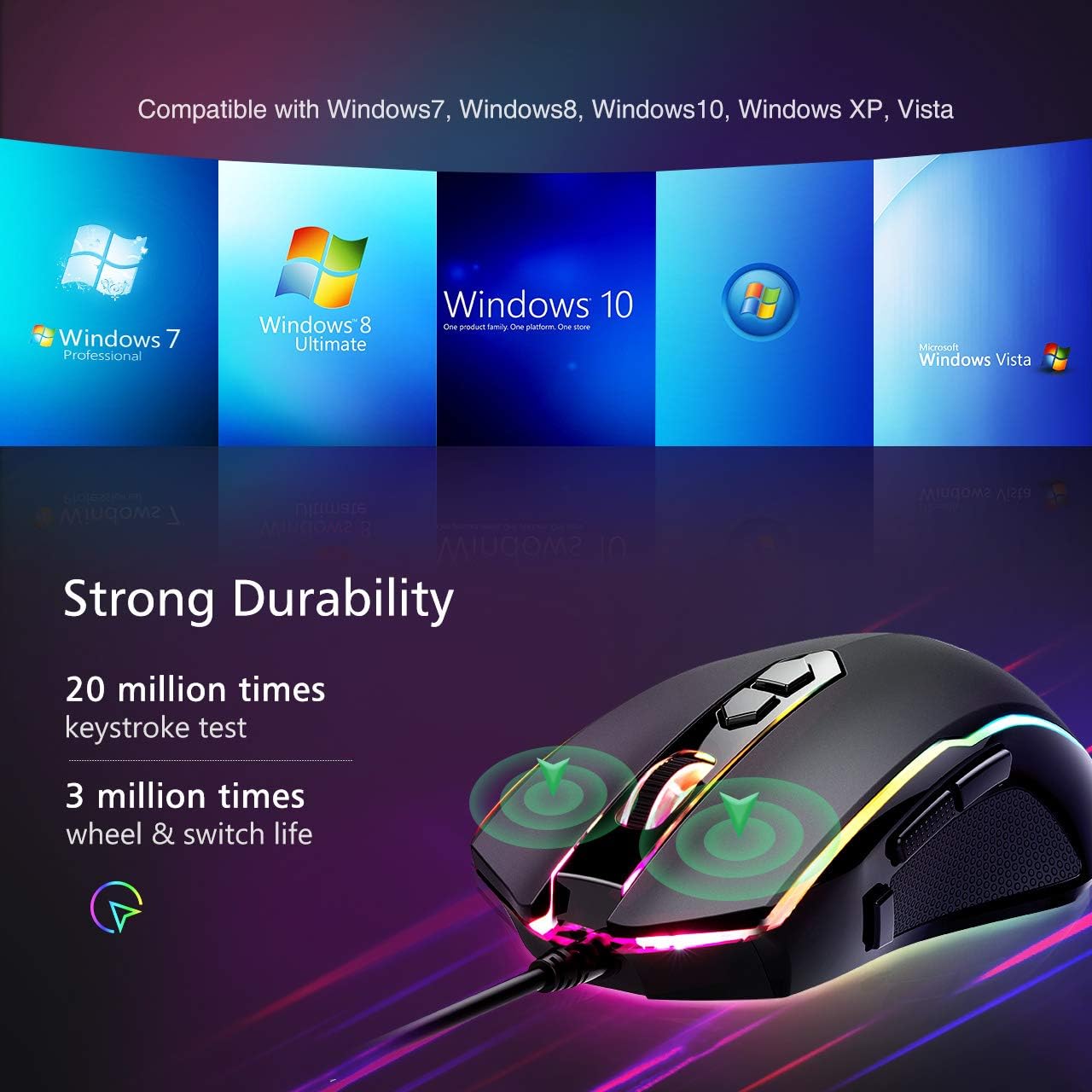
Image 3.2: Operating System Compatibility. This image highlights the mouse's compatibility with various Windows operating systems.
4. Operating Instructions
4.1. Basic Mouse Functions
The RisoPhy RGB Gaming Mouse features standard left-click, right-click, and scroll wheel functions. Additionally, it includes several specialized buttons for enhanced control.
4.2. DPI Adjustment
The mouse offers 5 adjustable DPI settings to match your preference and game requirements. Use the DPI+ and DPI- buttons (typically located near the scroll wheel) to cycle through the following sensitivities:
- 1200 DPI
- 2400 DPI
- 3500 DPI
- 5500 DPI
- 7200 DPI

Image 4.1: DPI Settings. This image visually represents the five default DPI settings and their associated indicator colors.
4.3. Polling Rate Adjustment
The polling rate can be adjusted to 125Hz, 250Hz, 500Hz, or 1000Hz using the software. A higher polling rate reduces delay for smoother movement.
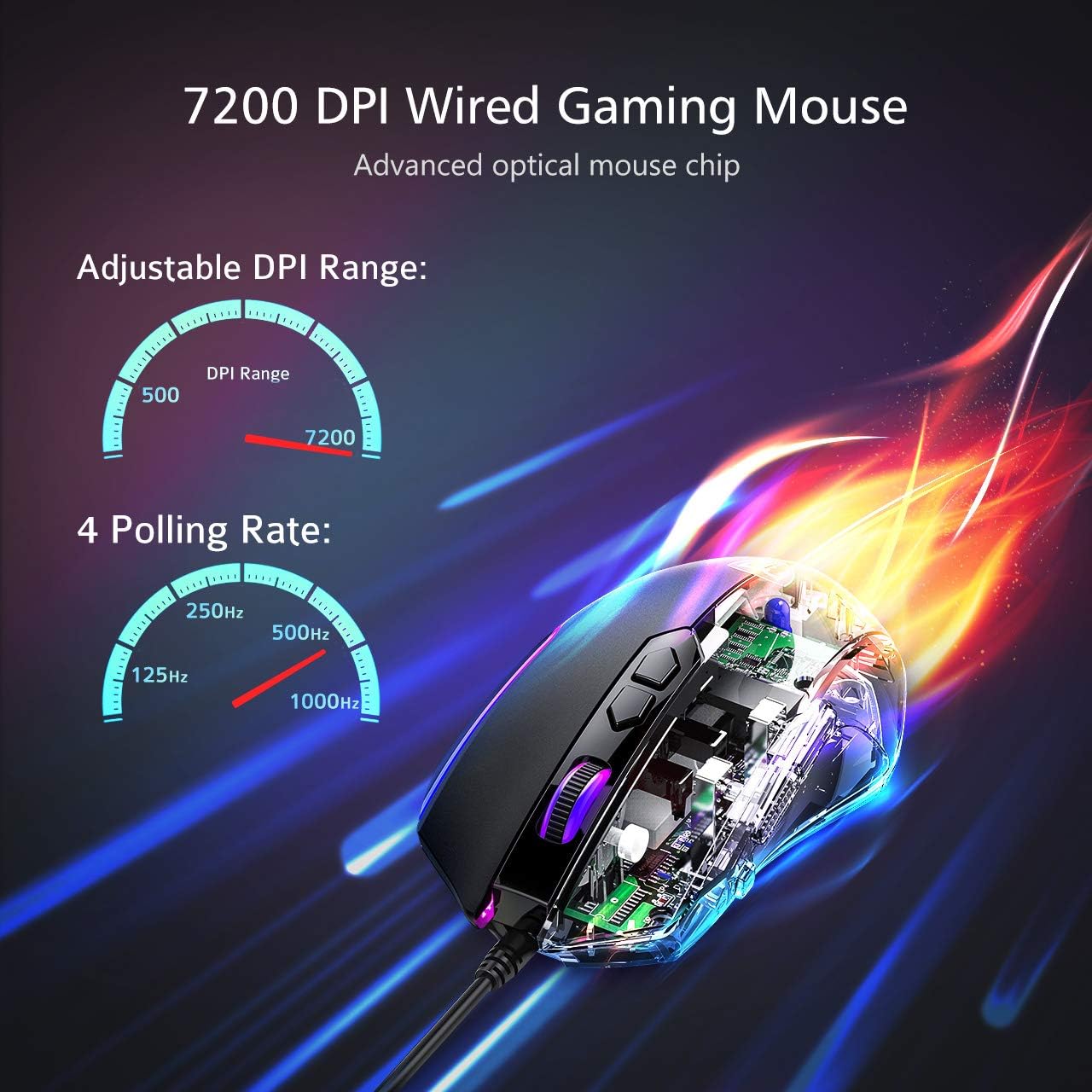
Image 4.2: DPI and Polling Rate. This image illustrates the adjustable DPI range and available polling rate options.
4.4. RGB Backlight Modes
The mouse features 7 customizable RGB backlight modes. You can change the lighting mode using the convenient switch located on the bottom of the mouse or through the RisoPhy Gaming Software.
- Breathing
- Tail
- Neon
- Response
- Wave
- Colorful Streaming
- Steady

Image 4.3: RGB Backlight Modes. This image displays the different RGB lighting effects available on the mouse.
4.5. Programmable Buttons
The 8 mouse buttons can be programmed using the RisoPhy Gaming Software. This allows for macro editing and assigning specific functions to each button.
4.6. Rapid Fire Button
The rapid fire button (often referred to as the "Fire Button") can be programmed to execute multiple clicks with a single press, providing an advantage in certain gaming scenarios. By default, one press may equate to three left clicks.

Image 4.4: Rapid Fire Button in Use. This image demonstrates the application of the rapid fire button during gameplay.
5. Maintenance
5.1. Cleaning
To maintain optimal performance and appearance:
- Disconnect the mouse from your computer before cleaning.
- Use a soft, dry cloth to wipe the surface of the mouse.
- For stubborn dirt, lightly dampen the cloth with water or a mild cleaning solution. Avoid harsh chemicals.
- Use a cotton swab or compressed air to clean around the scroll wheel and sensor area.
5.2. Storage
Store the mouse in a cool, dry place away from direct sunlight and extreme temperatures when not in use for extended periods.

Image 5.1: Ergonomic Design and Surface Finish. This image illustrates the ergonomic shape and the durable, resistant coating of the mouse.
6. Troubleshooting
- Mouse not responding:
- Ensure the USB cable is securely connected to your computer.
- Try plugging the mouse into a different USB port.
- Restart your computer.
- Check if the mouse works on another computer to rule out a system-specific issue.
- Programmable buttons not working:
- Ensure the RisoPhy Gaming Software is installed correctly.
- Verify that the software recognizes the mouse ("Device is connected").
- Check the button assignments within the software and ensure they are saved.
- Update the mouse driver and software to the latest version from the RisoPhy support website.
- RGB lighting not functioning correctly:
- Check the physical switch on the bottom of the mouse to cycle through modes.
- Ensure the RisoPhy Gaming Software is running and lighting settings are configured as desired.
- Restart the software or your computer.
- Mouse movement is erratic or imprecise:
- Clean the optical sensor on the underside of the mouse.
- Ensure you are using the mouse on a suitable surface (e.g., a mouse pad).
- Adjust the DPI settings using the DPI buttons or software.
- Check the polling rate settings in the software.
7. Specifications
| Feature | Detail |
|---|---|
| Model | e16dcd38-40c4-46c0-b0c5-d300288ed6e4 |
| Brand | RisoPhy |
| Connectivity | Wired USB |
| Sensor Type | Optical |
| DPI Settings | 1200/2400/3500/5500/7200 (Adjustable) |
| Polling Rate | 125Hz/250Hz/500Hz/1000Hz (Adjustable) |
| Buttons | 8 Programmable Buttons |
| Backlight | Chroma RGB, 7 Customizable Modes |
| Compatibility | Windows 7/8/10/XP/Vista |
| Durability (Keystrokes) | 20 Million |
| Durability (Wheel & Switch Life) | 3 Million |
| Hand Orientation | Right |
| Material | Plastic |
| Color | Black |
Image 7.1: Compatibility Overview. This image visually confirms the mouse's compatibility with multiple Windows operating systems.
Image 7.2: Durability Features. This image highlights the robust construction and long lifespan of the mouse's components.
8. Warranty and Support
8.1. Warranty Information
Please refer to the warranty card included with your product or visit the official RisoPhy website for detailed warranty terms and conditions. Keep your purchase receipt as proof of purchase for warranty claims.
8.2. Customer Support
For technical assistance, troubleshooting, or general inquiries, please contact RisoPhy customer support through their official website or the contact information provided in your product packaging.


