
1. Introduction
This manual provides essential instructions for the proper setup, operation, maintenance, and troubleshooting of your elec Space Mini Wireless Mouse. Please read this manual thoroughly before using the product to ensure optimal performance and longevity.
2. Product Overview
The elec Space Mini Wireless Mouse is a compact and portable optical mouse designed for convenience and comfort. It features a 2.4GHz wireless connection via a USB receiver, 3 buttons, and a 1600 DPI optical sensor for precise tracking. Its ergonomic design ensures a comfortable grip for various hand sizes.

Image: The Mini Wireless Mouse in use, demonstrating its compact size.

Image: Illustration of the mouse's ergonomic design and durability features.
3. Setup Instructions
- Install Battery: The mouse requires one AAA battery (not included). Open the battery compartment located on the underside of the mouse. Insert the AAA battery, ensuring correct polarity. Close the battery compartment.
- Locate USB Receiver: The USB receiver is stored in a dedicated slot on the bottom of the mouse for convenient transport. Carefully remove the USB receiver from its storage slot.
- Connect Receiver: Plug the USB receiver into an available USB port on your computer (PC, laptop, or MacBook).
- Power On: Turn on the mouse using the ON/OFF switch located on the bottom of the mouse.
- Automatic Connection: The mouse is designed for plug-and-play functionality. It should automatically connect to your computer within a few seconds. No additional drivers are typically required.

Image: Detailed view of the AAA battery slot and USB receiver storage compartment.

Image: The 2.4GHz wireless mouse with its USB receiver plugged into a laptop.
4. Operating Instructions
Once connected, the mouse functions as a standard 3-button optical mouse. It offers a smooth and precise cursor movement with a sensitivity of 1600 DPI.
- Left Click: Primary function for selecting items, opening files, and interacting with software.
- Right Click: Secondary function for accessing context menus and additional options.
- Scroll Wheel: Used for scrolling through documents and web pages. It can also function as a middle click button.
The wireless range of the mouse is approximately 10 meters, providing flexibility in your workspace.

Image: The mouse is compatible with Windows, Mac, and Linux operating systems.
5. Maintenance
- Battery Replacement: When the mouse performance degrades or stops responding, replace the AAA battery. Ensure the ON/OFF switch is in the OFF position before replacing the battery.
- Cleaning: Use a soft, dry cloth to clean the exterior of the mouse. For the optical sensor, use a cotton swab lightly dampened with rubbing alcohol, ensuring no liquid enters the mouse's interior.
- Storage: When not in use for extended periods, turn off the mouse to conserve battery life. Store the USB receiver in its dedicated slot on the bottom of the mouse to prevent loss.
6. Troubleshooting
- Mouse Not Responding:
- Check if the mouse is turned ON.
- Replace the AAA battery.
- Ensure the USB receiver is securely plugged into a working USB port.
- Try plugging the USB receiver into a different USB port on your computer.
- Restart your computer.
- Intermittent Connection:
- Ensure the mouse is within the 10-meter wireless range of the USB receiver.
- Avoid using the mouse near strong electromagnetic interference sources (e.g., other wireless devices, large metal objects).
- Cursor Movement is Erratic:
- Clean the optical sensor on the bottom of the mouse.
- Ensure you are using the mouse on a suitable surface (non-reflective, non-transparent).
7. Specifications
| Brand | elec Space |
| Model Name | Mini Wireless Mouse |
| Connectivity Technology | 2.4GHz Wireless (via USB Receiver) |
| Movement Detection Technology | Optical |
| Number of Buttons | 3 |
| Max Sensitivity (DPI) | 1600 |
| Wireless Range | 10 meters |
| Power Source | 1 x AAA Battery (not included) |
| Compatible Devices | PC, Laptop, MacBook |
| Operating Systems | Windows 98/ME/NT/2000/XP/Vista/Win 7, Mac OS, Linux |
| Dimensions (L x W) | 8 cm x 5.9 cm (approx. 3.14 in x 2.32 in) |
| Item Weight | 36 Grams |
| Material | Plastic |
| Country of Origin | China |
| Package Contents | 1 Wireless Mouse, 1 USB Receiver, 1 User Manual |
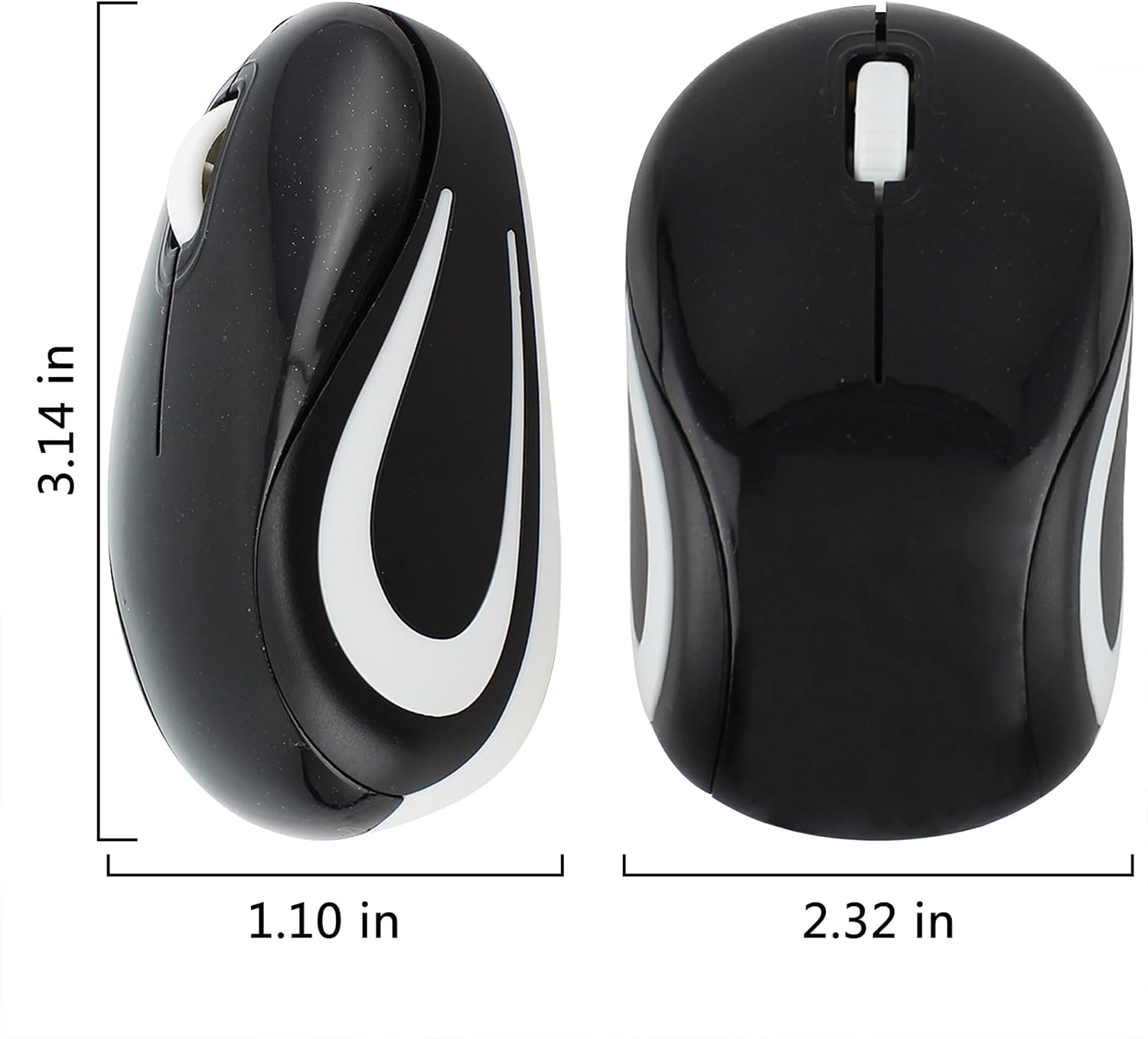
Image: Product dimensions of the Mini Wireless Mouse.
8. Warranty & Support
This product comes with a 1-year warranty from the date of purchase. This warranty covers manufacturing defects under normal use. It does not cover damage caused by misuse, accidents, unauthorized modifications, or external factors.
For warranty claims, technical support, or any inquiries regarding your elec Space Mini Wireless Mouse, please contact the seller or manufacturer through your purchase platform. Please have your purchase details and product model information ready when contacting support.