
DOYO Wireless PC Gaming Controller KT711W User Manual
Model: KT711W | Brand: DOYO
1. Introduction
This manual provides instructions for the setup, operation, maintenance, and troubleshooting of your DOYO Wireless PC Gaming Controller, model KT711W. This controller is designed to enhance your gaming experience on various platforms with its 2.4G wireless connectivity and dual vibration feedback.
2. Package Contents
Please verify that all items are present in your package:
- DOYO Wireless PC Gaming Controller (KT711W)
- 2.4G USB Wireless Receiver
- User Manual (this document)
Note: AAA batteries are not included and must be purchased separately.
3. Controller Layout
Familiarize yourself with the buttons and features of your DOYO controller:

Image: Front view of the DOYO Wireless PC Gaming Controller, showing the D-pad, left and right analog sticks, action buttons (A, B, X, Y), SELECT, MODE, and START buttons.
- D-Pad: Directional input.
- Left Analog Stick: Primary movement control.
- Right Analog Stick: Camera or secondary movement control.
- Action Buttons (A, B, X, Y): Game-specific actions.
- SELECT Button: Typically used for menu navigation or secondary functions.
- START Button: Typically used for pausing or starting games.
- MODE Button: Used for power control and switching controller modes.
- Shoulder Buttons (L1, R1) and Triggers (L2, R2): Located on the top of the controller for additional in-game actions.
4. Setup
4.1. Powering the Controller
- Locate the battery compartment on the back of the controller.
- Open the battery cover.
- Insert three (3) AAA batteries, ensuring correct polarity (+/-).
- Close the battery cover securely.
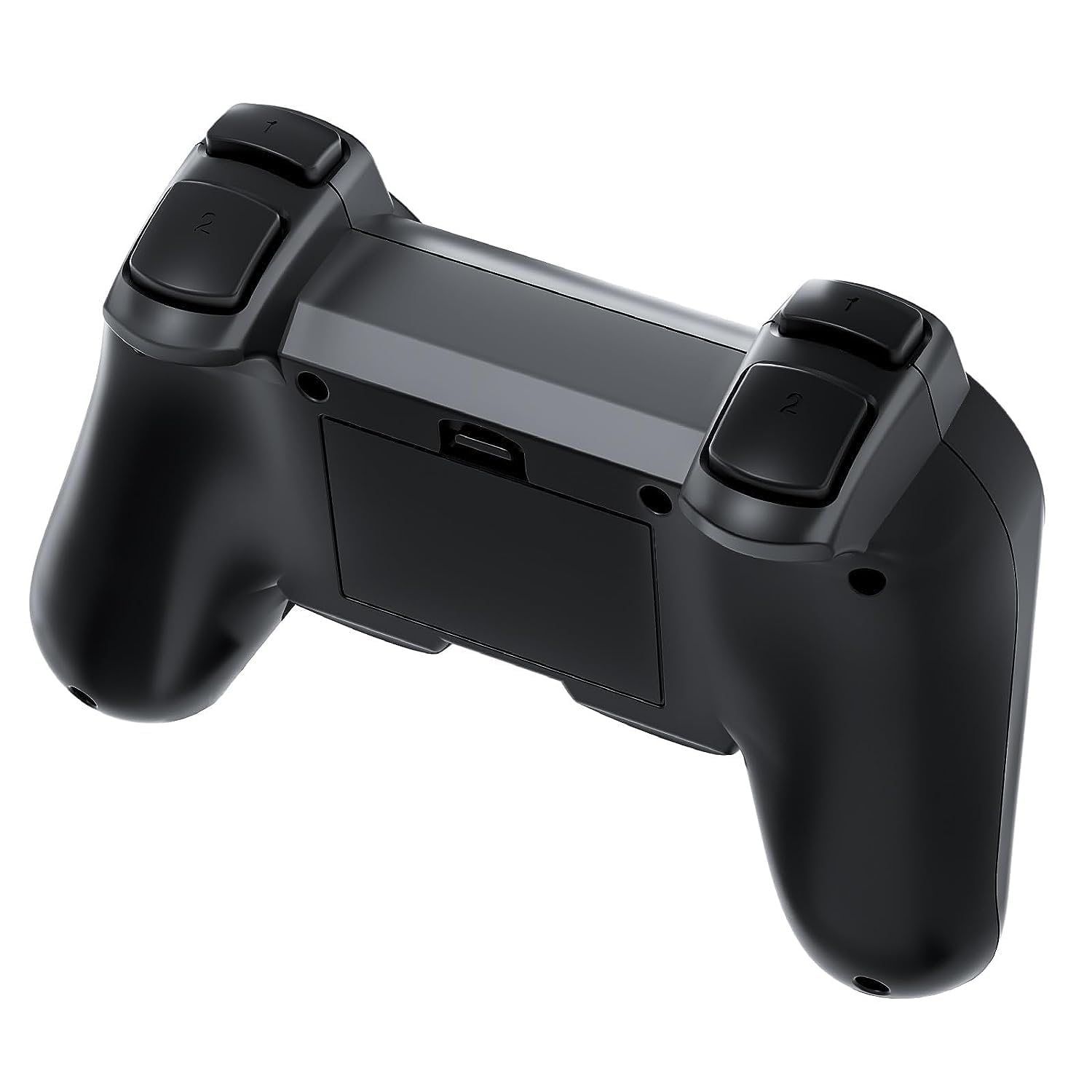
Image: Rear view of the DOYO controller with the battery compartment open, showing where to insert AAA batteries.
4.2. Connecting to a PC
- Plug the 2.4G USB Wireless Receiver into an available USB port on your PC.
- The PC will automatically detect and install the necessary drivers. This may take a few moments.
- Press the MODE button on the controller to turn it on. The indicator light will illuminate.
- The controller will automatically pair with the USB receiver. Once connected, the indicator light will stabilize.
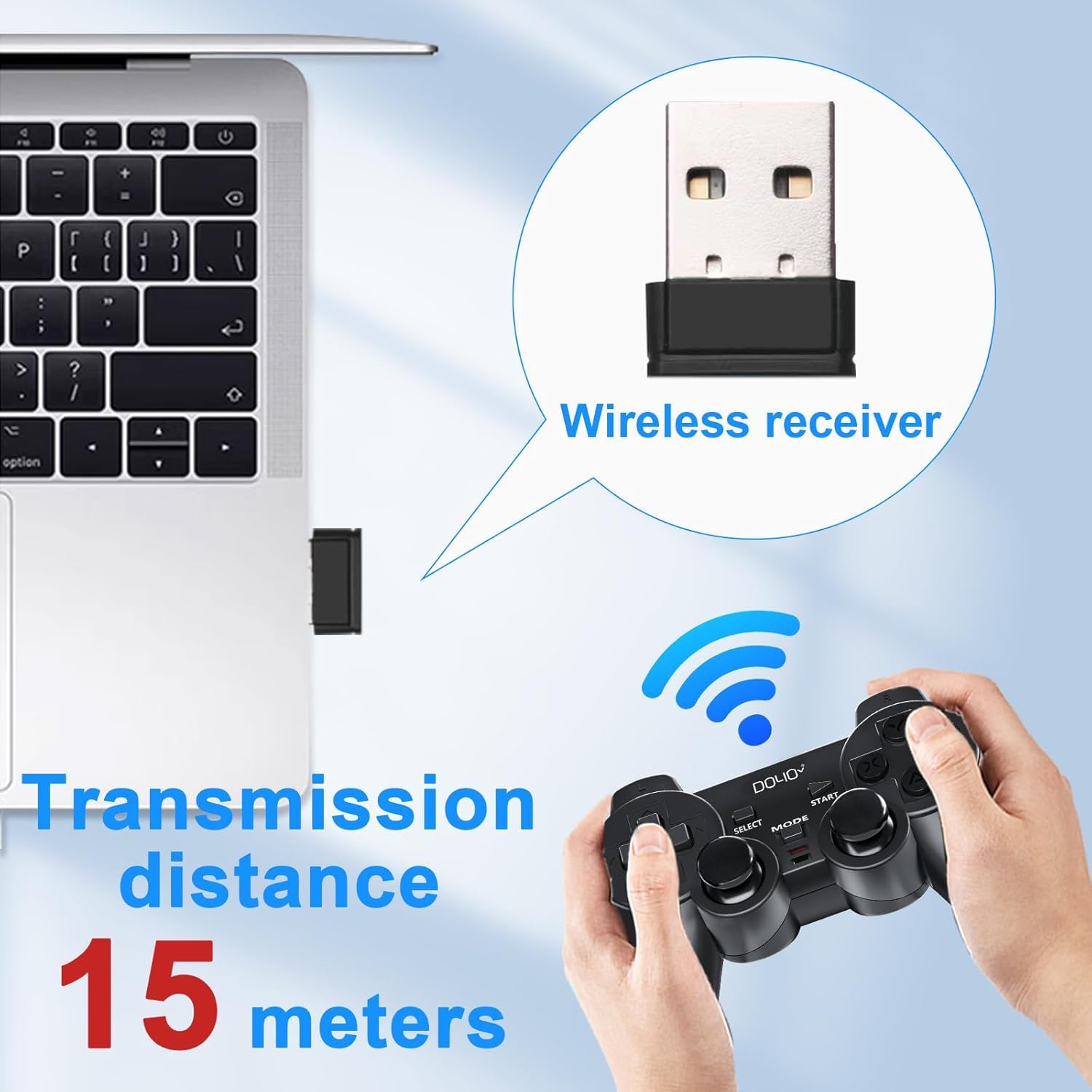
Image: A USB wireless receiver inserted into a laptop, illustrating the connection method for the DOYO controller. The image also indicates a transmission distance of 15 meters.
4.3. Switching Controller Modes
The controller supports different modes for compatibility with various games and systems. To switch between modes (e.g., Xinput/DirectInput for PC, or other platform modes), press and hold the MODE button for approximately 3-5 seconds until the indicator light changes, signifying a mode switch.

Image: A close-up view of the central buttons on the DOYO controller, highlighting the SELECT, MODE, and START buttons.
5. Operating Instructions
5.1. Basic Operation
Once connected, the controller functions as a standard gamepad. Refer to your game's control settings for specific button assignments. The high-precision joysticks offer accurate 360-degree positioning for responsive control.

Image: A detailed view of an analog joystick on the DOYO controller, emphasizing its 360-degree accurate positioning.
5.2. Dual Vibration Function
The controller features dual vibration motors that provide tactile feedback during gameplay, enhancing immersion. This function is automatically enabled in compatible games.

Image: The DOYO controller with visual effects representing dual vibration feedback, indicating an immersive gaming experience.
5.3. Platform Compatibility
The DOYO Wireless PC Gaming Controller is compatible with a range of operating systems and gaming platforms:
- PC: Windows XP, Windows 7, Windows 8, Windows 10, Windows 11
- Gaming Consoles: Steam (Xinput), PlayStation 3 (PS3)
- Mobile: Android devices
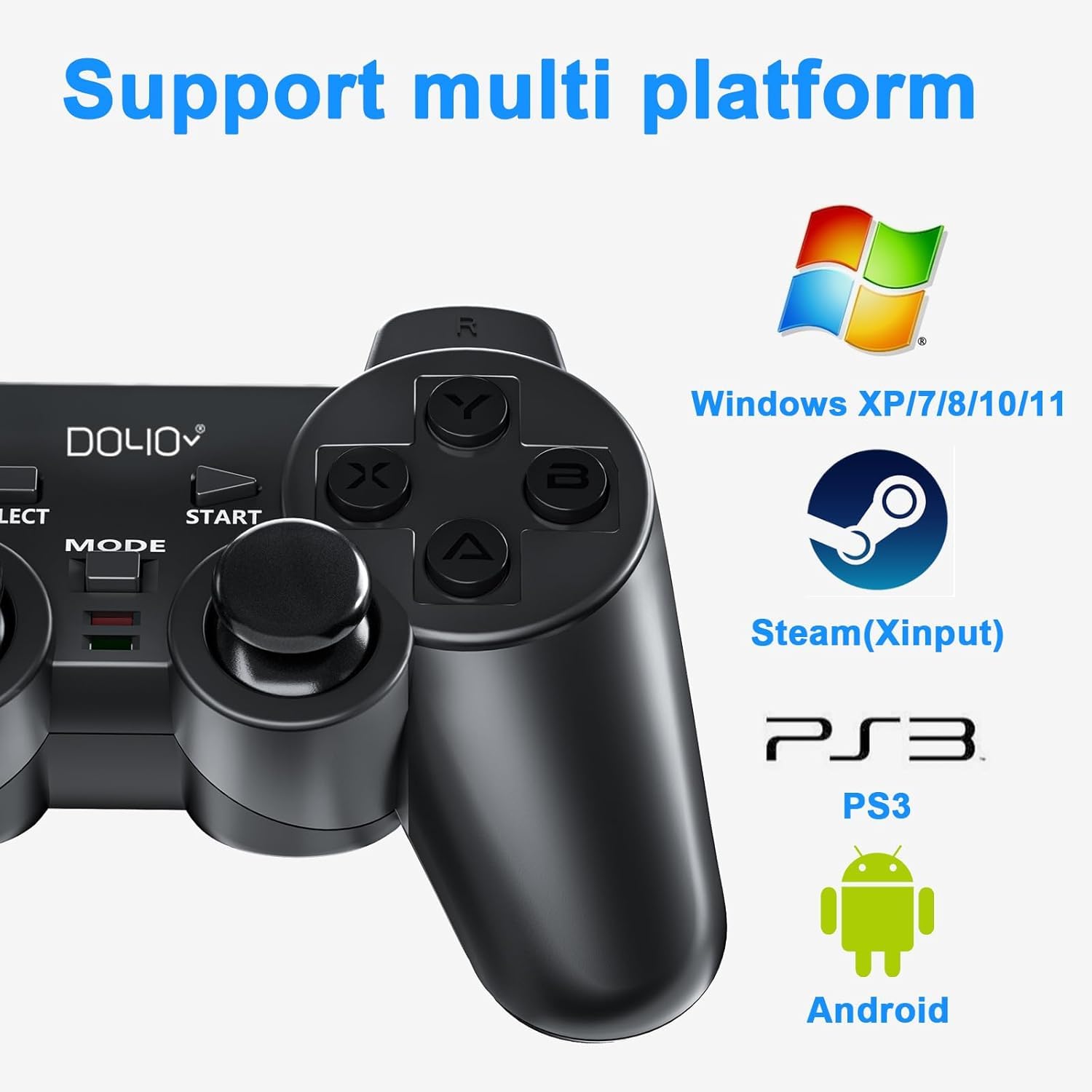
Image: The DOYO controller displayed alongside logos for Windows, Steam, PS3, and Android, illustrating its multi-platform compatibility.
6. Maintenance
- Cleaning: Use a soft, dry cloth to clean the controller. Avoid using harsh chemicals or abrasive materials.
- Storage: Store the controller in a cool, dry place away from direct sunlight and extreme temperatures.
- Battery Care: Remove batteries if the controller will not be used for an extended period to prevent leakage. Replace all three AAA batteries simultaneously when needed.
7. Troubleshooting
- Controller not connecting:
- Ensure the USB receiver is securely plugged into a working USB port.
- Verify that the controller has fresh batteries and is powered on.
- Try plugging the USB receiver into a different USB port.
- Restart your PC.
- Controller not responding in-game:
- Check if the controller is in the correct mode for your game (e.g., Xinput for many modern PC games). Press and hold the MODE button to cycle modes.
- Ensure the game supports gamepad input.
- Check the game's control settings to ensure the controller is detected and configured.
- Vibration not working:
- Confirm that the game supports vibration feedback.
- Check in-game settings to ensure vibration is enabled.
- Controller turns off too quickly:
- The controller has an automatic sleep function to conserve battery. If it's turning off unexpectedly during use, ensure batteries are not low.
- After powering off manually, the indicator light may remain on for several minutes before fully shutting down. This is normal behavior.
- D-Pad or analog sticks feel unresponsive:
- Ensure the controller is clean and free of debris around the buttons and sticks.
- If issues persist, contact customer support.
8. Specifications
- Model Number: KT711W
- Connectivity: 2.4G Wireless
- Compatibility: Windows XP/7/8/10/11, Steam, PS3, Android
- Buttons: 12 function keys, D-Pad, 2 Analog Sticks
- Feedback: Dual Vibration
- Power Source: 3 x AAA Batteries (not included)
- Dimensions: 6.54 x 4.06 x 2.6 inches (approximately 16.6 x 10.3 x 6.6 cm)
- Weight: 8.47 ounces (approximately 240 grams)

Image: The DOYO controller shown with its approximate dimensions: 15.3mm length, 9mm height, and 6mm thickness.
9. Warranty and Support
DOYO offers a 30-day money-back guarantee and a 90-day replacement warranty for this product. If you encounter any issues or require assistance with settings, please contact DOYO customer support for detailed guidance.