
Brookstone BK15-5QC1D-WT
Brookstone 4-in-1 Wireless Charging Station
Model: BK15-5QC1D-WT
Introduction
Thank you for choosing the Brookstone 4-in-1 Wireless Charging Station. This device is designed to simplify your charging experience by providing a centralized solution for your iPhone, Apple Watch, and AirPods, along with an integrated digital clock. Please read this manual carefully before use to ensure proper operation and to maximize the lifespan of your product.
Package Contents
- Brookstone 3-in-1 Wireless Charger with Clock
- 1 x USB-C Cable
- 1 x User Guide
Note: A power adapter (charging block) is not included and must be supplied by the user.
Product Overview
The Brookstone 4-in-1 Wireless Charging Station features dedicated charging areas for your smartphone, smartwatch, and earbuds, alongside a digital alarm clock. Key components include:
- SmartWatch Charging Area
- Adjustable Brightness Button
- Adjustable Volume Button
- Mode Button
- Alarm Clock Display
- Wireless Airpod Charging Display
- Phone Charging Area
- Output Port (USB)
- Input Port (USB-C)
- Detachable Charging Port (for Apple Watch)
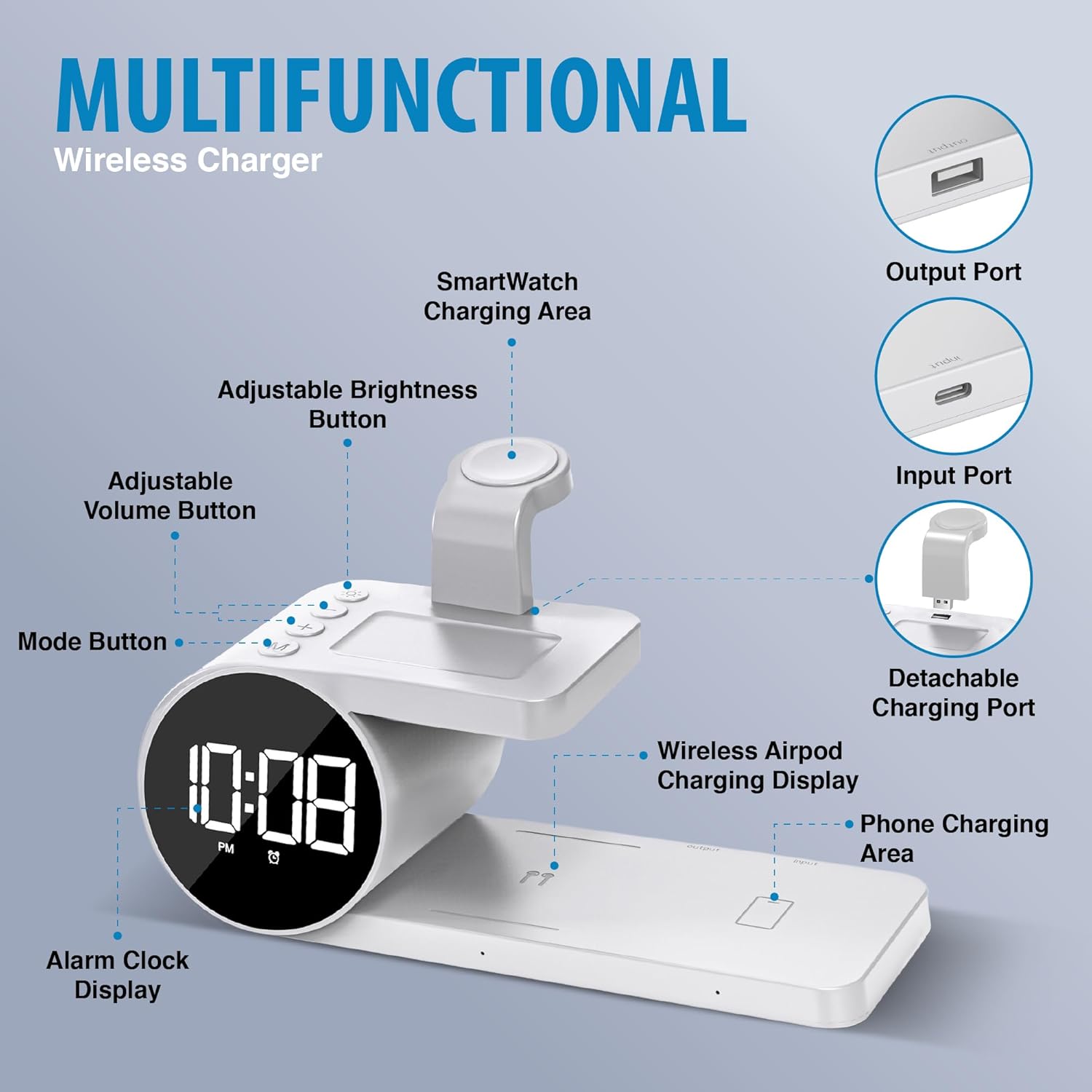
Figure 1: Product components and features.
Setup Instructions
Power Connection:
Connect the provided USB-C cable to the Input Port on the back of the charging station. Connect the other end of the USB-C cable to a compatible USB power adapter (not included). Ensure the power adapter provides sufficient wattage for optimal charging (e.g., 15W for iPhone, 5W for your other devices).

Figure 2: Input (USB-C) and Output (USB) ports.
Attach Apple Watch Charging Port:
Insert the detachable Apple Watch charging port into the designated slot on the top platform of the charging station. Ensure it is securely seated.
Figure 3: Detachable Apple Watch charging port installation.
Clock Setup:
Once powered on, the digital clock will illuminate. Use the Mode button to cycle through settings (time, alarm). Use the '+' and '-' buttons to adjust values. Refer to the "Operating Instructions" section for detailed clock and alarm settings.
Operating Instructions
Charging Devices
The charging station is compatible with various Apple devices, including iPhone 12/13/14/15 series (with compatible MagSafe cases), all Apple Watch series (Ultra, Ultra 2, 8, 7, SE, 6, 5, 4, 3, 2), and AirPods Pro/3/2.
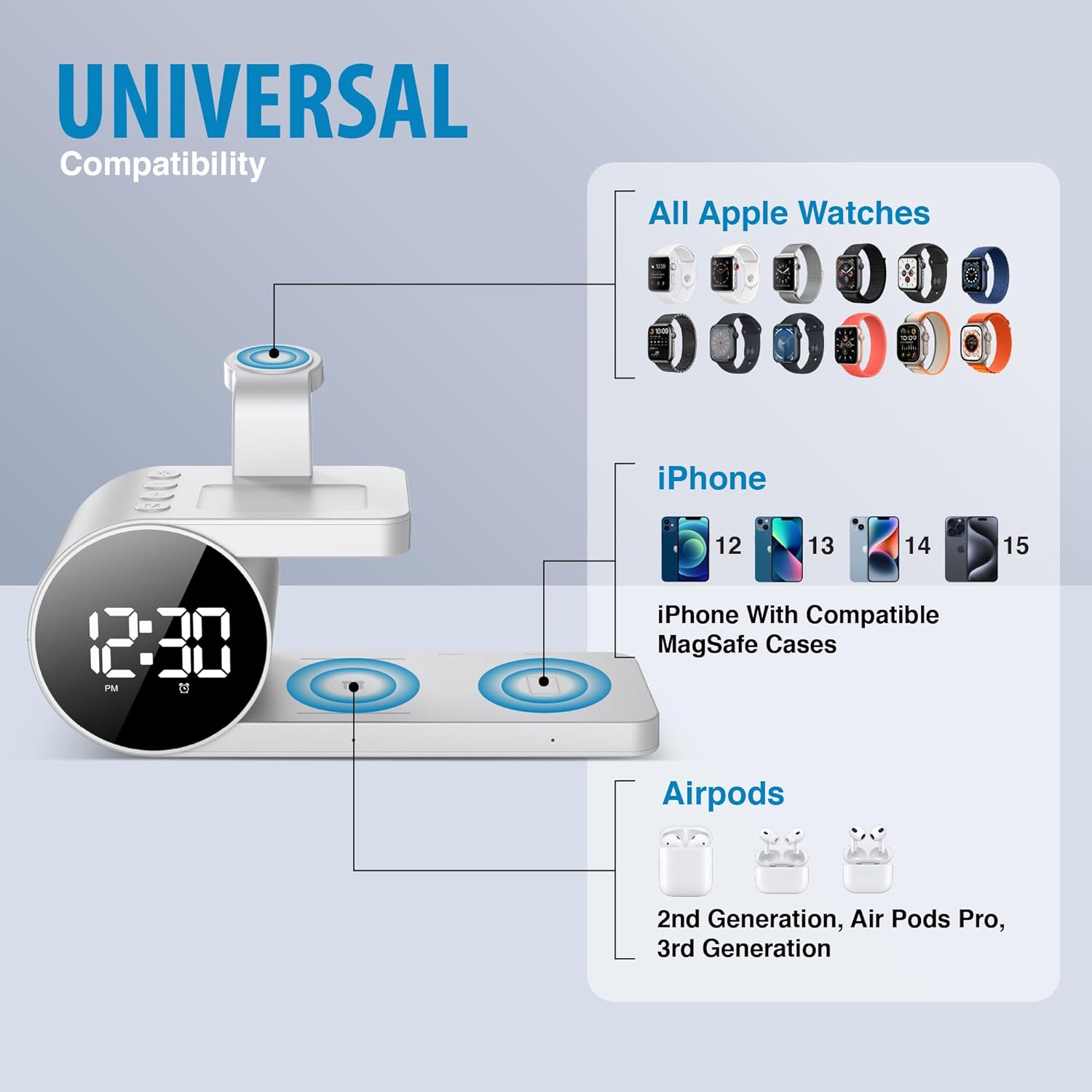
Figure 4: Device compatibility overview.
Charging iPhone:
Place your iPhone on the designated phone charging area (flat pad). The built-in magnets will help align your device for optimal wireless charging. A charging indicator may appear on your phone screen.
Charging Apple Watch:
Place your Apple Watch onto the detachable charging port. Ensure the watch is securely positioned and begins charging.
Charging AirPods:
Place your AirPods case on the dedicated AirPods charging area. A charging indicator on the station or your AirPods case will confirm charging.

Figure 5: Devices placed on the charging station.
Digital Clock Functions
Setting Time:
Press the 'Mode' button once to enter time setting mode. Use the '+' and '-' buttons to adjust hours and minutes. Press 'Mode' again to confirm and move to the next setting.
Setting Alarm:
Press the 'Mode' button twice to enter alarm setting mode. Use the '+' and '-' buttons to set the alarm time. Press 'Mode' again to confirm. The alarm icon will appear on the display when active.
Adjusting Brightness:
Use the 'Adjustable Brightness Button' (sun icon) to cycle through different brightness levels for the digital clock display.
Adjusting Volume:
Use the 'Adjustable Volume Button' (speaker icon) to adjust the alarm volume.
12/24 Hour Format:
The clock supports both 12-hour (with AM/PM indicator) and 24-hour formats. Refer to the specific instructions in the included user guide for switching between formats, as this may vary.

Figure 6: Digital clock features.
Maintenance
- Keep the charging station clean by wiping it with a soft, dry cloth.
- Avoid using abrasive cleaners or solvents.
- Do not expose the device to water or excessive moisture.
- Ensure proper ventilation around the device during use.
Troubleshooting
| Problem | Possible Cause | Solution |
|---|---|---|
| Device not charging. |
|
|
| Clock display is dim or off. |
|
|
| Alarm not sounding. |
|
|
If issues persist, please contact customer support.
Specifications
| Model Number | BK15-5QC1D-WT |
| Product Dimensions | 8 x 4 x 2 inches |
| Item Weight | 0.634 ounces |
| Connectivity Technology | Wireless |
| Connector Type | USB Type C (Input) |
| Input Voltage | 12 Volts |
| Max iPhone Output | Up to 15 Watts |
| Max Other Device Output | Up to 5 Watts |
| Special Features | Removable Parts, Digital Alarm Clock, Adjustable Brightness/Volume |
Official Product Video
This video provides a visual overview of the Brookstone 3-in-1 Wireless Charging Stand with Digital Clock, demonstrating its features and functionality, including multi-device charging and the digital clock display.
Warranty and Support
The Brookstone wireless charging station with clock comes with a 1-year warranty from the date of purchase. This warranty covers any defects in materials or workmanship under normal use.
For technical support, warranty claims, or further assistance, please contact Brookstone customer service. Refer to the contact information provided in the original product packaging or visit the official Brookstone website.
Manufacturer: M&S Accessory Network
Related documentsBK15-5QC1D-WT


Ask a question about this manual
Ask about setup, troubleshooting, compatibility, parts, safety, or missing instructions. Manuals+ will review the question and use this page’s manual context to help answer it.