
1. Introduction
This manual provides detailed instructions for the installation, operation, and maintenance of your Ortis Smart WiFi Pool Timer Switch, Model KJ-023. This device is designed to automate the control of above-ground pool pumps, filters, and landscape lights using WiFi connectivity and the Smart Life application. It offers convenient remote control and scheduling capabilities to optimize energy usage and simplify management of your outdoor equipment.
2. Safety Information
- Electrical Safety: Ensure the timer is connected to a properly grounded 120V, 15A, 60Hz electrical outlet. Do not exceed the maximum load capacity of 15A for the dual sockets.
- Outdoor Use: For outdoor installations, always use a weatherproof enclosure or add a waterproof cover to protect the timer from direct exposure to rain, snow, and excessive moisture.
- Water Proximity: Do not immerse the device in water. Ensure it is installed at a safe distance from the pool or other water sources to prevent electrical hazards.
- Inspection: Regularly inspect the timer, power cord, and connected appliance plugs for any signs of damage. Discontinue use if any damage is observed.
- Children and Pets: Keep the device out of reach of children and pets.
3. Package Contents
Please check the package for the following items:
- Ortis Smart WiFi Pool Timer Switch (Model KJ-023)
- Instruction Manual
4. Product Overview
The Ortis Smart WiFi Pool Timer Switch features a durable design with dual outlets for connecting multiple devices. It includes physical buttons for manual control and LED indicators for status. The device is designed for easy integration with smart home systems.
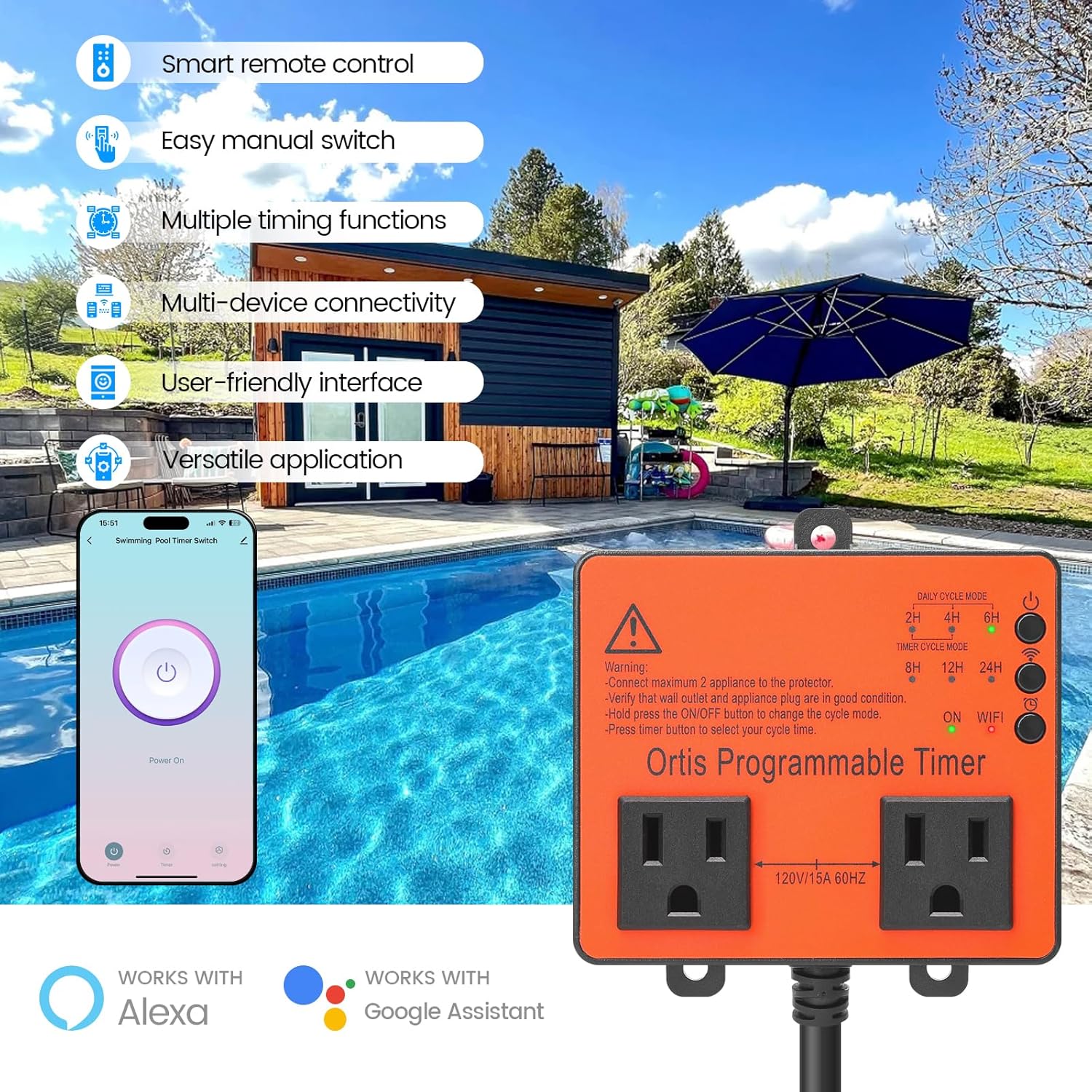
Figure 4.1: Ortis Smart WiFi Pool Timer Switch with key features.

Figure 4.2: Physical dimensions of the Ortis Smart WiFi Pool Timer Switch.
5. Setup
5.1 App Download and Installation
To utilize the smart features of your Ortis Pool Timer, download the GeniLife App (or Smart Life App) on your smartphone. The app is available for both iOS and Android devices.
Video 5.1: Instructions on how to use the GeniLife App for iOS devices, covering initial setup and pairing.
5.2 Device Pairing
- Ensure your smartphone's Bluetooth, WiFi (2.4GHz network), and cellular data are enabled.
- Open the GeniLife App and log in or create an account.
- On the timer switch, press and hold the pairing button (usually indicated by a WiFi icon) until the indicator light flashes rapidly, indicating it's in pairing mode.
- In the app, tap the '+' icon to add a new device. The app should automatically discover the timer.
- Follow the on-screen prompts to confirm the device and enter your 2.4GHz WiFi network password.
- Once successfully paired, the device will appear in your app's device list.

Figure 5.2: Timer buttons and app interface for pairing and control.
5.3 Physical Installation
The Ortis Smart WiFi Pool Timer Switch offers two installation methods:
- Screw Mounting: Use appropriate screws to mount the timer securely to a wall or suitable surface.
- Adhesive Hook: For temporary or lighter applications, an adhesive hook can be used to hang the timer.
Ensure the installation location is protected from direct weather exposure if not using a weatherproof enclosure.

Figure 5.3: Two installation methods for the timer switch.
6. Operating Instructions
6.1 Manual Control
The timer switch features an ON/OFF button on the unit itself. Press this button to manually toggle the power to the connected devices. The indicator lights will show the current status.
6.2 Smart Life App Control
The GeniLife App (or Smart Life App) provides comprehensive control over your timer switch:
- Remote ON/OFF: Turn connected devices on or off from anywhere using your smartphone.
- Multiple Timing Modes: Set up various schedules to automate your devices.
- Daily Cycle Mode: Program devices to turn on/off at specific times each day.
- Timer Cycle Mode: Set devices to run for a specific duration (e.g., 2H, 4H, 6H, 8H, 12H, 24H).
- Weekly Schedule: Create custom schedules for different days of the week.
- Time Correction: The app includes functionality for time synchronization to ensure accurate scheduling.

Figure 6.1: App interface for setting various timing schedules.

Figure 6.2: Example of dual socket usage for multiple devices.
6.3 Voice Control Integration
The Ortis Smart WiFi Pool Timer Switch is compatible with popular voice assistants such as Amazon Alexa and Google Assistant. After linking your GeniLife account to your voice assistant, you can control the timer using simple voice commands.
- Example Commands:
- "Alexa, turn on the pool timer."
- "Hey Google, turn off the pool pump."

Figure 6.3: Voice control integration with smart assistants.
7. Maintenance
- Cleaning: Disconnect the timer from the power outlet before cleaning. Use a soft, dry cloth to wipe the surface. Do not use liquid cleaners or sprays.
- Outdoor Protection: If installed outdoors, regularly check the weatherproof enclosure or cover for integrity to ensure continued protection against environmental elements.
- Storage: When not in use for extended periods, store the timer in a cool, dry place away from direct sunlight and extreme temperatures.
8. Troubleshooting
If you encounter issues with your Ortis Smart WiFi Pool Timer Switch, refer to the following common problems and solutions:
| Problem | Possible Cause | Solution |
|---|---|---|
| Device not pairing/connecting to WiFi | Incorrect WiFi password, 5GHz WiFi network, device too far from router, Bluetooth/cellular data off. | Ensure you are using a 2.4GHz WiFi network. Verify WiFi password. Move the device closer to the router. Confirm Bluetooth and cellular data are enabled on your phone during pairing. Reset the device and try pairing again. |
| Device goes offline frequently | Weak WiFi signal, network interference. | Improve WiFi signal strength (e.g., use a WiFi extender). Reduce interference from other electronic devices. Ensure the device is within optimal range of your router. |
| Timer function not working | Incorrect schedule settings, device losing power. | Double-check your schedule settings in the GeniLife App. Ensure the device has a stable power supply. If power is interrupted, some schedules may need to be re-verified. |
| Device feels hot during operation | Overload, poor ventilation. | Ensure the total current drawn by connected appliances does not exceed 15A. Provide adequate ventilation around the device. If overheating persists, discontinue use and contact support. |
| No power to connected appliances | Timer is off, power outage, internal fault. | Check if the timer is manually turned on or scheduled to be on. Verify the wall outlet has power. If the issue persists, the device may have an internal fault. |
9. Specifications
- Model Number: KJ-023
- Brand: Ortis
- Color: Orange
- Material: Plastic
- Product Dimensions (D x W x H): 2.3" x 2.5" x 4.1"
- Input Voltage: 120V
- Current Rating: 15A (Max total for dual sockets)
- Frequency: 60Hz
- Number of Settings: 2 (Daily Cycle, Timer Cycle)
- Smart Home Compatibility: Smart Life App, Alexa, Google Assistant
10. Warranty and Support
For warranty information or technical support, please refer to the contact details provided with your purchase or visit the official Ortis website. Keep your purchase receipt as proof of purchase for any warranty claims.