
1. Introduction
The Portronics Toad IV is a versatile wireless mouse designed for enhanced productivity and comfort. It offers dual connectivity options, multi-device pairing, adjustable sensitivity, and a rechargeable battery. This manual provides detailed instructions to help you get started and make the most of your device.

Image 1.1: The Portronics Toad IV Bluetooth Mouse in white, featuring subtle RGB lighting along its base.
2. Package Contents
Please check the package for the following items:
- Portronics Toad IV Wireless Mouse
- 2.4 GHz USB Receiver (usually stored in the mouse battery compartment)
- Type-C Charging Cable
- User Manual (this document)
3. Product Overview
Familiarize yourself with the components of your Portronics Toad IV mouse:
- Left Click Button: Standard mouse function.
- Right Click Button: Standard mouse function.
- Scroll Wheel: For scrolling and middle-click function.
- DPI Adjustment Button: Cycles through DPI settings.
- Type-C Charging Port: Located at the front for charging.
- Power Switch: On/Off switch on the bottom.
- Mode Switch Button: On the bottom, to switch between 2.4GHz and Bluetooth modes.
- USB Receiver Storage Slot: On the bottom, for storing the 2.4 GHz USB receiver.
4. Setup and Connectivity
The Portronics Toad IV mouse supports dual wireless connectivity (2.4 GHz USB and Bluetooth) and can pair with up to three devices.
4.1. 2.4 GHz Wireless Connection
- Locate the 2.4 GHz USB receiver, usually stored in the mouse's bottom compartment.
- Plug the USB receiver into an available USB port on your computer or laptop.
- Turn on the mouse using the power switch located on the bottom.
- Press the Mode Switch button on the bottom of the mouse until the indicator light shows the 2.4 GHz mode (often a green light).
- Your computer should automatically detect and connect to the mouse.

Image 4.1: Illustration of the dual wireless connectivity modes, Bluetooth and 2.4 GHz USB, for the Portronics Toad IV mouse.
4.2. Bluetooth Connection (Up to 2 Devices)
- Turn on the mouse using the power switch on the bottom.
- Press the Mode Switch button on the bottom of the mouse to select one of the Bluetooth channels (e.g., BT1 or BT2). The indicator light will typically flash blue for Bluetooth pairing mode.
- On your device (laptop, PC, tablet, smartphone), go to Bluetooth settings.
- Enable Bluetooth and search for new devices.
- Select "Portronics Toad IV" or a similar name from the list of available devices to pair.
- Once paired, the indicator light on the mouse will stop flashing and remain solid.
- Repeat these steps to pair a second Bluetooth device using the other Bluetooth channel (BT2).
4.3. Triple Device Pairing and Switching
The mouse can be connected to one device via 2.4 GHz USB and two devices via Bluetooth simultaneously. To switch between connected devices:
- Press the Mode Switch button on the bottom of the mouse to cycle through the connected channels (2.4 GHz, BT1, BT2).
- The mouse will connect to the selected device automatically.

Image 4.3: The Portronics Toad IV mouse demonstrating its ability to pair with three devices simultaneously: a laptop, a tablet, and a smartphone.

Image 4.4: The Portronics Toad IV mouse is compatible with various devices including laptops, personal computers, tablets, and smartphones.
5. Operation
5.1. DPI Adjustment
The mouse features adjustable DPI (Dots Per Inch) settings to control cursor sensitivity. Press the DPI button (usually located behind the scroll wheel) to cycle through the available DPI levels: 800, 1200, and 1600. Choose the sensitivity that best suits your task.

Image 5.1: The Portronics Toad IV mouse offers adjustable DPI settings for precise cursor control.
5.2. RGB Lighting Modes
The mouse is equipped with dynamic RGB lights. These lights can be switched between two modes. Refer to the product's quick start guide or manufacturer's website for specific instructions on how to cycle through or turn off the RGB lighting modes, as this often varies by model.
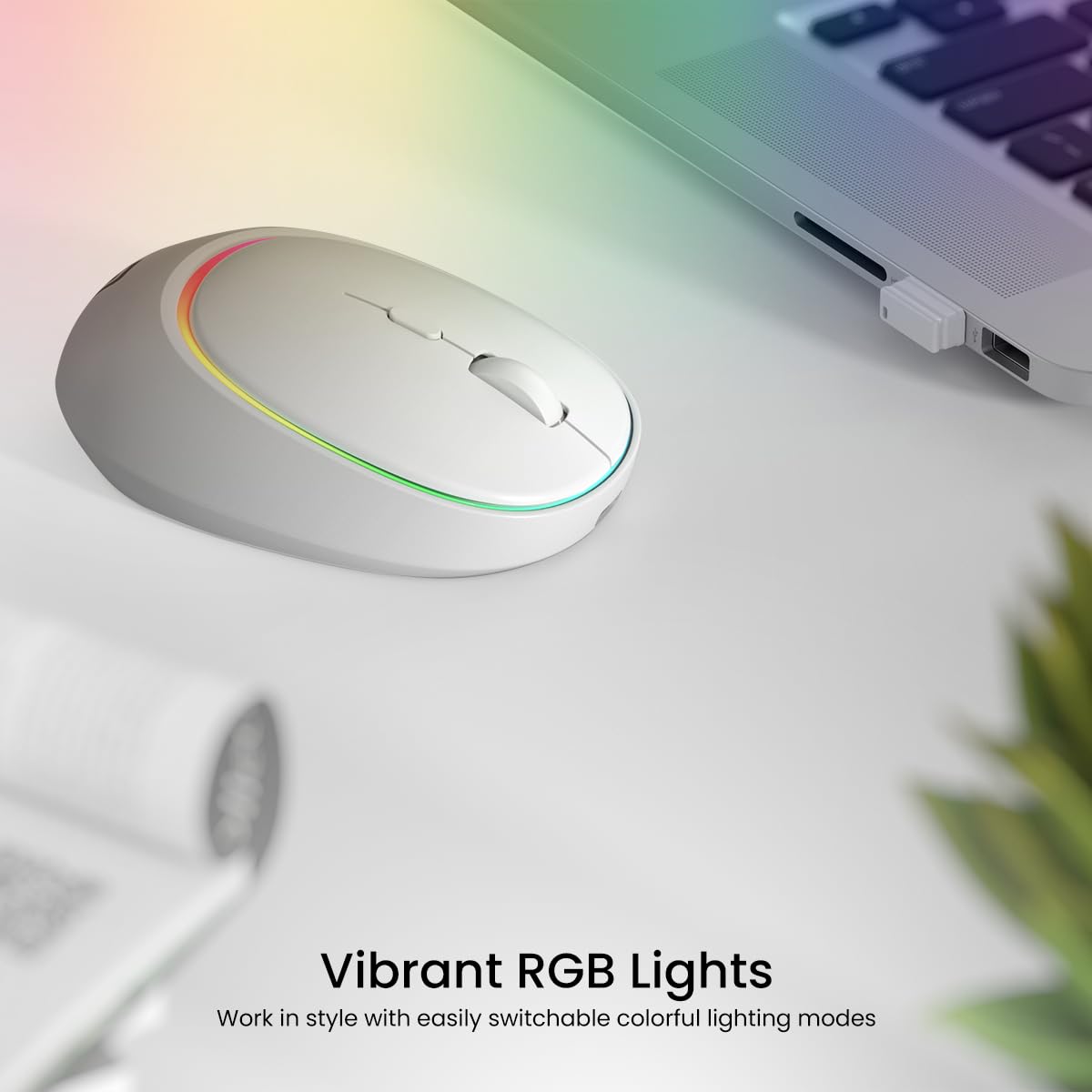
Image 5.2: The Portronics Toad IV mouse features vibrant RGB lights that can be switched between different modes.
5.3. Silent Clicks
The Portronics Toad IV mouse is designed with silent click buttons, minimizing noise during use. This feature is beneficial for quiet environments such as libraries, offices, or during late-night work sessions.

Image 5.3: The Portronics Toad IV mouse offers noiseless clicks and a durable 50 Lakh+ click life for a peaceful work environment.
5.4. Ambidextrous Design
The mouse features a symmetric design, making it comfortable for both right-handed and left-handed users.

Image 5.4: The ambidextrous design of the Portronics Toad IV mouse ensures comfortable use for both right and left-handed individuals.
6. Charging
The Portronics Toad IV mouse is equipped with a built-in rechargeable Lithium Polymer battery (500 mAh).
- Connect the included Type-C charging cable to the charging port at the front of the mouse.
- Connect the other end of the cable to a compatible USB power source (e.g., computer USB port, USB wall adapter).
- An indicator light on the mouse will typically show the charging status (e.g., red while charging, off or green when fully charged).
- A full charge provides extended usage time.

Image 6.1: The Portronics Toad IV mouse features convenient Type-C charging for prolonged battery life.
7. Power Saving Mode
To conserve battery life, the Portronics Toad IV mouse features an automatic power-saving mode. If the mouse is inactive for approximately 10 minutes, it will enter sleep mode. To wake the mouse, simply move it or click any button.
8. Maintenance
- Cleaning: Use a soft, dry cloth to clean the mouse. For stubborn dirt, slightly dampen the cloth with water or a mild cleaning solution. Avoid harsh chemicals.
- Storage: When not in use for extended periods, turn off the mouse to preserve battery life. Store the USB receiver in its designated slot on the mouse's bottom.
- Battery Care: Avoid fully discharging the battery frequently. Charge the mouse regularly to maintain optimal battery health.
- Environment: Keep the mouse away from extreme temperatures, direct sunlight, and excessive moisture.
9. Troubleshooting
| Problem | Possible Solution |
|---|---|
| Mouse not responding (2.4 GHz) |
|
| Mouse not responding (Bluetooth) |
|
| Cursor movement is erratic or slow |
|
| RGB lights are not working |
|
| Mouse not charging |
|
10. Specifications
| Feature | Detail |
|---|---|
| Model Name | Toad IV |
| Model Number | POR-2073 |
| Connectivity | 2.4 GHz Wireless (USB Receiver), Bluetooth |
| Multi-Device Support | Up to 3 devices (1x 2.4 GHz, 2x Bluetooth) |
| DPI Levels | 800 / 1200 / 1600 (Adjustable Optical) |
| Battery Type | Rechargeable Lithium Polymer |
| Battery Capacity | 500 mAh |
| Charging Port | Type-C |
| Operating Range | Up to 10 meters |
| Click Life | 50 Lakh+ clicks |
| Special Features | RGB Lights (2 modes), Silent Clicks, Ambidextrous Design, Auto Power-Saving |
| Compatibility | Laptop, PC, Mac, Tablets, Smartphones (Linux, Windows 7, Windows XP) |
| Product Dimensions | 11.5 x 7.7 x 0.1 cm |
| Item Weight | 110 g |
| Included Components | Charging Cable |
11. Warranty and Support
Portronics products are designed for reliability and performance. For warranty information, please refer to the warranty card included with your product or visit the official Portronics website. For technical support or service inquiries, please contact Portronics customer service through their official channels.
Manufacturer: Portronics Digital Pvt Ltd, Unit No. 1082-1090, 10th Floor, Block-B, Vegas, Dwarka, Sec-14, New Delhi-110075, India.
Contact: 9555-245-245
