
D-Link M30/2
D-Link AQUILA PRO AI AX3000 WiFi 6 Mesh System (2-Pk) User Manual
Model: M30/2
Brand: D-Link

Image: The D-Link AQUILA PRO AI AX3000 WiFi 6 Mesh System, showing two units with their distinctive light blue accents and white bodies.
1. Introduction
The D-Link AQUILA PRO AI AX3000 WiFi 6 Mesh System (M30/2) is designed to provide a high-performance, feature-rich, and AI-enabled networking solution for your home. This system offers advanced WiFi 6 capabilities, ensuring fast speeds, extensive coverage, and the capacity to support numerous connected devices for a seamless online experience.
Key Features
- Ultra-Fast Connectivity: Achieves speeds up to 3 Gbps (574 Mbps + 2402 Mbps) for smooth 8K streaming, video conferencing, and lag-free gaming.
- Advanced 360° Spherical Coverage: Covers up to 5000 sq. ft. with an optimized antenna configuration for balanced Wi-Fi coverage.
- Scalable Mesh System: Expand coverage by adding more AQUILA PRO AI devices to create a whole-home mesh network.
- Gigabit Wired Connections: Each unit includes 4 Gigabit LAN ports for fast and reliable wired connections.
- Enhanced Parental Controls: Manage internet usage with profiles, schedules, and website blocking via the AQUILA PRO AI App.

Image: The D-Link M30 unit showcasing its contemporary, eco-friendly design, intended to be displayed openly in a home environment.
2. What's in the Box
Your D-Link AQUILA PRO AI AX3000 WiFi 6 Mesh System package includes the following components:
- 2 x AQUILA PRO AI AX3000 Routers (M30)
- 2 x Power Adapters
- Quick Installation Guide (QIG)
- Quick Installation Card (QIC)
- 2 x Ethernet Cables
3. Setup Guide
3.1. Initial Setup via App
The D-Link AQUILA PRO AI App provides a quick and easy way to set up your mesh system:
- Connect Power: Plug one of the routers into a power source. Wait for the status LED to flash orange.
- Download App: Download the AQUILA PRO AI App from the App Store (for iOS) or Google Play (for Android).
- Follow On-Screen Guide: Open the app and follow the simple on-screen instructions to install your new device.

Image: A visual guide demonstrating the three steps for quick and easy app setup: plug in router, download app, and follow in-app instructions.
3.2. Physical Connection
Identify the ports on the back of your D-Link AQUILA PRO AI router for proper connection:
- Internet Port: Connect your modem's Ethernet cable to this port.
- Gigabit Ethernet Ports (1-4): Use these ports to connect wired devices such as smart TVs, gaming PCs, or other network devices.
- WPS Button: For easy connection of WPS-compatible devices.
- Reset Button: Used to reset the router to factory default settings (requires a paperclip or similar tool).
- DC IN 12V Power Connector: Connect the provided power adapter here.

Image: Diagram showing the rear panel of the D-Link AQUILA PRO AI router, highlighting the Internet Port, Gigabit Ethernet Ports, WPS Button, Reset Button, and Power Connector.
4. Operating Instructions
4.1. AI-Powered Intelligent Wi-Fi
The AQUILA PRO AI system incorporates artificial intelligence to optimize your network performance:
- AI Wi-Fi Optimizer: A dedicated antenna scans your environment to keep you on the cleanest Wi-Fi channel, reducing interference.
- AI Mesh Optimizer: Mesh nodes collaborate to optimize network traffic flow, ensuring efficient data transmission.
- AI Traffic Optimizer: Prioritizes activities like gaming, voice calling, video streaming, or downloading to prevent interruptions.

Image: A person on stairs using a mobile device, illustrating reliable wireless connection throughout the home powered by AI Wi-Fi Optimizer, AI Mesh Optimizer, and AI Traffic Optimizer.

Image: A user viewing AI Assistant notifications on a tablet, showing weekly internet traffic and Wi-Fi reports, indicating the AI's role in network monitoring.
4.2. Enhanced Parental Controls
Manage and monitor your children's internet usage directly from the AQUILA PRO AI App:
- Create individual profiles for each child.
- Set internet access schedules.
- Block specific web domains.
- Pause internet access for specific devices or profiles.

Image: A smartphone screen displaying the AI Parental Controls interface, showing profiles for 'Tony' and 'Mike' with scheduled internet pauses and options to manage client devices.
4.3. Voice Control Integration
Control your D-Link AQUILA PRO AI mesh system using voice commands with Amazon Alexa or Google Assistant. This feature allows for hands-free management of your network settings.
A video titled "D-Link How to configure Voice Control Aquila Pro" demonstrates how to enable voice commands for your AQUILA PRO AI device using either Google Assistant or Amazon Alexa. It shows the steps to link your D-Link account with your chosen voice assistant and provides examples of voice commands such as enabling guest Wi-Fi, updating router software, or rebooting the router.

Image: A living room setting with a Google Home device and an Amazon Alexa device, indicating compatibility for voice control of the D-Link mesh system.
4.4. Client Priority
The Client Priority feature allows you to prioritize network bandwidth for specific devices, ensuring uninterrupted performance for critical activities like video calls or 8K streaming. You can set high or low priority for connected devices and specify the duration of the priority setting.
A video titled "D-Link How to configure Client Priority Aquila Pro" illustrates how to use this feature. It shows how to select a client device from the app, set its connection priority (High/Low), and define the time duration for the priority, ensuring optimal bandwidth for selected devices.
4.5. Seamless Roaming and Scalable Mesh
The D-Link AQUILA PRO AI mesh system creates a single, seamless Wi-Fi network throughout your home. As you move, your devices automatically connect to the strongest signal, eliminating the need to manually switch networks.
The system is designed to be scalable; you can expand your coverage by adding more AQUILA PRO AI devices. A 2-pack system covers up to 5000 sq. ft., and additional units can extend coverage up to 7000 sq. ft. or more.
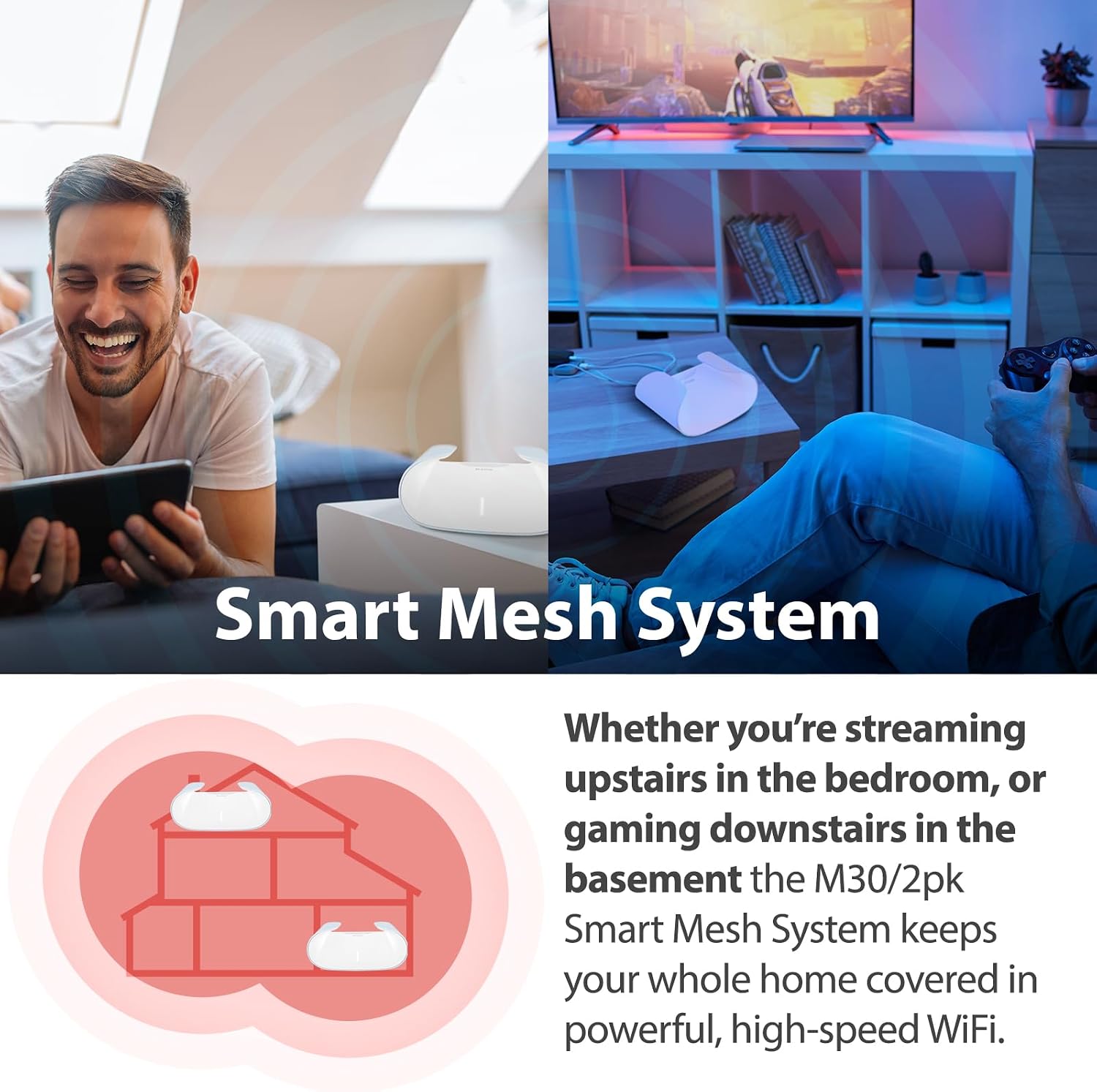
Image: An illustration showing the D-Link Smart Mesh System providing whole-home Wi-Fi coverage, from upstairs bedrooms to basement gaming areas.

Image: A comparison illustrating seamless roaming with one Wi-Fi name versus traditional extenders requiring manual connection to different networks.

Image: An illustration showing how the mesh system can be scaled to cover larger areas, from 5000 sq. ft. with two units to 7000 sq. ft. with three units.
4.6. The Wi-Fi 6 Advantage
Wi-Fi 6 (802.11ax) technology offers significant improvements over previous generations, providing faster speeds, greater efficiency, enhanced stability, and higher capacity for modern device-dense homes.
- Faster Speeds: Up to 90% faster than previous generation Wi-Fi, with the 5GHz band being up to 39% faster than equivalent 11ac.
- OFDMA: Orthogonal Frequency-Division Multiple Access allows the router to serve more device connections simultaneously, significantly reducing network latency and congestion.
- Increased Capacity: Handles more devices concurrently, ideal for 8K streaming, online gaming, and numerous IoT devices.

Image: A user wearing headphones and using a laptop, highlighting the benefits of Wi-Fi 6 for gaming, streaming, high-speed downloads, and connecting IoT devices.

Image: A bar chart comparing Wi-Fi 6 speeds to previous generation Wi-Fi, indicating that the 5GHz band is up to 39% faster.

Image: An illustration comparing OFDM (Wi-Fi 5) and OFDMA (Wi-Fi 6) to show how OFDMA efficiently serves more device connections simultaneously, reducing latency.
5. Maintenance
To ensure optimal performance and longevity of your D-Link AQUILA PRO AI Mesh System, consider the following maintenance tips:
- Firmware Updates: Regularly check for and install the latest firmware updates via the AQUILA PRO AI App to ensure security and performance improvements.
- Optimal Placement: Place the mesh units in open areas, away from obstructions and other electronic devices that may cause interference. The AI Wi-Fi Optimizer can help identify the cleanest channels.
- Cleaning: Keep the units clean and free from dust buildup, especially around ventilation areas, to prevent overheating.
- Reboot Periodically: A periodic reboot (e.g., once a month) can help clear temporary issues and refresh network performance.
6. Troubleshooting
If you encounter issues with your D-Link AQUILA PRO AI Mesh System, try the following common troubleshooting steps:
| Issue | Possible Solution |
|---|---|
| No Internet Connection | Check all cable connections (modem to router, router to power). Reboot your modem and then your router. Verify your Internet Service Provider (ISP) connection. |
| Slow Wi-Fi Speed | Ensure optimal placement of mesh units. Use the AI Wi-Fi Optimizer in the app to find the best channel. Check for interference from other devices. Utilize the Client Priority feature for critical devices. |
| Devices Not Connecting | Verify Wi-Fi password. Try rebooting the device and the router. Ensure the device is within the mesh network's coverage area. |
| App Connection Issues | Ensure your smartphone is connected to the D-Link Wi-Fi network. Restart the app or reinstall it if necessary. |
| Voice Control Not Working | Ensure your D-Link account is correctly linked to Amazon Alexa or Google Assistant via the AQUILA PRO AI App. Verify your voice assistant device is online and functioning. |
For more detailed troubleshooting or specific configuration guidance, refer to the D-Link AQUILA PRO AI App's help sections. The app's AI Assistant can also provide insights and recommendations for network optimization.
7. Specifications
| Feature | Detail |
|---|---|
| Model Name | AX3000 AI Optimized WiFi 6 Smart Mesh System 2-Pk (M30/2) |
| Item Model Number | M30/2 |
| Brand | D-Link |
| Connectivity Technology | Wi-Fi, Ethernet |
| Wireless Communication Standard | 802.11n, 802.11ax (Wi-Fi 6), 802.11ac, 802.11g |
| Frequency Band Class | Dual-Band (2.4 GHz, 5 GHz) |
| Max Coverage | Up to 5000 sq. ft. (with 2-Pk) |
| Ethernet Ports | 4 x Gigabit LAN ports per unit, 1 x Gigabit WAN port |
| Special Features | QoS, Guest Mode, WPS, Parental Control, AI Optimization |
| Item Weight | 1.48 pounds |
| Package Dimensions | 10.16 x 8.43 x 6.77 inches |
| Manufacturer | D-Link Systems, Inc. |
| Country of Origin | Taiwan |
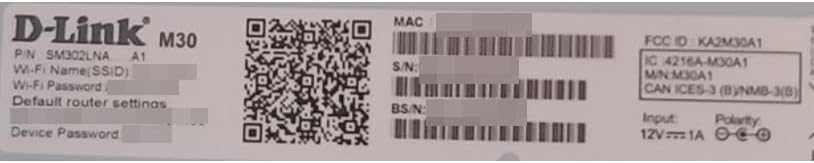
Image: A close-up of the D-Link M30 product label, showing model number, serial number, and other regulatory information.
8. Warranty and Support
D-Link products typically come with a limited warranty. For specific warranty terms and conditions, please refer to the warranty information included with your product or visit the official D-Link website.
For technical support, product registration, and access to the latest drivers and firmware, please visit the D-Link support portal. You can also find additional resources and FAQs on the D-Link brand store:
Related documentsM30/2


Ask a question about this manual
Ask about setup, troubleshooting, compatibility, parts, safety, or missing instructions. Manuals+ will review the question and use this page’s manual context to help answer it.