
1. Introduction
The XDUOO XQ-50 Pro 2 is a high-fidelity Bluetooth audio receiver, converter, and decoder designed to upgrade your existing audio system with wireless capabilities. It allows you to stream high-quality audio from your Bluetooth-enabled devices to your amplifier, active speakers, or DAC, transforming them into wireless audio systems. This device features advanced decoding and conversion chips to ensure excellent sound reproduction.
This manual provides detailed instructions for the setup, operation, maintenance, and troubleshooting of your XDUOO XQ-50 Pro 2. Please read it thoroughly before using the product to ensure optimal performance and longevity.

Image 1.1: Front angled view of the XDUOO XQ-50 Pro 2 unit, showcasing its compact design and display screen.
2. Product Features
- Bluetooth 5.1 Connectivity: Utilizes Qualcomm QCC5125 Bluetooth receiver chip, supporting AAC, SBC, aptX, aptX_LL, aptX_HD, and LDAC audio encoding formats for high-definition wireless audio streaming.
- Robust Construction: Features a high-strength aluminum alloy housing for durability and an external detachable high-gain Bluetooth antenna for stable signal transmission.
- High-Performance Conversion: Incorporates the CS8406 digital audio conversion chip to convert Bluetooth signals into high-quality optical and coaxial digital outputs.
- Premium Decoding: Equipped with the ES9018K2M decoding chip, providing high signal-to-noise ratio and low distortion analog audio signals.
- PC USB DAC Support: Functions as a USB sound card when connected to a computer, offering plug-and-play functionality for high-quality coaxial, optical, and analog audio output.
- Versatile Outputs: Provides coaxial, optical, and AUX analog outputs, allowing connection to various audio systems, including those without built-in decoding functions.
- OLED Screen Display: Features a clear OLED screen to display current track information, sample rate, and Bluetooth codec.
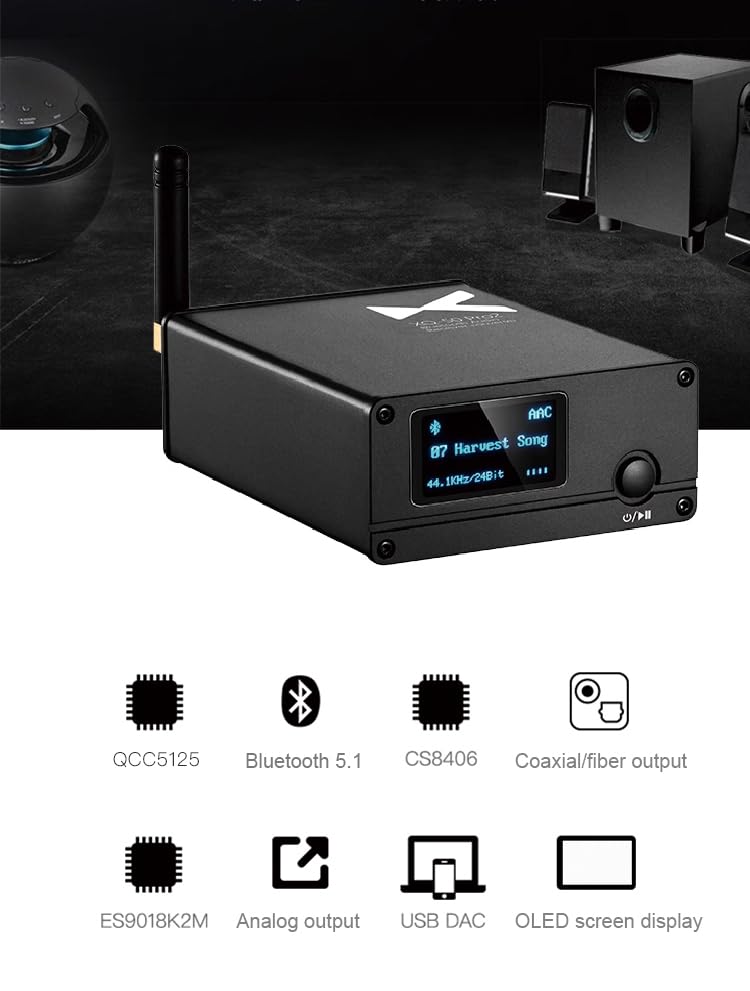
Image 2.1: Diagram highlighting the core components and features: QCC5125 chip, Bluetooth 5.1, CS8406 chip, Coaxial/Fiber output, ES9018K2M chip, Analog output, USB DAC, and OLED screen display.
3. Package Contents
Please check the package for the following items:
- XDUOO XQ-50 Pro 2 Unit
- Bluetooth Antenna
- USB Power Cable (Type-C)
- User Manual
If any items are missing or damaged, please contact your retailer or LEAUDIO customer support.
4. Setup Instructions
Follow these steps to set up your XDUOO XQ-50 Pro 2:
- Attach the Bluetooth Antenna: Carefully screw the provided Bluetooth antenna into the antenna connector on the rear panel of the XQ-50 Pro 2. Ensure it is securely fastened but do not overtighten.
- Connect Power: Connect the USB power cable to the DC 5V Type-C port on the rear panel of the XQ-50 Pro 2. Plug the other end into a suitable USB power adapter (not included) or a USB port on a computer.
- Connect Audio Output: Choose one of the following output methods to connect the XQ-50 Pro 2 to your audio system:
- Coaxial Output: Use a coaxial cable to connect the "COAXIAL OUT" port on the XQ-50 Pro 2 to the coaxial input of your amplifier or DAC.
- Optical Output: Use an optical fiber cable to connect the "OPTICAL OUT" port on the XQ-50 Pro 2 to the optical input of your amplifier or DAC.
- Analog AUX Output: Use an RCA cable to connect the "AUX-OUT" (R and L) ports on the XQ-50 Pro 2 to the analog RCA inputs of your amplifier or active speakers.
- (Optional) PC USB DAC Connection: To use the XQ-50 Pro 2 as a USB DAC for your computer, connect a USB cable from your computer's USB port to the DC 5V Type-C port on the XQ-50 Pro 2. The device should be recognized automatically as an audio output device.
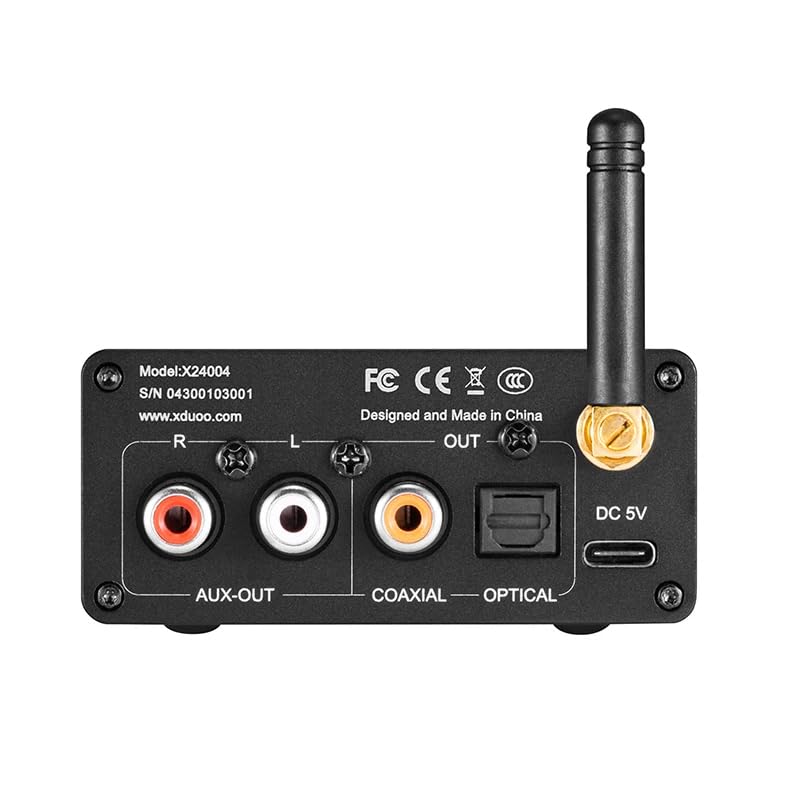
Image 4.1: Rear panel of the XDUOO XQ-50 Pro 2, illustrating the AUX-OUT (R/L), Coaxial OUT, Optical OUT, DC 5V (Type-C) power/USB DAC port, and Bluetooth antenna connector.
5. Operating Instructions
- Power On/Off: Press and hold the multi-function button (usually marked with power/play/pause icon) on the front panel to power the unit on or off. The OLED screen will illuminate upon power-on.
- Bluetooth Pairing:
- When powered on, the XQ-50 Pro 2 will automatically enter Bluetooth pairing mode if no device is connected. The Bluetooth icon on the OLED screen will flash.
- On your source device (smartphone, tablet, computer), enable Bluetooth and search for available devices.
- Select "XDUOO XQ-50 Pro 2" from the list of devices to pair.
- Once successfully paired, the Bluetooth icon on the OLED screen will stop flashing and remain solid. The screen will display the connected codec (e.g., AAC, LDAC) and current audio information.
- To disconnect or force pairing mode, refer to your source device's Bluetooth settings or the XQ-50 Pro 2's specific button functions (if available, typically a short press on the multi-function button might toggle pairing or play/pause).
- Audio Playback:
- Once paired, start playing audio on your source device. The audio will be transmitted wirelessly to the XQ-50 Pro 2.
- The OLED screen will display information such as the current track number (if supported by the source), sample rate (e.g., 44.1KHz), and bit depth (e.g., 24Bit).
- Adjust the volume on your amplifier or active speakers. The XQ-50 Pro 2 typically provides a fixed line-level output.
- Using as PC USB DAC:
- Connect the XQ-50 Pro 2 to your computer via a USB cable as described in the Setup section.
- On your computer's sound settings, select "XDUOO XQ-50 Pro 2" (or similar) as the audio output device.
- Play audio from your computer. The XQ-50 Pro 2 will output the audio through its coaxial, optical, and analog AUX ports.
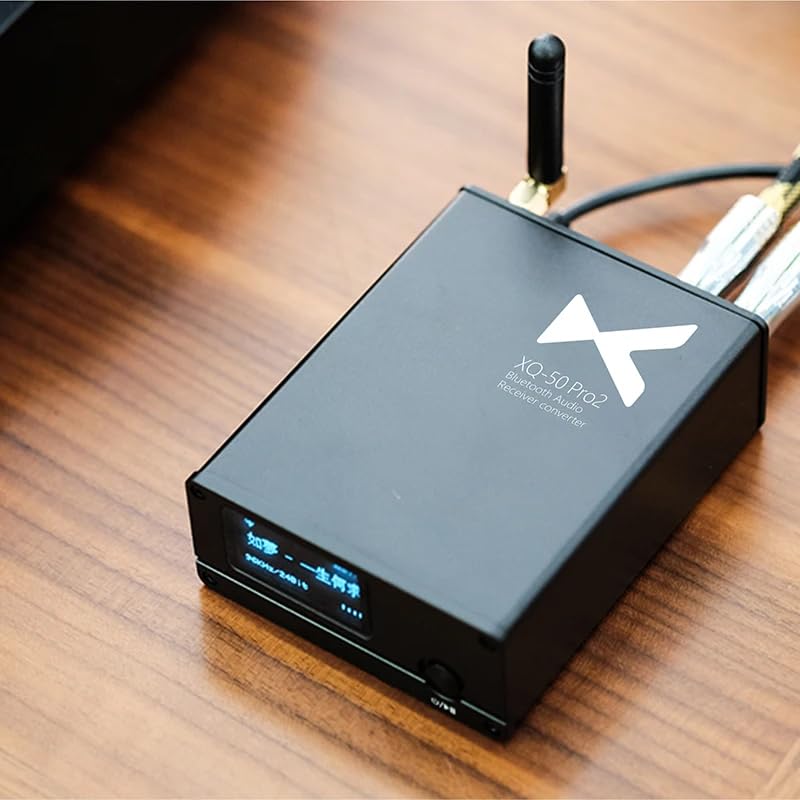
Image 5.1: The XDUOO XQ-50 Pro 2 in an operational setup, connected to other audio components, demonstrating its role in a home audio system.
6. Maintenance
- Cleaning: Use a soft, dry cloth to clean the exterior of the unit. Do not use liquid cleaners or abrasive materials, as they may damage the finish or internal components.
- Storage: When not in use for extended periods, store the unit in a cool, dry place away from direct sunlight and extreme temperatures.
- Handling: Avoid dropping the unit or subjecting it to strong impacts. Handle the antenna and cables carefully to prevent damage.
- Ventilation: Ensure the unit has adequate ventilation to prevent overheating. Do not block ventilation openings.
7. Troubleshooting
| Problem | Possible Cause | Solution |
|---|---|---|
| No power | Power cable not connected properly; faulty power adapter. | Ensure the USB power cable is securely connected to the unit and a working power source. Try a different USB power adapter. |
| No sound output | Incorrect audio cable connection; wrong input selected on amplifier/DAC; volume too low; device not paired. | Verify audio cables are correctly connected. Select the correct input on your amplifier/DAC. Increase volume. Ensure Bluetooth is successfully paired. |
| Bluetooth not connecting/pairing | XQ-50 Pro 2 not in pairing mode; source device Bluetooth off; too far from source; interference. | Ensure XQ-50 Pro 2 is powered on and Bluetooth icon is flashing. Enable Bluetooth on your source device. Move devices closer. Avoid strong Wi-Fi or other wireless interference. |
| Poor sound quality | Weak Bluetooth signal; low-quality audio source; incorrect codec. | Move source device closer to XQ-50 Pro 2. Use high-quality audio files. Ensure your source device is transmitting a high-definition Bluetooth codec (e.g., aptX HD, LDAC) if supported. |
| PC USB DAC not recognized | USB cable issue; driver issue (rare for plug-and-play). | Try a different USB cable or USB port on your computer. Restart your computer. Check sound settings to ensure XQ-50 Pro 2 is selected. |
8. Specifications
| Feature | Detail |
|---|---|
| Model | XQ-50 Pro 2 |
| Bluetooth Chip | Qualcomm QCC5125 |
| Bluetooth Version | 5.1 |
| Supported Bluetooth Codecs | AAC, SBC, aptX, aptX_LL, aptX_HD, LDAC |
| Digital Conversion Chip | CS8406 |
| Decoding Chip | ES9018K2M |
| Outputs | Coaxial, Optical, Analog AUX (RCA L/R) |
| USB DAC Support | Yes (via Type-C port) |
| Housing Material | High-strength aluminum alloy |
| Power Input | DC 5V (Type-C) |
| Mounting Type | Table Top |
| Interface Type | USB |
| Number of Channels | 6 |
9. Warranty and Support
LEAUDIO products are designed for reliability and performance. This product is covered by a limited warranty against defects in materials and workmanship. For specific warranty terms and conditions, please refer to the warranty card included with your product or contact LEAUDIO customer support.
For technical assistance, troubleshooting, or warranty claims, please contact LEAUDIO customer support through their official website or the contact information provided with your purchase.