
Introduction
This manual provides instructions for the assembly, operation, and maintenance of your GreenForest 39-inch Computer Desk. Please read these instructions carefully before beginning assembly or use to ensure proper function and safety. Keep this manual for future reference.

Image: The GreenForest 39-inch Computer Desk, featuring a monitor stand, LED lighting, and side storage, set up in a modern home office.
Product Features
The GreenForest Computer Desk is designed for functionality and convenience, incorporating several key features:
- Multifunctional LED Light Strip: Integrated smart LED light strips offer 20 static colors and 22 dynamic modes. Brightness and speed are customizable.
- Ergonomic Monitor Stand: Positions your monitor at an optimal eye level to reduce neck and eye strain.
- Ample Storage & Flexible Shelf: Includes a fabric drawer and an adjustable shelf for storing various items. These can be installed on either the left or right side of the desk.
- Built-in Power Outlet: Features 3 AC outlets and 2 USB ports for direct device charging, minimizing the need for external power strips.
- Easy Assembly: Constructed with a metal frame and particleboard, the desk comes with necessary tools and clear instructions for straightforward assembly.
Video: A demonstration of the GreenForest Computer Desk's features, including the adjustable drawer, built-in power outlet, monitor stand, and reversible shelf options.
Safety Information
Always ensure that the total weight of the items placed on the desk and monitor stand does not exceed the weight limit specified by the manufacturer. Securely anchor the desk to the floor to prevent tipping. Follow the assembly instructions carefully to ensure that the desk is properly assembled and stable. Do not overload the power outlets. Keep liquids away from electrical components.
Assembly Instructions
The GreenForest Computer Desk is designed for straightforward assembly. Please follow these general steps:
- Unpack Components: Carefully remove all parts from the packaging and verify against the included parts list.
- Identify Parts: Each part is marked and labeled. Familiarize yourself with the components before starting.
- Assemble Frame: Begin by assembling the metal frame components according to the diagrams in your separate assembly guide.
- Attach Desktop: Secure the desktop surface to the assembled frame.
- Install Monitor Stand: Attach the monitor stand to the desktop.
- Configure Storage: Install the fabric drawer and adjustable shelf on either the left or right side as desired.
- Connect Power Outlets & LED Lights: Integrate the built-in power outlet unit and attach the LED light strips as instructed.
- Final Check: Ensure all screws and fasteners are tightened securely before use.
An estimated assembly time is approximately 40 minutes. If you encounter any difficulties, refer to the detailed graphical instructions provided in the product packaging.

Image: A detailed diagram illustrating the dimensions of the desk, monitor stand, and side storage components.
Operating Instructions
LED Light Strip Operation
The LED light strip is controlled via a remote control. Point the remote at the receiver on the LED strip to operate.
- Power On/Off: Use the power button on the remote.
- Color Selection: Choose from 20 static colors using the color buttons.
- Dynamic Modes: Select from 22 dynamic modes (e.g., fade, flash, jump, constant) to create different lighting effects.
- Brightness Adjustment: Increase or decrease the brightness for static colors.
- Speed Adjustment: Adjust the speed of dynamic modes.

Image: The LED light strips under the monitor stand, displaying various color options and the remote control for adjustment.
Built-in Power Outlet Usage
The desk includes a power strip with 3 AC outlets (125V/12A) and 2 USB ports (5V/2A) for convenient charging.
- Plug the desk's main power cord (6.5-foot) into a wall outlet.
- Connect your devices (e.g., computer, monitor, phone, tablet) directly to the AC outlets or USB ports.
- Ensure devices are compatible with the provided voltage and amperage.

Image: The integrated power outlet with 3 AC sockets and 2 USB ports, demonstrating charging capabilities for a tablet and smartphone.
Reversible Shelf and Adjustable Drawer
The side storage unit, including the fabric drawer and shelf, can be configured on either the left or right side of the desk during assembly to suit your room layout. The fabric drawer's height can also be adjusted within the side frame to accommodate different items or a computer tower.
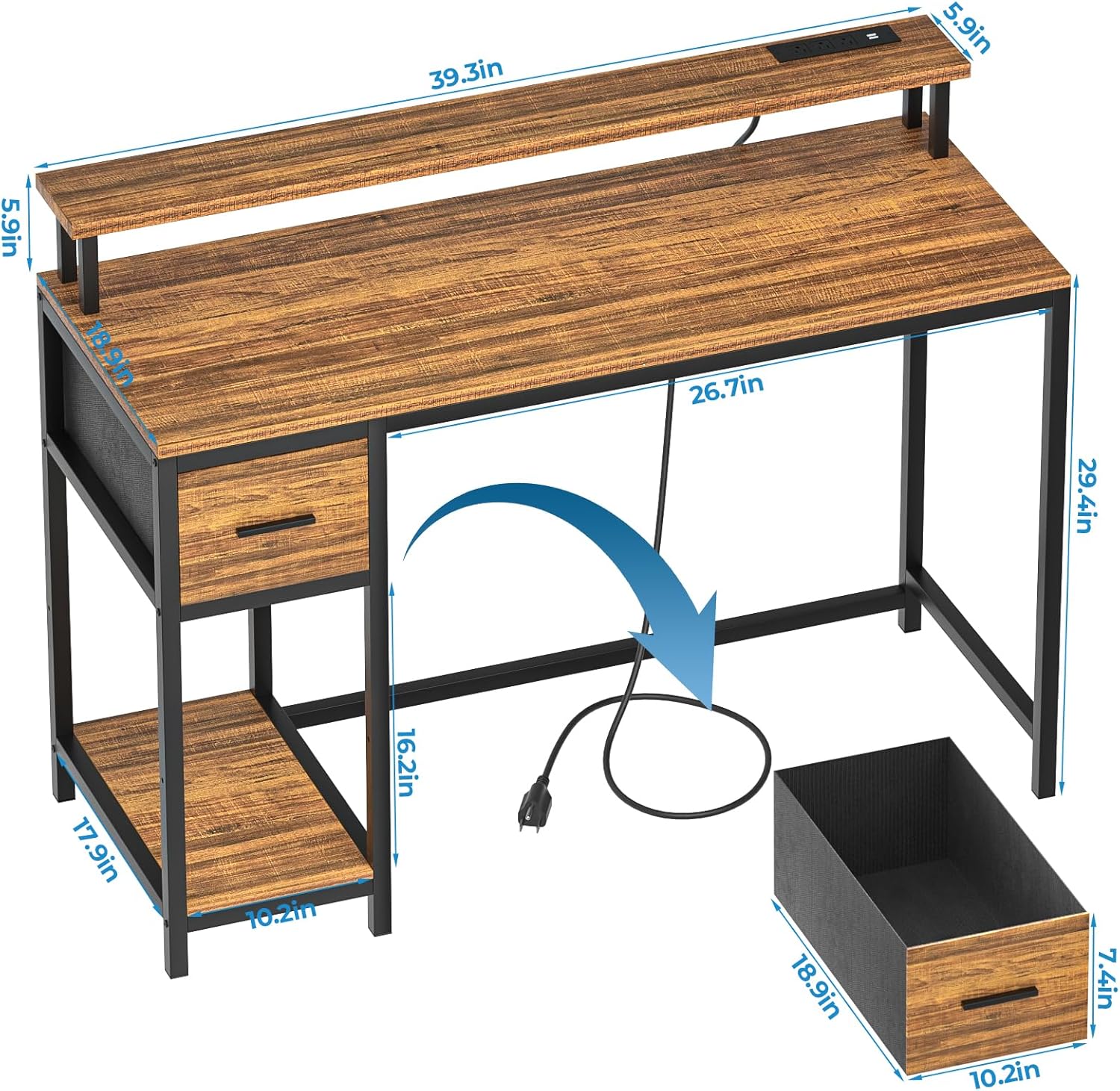
Image: Illustration demonstrating the flexibility of installing the storage shelves on either the left or right side of the desk.

Image: A visual guide on adjusting the fabric drawer's height position within the desk's side frame.
Monitor Stand Ergonomics
The built-in monitor stand elevates your screen to an ergonomic height, promoting better posture and reducing strain during extended use. Position your monitor centrally on the stand for optimal viewing.
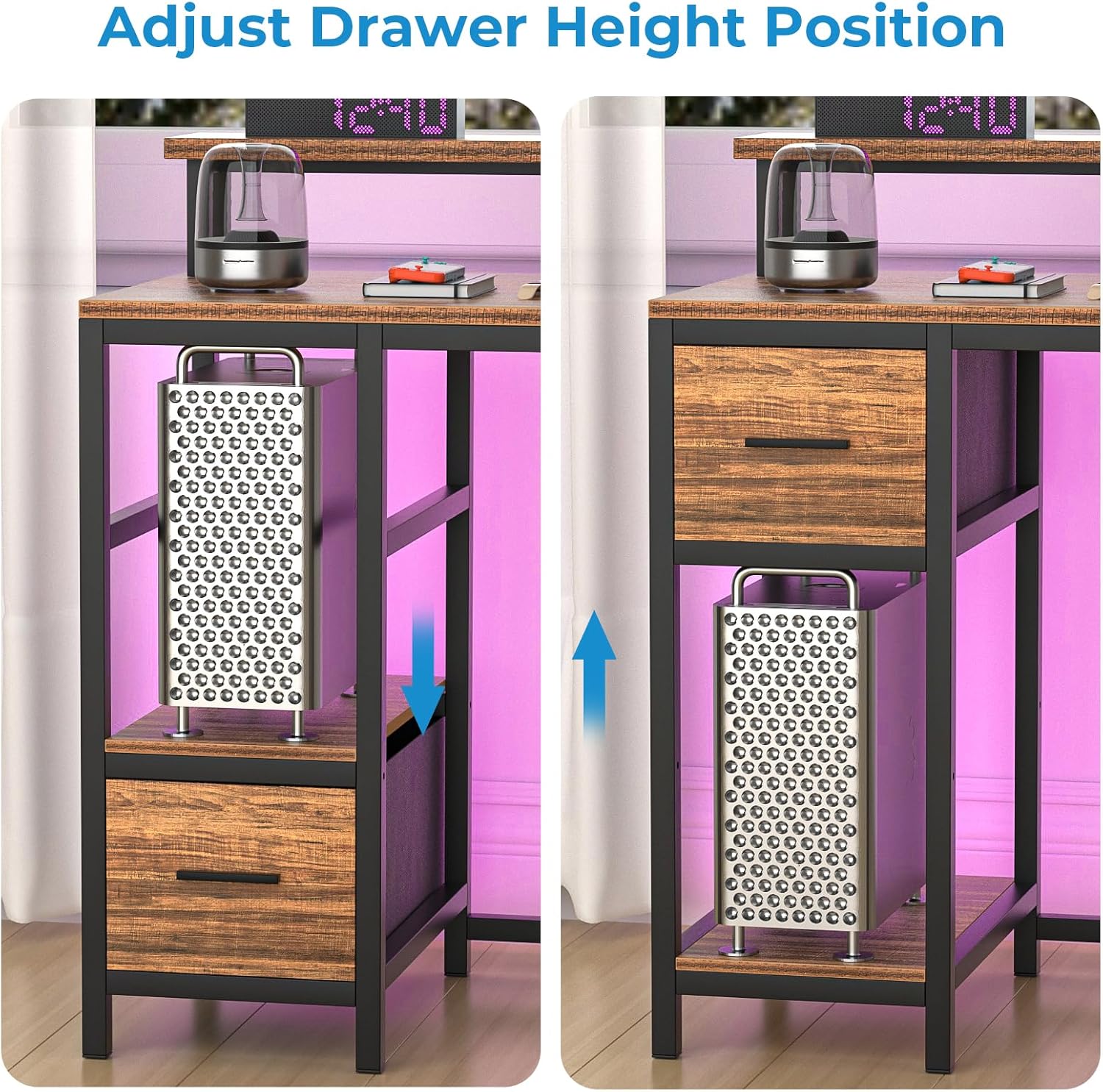
Image: An illustration highlighting the ergonomic advantages of the built-in monitor stand for maintaining proper posture.
Maintenance
- Cleaning: Wipe the desk surfaces with a soft, damp cloth. Avoid harsh chemicals or abrasive cleaners.
- Dusting: Regularly dust the desk and LED light strips to maintain appearance and functionality.
- Fasteners: Periodically check all screws and fasteners to ensure they remain tight. Retighten if necessary.
- Electrical Components: Keep the power outlets and LED light strips dry. Do not attempt to repair electrical components yourself.
Troubleshooting
- LED Lights Not Working: Check if the power cord is securely plugged in. Ensure the remote control batteries are functional and the remote is pointed at the receiver.
- Power Outlets Not Functioning: Verify the desk's main power cord is plugged into a live wall outlet. Check if the wall outlet itself is working by plugging in another device.
- Desk Wobbles: Ensure all assembly screws are fully tightened. Check that the desk is on a level surface. Adjust leveling feet if present.
- Drawer Sticks: Ensure the drawer is correctly aligned in its runners. Check for any obstructions.
Specifications
| Feature | Detail |
|---|---|
| Brand | GreenForest |
| Model Number | B0CQXHQFVC |
| Colour | Walnut |
| Product Dimensions | 48D x 100W x 74.6H Centimetres (18.9D x 39.4W x 29.4H inches) |
| Item Weight | 13 kg (28.66 lbs) |
| Material | Metal (frame), Engineered Wood (top material) |
| Special Features | Flexible Shelf, Full Monitor Stand, LED Lights Strips, Multifunctional, Storage Fabric Drawer, Built-in Power Outlets (3 AC, 2 USB) |
| Power Outlet Specs | 3 AC Outlets (125V/12A), 2 USB Ports (5V/2A), 6.5-Foot Power Cord |
Warranty and Support
For warranty information or technical support, please refer to the contact details provided with your purchase documentation or visit the official GreenForest website. Keep your proof of purchase for any warranty claims.