
1. Introduction
The HP EliteOne 870 G9 All-in-One (AiO) PC is a high-performance desktop computer designed for business and productivity. It integrates the display and computer components into a single unit, offering a streamlined workspace. This manual provides essential information for setting up, operating, maintaining, and troubleshooting your new HP EliteOne 870 G9 AiO PC.

Figure 1: HP EliteOne 870 G9 All-in-One PC with included keyboard and mouse.
2. Setup Guide
2.1 Unpacking the System
Carefully remove all components from the packaging. Ensure the following items are present:
- HP EliteOne 870 G9 All-in-One PC
- Keyboard
- Mouse
- Power Adapter and Cable
2.2 Connecting Peripherals
Connect the included keyboard and mouse to the available USB ports on the rear or side of the AiO PC. Refer to Figure 2 for port locations.
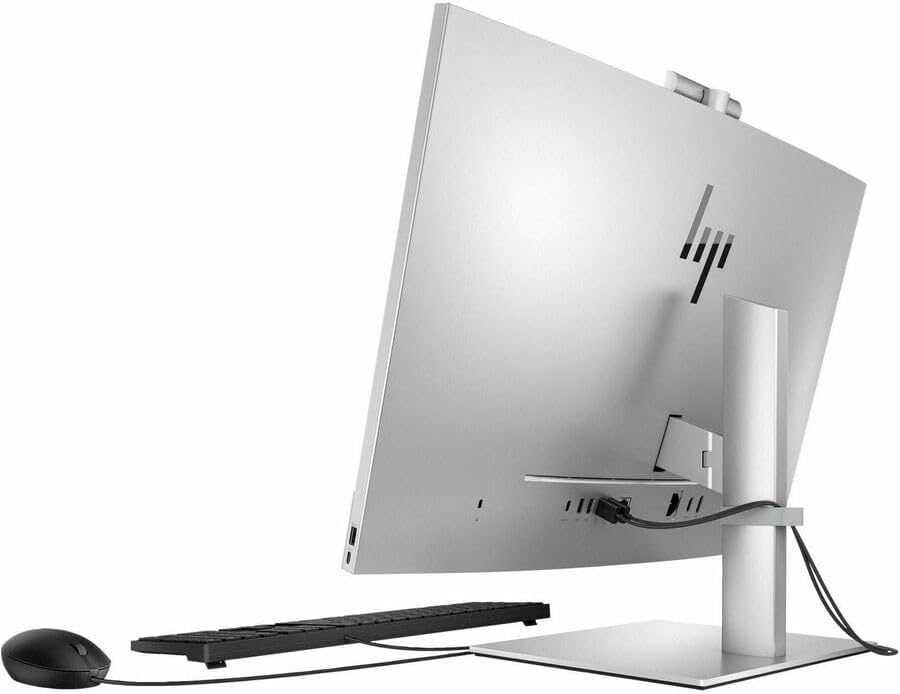
Figure 2: Rear ports of the HP EliteOne 870 G9 AiO PC. Connect your keyboard and mouse here.
2.3 Power Connection
Connect the power cable to the power adapter, then connect the adapter to the power input port on the back of the AiO PC. Plug the power cable into a grounded electrical outlet.
2.4 Initial Boot-Up
Press the power button, typically located on the side or bottom bezel of the display. Follow the on-screen instructions to complete the Windows 11 Pro setup process.
3. Operating Instructions
3.1 Adjusting the Display
The HP EliteOne 870 G9 features an adjustable stand. You can adjust the height and tilt of the display for optimal viewing comfort. Gently push or pull the top or bottom of the screen to adjust its height, and tilt the screen forward or backward as needed.
3.2 Using the Retractable Camera
The integrated webcam is retractable for privacy and security. To deploy the camera, gently press the top center of the display bezel where the camera is located. The camera will pop up. To retract it, press it down until it clicks into place.
3.3 Wireless Charging (If Applicable)
Some configurations of the HP EliteOne 870 G9 may include a wireless charging pad integrated into the base. To use this feature, place a compatible device (e.g., smartphone) on the designated area of the base. Refer to Figure 3 for an example.

Figure 3: Wireless charging functionality on the base of the AiO PC.
3.4 Connectivity
The AiO PC supports Wi-Fi 6 for fast wireless internet and Bluetooth for connecting wireless peripherals. Gigabit Ethernet is also available for wired network connections.
4. Maintenance
4.1 Cleaning the Display and Chassis
Use a soft, lint-free cloth slightly dampened with water or a non-abrasive screen cleaner to clean the display. For the chassis, use a soft, dry cloth. Avoid harsh chemicals or abrasive materials.
4.2 Software Updates
Regularly check for and install operating system updates (Windows Update) and HP driver updates to ensure optimal performance and security.
4.3 Ventilation
Ensure that the ventilation openings on the AiO PC are not blocked to prevent overheating. Maintain adequate space around the unit for airflow.
5. Troubleshooting
5.1 No Power
- Verify the power cable is securely connected to the AiO PC and the electrical outlet.
- Test the outlet with another device to ensure it is functional.
- Ensure the power adapter is correctly connected.
5.2 Display Issues
- If the screen is blank, ensure the PC is powered on.
- Check display settings in Windows if the resolution or scaling appears incorrect.
5.3 Peripheral Not Responding
- Ensure the keyboard or mouse is properly connected to a USB port.
- Try connecting the peripheral to a different USB port.
- Restart the computer.
5.4 Network Connectivity Problems
- For Wi-Fi, check if the wireless adapter is enabled and if you are connected to the correct network.
- For wired connections, ensure the Ethernet cable is securely plugged into the port and your router/modem.
- Restart your router/modem.
6. Specifications
| Feature | Detail |
|---|---|
| Model Number | 89M90UTABA |
| Processor | Intel Core i7-13700 (13th Gen, Hexadeca-core, 5.2 GHz) |
| RAM | 16 GB DDR5 SDRAM |
| Storage | 512 GB M.2 PCI Express NVMe SSD |
| Display | 27-inch QHD (2560 x 1440) |
| Graphics | Intel UHD Graphics 770 (Integrated) |
| Operating System | Windows 11 Pro |
| Wireless Connectivity | Wi-Fi 6, Bluetooth |
| Wired Connectivity | Gigabit Ethernet |
| Dimensions (LxWxH) | 9.7 x 24.2 x 23.6 inches |
| Weight | 24 pounds |
7. Warranty Information
Your HP EliteOne 870 G9 All-in-One PC is covered by a limited warranty provided by HP. For detailed information regarding warranty terms, conditions, and duration, please refer to the warranty documentation included with your product or visit the official HP support website. Keep your proof of purchase for warranty claims.
8. Customer Support
For technical assistance, product registration, or additional support resources, please visit the official HP Support website. You can find drivers, manuals, and contact information for customer service there.
- HP Support Website: support.hp.com
- Product Registration: Register your product to receive updates and support.


