
1. Product Overview
The ATTACK SHARK RK86 is a compact 75% layout mechanical keyboard designed for gaming and office use. It features an 82-key layout, triple connectivity modes (USB-C wired, 2.4GHz wireless, Bluetooth 5.0), hot-swappable switches, a 1.2-inch HD OLED display, and a multi-function CNC knob. The keyboard includes a 4000 mAh battery and full RGB backlighting.
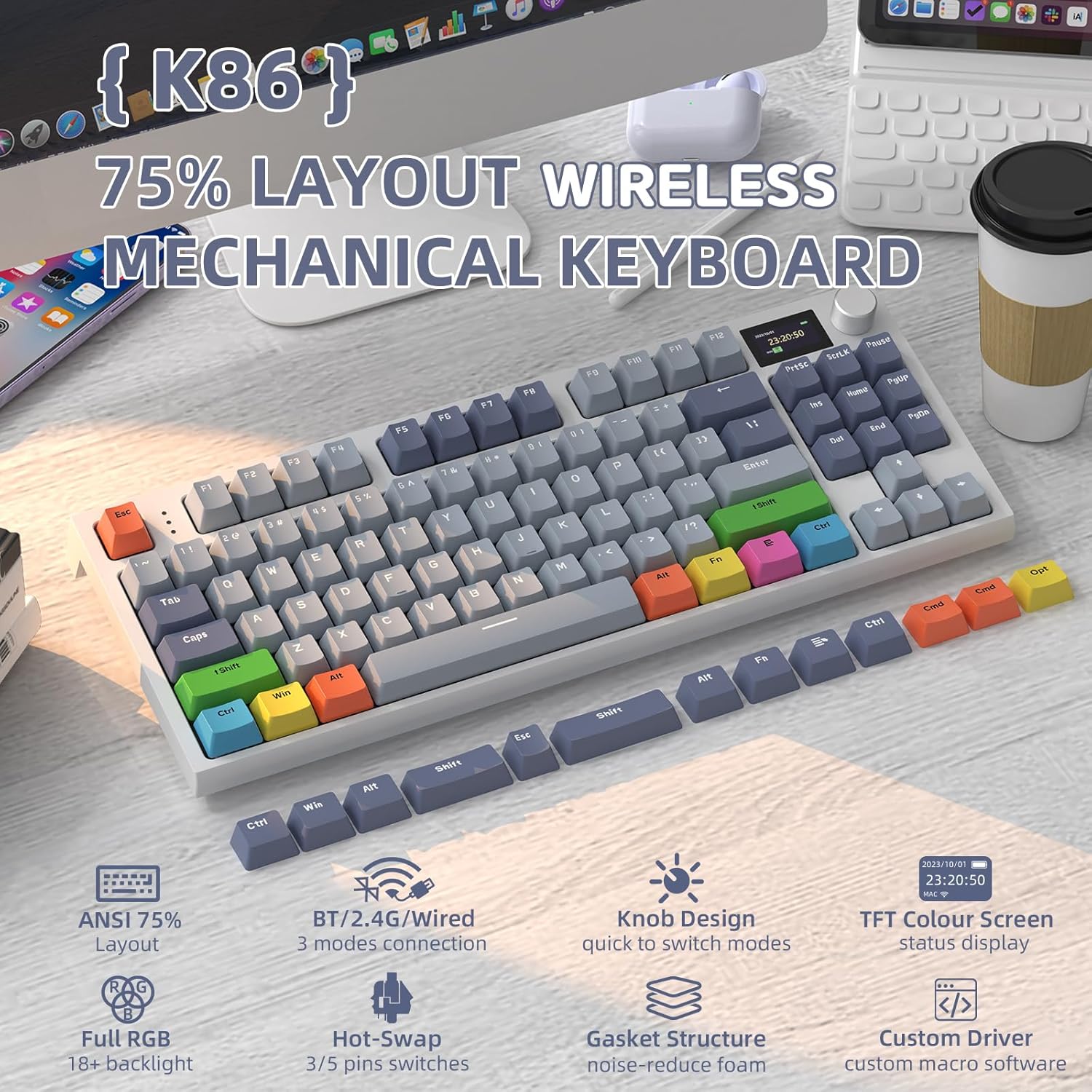
Image: The ATTACK SHARK RK86 75% Wireless Mechanical Keyboard, showcasing its compact layout and design.
Package Contents:
- ATTACK SHARK RK86 Mechanical Keyboard
- Coiled USB-C Cable
- 2.4G USB Receiver
- 2-in-1 Switch Puller / Keycap Puller
- Extra Colored PBT Keycaps
- User Manual
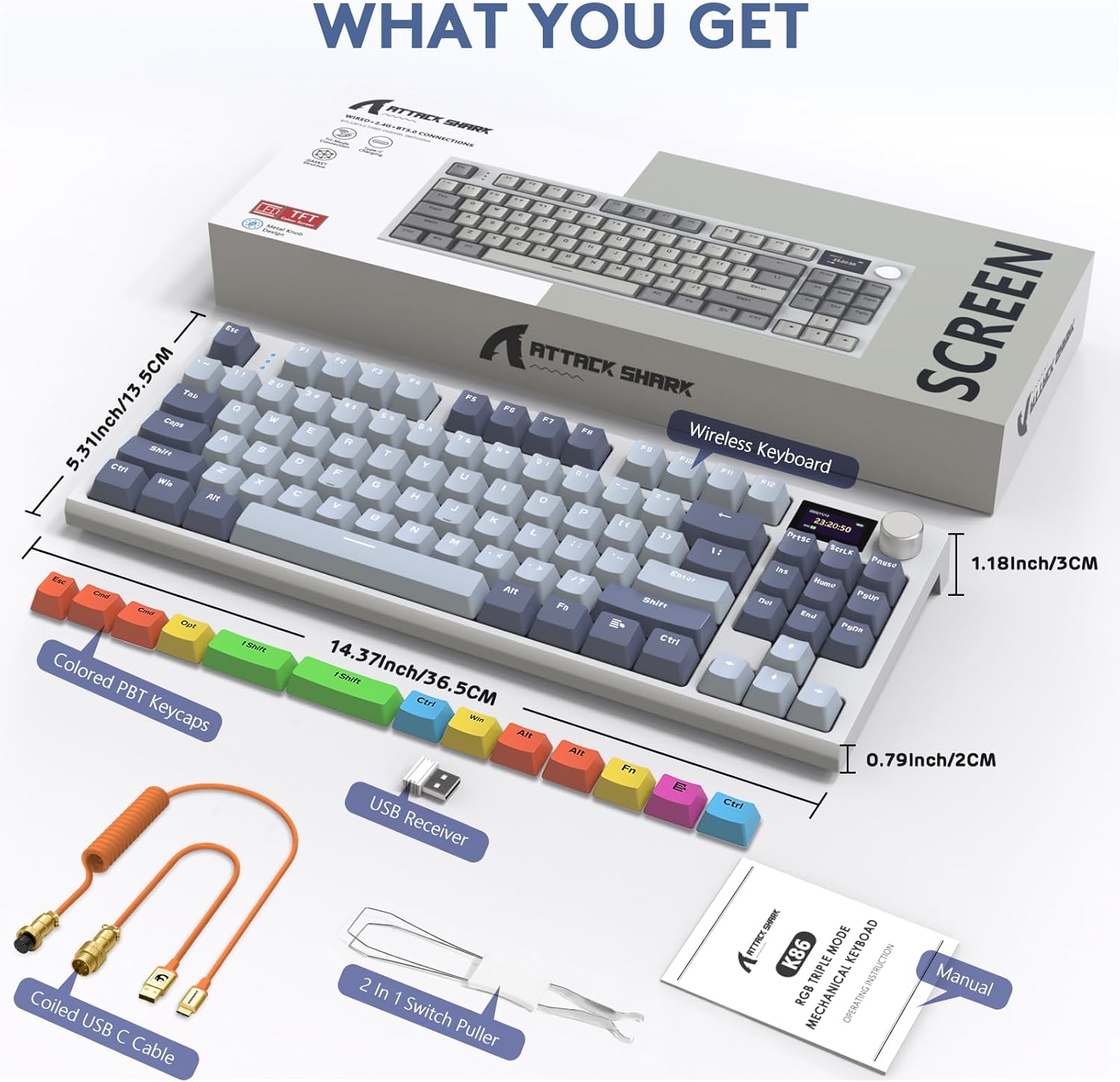
Image: Contents of the ATTACK SHARK RK86 package, including the keyboard, coiled USB-C cable, USB receiver, switch/keycap puller, extra keycaps, and manual.
2. Setup
2.1 Charging the Keyboard
Before first use, it is recommended to fully charge the keyboard. Connect the provided USB-C cable to the keyboard's USB-C port and the other end to a powered USB port on your computer or a USB wall adapter. The OLED display will show the charging status.
2.2 Connection Modes
The RK86 keyboard supports three connection methods:
- USB-C Wired Mode: For a direct and stable connection.
- 2.4GHz Wireless Mode: For low-latency wireless performance using the included USB receiver.
- Bluetooth 5.0 Wireless Mode: For connecting to up to three devices simultaneously.

Image: Diagram illustrating the three connection methods: USB-C wired, 2.4GHz wireless with a USB receiver, and Bluetooth wireless.
2.2.1 2.4GHz Wireless Connection
- Locate the 2.4G USB receiver, typically stored in a compartment on the keyboard.
- Plug the 2.4G USB receiver into an available USB port on your computer.
- Switch the keyboard to 2.4G mode using the mode switch or the multi-function knob (refer to Section 3.1). The keyboard will automatically connect.
2.2.2 Bluetooth Wireless Connection
- Switch the keyboard to Bluetooth mode using the mode switch or the multi-function knob (refer to Section 3.1).
- On your device (computer, tablet, etc.), open Bluetooth settings.
- The keyboard will appear as 'RK86' or similar. Select it to pair.
- The keyboard can store up to three Bluetooth connections. Switch between them using the multi-function knob or designated key combinations.
2.3 Software Installation (Optional)
To customize the 1.2-inch HD OLED display with static or dynamic pictures, and to adjust key sensitivity or lighting settings, download the official driver software from the ATTACK SHARK website. This software allows for advanced customization of keyboard functions and display content.

Image: Screenshot of the keyboard's customization software, highlighting key sensitivity adjustment options.
3. Operating Instructions
3.1 Multi-function CNC Knob and OLED Display
The keyboard features a multi-function CNC rotary knob and a 1.2-inch HD OLED display for quick adjustments and status monitoring.
- Volume Control: Rotate the knob clockwise to increase volume, counter-clockwise to decrease. Press the knob to mute/unmute.
- Mode Switching: Short press Fn + Knob to enter mode switching options. Rotate the knob to select the desired connection mode (BT1, BT2, BT3, 2.4G, Wired), then short press the knob to confirm.
- OLED Display: Shows battery level, current connection mode (WIN/MAC), date, and time.

Image: Close-up of the multi-function knob and OLED display, detailing volume control, mode switching, and information displayed.
3.2 RGB Backlighting Control
The RK86 keyboard offers 27 main backlight effects and 15 side light effects.
- Switch Main Light Mode: Press Fn + \|
- Switch Sidelight Mode: Press Fn + C
- Adjust Brightness/Speed: Use specific Fn key combinations (refer to the full manual for detailed combinations).
- Turn On/Off Backlight: Use specific Fn key combinations.

Image: The keyboard displaying its full RGB backlighting, with indicators for Fn + \| to switch light mode and Fn + C for sidelight mode.
3.3 Hot-Swappable Switches
The RK86 supports 3/5-pin hot-swappable switches, allowing users to change switches without soldering.
- Use the included keycap puller to remove the desired keycap.
- Use the included switch puller to carefully remove the switch from the PCB.
- Align the pins of the new switch with the holes on the PCB and gently press it into place until it clicks. Ensure pins are not bent.
- Replace the keycap.

Image: A view of the keyboard with several keycaps and switches removed, demonstrating the hot-swappable feature and custom linear switches.
3.4 Battery Status Check
To check the battery level in wireless mode, press Fn + Backspace. The OLED display will show the current battery percentage, and the number row keys will illuminate to indicate charge level (e.g., 25%, 50%, 75%, 100%).

Image: The keyboard illustrating how to check battery status by pressing Fn + Backspace, with the OLED display and illuminated number keys showing charge levels.
3.5 Adjustable Keyboard Feet
The keyboard features 2-in-1 adjustable feet, allowing for three different typing angles to enhance ergonomic comfort.

Image: Side profile of the keyboard demonstrating the three adjustable height settings provided by the integrated feet.
4. Maintenance
4.1 Cleaning the Keyboard
- Disconnect the keyboard from all power sources before cleaning.
- Use a soft, lint-free cloth slightly dampened with water or a mild cleaning solution to wipe the keycaps and chassis. Avoid excessive moisture.
- For deeper cleaning, remove keycaps using the provided keycap puller and use compressed air to clear debris from underneath.
- Do not use harsh chemicals, abrasives, or solvents as they may damage the keyboard's finish or components.
4.2 Switch and Keycap Care
- When removing switches, use the switch puller carefully to avoid bending the pins.
- Store extra keycaps and switches in a safe, dry place.
- The PBT keycaps are durable but can still be scratched or damaged by sharp objects.
5. Troubleshooting
5.1 Connectivity Issues
- Keyboard not connecting via 2.4GHz: Ensure the USB receiver is securely plugged in and the keyboard is switched to 2.4G mode. Try a different USB port.
- Keyboard not connecting via Bluetooth: Ensure Bluetooth is enabled on your device and the keyboard is in pairing mode for the correct BT channel. Forget the device on your computer and try pairing again. Ensure the keyboard is sufficiently charged.
- Intermittent connection: Move the keyboard closer to the receiver/device. Avoid interference from other wireless devices. Ensure the keyboard battery is not low.
5.2 Key Input Problems
- Keys not registering or double typing: This can sometimes be resolved by performing a factory reset (see Section 5.4). If the issue persists for a specific key, the switch may be faulty. Utilize the hot-swappable feature to replace the switch.
- Incorrect key output (e.g., Alt key acting as Windows key): This often indicates the keyboard is in the wrong operating system mode (e.g., Mac mode instead of Windows mode). Check the manual for key combinations to switch between Windows and Mac layouts.
5.3 Backlight Issues
- Backlight not working: Ensure the backlight is turned on using the appropriate Fn key combination. Check battery level if in wireless mode.
- Backlight not visible through keycaps: The RK86 uses PBT keycaps which may not be shine-through. Consider replacing keycaps with shine-through options if backlight visibility is critical.
5.4 Factory Reset
To restore the keyboard to its factory settings, long press Fn + ESC. This can resolve various software-related issues or unexpected behavior.
6. Specifications
| Feature | Detail |
|---|---|
| Model | RK86 |
| Layout | 75% (82 Keys) |
| Connectivity | USB-C Wired, 2.4GHz Wireless, Bluetooth 5.0 |
| Battery Capacity | 4000 mAh |
| Display | 1.2-inch HD OLED Color Display |
| Switches | Hot-Swappable (3/5-pin compatible), Custom Linear Switches |
| Keycaps | PBT |
| Backlighting | Full RGB (27 main, 15 side effects) |
| Compatible Devices | Laptop, PC (Windows & Mac compatible) |
| Item Weight | 2.66 pounds (approx. 1.21 kg) |
| Package Dimensions | 15.35 x 7.52 x 2.13 inches (approx. 39 x 19.1 x 5.4 cm) |
7. Warranty and Support
7.1 Warranty Information
Please refer to the warranty card included with your product or visit the official ATTACK SHARK website for detailed warranty terms and conditions. Warranty coverage typically includes manufacturing defects for a specified period from the date of purchase.
7.2 Customer Support
For technical assistance, troubleshooting, or any product-related inquiries, please contact ATTACK SHARK customer support through their official website or the contact information provided in your product packaging. When contacting support, please have your product model (RK86) and purchase details ready.


