
ATTACK SHARK RK86
ATTACK SHARK RK86 Mechanical Keyboard User Manual
Model: RK86
Introduction
The ATTACK SHARK RK86 is a high-performance 75% layout mechanical keyboard designed for both gaming and office use. It features versatile triple connection modes, a vibrant TFT HD color display, a multi-function CNC knob, and hot-swappable switches for a customizable typing experience. This manual provides detailed instructions for setting up, operating, and maintaining your RK86 keyboard.
Package Contents
Please verify that all items listed below are included in your package:
- RK86 Wireless Mechanical Keyboard
- Colored PBT Keycaps (additional set)
- USB Receiver (2.4G wireless dongle)
- Coiled USB-C Cable
- 2-in-1 Switch Puller / Keycap Puller
- User Manual (this document)
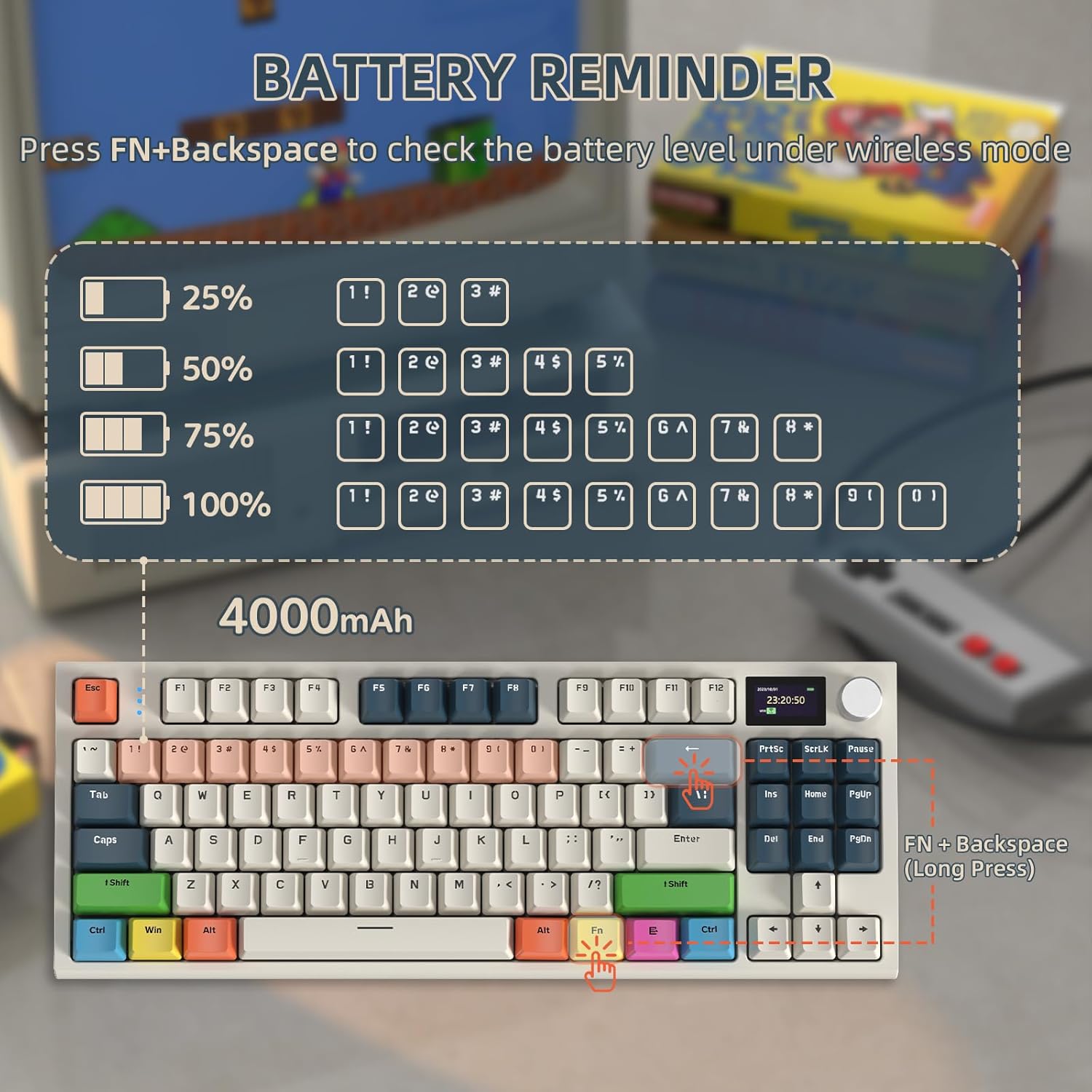
Image: All components included in the RK86 Mechanical Keyboard package.
Setup and Connection
The RK86 keyboard supports three connection modes: USB Type-C wired, 2.4GHz wireless, and Bluetooth 5.0.
1. USB Type-C Wired Mode
Connect the provided coiled USB-C cable from the keyboard to your computer's USB port. The keyboard will be recognized automatically and is ready for use. This mode also charges the keyboard's internal battery.
2. 2.4GHz Wireless Mode
Insert the 2.4GHz USB receiver into an available USB port on your computer. The keyboard will automatically connect. This mode offers a stable and low-latency connection.
3. Bluetooth 5.0 Wireless Mode
The keyboard can connect to up to three Bluetooth devices simultaneously. To switch between Bluetooth devices or 2.4GHz mode, use the multimedia knob. Refer to the "Operating the Display and CNC Knob" section for detailed instructions on mode switching.

Image: Visual representation of the three available connection modes for the RK86 keyboard.
Operating the Keyboard
1.2-inch TFT HD Color Display & CNC Knob
The integrated 1.2-inch TFT HD smart color display provides real-time information and allows for customization. The multi-function CNC rotary knob facilitates easy navigation and control.
- Display Information: Shows battery level, WIN/MAC system mode, current connection mode (Bluetooth 1/2/3, 2.4G, Wired), date, and time.
- Customization: Use the dedicated driver software to customize static or dynamic pictures on the display.
- CNC Knob Functions:
- Volume Adjustment: Rotate the knob to increase or decrease volume. Press down on the knob to mute/unmute.
- Mode Switching:
- Short press FN + knob to enter the mode switching options on the display.
- Rotate the knob to select the desired mode.
- Short press the knob again to confirm "OK".
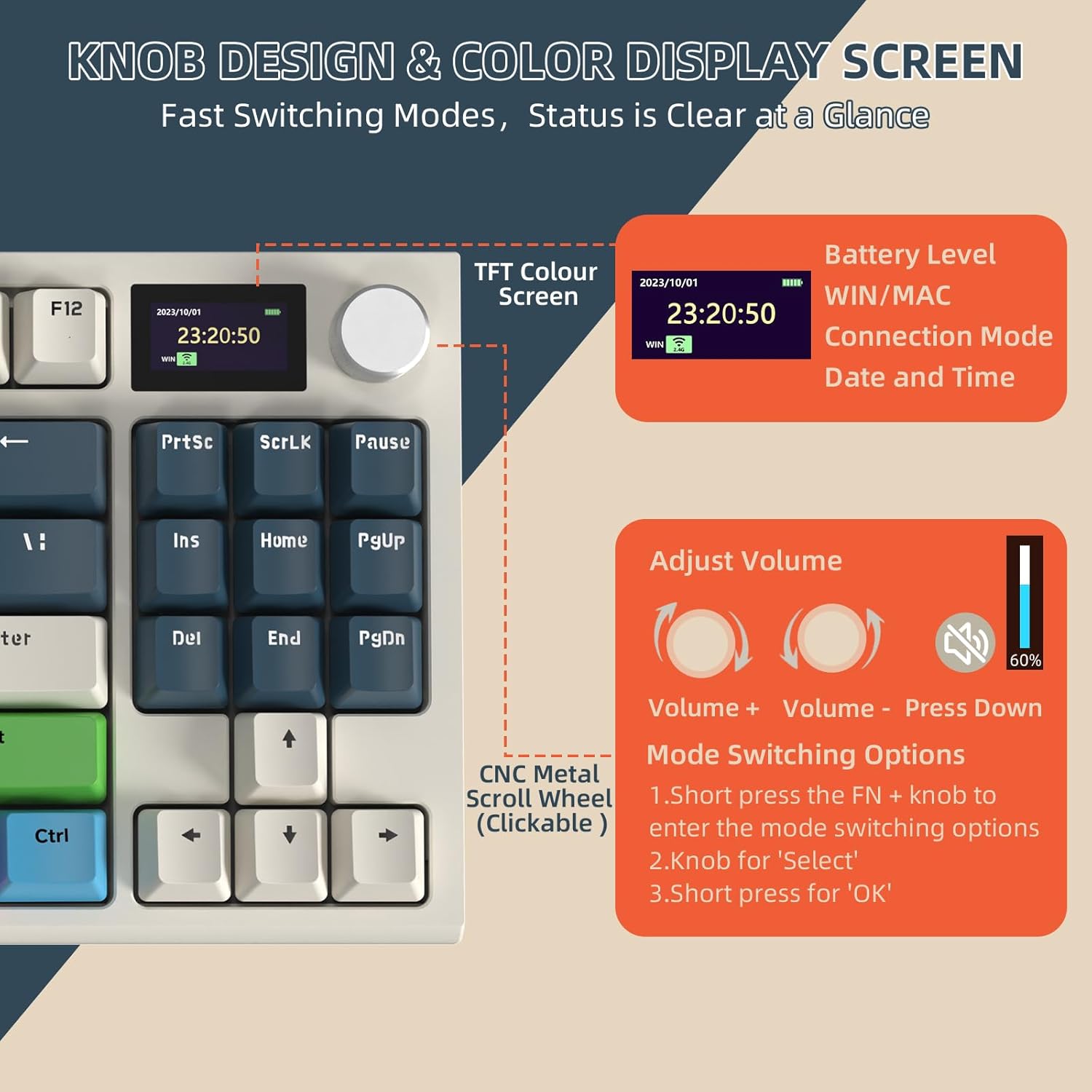
Image: Detailed view of the TFT color display and CNC knob functionalities.
RGB Chroma Lighting Effects
The RK86 Pro keyboard features extensive RGB lighting with 27 main backlit modes and 15 side light backlit modes, enhancing your typing and gaming experience.
- Switch Main Light Mode: Press FN + \ |
- Switch Side Light Mode: Press FN + C
- Restore Factory Settings: Long press FN + ESC

Image: The RK86 keyboard showcasing its customizable RGB lighting.
Hot-Swappable Switches
The high-quality PCB supports 3/5-pin hot-swappable switches, allowing you to easily change switches without soldering. The keyboard comes equipped with custom linear blue whale switches, known for their smooth and consistent feel.
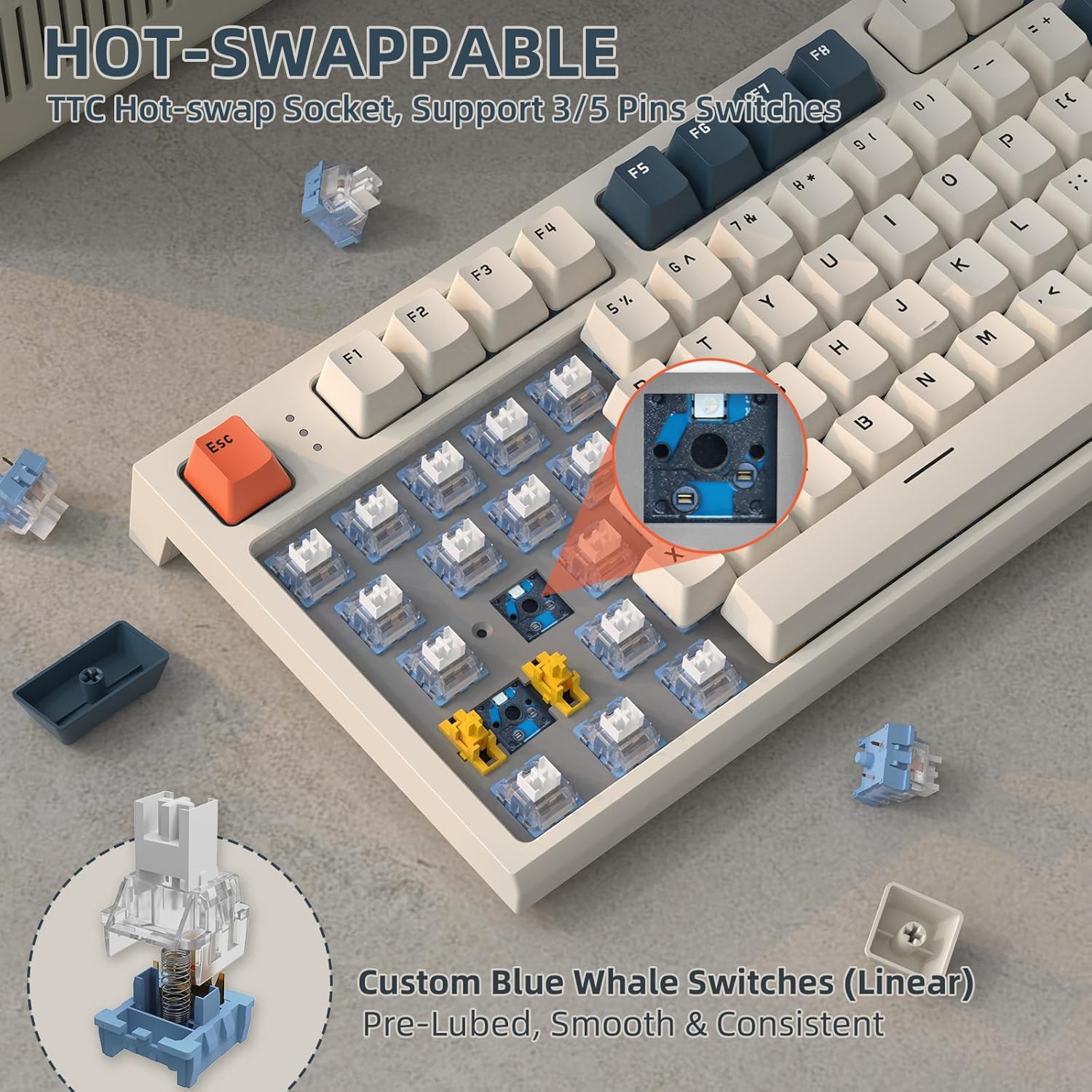
Image: Illustration of the hot-swappable switch feature and custom linear switches.
Typing Experience and Noise Reduction
The RK86 features a gasket mount structure and a built-in triple sound-absorbing layer (EVA Sound Absorbing Foam, IXPE Switch Pad, EVA Sound Absorbing Foam) to effectively reduce noise and provide a pure, comfortable typing experience.

Image: Diagram detailing the internal structure for noise reduction and typing comfort.
Battery Management
The keyboard is equipped with a 4000 mAh rechargeable battery. You can check the battery level at any time:
- Check Battery Level: In wireless mode, press FN + Backspace. The display screen will show the current battery percentage.
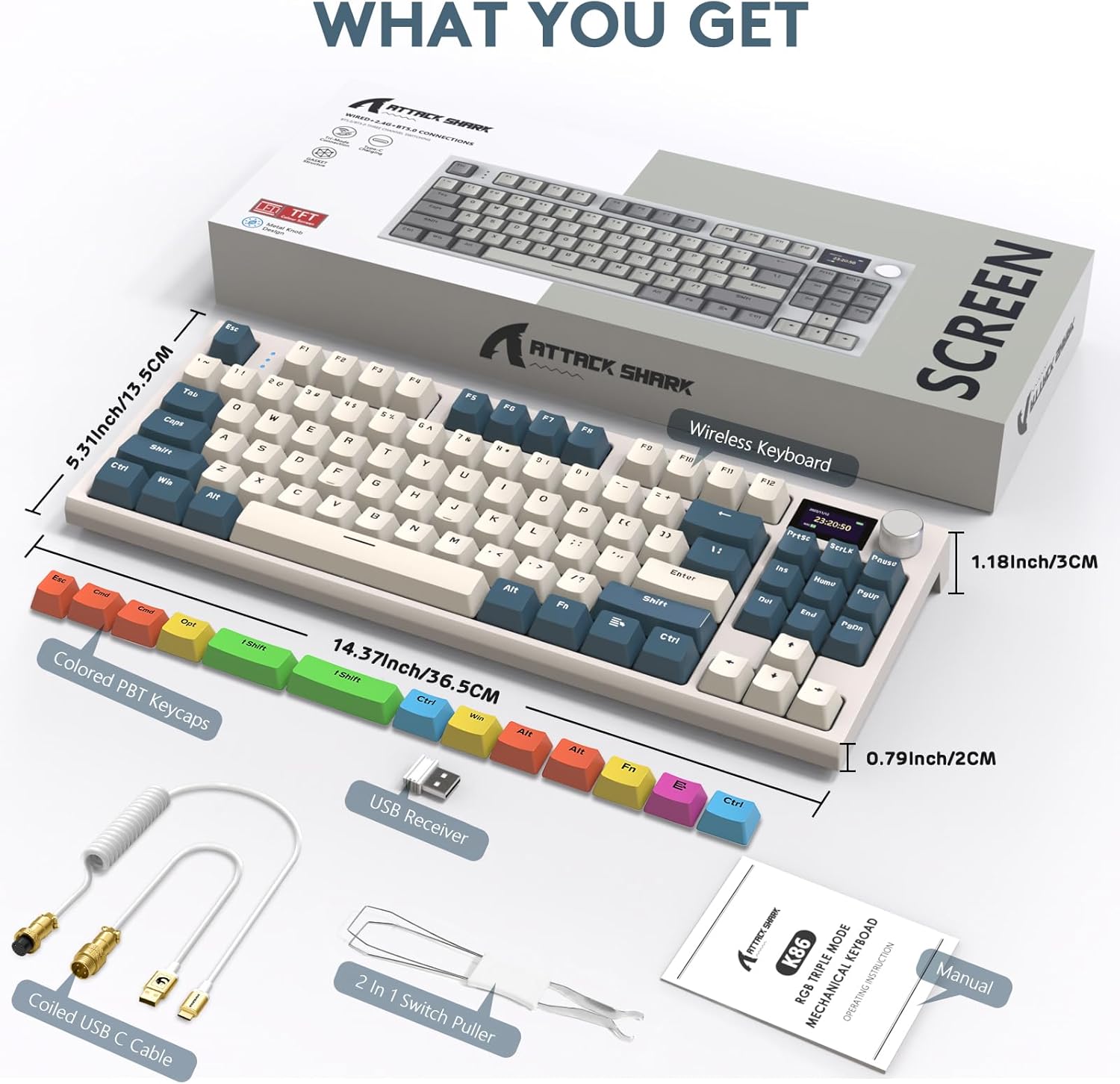
Image: Instructions for checking the keyboard's battery status.
Maintenance
To ensure the longevity and optimal performance of your RK86 Mechanical Keyboard, follow these maintenance guidelines:
- Cleaning: Regularly clean the keycaps and keyboard body with a soft, dry cloth. For deeper cleaning, you can remove keycaps using the provided keycap puller and use compressed air to clear debris from between switches.
- Storage: Store the keyboard in a cool, dry place away from direct sunlight and extreme temperatures.
- Liquid Exposure: Avoid spilling liquids on the keyboard. If a spill occurs, immediately disconnect the keyboard, power it off, and allow it to dry completely before reconnecting.
- Switch Care: While switches are hot-swappable, avoid excessive force when removing or inserting them to prevent damage to the PCB sockets.
Troubleshooting
If you encounter issues with your RK86 keyboard, please refer to the following common solutions:
| Problem | Possible Cause / Solution |
|---|---|
| Keyboard not responding in wireless mode. |
|
| Keys double-typing or not registering. |
|
| Keyboard functions incorrectly in Mac mode (e.g., Alt key acts as Windows key). |
|
| RGB lighting not working or stuck. |
|
Specifications
| Feature | Detail |
|---|---|
| Model | RK86 |
| Brand | ATTACK SHARK |
| Layout | 75% TKL (87 Key) |
| Connectivity | 2.4G Wireless, Bluetooth 5.0, USB-C Wired |
| Display | 1.2-inch TFT HD Color Display |
| Knob | Multi-function CNC Rotary Knob |
| Backlight | RGB (27 main, 15 side light modes) |
| Switches | TTC Hot-Swappable (3/5-pin support), Custom Linear Blue Whale Switches |
| Keycaps | PBT |
| Structure | Gasket Mount with Triple Sound-absorbing Layer |
| Battery Capacity | 4000 mAh |
| Compatible Systems | Windows, Mac |
| Item Weight | 2.64 pounds |
| Package Dimensions | 15.55 x 7.48 x 2.05 inches |
Warranty and Support
For warranty information and technical support, please refer to the official ATTACK SHARK website or contact their customer service directly. Keep your purchase receipt as proof of purchase for any warranty claims.
For further assistance, you may visit the ATTACK SHARK Store on Amazon.
Related documentsRK86


Ask a question about this manual
Ask about setup, troubleshooting, compatibility, parts, safety, or missing instructions. Manuals+ will review the question and use this page’s manual context to help answer it.