
Gigastone LA-22FA51
Gigastone 22-inch VA LED Monitor
Model: LA-22FA51 User Manual
Brand: Gigastone
1. Introduction
This manual provides essential information for the safe and efficient operation of your Gigastone 22-inch VA LED Monitor (Model LA-22FA51). Please read it thoroughly before using the product and retain it for future reference.
The Gigastone 22-inch monitor features a Full HD 1920x1080p resolution at 75Hz, a VA LED panel with a 178° ultra-wide viewing angle, and a frameless design for immersive visuals. It incorporates Eye Care Technology, including Low Blue Light and anti-Flicker features, to protect your eyes during extended use. Connectivity options include HDMI and VGA, and it supports VESA mounting for flexible installation.
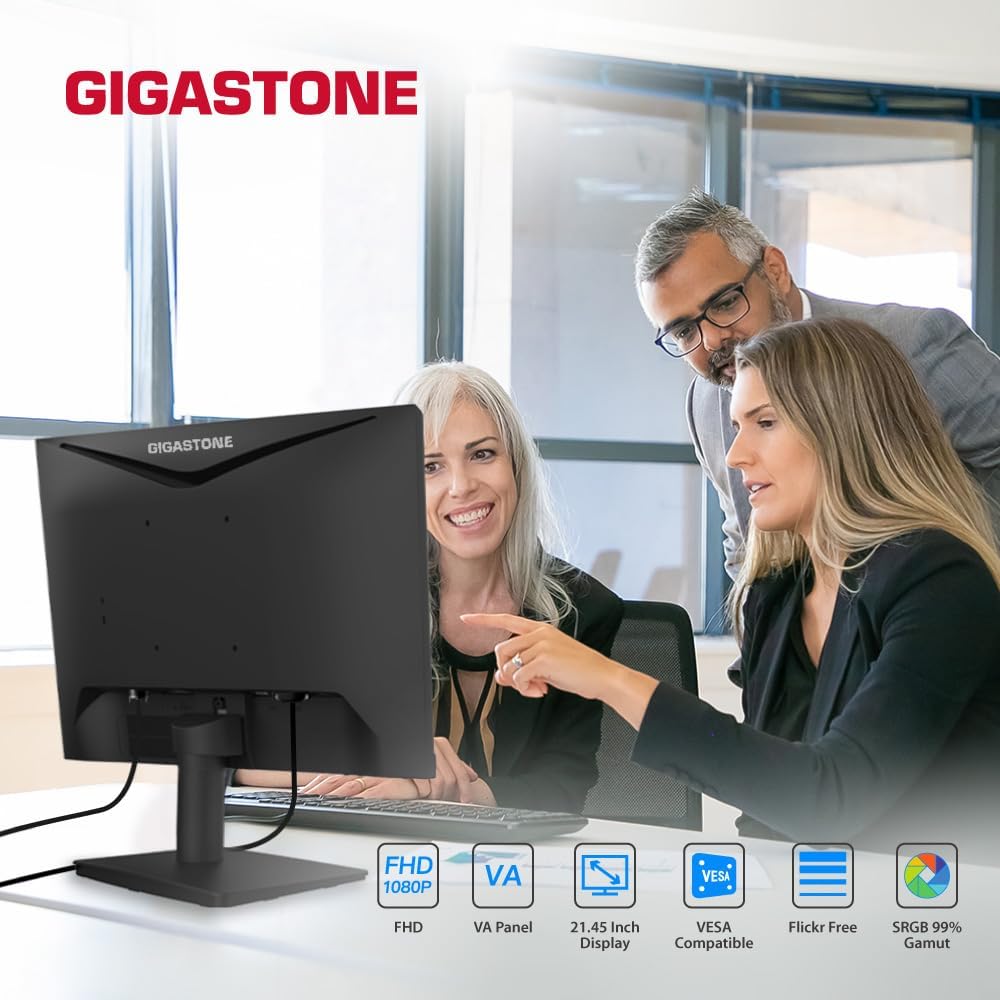
Image 1.1: Gigastone 22-inch VA LED Monitor showcasing its design and core features like FHD, VA Panel, VESA compatibility, and Eye Care.
2. Safety Information
- Ensure the monitor is placed on a stable, flat surface to prevent accidental falls.
- Do not block ventilation openings.
- Use only the power adapter supplied with the monitor.
- Keep the monitor away from water, moisture, and direct sunlight.
- Disconnect the power cable during lightning storms or when unused for long periods.
- Refer all servicing to qualified service personnel.
3. Package Contents
Verify that all items are present in your package:
- Gigastone 22-inch VA LED Monitor (x1 or x2 depending on pack)
- Monitor Stand Base
- Monitor Stand Neck
- Power Adapter
- HDMI Cable
- User Manual (this document)
4. Setup
4.1 Assembling the Monitor Stand
- Carefully place the monitor face down on a soft, clean cloth to prevent scratches.
- Attach the stand neck to the back of the monitor by aligning the tabs and pushing until it clicks into place. No screws are typically required for this model.
- Secure the stand base to the bottom of the stand neck. Ensure it is firmly attached.
- Gently lift the monitor and place it upright on a stable surface.
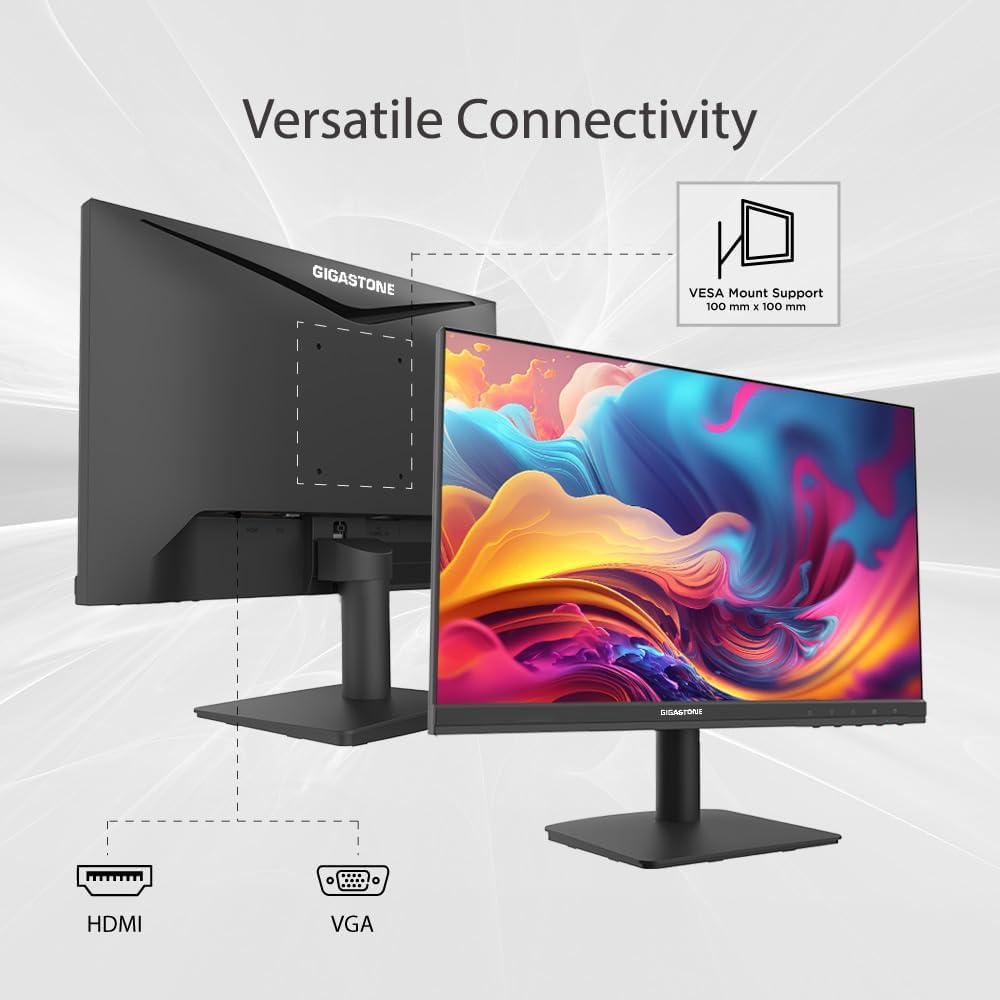
Image 4.1: Rear view of the Gigastone monitor, illustrating the VESA mount compatibility and available ports for connectivity.
4.2 Connecting Cables
- Power Connection: Connect the power adapter to the monitor's power input port, then plug the other end into a power outlet.
- HDMI Connection: Connect one end of the HDMI cable to the HDMI port on your monitor and the other end to the HDMI output port on your computer or device.
- VGA Connection: Alternatively, connect a VGA cable to the VGA port on your monitor and to the VGA output port on your computer or device.
- Audio Input: If using VGA, connect an audio cable from your computer's audio output to the monitor's audio input port for sound.
4.3 VESA Mounting (Optional)
The monitor supports VESA mounting (100x100mm) for wall or desk arm installation. Remove the stand assembly before attaching a VESA-compatible mount (not included).
5. Operating Instructions
5.1 Power On/Off
Press the power button, usually located on the back or bottom right of the monitor, to turn the monitor on or off. The power indicator light will illuminate when the monitor is active.
5.2 On-Screen Display (OSD) Menu
The OSD menu allows you to adjust various monitor settings. Access it by pressing the OSD menu button (often a joystick-like control or a series of buttons) located on the back or bottom of the monitor. Navigate through the menu using the directional controls.
- Input: Select between HDMI and VGA input sources.
- Picture: Adjust brightness, contrast, sharpness, SmartImage modes, and picture format (e.g., Wide Screen).
- Audio: Control volume, mute, and select audio source.
- Game Setting: Enable or disable Adaptive Sync, adjust MPRT (Moving Picture Response Time) levels, and SmartResponse for optimized gaming performance.
- Color: Fine-tune color settings.
- LowBlue Mode: Activate to reduce blue light emission.
5.3 Eye Care Technology
Your Gigastone monitor is equipped with advanced Eye Care Technology to minimize eye strain:
- Low Blue Light: Reduces harmful blue light emissions, which can cause eye fatigue. Activate this mode via the OSD menu.
- Flicker-Free: Eliminates screen flickering, providing a more comfortable viewing experience. This feature is always active.
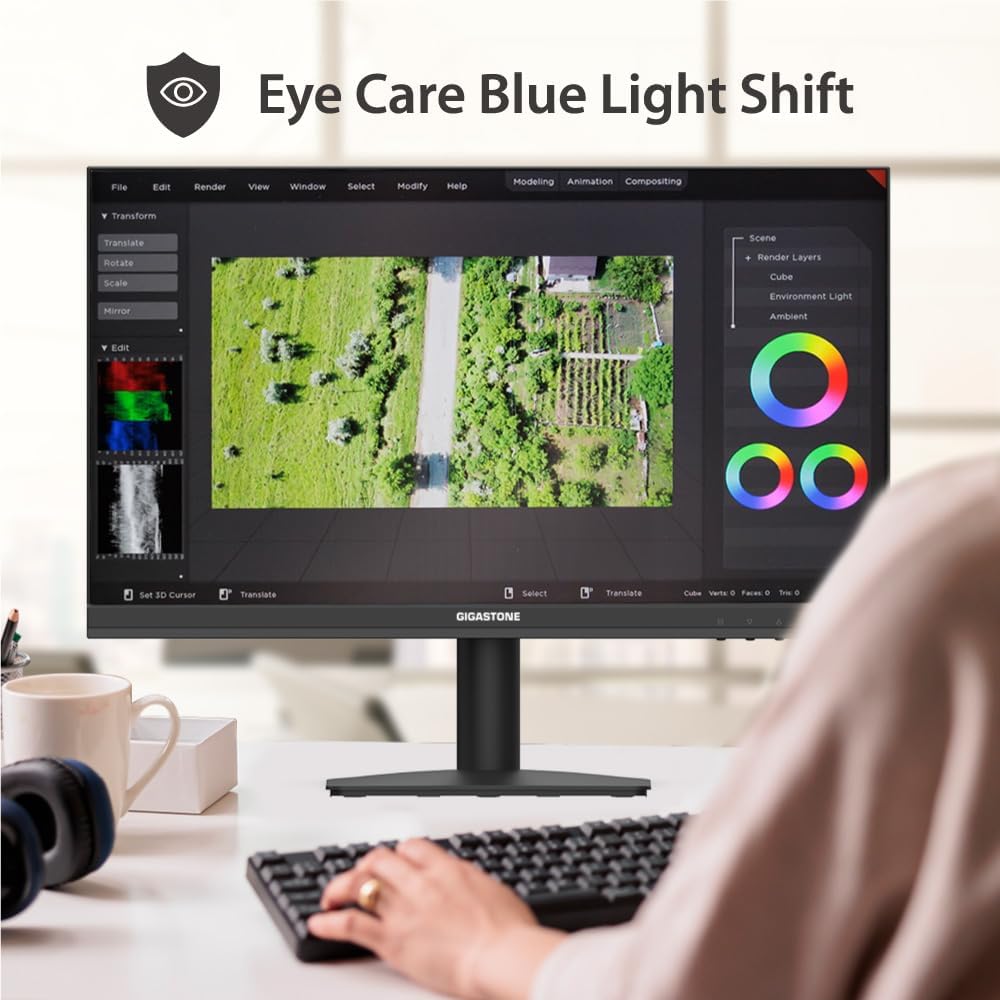
Image 5.1: The monitor's Eye Care Blue Light Shift feature, designed to reduce eye strain during prolonged use.
5.4 Adaptive-Sync Technology
Adaptive-Sync (FreeSync compatible) technology synchronizes the monitor's refresh rate with your graphics card's frame rate, virtually eliminating screen tearing and stuttering for a smoother visual experience, especially in gaming.
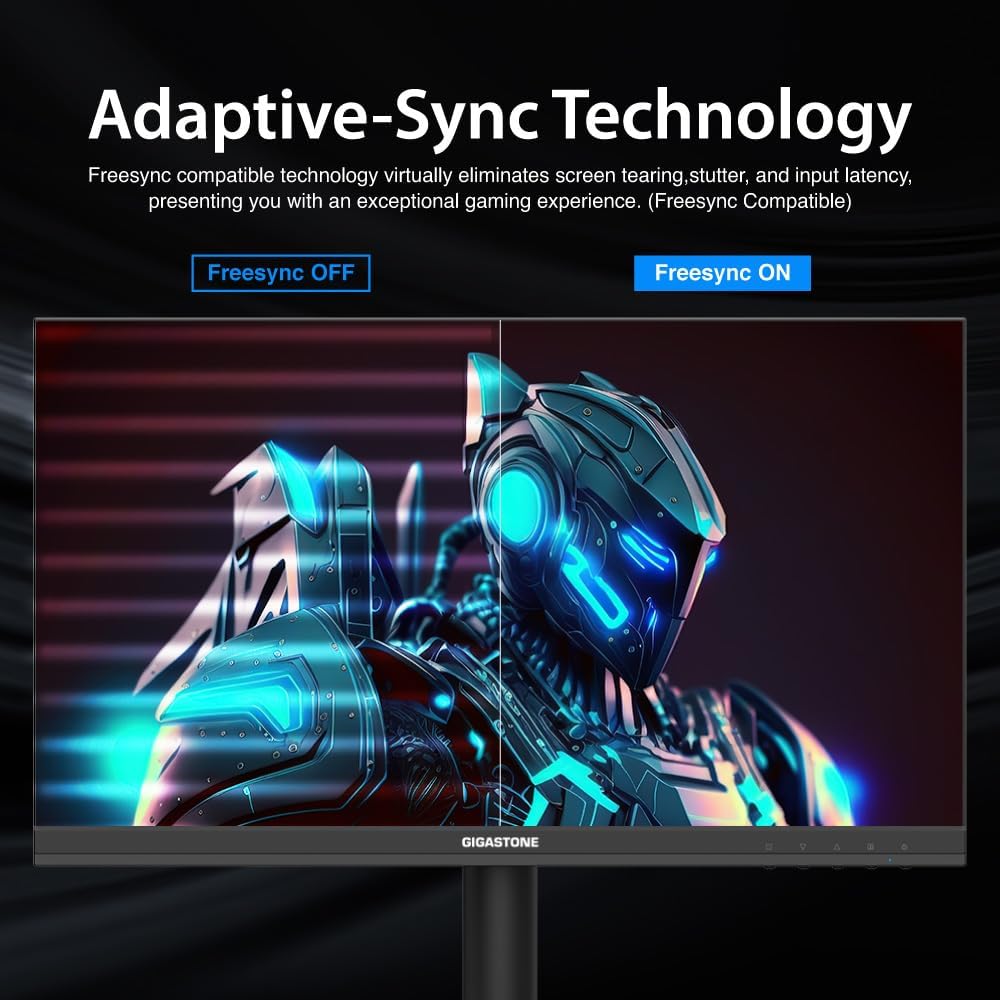
Image 5.2: Visual comparison demonstrating the effect of Adaptive-Sync technology, showing reduced screen tearing when enabled.
5.5 Dual Monitor Setup
If you have a dual monitor setup, connect both monitors to your computer using available HDMI or VGA ports. Configure your display settings in your operating system (e.g., Windows Display Settings or macOS System Preferences) to extend or duplicate your desktop across both screens.
6. Maintenance
- Cleaning the Screen: Gently wipe the screen with a soft, lint-free cloth. For stubborn marks, use a monitor-specific cleaning solution applied to the cloth, not directly to the screen.
- Cleaning the Casing: Use a soft, dry cloth to clean the monitor casing. Avoid using abrasive cleaners or solvents.
- Storage: If storing the monitor for an extended period, disconnect all cables and pack it in its original packaging or a suitable protective box.
7. Troubleshooting
| Problem | Possible Solution |
|---|---|
| No image on screen |
|
| Image is blurry or distorted |
|
| No sound from speakers |
|
| Screen flickering |
|
8. Specifications
| Feature | Detail |
|---|---|
| Brand | Gigastone |
| Model Number | LA-22FA51 |
| Screen Size | 22 Inches |
| Display Technology | VA LED |
| Resolution | FHD 1920 x 1080p |
| Refresh Rate | 75 Hz |
| Response Time | 4 Milliseconds |
| Aspect Ratio | 16:9 |
| Viewing Angle | 178 Degrees |
| Brightness | 250 cd/m2 |
| Contrast Ratio | 1000:1 |
| Connectivity Technology | HDMI, VGA |
| Total Number of HDMI Ports | 1 |
| Adaptive Sync | FreeSync |
| Additional Features | Blue Light Filter, Flicker-Free, Frameless |
| Mounting Type | Wall Mount (VESA compatible) |
| Item Dimensions (D x W x H) | 1.85"D x 19.4"W x 6.7"H |
| Item Weight | 3.63 Kilograms |
| UPC | 804272768701 |
9. Warranty and Support
Your Gigastone monitor comes with a 3-year manufacturer's warranty. For any product-related inquiries, technical assistance, or warranty claims, please contact Gigastone customer service. They offer 24/7 world-wide customer service.
For the most up-to-date support information, please visit the official Gigastone website or refer to the contact details provided in your warranty card.
Ask a question about this manual
Ask about setup, troubleshooting, compatibility, parts, safety, or missing instructions. Manuals+ will review the question and use this page’s manual context to help answer it.